
CENGNIAN T25 Luminous Gaming Keyboard & Mouse Combo User Manual
Model: T25
1. Introduction
Thank you for purchasing the CENGNIAN T25 Luminous Gaming Keyboard & Mouse Combo. This manual provides essential information for setting up, operating, and maintaining your new gaming peripherals. Please read it thoroughly before use to ensure optimal performance and longevity of your product.
2. Package Contents
Verify that all items are present in the package:
- 1x CENGNIAN T25 Luminous Gaming Keyboard
- 1x Gaming Mouse
- 1x Instruction Manual
3. Product Features
- Luminous Design: The keyboard features cool and luminous backlighting with uniform and delicate light transmission, enhanced in dark environments.
- Durable Construction: An integrated sandblasting metal panel provides enhanced durability and resistance to bending.
- Mechanical Hand Feeling: Floating keycaps with high-definition characters offer a tactile and comfortable typing experience.
- Mobile Phone Holder: An integrated bracket on the keyboard allows for convenient phone placement during use.
- Ergonomic Mouse Design: The mouse features a comfortable grip with a large gear anti-skid roller for precision.
- Adjustable DPI: Three-step DPI settings (800-1200-1600) allow for customizable mouse sensitivity.
- Wired Connection: Both the keyboard and mouse connect via a reliable USB interface.

Image: The CENGNIAN T25 Luminous Gaming Keyboard and Mouse Combo showcasing its colorful LED lighting and overall design.

Image: A close-up view of the suspended keycaps on the CENGNIAN T25 keyboard, highlighting their design for a mechanical hand feeling.

Image: A detailed view of the oxidation-resistant metal panel of the CENGNIAN T25 keyboard, emphasizing its durability and aesthetic.
4. Specifications
| Parameter | Value |
|---|---|
| Product Type | Keyboard and Mouse Combo |
| Material | ABS, Metal Panel |
| Keyboard Dimensions | 44.5 x 16.8 x 2.7 cm (17.5 x 6.6 x 1.1 inches) |
| Item Weight | 872.2g (1.92 pounds) |
| Interface | USB |
| Connection Mode | Wired |
| Ergonomic Support | Yes |
| Cable Length | Approx. 1.5m |
| Number of Keyboard Keys | 104 |
| Number of Mouse Buttons | 4 |
| Mouse DPI Settings | 800-1200-1600 |
| Rated Voltage | 5V |
| Rated Current | 100mA |
| Compatible Devices | Personal Computer, Smartphone (via holder) |

Image: The CENGNIAN T25 Keyboard and Mouse Combo with its approximate dimensions (17.5 inches for keyboard width, 6.6 inches for keyboard depth) overlaid.
5. Setup Instructions
Follow these steps to connect your CENGNIAN T25 Keyboard and Mouse Combo to your computer:
- Unpack Components: Carefully remove the keyboard, mouse, and any other accessories from the packaging.
- Connect Keyboard: Locate the USB cable attached to the keyboard. Plug the USB connector into an available USB port on your computer.
- Connect Mouse: Locate the USB cable attached to the mouse. Plug the USB connector into another available USB port on your computer.
- System Recognition: Your operating system (e.g., Windows PC) should automatically detect and install the necessary drivers. This process may take a few moments.
- Verify Connection: Once drivers are installed, the keyboard and mouse should be ready for use. Test by typing and moving the mouse. The keyboard's luminous backlight should activate.
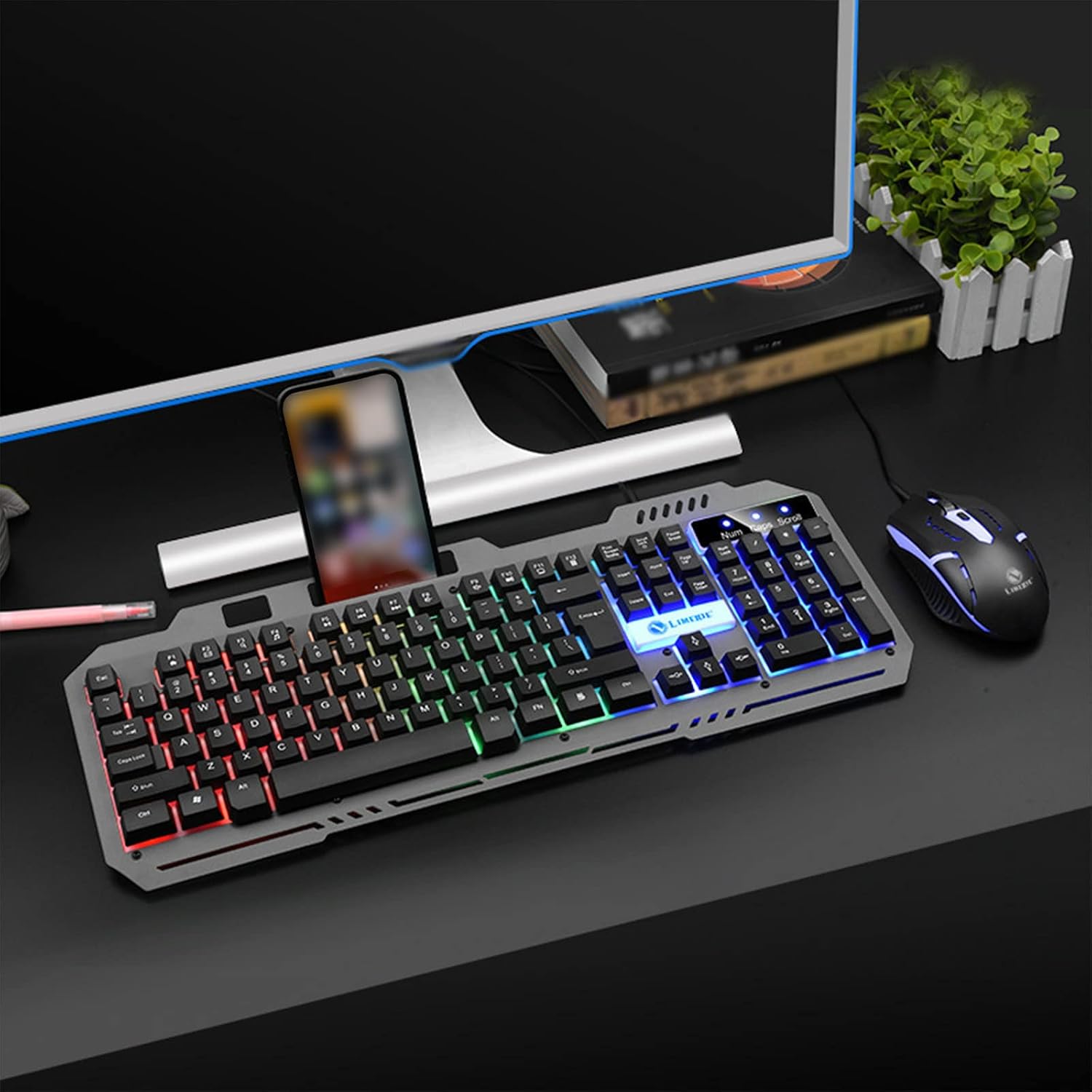
Image: The CENGNIAN T25 Keyboard and Mouse Combo set up on a desk, connected to a computer, with a smartphone placed in the integrated holder on the keyboard.
6. Operating Instructions
6.1 Keyboard Functions
- Luminous Backlight: The keyboard features a luminous backlight. This typically activates upon connection. Specific keys or key combinations (e.g., Fn + Scroll Lock) might control backlight modes or brightness; refer to on-device markings if available.
- Mobile Phone Holder: Utilize the integrated slot at the top of the keyboard to securely place your smartphone.
- Multimedia Keys: The F1-F12 keys may have secondary multimedia functions (e.g., volume control, media playback) accessible by pressing the 'Fn' key simultaneously.
6.2 Mouse Functions
- DPI Adjustment: The mouse features a DPI button, usually located behind the scroll wheel. Press this button to cycle through the three DPI settings: 800, 1200, and 1600. This allows you to adjust cursor sensitivity to your preference.
- Scroll Wheel: The large gear anti-skid roller provides precise scrolling.
- Side Buttons: If present, side buttons typically function as 'forward' and 'back' in web browsers or can be programmed for other functions in gaming software (if supported by your system).

Image: The CENGNIAN T25 Gaming Mouse illustrating its 3-step DPI adjustment feature, with settings for 800, 1200, and 1600 DPI.

Image: A close-up of the CENGNIAN T25 Gaming Mouse, highlighting its colorful LED lighting and ergonomic design.
7. Maintenance
To ensure the longevity and optimal performance of your keyboard and mouse, follow these maintenance guidelines:
- Cleaning:
- Disconnect the devices from your computer before cleaning.
- Use a soft, slightly damp cloth to wipe the surfaces of the keyboard and mouse.
- For dust and debris between keycaps, use compressed air.
- Avoid using harsh chemicals, abrasive cleaners, or excessive moisture.
- Storage: Store the devices in a cool, dry place away from direct sunlight and extreme temperatures.
- Cable Care: Avoid sharp bends or kinks in the USB cables to prevent damage.
8. Troubleshooting
If you encounter issues with your CENGNIAN T25 Keyboard & Mouse Combo, refer to the following common solutions:
- Devices Not Responding:
- Ensure both USB cables are securely plugged into your computer's USB ports.
- Try plugging the devices into different USB ports.
- Restart your computer.
- Check if the devices work on another computer to rule out a system-specific issue.
- Keyboard Backlight Not Working:
- Verify the keyboard is properly connected.
- Some keyboards have a dedicated key or key combination (e.g., Fn + Scroll Lock) to toggle the backlight. Consult the keyboard's markings.
- Mouse Cursor Jumps or is Erratic:
- Clean the mouse sensor on the underside with a soft, dry cloth.
- Ensure you are using the mouse on a clean, non-reflective surface or a mouse pad.
- Adjust the DPI setting using the DPI button on the mouse.
- Keys Not Registering:
- Ensure the keyboard is clean and free of debris under the keycaps.
- Test the keyboard on another computer.
9. Warranty and Support
For warranty information or technical support, please refer to the documentation provided with your purchase or contact the retailer/manufacturer directly. Keep your proof of purchase for warranty claims.