
1. Introduction
The Hozard Alarmsysteem X Pro is a comprehensive 4G and WiFi-enabled wireless smart home security system designed to protect your property. This advanced system offers robust protection and peace of mind through its integrated features and easy-to-use interface.
Key features include:
- Wireless Connectivity: Ensures flexible installation and communication between components.
- Mobile App Control: Manage and monitor your system remotely via a dedicated smartphone application.
- Multiple Alert Methods: Receive alerts via the app, audible siren, phone calls, and voice notifications.
- Pet-Immune Motion Sensors: Designed to minimize false alarms caused by pets.
- Integrated CMS Support: Connects seamlessly with a professional monitoring center for enhanced security.
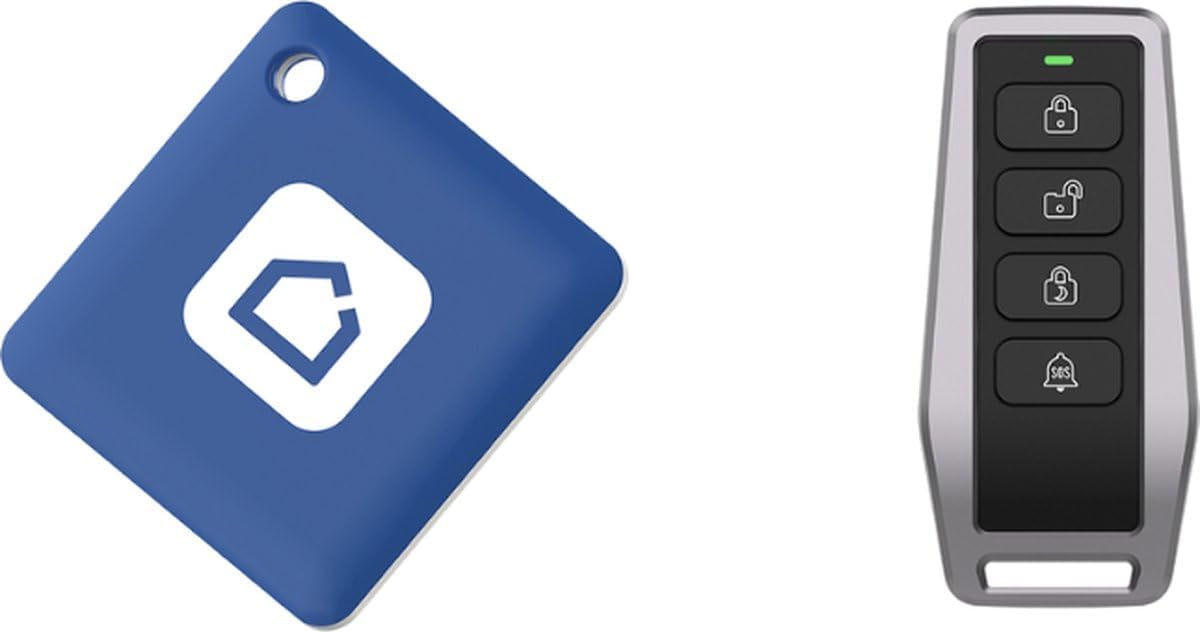
Image: Overview of the Hozard X Pro Residential Safe Alarm System's key features, highlighting its ease of installation, smartphone connectivity, user-friendliness, pet-friendly sensors, and expandability with additional components.
2. What's in the Box
Your Hozard Alarmsysteem X Pro package includes the following components:
- 1x Main Base / Control Panel
- 1x Smart KeyPad
- 4x Pet Immune Motion Sensors
- 8x Window/Door Sensors
- 2x Remote Controls
- 1x RFID Tag
- 1x Smoke Detector
- Power Adapter for Main Base
- Mounting Hardware

Image: A graphic illustrating the contents of the Hozard X Pro alarm system box, including the main panel, keypad, contact sensors, pet-immune motion sensors, remote controls, smoke sensor, and RFID tag.

Image: All components of the Hozard X Pro alarm system laid out, showing the main panel, keypad, multiple door/window sensors, motion sensors, remote controls, RFID tag, and smoke detector.
3. Setup Guide
3.1 Main Base Installation
- Choose a Location: Select a central location in your home or office for the Main Base, away from direct sunlight and heat sources. Ensure good WiFi and 4G signal reception.
- Power Connection: Connect the provided power adapter to the Main Base and plug it into a wall outlet. The system will power on automatically.
- Network Connection: The Main Base supports both WiFi and 4G connectivity. Follow the in-app instructions to connect to your home WiFi network. Insert a 4G SIM card (not included) if you wish to use 4G as a primary or backup communication method.

Image: A close-up view of the Hozard X Pro Main Base control panel, featuring a central indicator light and subtle status icons at the bottom.
3.2 Mobile App Setup
- Download the App: Search for the official Hozard security app on your smartphone's app store (iOS or Android).
- Register an Account: Open the app and follow the prompts to create a new user account.
- Add Device: Select "Add Device" or similar option and scan the QR code on the Main Base or manually enter its ID to pair it with your account.
- Configure Settings: Customize system settings, including alarm zones, notification preferences, and user access.
3.3 Sensor and Accessory Installation
- Door/Window Sensors: Mount the two parts of each sensor on a door or window frame and the corresponding moving part, ensuring they are aligned and within 1 cm when closed. Use the provided screws or adhesive.
- Motion Sensors: Install motion sensors in corners or areas with high traffic, ensuring they have a clear line of sight. Position them at a height that allows for optimal coverage while utilizing their pet-immune feature (typically 1.8-2.2 meters from the floor).
- Smoke Detector: Install the smoke detector on the ceiling, preferably in a central location or near sleeping areas, following local safety guidelines.
- KeyPad: Mount the KeyPad near an entry/exit point for easy arming and disarming.
- Pairing: Follow the app's instructions to pair each sensor, KeyPad, remote control, and RFID tag with the Main Base. This usually involves activating the sensor and selecting a pairing option in the app.

Image: A white Hozard X Pro pet-immune motion sensor, designed to detect human movement while ignoring smaller pets, featuring a green indicator light at the top.
4. Operating the System
4.1 Arming and Disarming
- Via Mobile App: Open the Hozard app and select the desired arming mode (e.g., Arm Away, Arm Home, Disarm).
- Via KeyPad: Enter your user code and press the arm/disarm button on the KeyPad.
- Via Remote Control: Press the corresponding button on the remote control to arm or disarm the system.
- Via RFID Tag: Tap the RFID tag on the designated area of the KeyPad or Main Base to disarm the system.

Image: A blue Hozard X Pro RFID tag and a silver and black remote control with four buttons for arming, disarming, and an SOS function.
4.2 Alarm Notifications
In the event of an alarm trigger, the system will initiate notifications based on your configured settings:
- App Notifications: Instant alerts sent to your smartphone.
- Audible Siren: The Main Base will emit a loud siren sound.
- Phone Calls: The system can call pre-programmed emergency contacts.
- Voice Notifications: Pre-recorded voice messages may be played through the Main Base or delivered via phone calls.
- CMS Monitoring: If connected to a professional monitoring center, they will be alerted and follow their established protocols.
5. Maintenance
5.1 Battery Management
- KeyPad: The smart KeyPad requires charging approximately every three months. Monitor the battery level via the mobile app.
- Wireless Sensors: All wireless sensors (door/window, motion, smoke) are battery-powered. The app will notify you when sensor batteries are low. Replace batteries promptly with the recommended type.
5.2 Smoke Detector Testing
It is crucial to test the smoke detector weekly to ensure proper functionality. Refer to the detector's specific instructions for testing procedures, typically involving pressing a test button.
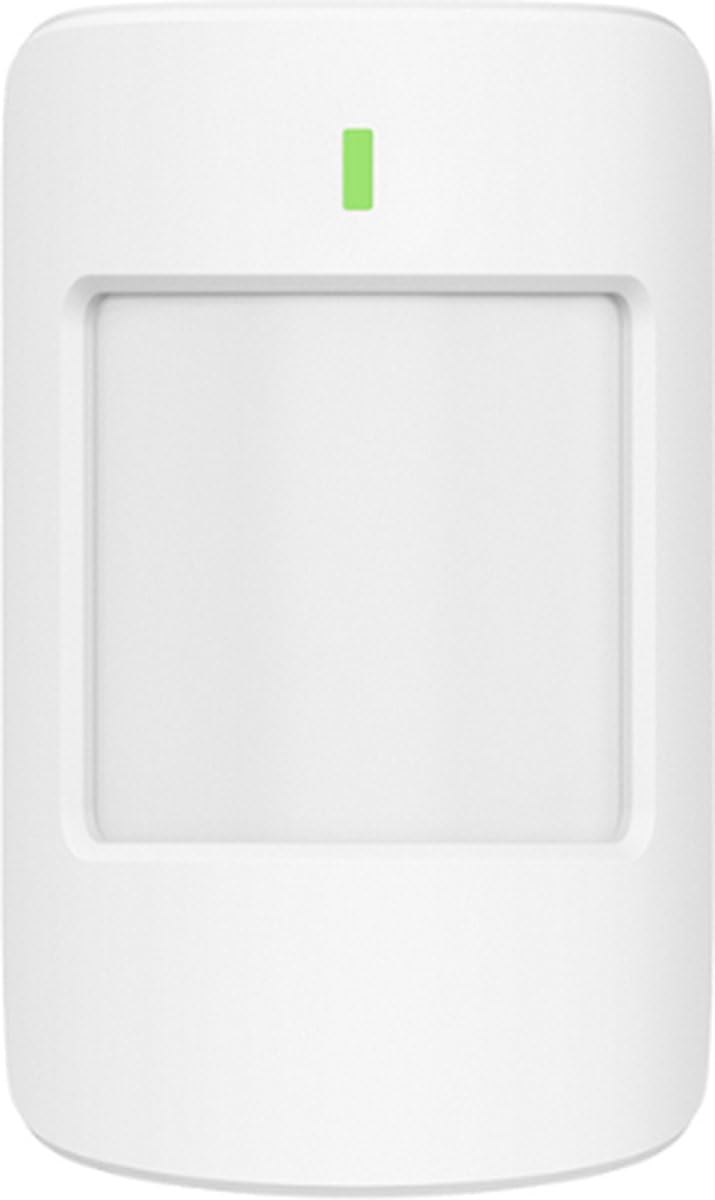
Image: A white Hozard X Pro smoke detector with multilingual instructions to "TEST WEEKLY" printed on its surface, indicating a central test button.
5.3 General Cleaning
Wipe down all components with a soft, dry cloth as needed. Avoid using abrasive cleaners or solvents.
6. Troubleshooting
- System Not Connecting to Network:
- Ensure your WiFi network is active and the password is correct.
- Check the 4G SIM card (if used) for proper insertion and active service.
- Restart your router and the Main Base.
- False Alarms:
- Verify that motion sensors are installed at the correct height and angle to utilize their pet-immune feature.
- Ensure door/window sensors are securely mounted and properly aligned.
- Check for environmental factors like drafts or moving objects that might trigger sensors.
- Sensor Not Responding:
- Check the sensor's battery level in the app and replace if necessary.
- Ensure the sensor is within range of the Main Base.
- Attempt to re-pair the sensor with the Main Base via the app.
- App Issues:
- Ensure your app is updated to the latest version.
- Check your smartphone's internet connection.
- Restart the app or your smartphone.
7. Product Specifications
| Feature | Detail |
|---|---|
| Brand | Hozard |
| Model Number | X Pro |
| Connectivity Technology | Wireless (4G & WiFi) |
| Power Source | Battery (for sensors/keypad), Mains (for Main Base) |
| Installation Type | Screw-in |
| Control Method | App |
| Compatible Devices | Smartphone |
| Warning Type | Motion Only (for motion sensors) |
| Item Dimensions (L x W x H) | 10 x 10 x 10 cm (Main Base) |
| Included Components | Main Base, KeyPad, 4x Motion Sensors, 8x Door/Window Sensors, 2x Remote Controls, 1x RFID Tag, 1x Smoke Detector, Power Plug |
8. Warranty and Support
For warranty information, technical support, or to purchase additional components, please refer to the official Hozard website or contact Hozard customer service. You can find more information about Hozard products and support at the Hozard Brand Store.
Always ensure you are using official Hozard accessories and following recommended installation and maintenance procedures to maintain your warranty and ensure optimal system performance.