
1. Introduction
This manual provides instructions for the Fesjoy T-WOLF TF-600 Wired Gaming Keyboard and Mouse Combo. This high-performance set is designed for desktop computer use, offering a responsive and immersive experience. Please read this manual thoroughly before using the product to ensure proper setup and operation.

Image 1.1: Overview of the Fesjoy T-WOLF TF-600 Wired Gaming Keyboard and Mouse Combo. The image displays the full keyboard with colorful backlighting and the matching wired gaming mouse.
2. Package Contents
Verify that all items are present in the package:
- 1 x T-WOLF TF-600 Wired Gaming Keyboard
- 1 x T-WOLF TF-600 Wired Gaming Mouse
3. Setup Instructions
The T-WOLF TF-600 combo features a plug-and-play design, requiring no additional software or drivers for basic functionality.
- Connect the Keyboard: Locate an available USB port on your computer. Insert the USB connector of the keyboard into the USB port.
- Connect the Mouse: Locate another available USB port on your computer. Insert the USB connector of the mouse into the USB port.
- System Recognition: Your operating system should automatically detect and install the necessary drivers. This process may take a few moments.
- Ready for Use: Once recognized, the keyboard and mouse are ready for immediate use.

Image 3.1: The T-WOLF TF-600 keyboard and mouse connected to a desktop computer, illustrating a typical setup. The keyboard and mouse display their backlighting, enhancing the gaming environment.
4. Operating Instructions
4.1 Keyboard Operation
The keyboard features 104 keys with a mechanical-like feel for responsive feedback. It includes multimedia function keys for quick access to common controls.
- Multimedia Keys: Use the Fn key in combination with the F1-F12 keys to access multimedia functions such as volume control, media playback, and web browser shortcuts.
- Backlighting: The keyboard features colorful backlighting. Specific key combinations (e.g., Fn + Scroll Lock or other designated keys) may be used to cycle through lighting modes or adjust brightness. Refer to the keyboard itself for specific key legends.

Image 4.1: A close-up view of the keyboard keys, highlighting the 'analog mechanical' feel. The image emphasizes the keycap design and the vibrant backlighting.
4.2 Mouse Operation
The mouse is an optical 4-button design with adjustable DPI settings for precision control.
- DPI Adjustment: The mouse offers four sensitivity adjustments: 800, 1200, 1600, and 2400 DPI. A dedicated DPI button (often located near the scroll wheel) allows you to cycle through these settings to match your preference or game requirements.
- Buttons: The mouse includes standard left and right click buttons, a scroll wheel (which also functions as a middle click), and typically a DPI adjustment button.

Image 4.2: A close-up of the gaming mouse, illustrating its design and the location of the DPI adjustment button. The mouse features blue and black accents with internal lighting.
4.3 Lighting Effects
Both the keyboard and mouse feature colorful lighting effects to enhance the user experience.
- Keyboard Backlight: The keyboard provides a mixed light effect with colorful slit backlighting. This lighting is visible in low-light environments. Brightness may be adjustable or toggled on/off using specific key combinations.
- Mouse Lighting: The mouse also features a colorful glow, typically integrated into its design.

Image 4.3: The keyboard displaying its mixed light effect and side light bar, with a smartphone placed in the integrated stand. This image highlights the aesthetic lighting features.
5. Features
The Fesjoy T-WOLF TF-600 combo offers several features designed for comfort and performance:
- Ergonomic Design: The keyboard includes an ergonomic palm rest for comfortable use during extended periods.
- Mechanical-like Key Feel: Provides tactile feedback similar to mechanical keyboards, enhancing typing and gaming precision.
- Adjustable Mouse DPI: Four DPI settings (800-1200-1600-2400) allow for on-the-fly sensitivity adjustments.
- Colorful Backlighting: Both keyboard and mouse feature vibrant lighting effects for an immersive experience.
- Waterproof and Dustproof Keycaps: Designed to resist splashes and dust, extending the lifespan of the keyboard.
- Integrated Phone Stand: The keyboard includes a multi-functional stand to hold a smartphone, keeping it accessible.

Image 5.1: A visual representation of the ergonomic design, specifically highlighting the comfortable palm rest area of the keyboard. The image includes icons indicating ergonomic features.
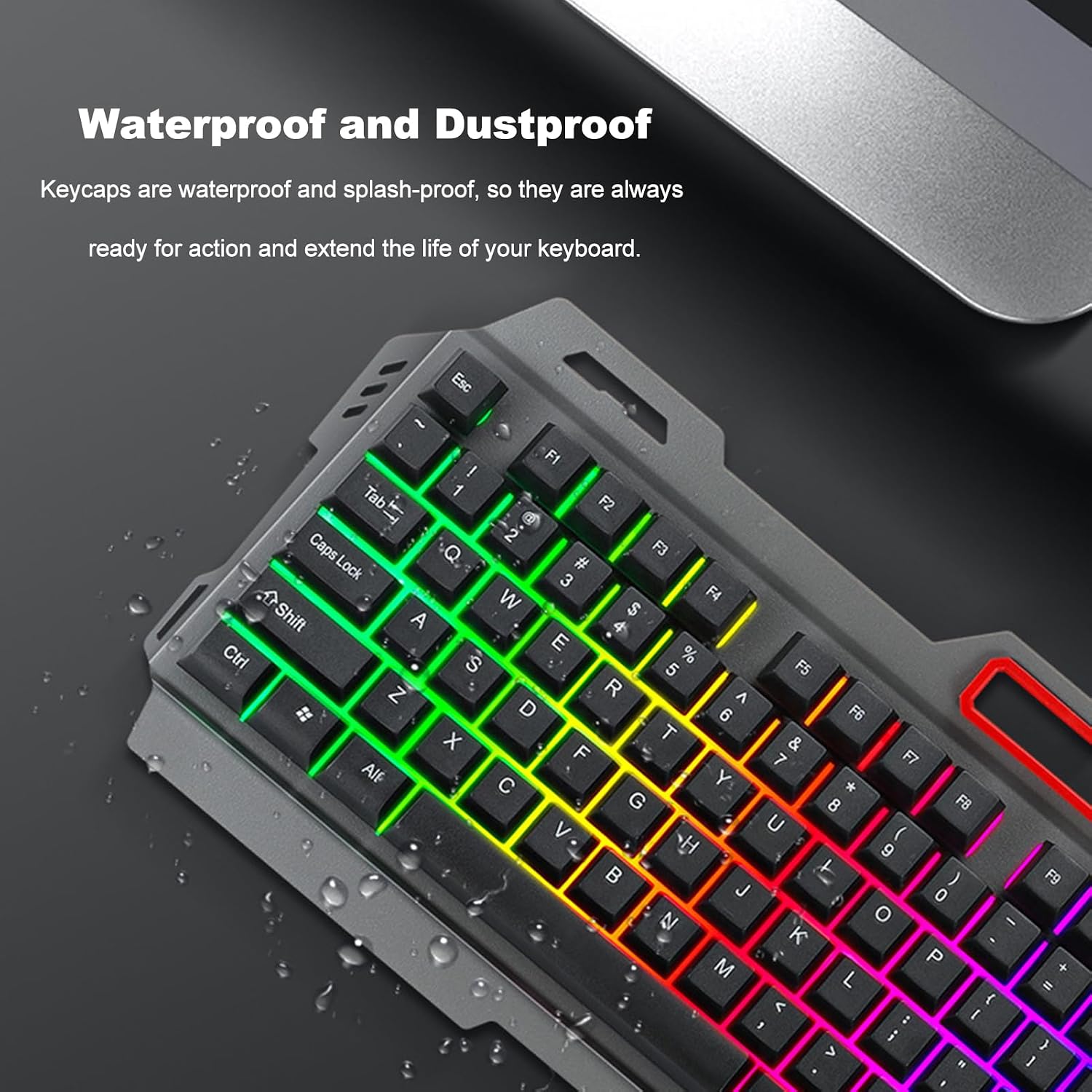
Image 5.2: A close-up of the keyboard surface, demonstrating its waterproof and dustproof design with simulated water droplets. This feature helps protect the keyboard from accidental spills.

Image 5.3: The keyboard with a smartphone securely placed in its integrated stand. This feature allows users to keep their phone visible and accessible while using the computer.
6. Maintenance
Proper maintenance ensures the longevity and optimal performance of your keyboard and mouse combo.
- Cleaning: Use a soft, dry cloth to wipe down the surfaces of the keyboard and mouse. For stubborn dirt, a slightly damp cloth with mild soap can be used, ensuring no liquid enters the internal components.
- Dust Removal: Periodically use compressed air to clear dust and debris from between the keycaps and around the mouse sensor.
- Spill Protection: While the keycaps are designed to be splash-proof, avoid submerging the keyboard or exposing it to excessive liquids. If a spill occurs, disconnect the keyboard immediately and allow it to dry completely before reconnecting.
- Cable Care: Avoid sharp bends or excessive pulling on the USB cables to prevent damage.
7. Troubleshooting
If you encounter issues with your T-WOLF TF-600 combo, refer to the following common solutions:
- Keyboard/Mouse Not Responding:
- Ensure the USB cables are securely plugged into the computer's USB ports.
- Try plugging the devices into different USB ports on your computer.
- Restart your computer.
- Test the keyboard and mouse on another computer to determine if the issue is with the devices or your computer.
- Backlighting Not Working:
- Check if the backlighting has been turned off using a key combination (e.g., Fn + Scroll Lock).
- Ensure the keyboard is properly connected and receiving power.
- Mouse Cursor Jumps or is Erratic:
- Clean the mouse sensor on the underside of the mouse.
- Ensure you are using the mouse on a suitable surface (e.g., a mouse pad).
- Adjust the DPI setting to see if it resolves the issue.
8. Specifications
| Product Name | T-WOLF TF-600 Set Keyboard and Mouse |
| Brand | Fesjoy |
| Keyboard Keys | 104 keys |
| Keycap Type | Floating Keycap |
| Keyboard Panel Material | ABS |
| Keyboard Cable Length | 130 cm |
| Keyboard Dimensions | 460 x 180 x 30 mm |
| Keyboard Weight | 580 g |
| Mouse Buttons | 4D (4 buttons) |
| Mouse DPI | 800-1200-1600-2400 DPI |
| Mouse Working Method | Optical |
| Mouse Cable Length | 125 cm |
| Mouse Dimensions | 130 x 68 x 39 mm |
| Mouse Weight | 108 g |
| Interface | USB (for both keyboard and mouse) |
| Operating Voltage | 5 V |
| Light Effects | Colorful Glow |
| Button Lifetime | 8 million times |
9. Warranty and Support
Information regarding product warranty and customer support for the Fesjoy T-WOLF TF-600 Wired Gaming Keyboard and Mouse Combo is not available in the provided product details. Please refer to the retailer or manufacturer's official website for specific warranty terms and support contact information.