1. Product Overview
The FILCO Majestouch Xacro M10SP is a 70% left and right separated ergonomic mechanical keyboard designed for enhanced comfort and productivity. It features Cherry MX Red mechanical switches, known for their linear feel and smooth keystrokes. This keyboard supports extensive customization through both hardware and software macro programming, allowing users to tailor functions to their specific needs. Its split design promotes a natural typing posture, reducing strain on wrists and shoulders.
2. Package Contents
Please verify that all items listed below are included in your package:
- FILCO Majestouch Xacro M10SP Keyboard (Left and Right Halves)
- USB Cable (for connecting to computer)
- Inter-keyboard Connection Cable (for connecting left and right halves)
- Keycap Puller

Figure 2.1: Included accessories. This image displays the accessories that come with the keyboard: a detachable USB cable for connecting to a computer and a keycap puller tool for easy keycap removal and cleaning.
3. Setup
3.1 Connecting the Keyboard
- Place the left and right halves of the keyboard in a comfortable position on your desk.
- Connect the left and right keyboard halves using the provided inter-keyboard connection cable. Ensure the connectors are fully inserted into the designated ports on each half.
- Connect the main USB cable from the left keyboard half to an available USB port on your computer.
- Your operating system should automatically detect and install the necessary drivers.

Figure 3.1: Keyboard halves connected. This image shows the two halves of the FILCO Majestouch Xacro M10SP keyboard connected by its linking cable, demonstrating how the ergonomic split design is assembled for use.
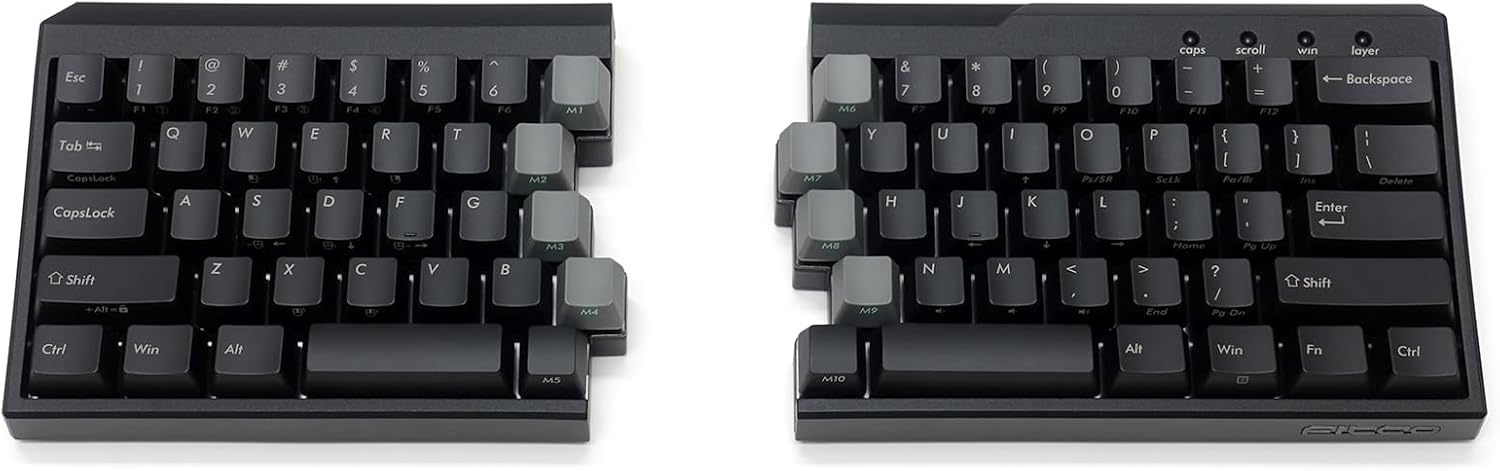
Figure 3.2: Complete keyboard layout. This image displays the complete FILCO Majestouch Xacro M10SP keyboard, separated into its left and right ergonomic halves. The English key layout is visible, along with the dedicated macro keys on the inner edges.
4. Operating Instructions
4.1 Basic Key Functions
The Majestouch Xacro M10SP features a standard English 72-key layout, providing all essential alphanumeric and function keys. The split design allows for a more natural hand and wrist position during typing.
4.2 Macro Programming
The keyboard offers versatile macro programming capabilities, supporting both hardware and software-based configurations.
Software Macro Programming (FILCO Assist)
Utilize the dedicated software, "FILCO Assist," to easily program macros. This software allows for intuitive drag-and-drop functionality to create and assign macros or text strings to specific keys. Refer to the FILCO website for the latest version of "FILCO Assist" and detailed software instructions.
Hardware Macro Programming
For users requiring more advanced hardware-level macro control, specialized firmware can be downloaded. This allows for direct programming of macros onto the keyboard's internal memory. Consult the FILCO support website for firmware updates and detailed instructions on hardware macro setup.

Figure 4.1: Left half macro keys (M1-M5). A detailed view of the M1 through M5 dedicated macro keys located on the left half of the keyboard, designed for custom programmable functions.

Figure 4.2: Right half macro keys (M6-M10). A detailed view of the M6 through M10 dedicated macro keys located on the right half of the keyboard, designed for custom programmable functions.
4.3 N-Key Rollover
The Majestouch Xacro M10SP supports USB Full N-key rollover. This feature ensures that every key press is registered accurately, even when multiple keys are pressed simultaneously. This is particularly beneficial for fast typists and gamers, preventing ghosting or missed inputs.
5. Maintenance and Care
5.1 Cleaning Your Keyboard
To maintain optimal performance and appearance, regularly clean your keyboard:
- Keycaps: Use a soft, damp cloth with a mild cleaning solution. Avoid harsh chemicals. For deeper cleaning, keycaps can be removed.
- Chassis: Wipe the keyboard body with a dry or slightly damp cloth. Ensure no liquid enters the keyboard.
- Between Keys: Use compressed air to remove dust and debris from between the keycaps.
5.2 Keycap Replacement
The included keycap puller can be used to safely remove keycaps for cleaning or replacement. Gently attach the puller to the keycap and pull upwards. When replacing, align the keycap with the switch stem and press down firmly until it clicks into place.
6. Troubleshooting Common Issues
6.1 Keyboard Not Responding
- Ensure the USB cable is securely connected to both the keyboard and the computer.
- Try connecting the keyboard to a different USB port on your computer.
- Restart your computer.
- Verify that the inter-keyboard connection cable is properly seated between the two halves.
6.2 Macro Programming Issues
- Confirm that the "FILCO Assist" software is correctly installed and updated to the latest version.
- Double-check your macro settings within the software.
- If using hardware macros, ensure the correct firmware is installed and configured according to FILCO's instructions.
6.3 Unexpected Key Input or Behavior
The keyboard features DIP switches on its underside for hardware configuration. Incorrect settings can lead to unexpected behavior.
- Refer to the DIP switch diagram (usually found on the keyboard's underside or in the full manual) and ensure they are set correctly for your desired configuration.
- If issues persist, try resetting the keyboard to its default settings (refer to the full manual for specific instructions).

Figure 6.1: DIP switches. A close-up view of the DIP switches on the keyboard's underside. These switches allow for hardware-level configuration changes, such as key remapping or mode selection.
7. Product Specifications
| Brand | FILCO |
| Model Name | Majestouch Xacro M10SP |
| Item Model Number | FKBXS72MRL/EB-RKL |
| Switch Type | CHERRY MX Red Axis |
| Key Layout | English Layout, 72 Keys |
| Macro Function | Hardware & Software Support |
| Supported Software | FILCO Assist |
| Connectivity Technology | USB |
| N-Key Rollover | USB Full N-key rollover |
| Product Dimensions (LxWxH) | 13.23 x 4.84 x 1.54 inches |
| Item Weight | 2.75 pounds |
| Power Source | USB Powered |
| Included Components | USB Cable, Keycap Puller |
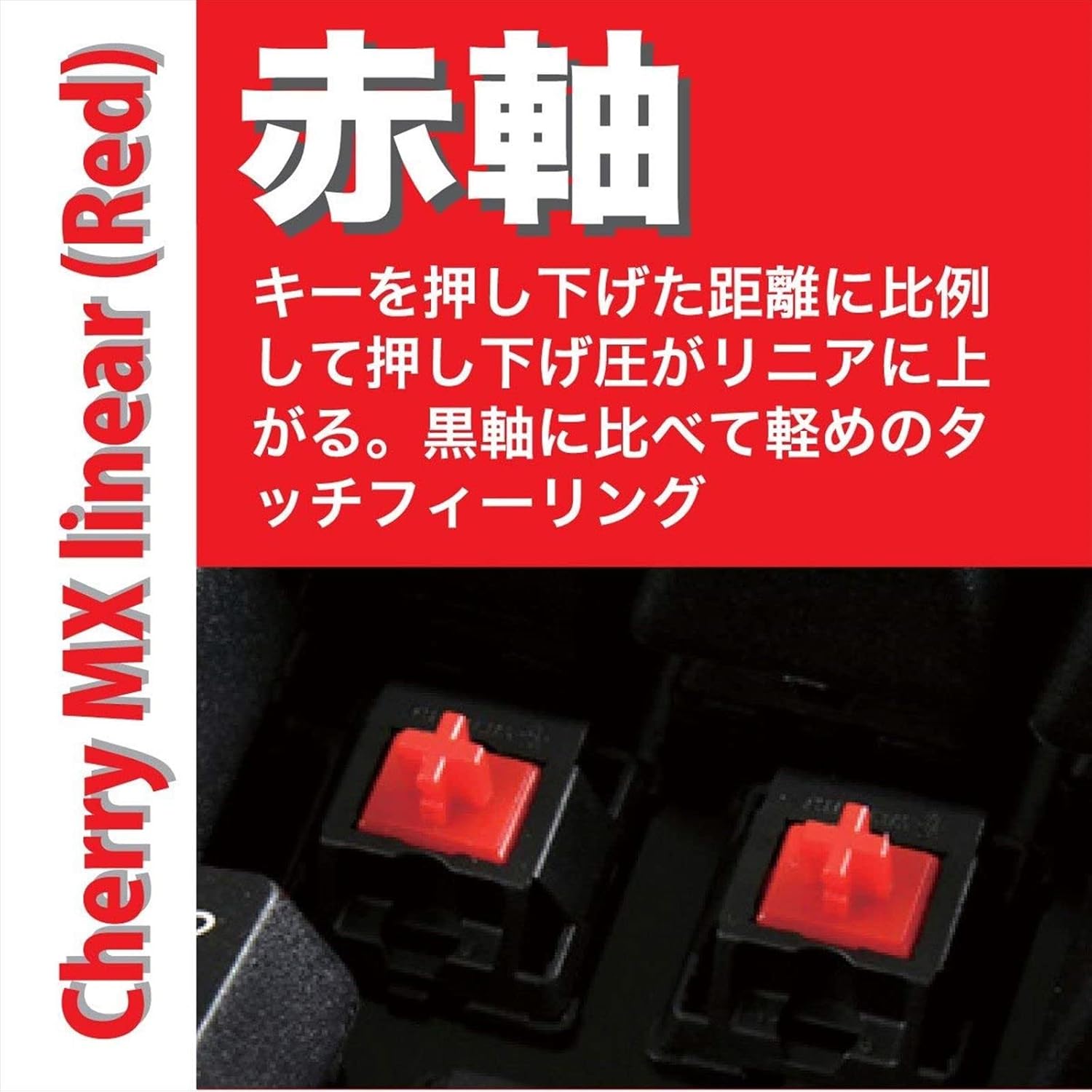
Figure 7.1: Cherry MX Red Switches. This image provides a close-up view of the Cherry MX Red mechanical switches, which are linear and known for their smooth, consistent keystrokes without a tactile bump or audible click.
8. Warranty Information and Support
FILCO products are manufactured to high-quality standards. This product is covered by a manufacturer's warranty against defects in materials and workmanship. The specific terms and duration of the warranty may vary by region. Please retain your proof of purchase for warranty claims.
For detailed warranty information, technical support, or service inquiries, please visit the official FILCO website or contact their customer support directly. Support contact information can typically be found on the FILCO website or product packaging.
Online Resources: For the latest drivers, software (FILCO Assist), firmware updates, and frequently asked questions, please visit the official FILCO support page.


