
1. Introduction
This manual provides detailed instructions for the setup, operation, and maintenance of your Lelukee Replacement Remote Control for Xiaomi TV Box S (2nd Gen) 4K. This remote control offers Bluetooth connectivity and voice control capabilities, enhancing your media experience.
2. Package Contents
Please check the package for the following items:
- 1 x Lelukee Remote Control (for Xiaomi TV Box S 2nd Gen)
3. Product Overview
The Lelukee remote control is designed as a direct replacement for the Xiaomi Mi Box S 2nd Gen remote. It features a sleek black design, made from durable ABS plastic, and includes dedicated buttons for navigation, media playback, and voice commands. Its Bluetooth connectivity ensures a stable connection to your device.
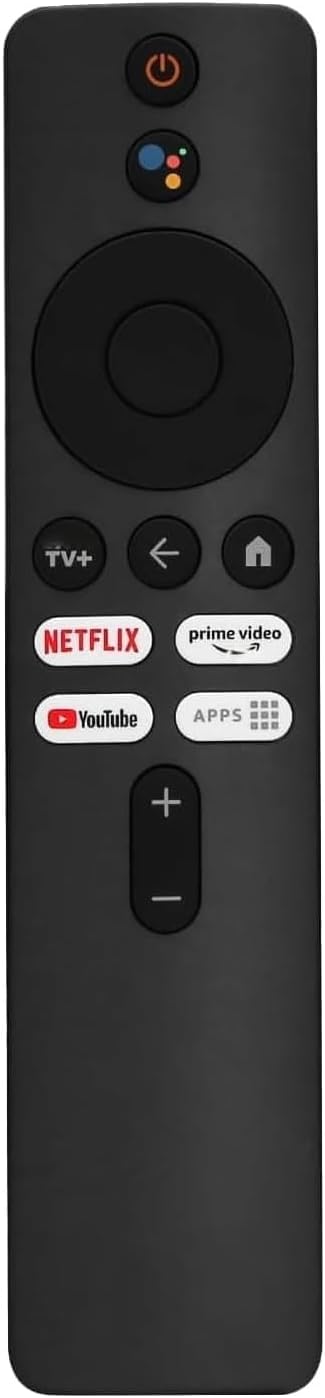
Image: Front view of the Lelukee Remote Control, showcasing its button layout and black finish.
4. Setup
4.1 Battery Installation
- Locate the battery compartment on the back of the remote control.
- Slide open the battery compartment cover.
- Insert two AAA batteries (not included), ensuring the correct polarity (+ and -) as indicated inside the compartment.
- Close the battery compartment cover securely.
4.2 Pairing with Xiaomi TV Box S (2nd Gen)
The remote control utilizes Bluetooth for connection. Follow these steps to pair it with your Xiaomi TV Box S (2nd Gen):
- Ensure your Xiaomi TV Box S (2nd Gen) is powered on and connected to your TV.
- Point the remote control towards the TV Box.
- Press and hold the Back button and the Xiaomi TV Plus feature button (if present, or the designated pairing button) simultaneously for approximately 2 minutes.
- A pairing screen should appear on your TV. Follow the on-screen prompts to complete the pairing process.
- Once successfully paired, the remote control is ready for use.
5. Operating Instructions
5.1 Basic Navigation
- Use the directional pad (up, down, left, right) to navigate through menus and content.
- Press the OK or Select button in the center of the directional pad to confirm selections.
- The Back button returns to the previous screen or menu.
- The Home button takes you directly to the main home screen of your Xiaomi TV Box.
5.2 Voice Control
This remote supports voice control for convenient searching and command execution:
- Press and hold the Voice Assistant button (usually indicated by a microphone icon).
- Speak clearly into the microphone located on the remote control.
- Release the button when you have finished speaking. Your command or search query will be processed by the Xiaomi TV Box.
5.3 Power On/Off
Use the Power button to turn your Xiaomi TV Box S (2nd Gen) on or off.
6. Maintenance
To ensure the longevity and optimal performance of your remote control:
- Keep the remote control clean by wiping it with a soft, dry cloth.
- Avoid exposing the remote to extreme temperatures, direct sunlight, or moisture.
- If the remote will not be used for an extended period, remove the batteries to prevent leakage.
7. Troubleshooting
If you encounter issues with your remote control, please refer to the following common solutions:
- Remote not responding: Check if the batteries are correctly inserted and have sufficient charge. Replace batteries if necessary.
- Remote disconnects frequently: Ensure there are no obstructions between the remote and the Xiaomi TV Box. Try re-pairing the remote control by following the steps in Section 4.2. Ensure the TV Box's Bluetooth is enabled.
- Voice control not working: Ensure the remote is properly paired. Speak clearly and hold the voice assistant button while speaking. Check the TV Box's settings for voice input.
- Buttons not working: Clean the remote control to ensure no debris is interfering with button presses. If specific buttons are unresponsive, the remote may require replacement.
8. Specifications
| Brand | Lelukee |
| Model Name | Mi Box S 2nd Gen |
| Color | Black |
| Material | ABS Plastic |
| Connectivity Technology | Bluetooth |
| Special Feature | Voice Search |
| Power Supply | 2 x AAA Batteries (not included) |
| Maximum Range | 10 Meters |
9. Warranty and Support
For warranty information and customer support, please refer to the documentation provided at the time of purchase or contact your retailer. Keep your purchase receipt as proof of purchase for any warranty claims.