
1. Introduction
This manual provides comprehensive instructions for the NOYAFA NF-586S Compact Thermal Camera. This device transforms your Android smartphone or tablet into a powerful thermal imager, enabling precise temperature measurements and thermal analysis. Designed for portability and ease of use, it is suitable for various applications requiring thermal inspection.
Key Features:
- High Resolution: 256x192 IR resolution for detailed thermal imaging.
- Wide Temperature Range: Measures temperatures from -15°C to 600°C (-5°F to 1112°F) with an accuracy of ±2%.
- Fast Frame Rate: 25 frames per second for smooth thermal video.
- Multiple Color Palettes: Six distinct color palette effects for varied thermal visualization.
- Advanced Measurement: Features automatic tracking of high/low temperatures, point meters, area temperatures, line temperatures, and temperature range checks.
- Plug and Play: Connects directly to Android devices via Type-C interface.
- Low Power Consumption: Operates without external charging.
- Certifications: RoHS, FCC, CE, and ISO 9001 compliant.
2. Package Contents
Verify that all items listed below are included in your product package. If any items are missing or damaged, please contact customer support.
- NOYAFA NF-586S Compact Thermal Camera
- User Manual
- Dust Bag
- Clean Cloth

Image: Contents of the NOYAFA NF-586S package.
Video: Unboxing the NOYAFA NF-586S Thermal Imager, showing all included accessories.
3. Product Overview
The NOYAFA NF-586S is a compact and portable thermal imager designed to be easily carried and used with your Android device. Its small form factor allows for convenient thermal analysis on the go.

Image: The compact design of the NF-586S thermal camera, highlighting its small size and Type-C connector.
Physical Dimensions:
- Length: 34mm
- Width: 15mm
- Height: 26.5mm
4. Setup
To begin using your NOYAFA NF-586S thermal camera, follow these simple steps:
- Download the App: Search for the official NOYAFA thermal imaging app on the Google Play Store and install it on your Android smartphone or tablet.
- Connect the Camera: Insert the Type-C connector of the NF-586S thermal camera into the Type-C port of your Android device. Ensure a secure connection.
- Launch the App: Open the installed thermal imaging app. The app should automatically detect the connected camera and display the thermal feed.
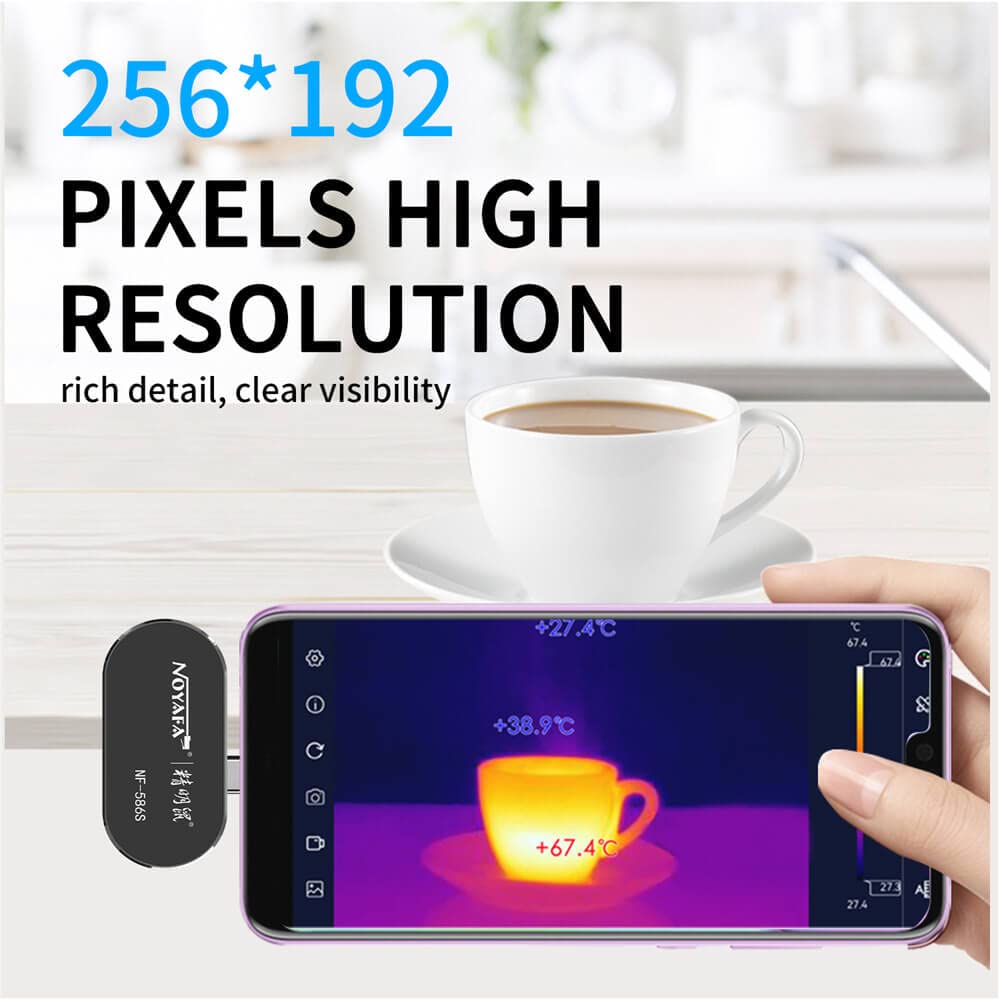
Image: The NF-586S thermal camera connected to an Android phone, showing real-time thermal imaging.
5. Operating Instructions
The NOYAFA thermal imaging app provides a user-friendly interface for controlling the camera and analyzing thermal data.
5.1 Basic Operation
- Once connected and the app is open, the thermal image will appear on your screen.
- The app interface typically includes controls for settings, image/video capture, and measurement tools.
5.2 Temperature Measurement
The NF-586S offers precise temperature measurement capabilities:
- Temperature Range: -15°C to 600°C (-5°F to 1112°F).
- Accuracy: ±2% or ±2°C (whichever is greater).
- Unit Switching: Easily switch between Celsius (°C), Fahrenheit (°F), and Kelvin (K) within the app settings.
5.3 Color Palette Effects
Choose from six different color palettes to visualize thermal data according to your preference or application needs. Each palette highlights temperature differences in a unique way.

Image: Examples of the six available color palette modes for thermal visualization.
5.4 Advanced Measurement Modes
The app provides various tools for detailed thermal analysis:
- Point Meters: Measure temperature at specific points.
- Area Temperature: Calculate average, maximum, and minimum temperatures within a defined area.
- Line Temperature: Analyze temperature distribution along a specific line.
- High/Low Temperature Tracking: Automatically identify and display the hottest and coldest points in the frame.
- High Temperature Alarm: Set a threshold for temperature, and the app will alert you if it's exceeded.
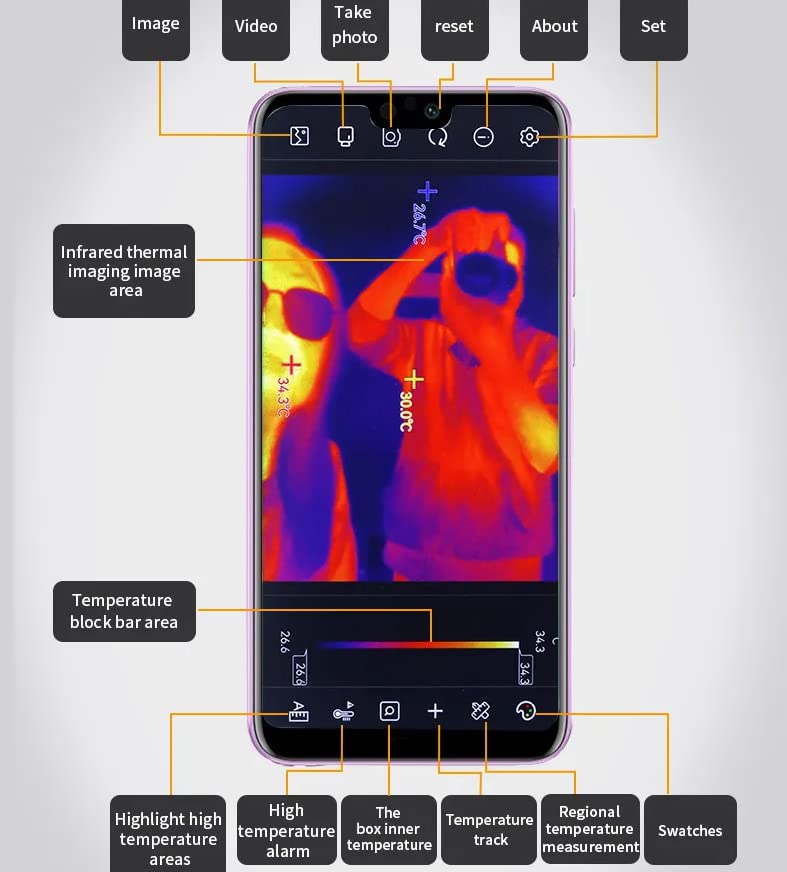
Image: The app interface demonstrating various measurement tools and display options.
5.5 Saving Photos and Videos
Capture thermal images and videos directly from the app:
- Use the dedicated photo/video capture buttons within the app.
- Captured media is stored in an album within the app, and can typically be exported to your phone's gallery.
5.6 Settings
Access the settings menu to customize your experience:
- Language: Select your preferred language for the app interface.
- Temperature Unit: Change between °C, °F, or K.
- Emissivity: Adjust the emissivity value (0.01-1.00) for accurate temperature readings on different surfaces.
- Temperature Adjustment: Fine-tune temperature readings if necessary.
- Reflection Temperature: Set the ambient reflection temperature for improved accuracy.
Video: Demonstration of the NOYAFA NF-586S thermal imager's features, including connection, palette styles, regional measurement, temperature tracking, rectangle measurement, high temperature alarm, highlighted regions, and settings.
6. Specifications
| Feature | Specification |
|---|---|
| Model Number | G-NF-586S |
| IR Resolution | 256 x 192 pixels |
| Temperature Range | -15°C to 600°C (-5°F to 1112°F) |
| Measurement Accuracy | ±2% or ±2°C |
| Frame Rate | 25 Hz |
| Power Source | Battery Powered (from connected device) |
| Connectivity | Type-C (for Android cellphones) |
| Material | Acrylonitrile Butadiene Styrene |
| Item Weight | 500 g |
| Product Dimensions | 22 x 15 x 12 cm |
| Manufacturer | NOYAFA |
| Certifications | EMC, ISO 9001, RoHS, CE |
7. Maintenance
Proper maintenance ensures the longevity and optimal performance of your thermal camera.
7.1 Cleaning
- Use the provided clean cloth to gently wipe the lens and body of the camera.
- Do not use abrasive cleaners, solvents, or harsh chemicals, as these can damage the lens or casing.
- Ensure the camera is disconnected from your phone before cleaning.
7.2 Storage
- Store the thermal camera in the provided dust bag when not in use to protect it from dust and scratches.
- Keep the device in a cool, dry place, away from direct sunlight and extreme temperatures.
8. Troubleshooting
If you encounter issues with your NOYAFA NF-586S, refer to the following common problems and solutions:
- No Image Displayed:
- Ensure the camera is securely connected to your Android device's Type-C port.
- Verify that the NOYAFA thermal imaging app is installed and open.
- Check if your phone's USB debugging mode is enabled (if required by the app).
- Restart the app or your phone.
- Inaccurate Temperature Readings:
- Adjust the emissivity setting in the app to match the material being measured.
- Ensure the lens is clean and free from obstructions.
- Consider the ambient temperature and reflection temperature settings.
- App Crashing or Freezing:
- Close and restart the app.
- Ensure your Android device's operating system is up to date.
- Clear the app's cache and data from your phone's settings.
- Camera Not Detected:
- Confirm your Android device supports USB OTG (On-The-Go) functionality.
- Try connecting the camera to a different compatible Android device to rule out a device-specific issue.
9. Warranty and Support
The NOYAFA NF-586S Compact Thermal Camera comes with a standard manufacturer's warranty. For specific warranty terms, duration, and conditions, please refer to the warranty card included in your package or visit the official NOYAFA website.
For technical support, troubleshooting assistance beyond this manual, or to inquire about repairs, please contact NOYAFA customer service through their official website or the contact information provided in your product documentation.