
1. Introduction
Welcome to the user manual for your new IWEGGO Android 13 Tablet. This guide provides essential information to help you set up, operate, and maintain your device. Designed for versatility, this 10.1-inch tablet combines powerful performance with a user-friendly interface, making it ideal for both work and entertainment.
Your tablet features a 1280*800 IPS HD screen, 12GB RAM, 128GB ROM (expandable up to 1TB), a 2.0Ghz Quad-core processor, and supports 2.4G/5G WiFi6 and Bluetooth 5.0. It comes with a wireless keyboard, mouse, protective case, and stylus, transforming into a 2-in-1 computer for enhanced productivity.
2. What's in the Box
Upon opening your IWEGGO Android 13 Tablet package, you should find the following items:
- IWEGGO Android 13 Tablet (10.1 inch)
- Bluetooth Keyboard
- Wireless Mouse
- Protective Case
- Type-C Cable (for charging)
- Stylus

Figure 2.1: The IWEGGO Android 13 Tablet and its complete accessory kit.
3. Product Overview and Features
The IWEGGO Android 13 Tablet is engineered for a seamless user experience, offering robust features for both productivity and entertainment.
3.1 Key Features
- Operating System: Android 13 for enhanced speed and performance.
- Processor: 2.0Ghz Quad-core CPU for faster application launch and smooth multitasking.
- Memory & Storage: 12GB RAM (6GB fixed + 6GB virtual) and 128GB ROM, expandable up to 1TB via microSD card.
- Display: 10.1-inch 1280*800 IPS HD screen with eye protection mode.
- Connectivity: Dual-band 2.4Ghz/5Ghz WiFi 6 and Bluetooth 5.0 for high-fidelity connections.
- Cameras: Dual HD Cameras (2MP front, 8MP rear).
- Audio: Dual stereo speakers for high volume and sound quality.
- Battery: 6000mAh battery for extended usage.
- Versatility: 2-in-1 design with included keyboard, mouse, and stylus for tablet and computer modes.

Figure 3.1: Visual representation of the tablet's core specifications and features.
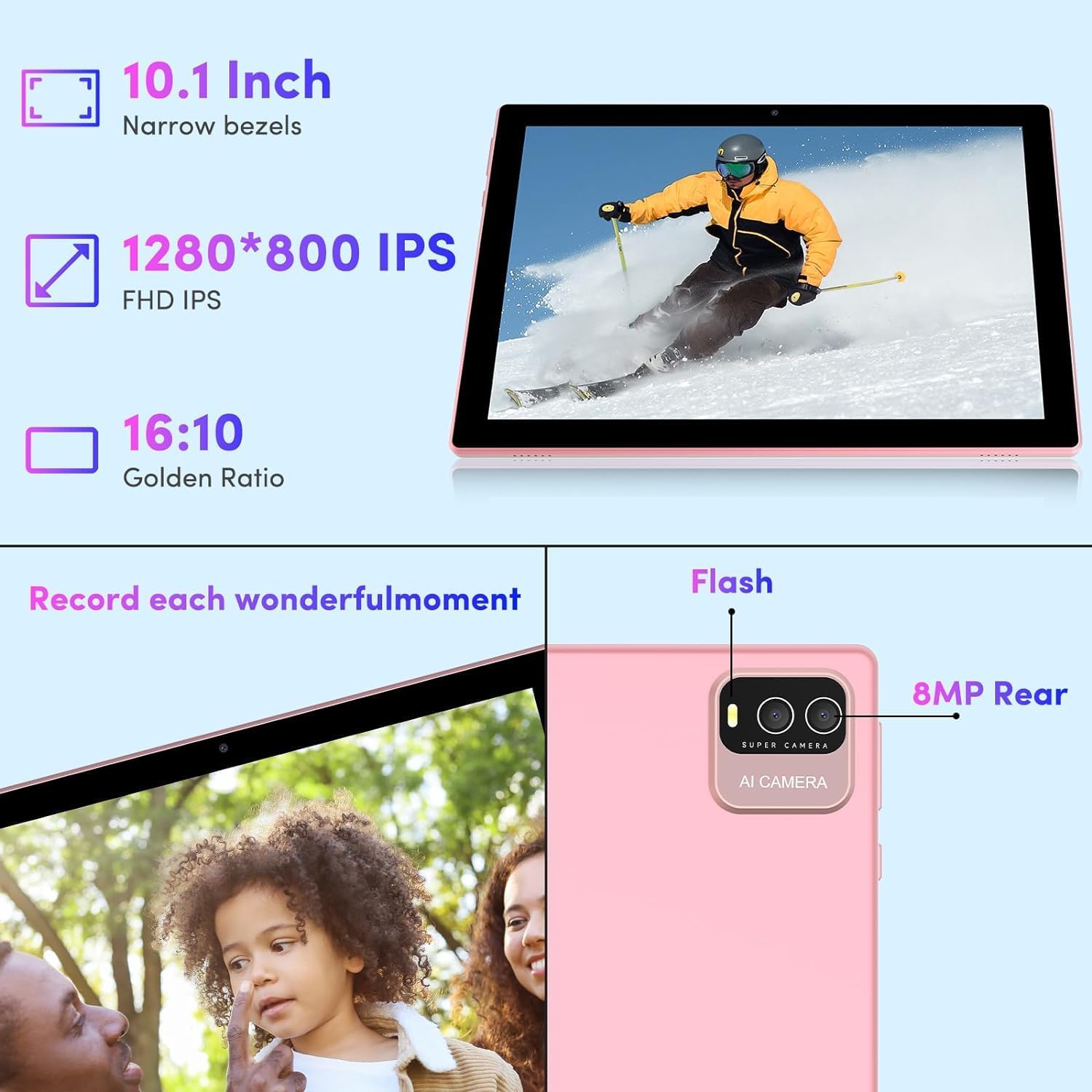
Figure 3.2: Details of the 10.1-inch IPS HD display and camera features.
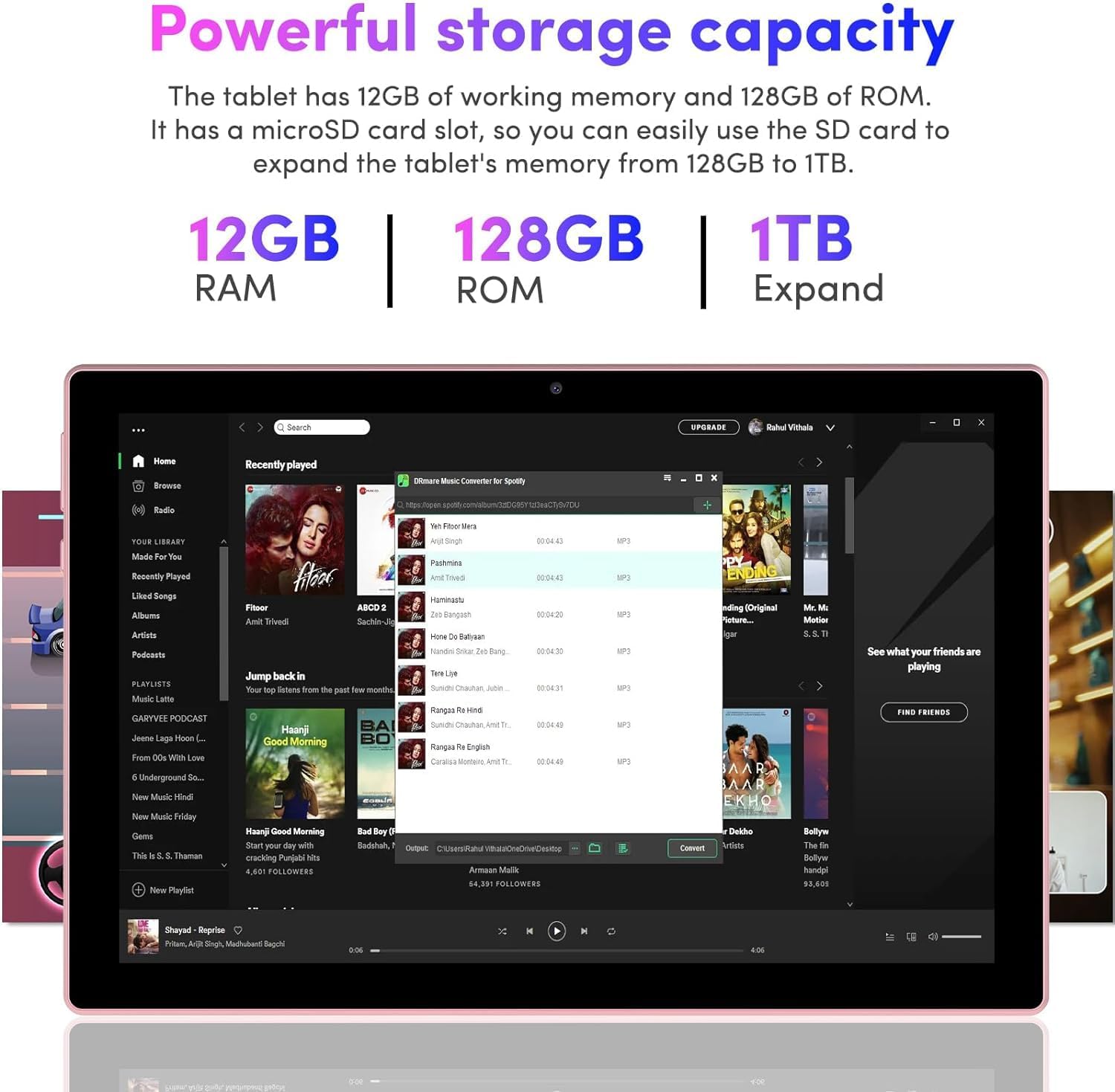
Figure 3.3: Explanation of the tablet's memory and expandable storage capabilities.
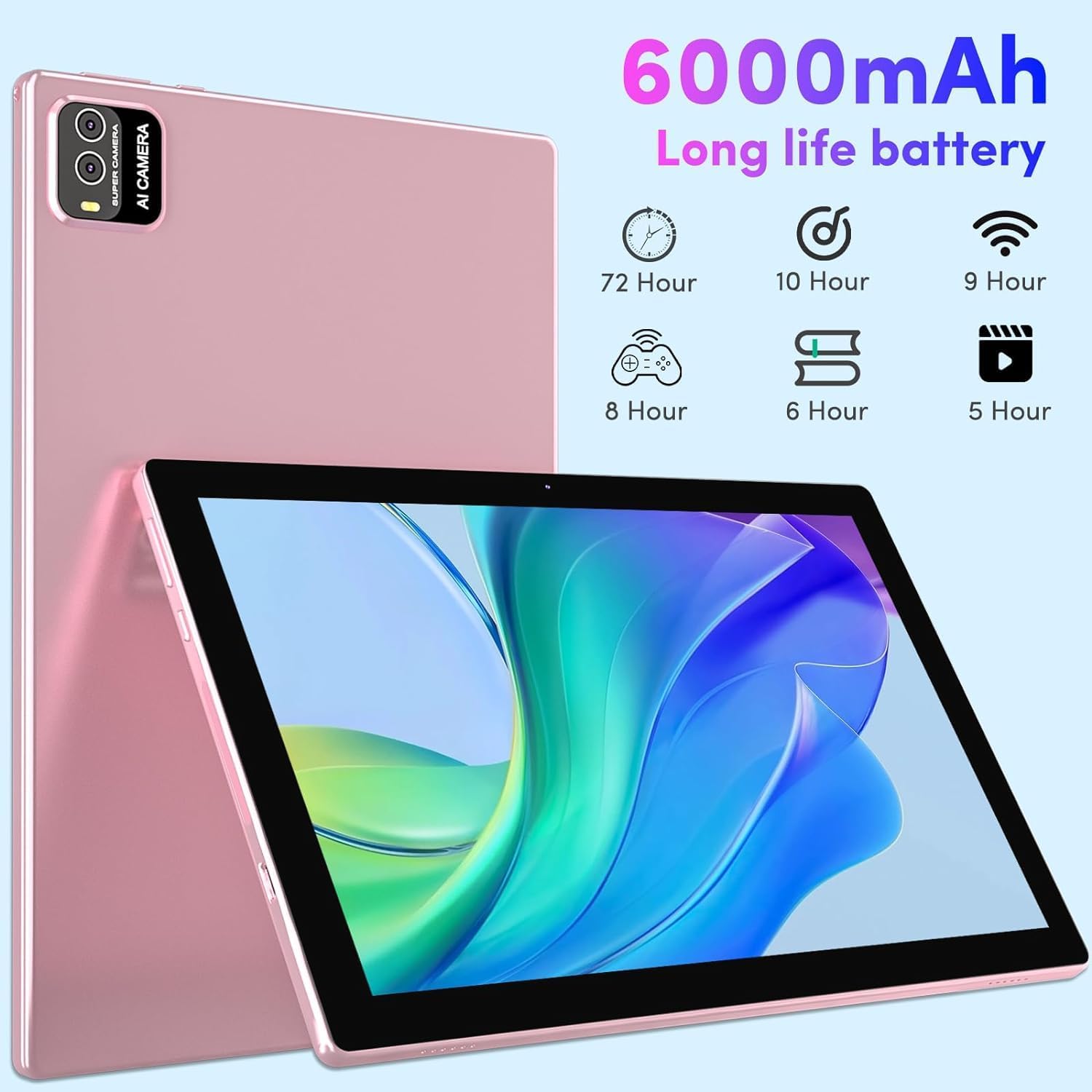
Figure 3.4: Battery life estimates for various activities.
4. Setup Guide
4.1 Initial Charging
Before first use, fully charge your tablet. Connect the provided Type-C cable to the tablet's charging port and the other end to a compatible USB power adapter (not included) or a computer's USB port. The battery indicator on the screen will show charging progress.
4.2 Power On/Off
- To Power On: Press and hold the Power button (usually located on the side) until the IWEGGO logo appears.
- To Power Off: Press and hold the Power button until the power options menu appears. Select "Power off" and confirm.
- To Restart: From the power options menu, select "Restart."
4.3 Initial Setup Wizard
Upon first power-on, the tablet will guide you through an initial setup process. Follow the on-screen prompts to:
- Select your language.
- Connect to a Wi-Fi network.
- Sign in with your Google account (or create a new one). This is essential for accessing the Google Play Store and other Google services.
- Set up screen lock (PIN, pattern, password).
- Review and accept terms and conditions.
4.4 Connecting Accessories (Keyboard, Mouse, Stylus)
Your tablet comes with a Bluetooth keyboard and mouse for a laptop-like experience.
- Bluetooth Keyboard/Mouse:
- Ensure the keyboard/mouse is charged and powered on.
- On your tablet, go to Settings > Connected devices > Bluetooth.
- Turn on Bluetooth and scan for available devices.
- Select the keyboard/mouse from the list and follow any pairing instructions.
- Stylus: The stylus is passive and does not require pairing. Simply use it directly on the screen for navigation or drawing.
- Protective Case: Insert the tablet into the protective case for enhanced protection and to utilize its stand functionality.

Figure 4.1: Tablet in use with keyboard and mouse.
5. Operating Your Tablet
5.1 Basic Navigation
- Touch Gestures: Tap to select, swipe to scroll, pinch to zoom.
- Home Screen: Access your apps, widgets, and notifications.
- Navigation Bar: Located at the bottom of the screen (Back, Home, Recent Apps).
5.2 Wi-Fi and Internet
To connect to the internet:
- Go to Settings > Network & internet > Internet.
- Turn on Wi-Fi.
- Select your desired network from the list and enter the password if required.

Figure 5.1: Tablet connectivity and audio features.
5.3 Bluetooth Devices
To connect other Bluetooth devices (e.g., headphones, speakers):
- Ensure the Bluetooth device is in pairing mode.
- On your tablet, go to Settings > Connected devices > Bluetooth.
- Turn on Bluetooth and scan for available devices.
- Select the device from the list and follow any pairing instructions.
5.4 Camera Usage
The tablet features a 2MP front camera and an 8MP rear camera. Open the Camera app from your home screen or app drawer. You can switch between front and rear cameras, take photos, and record videos.
5.5 Media Playback
Enjoy your favorite movies, music, and photos. Use pre-installed apps like Gallery for photos/videos and YouTube for streaming. For music, you can download streaming apps from the Google Play Store or play local files.
Figure 5.2: Tablet displaying a music application, showcasing its media capabilities.
6. Maintenance and Care
- Cleaning: Use a soft, lint-free cloth to clean the screen and body. Avoid abrasive cleaners or solvents.
- Battery Care: To prolong battery life, avoid extreme temperatures. Do not let the battery fully drain frequently.
- Software Updates: Keep your tablet's software updated to ensure optimal performance and security. Go to Settings > System > System update to check for updates.
- Storage Management: Regularly clear unnecessary files and apps to maintain performance. You can expand storage with a microSD card up to 1TB.
- Protection: Always use the provided protective case to guard against drops and scratches.
7. Troubleshooting
If you encounter issues with your tablet, refer to the following common solutions:
- Tablet not turning on: Ensure the tablet is fully charged. Connect it to the charger and wait a few minutes before attempting to power on again.
- Screen frozen or unresponsive: Press and hold the Power button for about 10-15 seconds to force a restart.
- Wi-Fi connection issues:
- Ensure Wi-Fi is enabled in settings.
- Restart your Wi-Fi router.
- Forget the network in tablet settings and reconnect.
- Bluetooth pairing problems:
- Ensure both devices have Bluetooth enabled and are in pairing mode.
- Move devices closer to each other.
- Restart both the tablet and the Bluetooth accessory.
- Slow performance:
- Close unused apps running in the background.
- Clear cache for frequently used apps.
- Free up storage space by deleting unnecessary files or apps.
- Consider a factory reset as a last resort (Settings > System > Reset options > Erase all data (factory reset)). Note: This will delete all data on your tablet. Back up important information first.
8. Specifications
Detailed technical specifications for your IWEGGO Android 13 Tablet:
| Feature | Specification |
|---|---|
| Brand | IWEGGO |
| Model Name | CP20 Plus |
| Item Model Number | CP20GOLD |
| Operating System | Android 13 |
| Screen Size | 10.1 Inches |
| Screen Resolution | 1280 x 800 pixels (IPS HD) |
| Processor | 2.0 GHz Quad-core |
| RAM | 12 GB (6GB fixed + 6GB virtual) |
| Internal Storage (ROM) | 128 GB |
| Expandable Storage | Up to 1 TB (via microSD card) |
| Rear Webcam Resolution | 8 MP |
| Front Webcam Resolution | 2 MP |
| Wireless Type | 802.11ax (Wi-Fi 6), 2.4G/5G Dual Band |
| Bluetooth | Bluetooth 5.0 |
| Battery Capacity | 6000mAh Lithium Polymer |
| Item Weight | 2.68 pounds |
| Product Dimensions | 9.52 x 6.55 x 0.29 inches |
| Color | Pink |
9. Warranty and Support
IWEGGO products are designed for reliability and performance. For specific warranty details, please refer to the warranty card included with your purchase or visit the official IWEGGO website.
If you require technical assistance or have questions not covered in this manual, please contact IWEGGO customer support through the contact information provided on your product packaging or the official brand website. Please have your model number (CP20GOLD) and purchase details ready when contacting support.
For additional resources and FAQs, you may also check the product page on Amazon.com.