
CAMECHO 851ddb2a-5edb-439a-aaf4-b2467c0169d1
CAMECHO Wireless CarPlay AI Box User Manual
Model: 851ddb2a-5edb-439a-aaf4-b2467c0169d1
Product Overview
The CAMECHO Wireless CarPlay AI Box is a versatile 3-in-1 adapter designed to enhance your in-car entertainment and connectivity. It converts your vehicle's existing wired CarPlay system into a wireless Android Auto and Apple CarPlay experience, while also providing a full Android 10 operating system with built-in access to popular video applications like YouTube and Netflix. This device offers seamless integration with your car's original controls, including touch screen, knob, and steering wheel controls.

Figure 1: CAMECHO Wireless CarPlay AI Box and accessories.

Figure 2: In-car display showcasing the Android 10 system interface.
Compatibility
This device is compatible with vehicles that have a factory-installed wired CarPlay system. It supports a wide range of car brands. Please ensure your vehicle has OEM wired Apple CarPlay before purchasing or attempting installation.
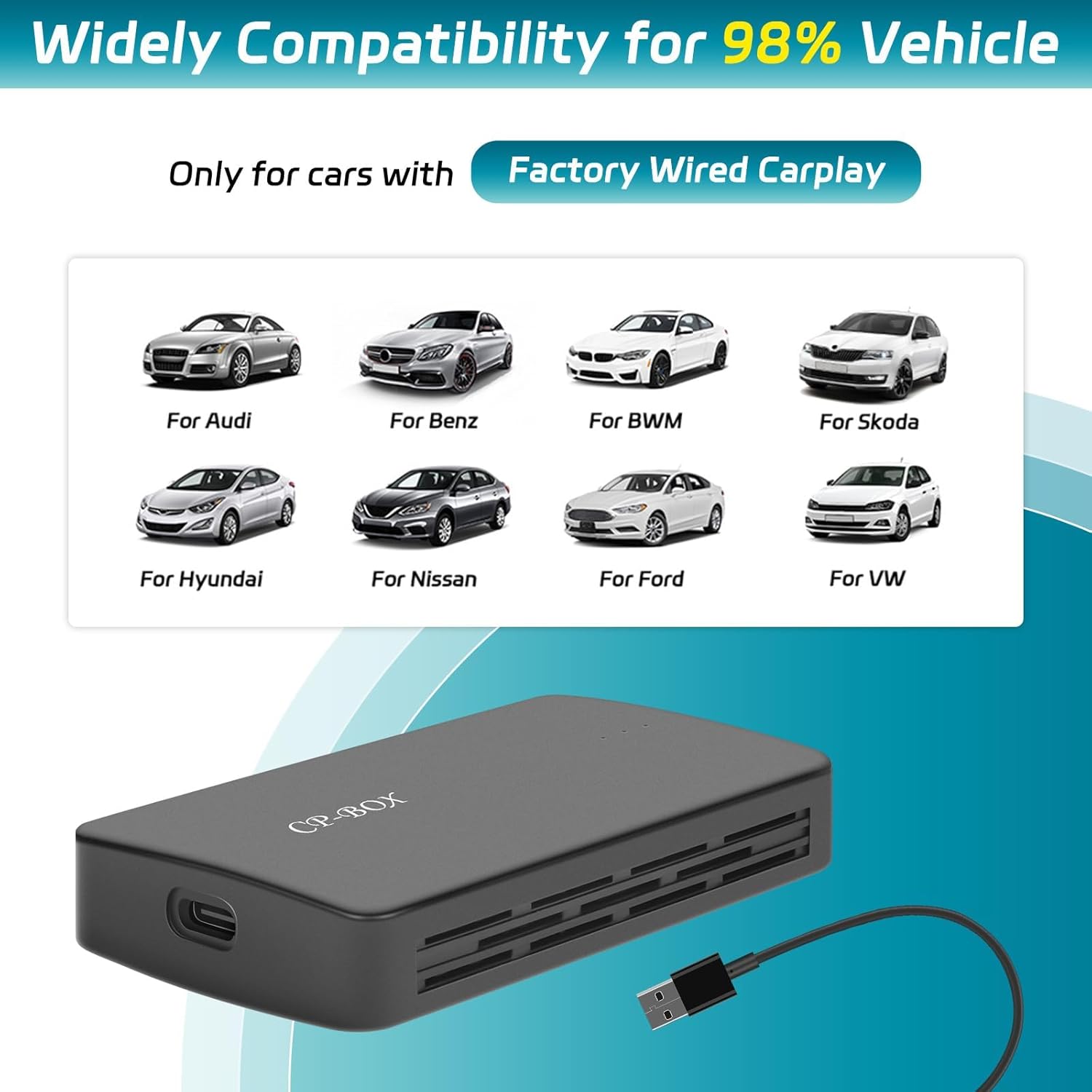
Figure 3: Compatible car brands with factory wired CarPlay.
Setup and Installation
The CAMECHO Wireless CarPlay AI Box is designed for simple USB Plug & Play installation, requiring no dismantling of your original car stereo.
- Connect the Box: Plug the CarPlay AI Box into the USB port of your vehicle that supports wired CarPlay.
- Wait for Boot Page: Allow the device to boot up. The car's display should show the device interface.
- Enable Bluetooth and Wi-Fi: On your mobile phone, open the Wi-Fi and Bluetooth settings.
- Pair with Device: Find the Bluetooth device named "BT-XXXX" (where XXXX is a unique identifier for your dongle) and click "Pair".
- Confirm Connection: On your phone, choose "Use CarPlay/Android Auto" to establish the wireless connection.
- Access Interface: Once connected, the phone will prompt a window to use CarPlay or Android Auto. Click 'Use' to enter the respective interface on your car's display.

Figure 4: Step-by-step connection guide.
Operating Instructions
Wireless CarPlay and Android Auto
After successful setup, your car's display will show options for Wireless CarPlay and Wireless Android Auto. You can switch between these modes as needed. The system supports all standard functions of CarPlay and Android Auto, including navigation (Maps), making calls, playing music, and using voice assistants like Siri or Google Assistant.

Figure 5: Wireless CarPlay and Android Auto interfaces.
Android 10 System and Media Playback
The built-in Android 10 system allows you to install and use various applications. With 2GB RAM and 16GB ROM, it provides a smooth experience for streaming video content from apps like YouTube and Netflix. Ensure your device is connected to a Wi-Fi hotspot (e.g., from your mobile phone) to access online content.
Control Methods
The CAMECHO AI Box maintains compatibility with your vehicle's original control methods:
- Touch Screen Control: Directly interact with the display.
- OEM Knob Control: Use your car's factory-installed rotary knobs.
- Steering Wheel Control: Utilize buttons on your steering wheel for audio, calls, and navigation.
- Voice Control: Activate Siri or Google Voice for hands-free operation.

Figure 6: Supported control methods.
Maintenance
To ensure optimal performance and longevity of your CAMECHO Wireless CarPlay AI Box, follow these maintenance guidelines:
- Keep Clean: Wipe the device with a soft, dry cloth. Avoid using liquid cleaners or abrasive materials.
- Temperature: Operate and store the device within recommended temperature ranges. Avoid extreme heat or cold.
- Firmware Updates: Periodically check the manufacturer's official website for any available firmware updates to improve performance and add new features. (Note: The provided product information does not include a specific website for firmware updates. Please refer to product packaging or contact customer support for details.)
- Secure Connection: Ensure the USB connection is secure to prevent accidental disconnections.
Troubleshooting
| Problem | Possible Cause | Solution |
|---|---|---|
| Device does not power on. | USB cable not properly connected or car's USB port is not active. | Ensure the USB cable is securely plugged into both the device and the car's USB port. Try a different USB port if available. Verify the car's USB port provides power. |
| Cannot connect to Wireless CarPlay/Android Auto. | Bluetooth/Wi-Fi not enabled on phone, incorrect pairing, or car does not have factory wired CarPlay. |
|
| Video streaming (YouTube/Netflix) is buffering or not playing. | Poor Wi-Fi signal or insufficient internet bandwidth. | Ensure the device is connected to a strong Wi-Fi signal (e.g., your phone's hotspot). Check your mobile data plan and signal strength. |
| Original car controls (touch, knob, steering wheel) are not working. | Temporary software glitch or compatibility issue. | Restart the device by unplugging and re-plugging it. Ensure your car's system is updated. |
Specifications
- Model Number: 851ddb2a-5edb-439a-aaf4-b2467c0169d1
- Operating System: Android 10
- Memory: 2GB RAM + 16GB ROM
- Connectivity: Wireless CarPlay, Wireless Android Auto, Wi-Fi, Bluetooth
- Input: USB 2.0
- Dimensions (L x W x H): 1 x 1 x 1 inches (approximate)
- Weight: 5.8 ounces (approximate)
- Color: Black
- Manufacturer: CAMECHO

Figure 7: High-performance automotive chip.
Warranty and Support
Specific warranty information for the CAMECHO Wireless CarPlay AI Box is not provided in this manual. Please refer to the product packaging, purchase receipt, or the official CAMECHO website for detailed warranty terms and conditions.
For technical support, troubleshooting assistance, or inquiries regarding firmware updates, please contact CAMECHO customer service through their official channels. Contact information is typically available on the product packaging or the manufacturer's website.
You can visit the CAMECHO Store on Amazon for more information: CAMECHO Store
Related Documents - 851ddb2a-5edb-439a-aaf4-b2467c0169d1
 |
CAMECHO Wireless CarPlay and Android Auto Adapter User Manual This user manual provides detailed instructions for the CAMECHO Wireless CarPlay and Android Auto Adapter, covering setup, connection, troubleshooting, and firmware upgrades for seamless wireless integration with your vehicle's infotainment system. |
 |
TIMEKNOW Wireless Adapter User Manual: Connect CarPlay & Android Auto Wirelessly Comprehensive user manual for the TIMEKNOW Wireless Adapter, detailing setup, compatibility, usage, and troubleshooting for wireless Apple CarPlay and Android Auto. |
 |
LAMVOSE Wireless CarPlay Adapter Troubleshooting Guide A comprehensive troubleshooting guide for the LAMVOSE Wireless CarPlay Adapter (Magic Box). Covers common issues with WiFi connection, USB playback, Apple CarPlay/Android Auto compatibility, car connectivity, sound problems, lag, and more. Provides solutions and contact information for LAMVOSE Customer Service. |
 |
CarPlay Smart Upgrade Box User Manual: Wireless CarPlay & Android Auto Upgrade User manual for the kebidumei 2-in-1 Wireless CarPlay and Android Auto Upgrade Box. This accessory enhances your car's infotainment system with wireless connectivity, multi-satellite navigation, and multimedia playback. Includes installation, pairing, troubleshooting, and maintenance guides. |
 |
AI BOX User Manual: Wireless CarPlay & Android Auto Adapter Comprehensive user manual for the kebidumei AI BOX, detailing installation, setup, and troubleshooting for wireless CarPlay and Android Auto functionality in vehicles. Converts wired CarPlay/Android Auto to Android system. |
 |
Acodo Wireless CarPlay & Android Auto Adapter User Manual User manual for the Acodo Wireless CarPlay and Android Auto adapter. Learn about installation, compatibility, usage, and troubleshooting for seamless smartphone integration in your car. |
Ask a question about this manual
Ask about setup, troubleshooting, compatibility, parts, safety, or missing instructions. Manuals+ will review the question and use this page’s manual context to help answer it.