
KiriNavi For Ford Expedition Interceptor 2018-2023
KiriNavi Car Radio User Manual
Model: For Ford Expedition Interceptor 2018-2023
Introduction
This manual provides detailed instructions for the installation, operation, and maintenance of your KiriNavi Qualcomm Android 11 Car Radio. Please read this manual thoroughly before using the product to ensure proper functionality and safety.
This head unit is designed as a stereo replacement for Ford Expedition Limited models from 2018 to 2023, specifically compatible with the SYNC3 system. It features a 14.4-inch display, built-in Wireless Carplay, and Wired Android Auto, powered by a Qualcomm Octa-Core CPU with 8GB RAM and 128GB ROM for high performance and stability.
Package Contents
Verify that all components are present in the package:
- KiriNavi Car Radio Head Unit (14.4 Inch)
- Power Cables
- User Manual (this document)
- Additional necessary installation accessories (if applicable, not specified in input)
Setup and Installation
The KiriNavi Car Radio is designed for factory OEM fit, requiring no modification for installation in compatible Ford Expedition models (2018-2023) with SYNC3. Professional installation is recommended.
Pre-Installation Checklist:
- Ensure the vehicle's ignition is off and the battery is disconnected before beginning installation.
- Gather all necessary tools (e.g., trim removal tools, screwdrivers, wire strippers).
- Familiarize yourself with the vehicle's existing dashboard layout and wiring.
Installation Steps:
- Carefully remove the existing head unit and dashboard trim. Refer to your vehicle's service manual for specific instructions.
- Connect the provided power cables and other necessary wiring harnesses to the new KiriNavi head unit. Ensure all connections are secure.
- Integrate the new head unit with the vehicle's existing systems. This unit is designed to retain original features such as Sirius XM radio, Microsoft SYNC System, Heated Steering Wheel Control, Massage Seat Control, Physical Climate Control, 360 Cameras and Reverse Camera, Sound System, and Steering Wheel Control.
- Carefully mount the new 14.4-inch display into the dashboard opening.
- Reconnect the vehicle's battery and test the unit's functionality before fully reassembling the dashboard.
- Reassemble the dashboard trim.

Figure 1: Comparison showing the vehicle's dashboard before and after the installation of the KiriNavi 14.4-inch head unit. The new unit seamlessly integrates into the existing console, replacing the original display and controls.
Operating Instructions
Basic Operation:
The unit operates on Android 11, providing a familiar smartphone-like interface. Navigate using the 14.4-inch QHD 2K 2560 x 1440 IPS Touch Screen.
Connectivity:
- Wireless CarPlay & Wired Android Auto: Connect your compatible smartphone for seamless integration of navigation, music, and communication apps.
- Bluetooth 5.0: Pair your phone for hands-free calling and audio streaming. The Bluetooth connection is designed for stability.
- Wi-Fi & 4G Network: Connect to a Wi-Fi hotspot or insert a 4G SIM card (if supported by the specific model) to access online content, navigation, and app downloads (e.g., YouTube, Netflix, Facebook).

Figure 2: The KiriNavi head unit displaying the user interface for Wireless CarPlay and Android Auto, demonstrating voice command integration for tasks like playing music or finding a restaurant.

Figure 3: The KiriNavi head unit's screen showing the Bluetooth phone interface for making calls and a separate image illustrating internet browsing via Wi-Fi, with various app icons.
Navigation:
The unit features built-in GPS + GLONASS for high-precision navigation. It supports both online and offline maps, including popular applications like Apple Maps, Google Maps, and Waze. Ensure the GPS antenna is properly installed for optimal signal reception.
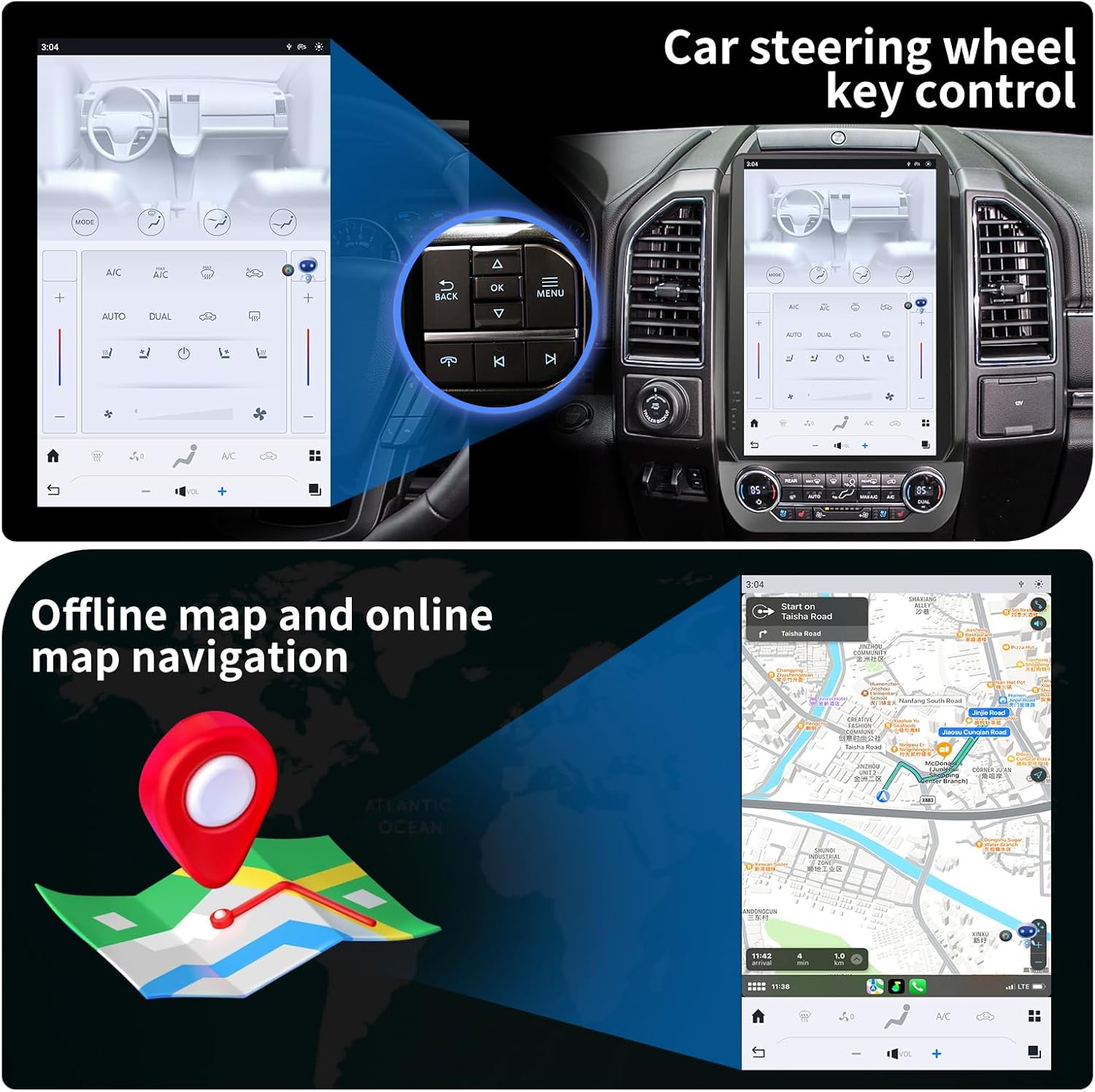
Figure 4: The KiriNavi head unit showing a navigation map on the screen, alongside an inset image highlighting the vehicle's steering wheel controls, which can be configured to operate the head unit.
Multimedia Playback:
Enjoy music and videos via USB, AUX IN, or streaming services. The unit supports various audio and video formats. You can save your favorite FM radio stations for easy access.
Steering Wheel Control:
The unit supports learning original steering wheel buttons, allowing for convenient remote control of functions such as volume, track changes, and hands-free calling.
Split Screen Functionality:
The 14.4-inch display supports split-screen mode, enabling you to run two applications simultaneously, such as navigation and video playback.

Figure 5: The KiriNavi head unit demonstrating its split-screen capability, showing a navigation map on one side and a video playing on the other, allowing for simultaneous use of two applications.
Maintenance
- Cleaning: Use a soft, dry cloth to clean the screen and exterior. Avoid abrasive cleaners or solvents.
- Software Updates: Periodically check for software updates to ensure optimal performance and access to new features. Updates can typically be performed via Wi-Fi.
- Environmental Conditions: Avoid exposing the unit to extreme temperatures, direct sunlight for prolonged periods, or excessive moisture.
Troubleshooting
| Problem | Possible Cause | Solution |
|---|---|---|
| Unit does not power on. | Loose power connection; Blown fuse; Vehicle battery issue. | Check all power cable connections. Inspect vehicle fuses. Ensure vehicle battery is charged. |
| No sound. | Volume too low; Mute activated; Speaker wiring issue; Incorrect audio source. | Increase volume. Check if mute is active. Verify speaker connections. Select correct audio input. |
| GPS signal weak or inaccurate. | GPS antenna not properly installed or obstructed; Poor satellite reception area. | Ensure GPS antenna is securely connected and has a clear view of the sky. Move to an open area. |
| Bluetooth connection issues. | Device not in pairing mode; Interference; Out of range. | Ensure Bluetooth is enabled on both devices and in pairing mode. Reduce distance between devices. Restart both devices. |
| Touch screen unresponsive. | Software glitch; Screen damage. | Perform a soft reset (refer to device settings for reset option). If issue persists, contact support. |
Specifications
| Feature | Detail |
|---|---|
| Model Name | For Ford Expedition Interceptor 2018-2023 |
| Operating System | Android 11 |
| CPU | Qualcomm Octa Core |
| RAM | 8GB |
| ROM | 128GB |
| Display Size | 14.4 Inches |
| Display Resolution | QHD 2K 2560 x 1440 IPS Touch Screen |
| Connectivity | Bluetooth 5.0, Wi-Fi, 4G LTE (SIM card support), USB |
| Navigation | GPS + GLONASS, Supports Apple Maps, Google Maps, Waze |
| Car Integration | Wireless CarPlay, Wired Android Auto, Retains SYNC3, Sirius XM, Heated Steering Wheel, Massage Seat, Climate Control, 360/Reverse Cameras, Sound System, Steering Wheel Control |
| Included Components | Car Radio Head Unit, Power Cables |
| Item Weight | 9.61 pounds |
| Package Dimensions | 17.87 x 12.56 x 7.87 inches |
Warranty Information
This KiriNavi Car Radio comes with a 1-Year Warranty from the date of purchase. This warranty covers manufacturing defects and malfunctions under normal use. It does not cover damage caused by improper installation, accident, misuse, abuse, neglect, or unauthorized modification.
Please retain your proof of purchase for warranty claims.
Customer Support
For technical assistance, troubleshooting, or warranty inquiries, please contact KiriNavi customer support. Refer to the contact information provided with your product packaging or visit the official KiriNavi website.
When contacting support, please have your product model number (For Ford Expedition Interceptor 2018-2023) and purchase details ready.
Ask a question about this manual
Ask about setup, troubleshooting, compatibility, parts, safety, or missing instructions. Manuals+ will review the question and use this page’s manual context to help answer it.