
1. Introduction
Thank you for choosing the SXBCyan 4K PTZ WiFi Camera. This dual-lens outdoor surveillance camera is designed to provide comprehensive security monitoring with advanced features such as AI human detection, auto-tracking, and smart night vision. This manual will guide you through the installation, operation, and maintenance of your new camera.
Key Features:
- Real Two-Way Audio: Communicate with visitors or deter intruders using the built-in microphone and speaker.
- Smart Night Vision: Choose between color night vision (white LED) or infrared black and white night vision (IR LED) for clear images in low light.
- IP66 Waterproof / Dustproof: Durable design ensures reliable performance in various outdoor weather conditions.
- AI Human Detection Alerts: Receive instant app notifications upon detection of human targets, minimizing false alarms.
- AI Auto Tracking: The camera automatically tracks moving objects within its protected area, providing continuous surveillance.
- Dual Lens System: Offers both 4MP (2MP+2MP) and 8MP (4MP+4MP) versions for enhanced detail.
2. Product Overview
Familiarize yourself with the components and dimensions of your SXBCyan PTZ WiFi Camera.

Figure 2.1: Product Components and Dimensions. This image illustrates the physical layout of the camera, highlighting key parts such as the dual lenses, WiFi antennas, speaker, and the location of the Micro SD card slot and reset button. Dimensions are provided for overall height (163mm), width (168mm), and top section measurements (94mm, 47mm, 43mm).

Figure 2.2: Lens Configuration Comparison. This image clarifies the difference between the 4MP and 8MP camera versions. The 4MP version consists of two 2MP lenses, while the 8MP version features two 4MP lenses, contributing to the overall resolution.
Packing List:
- 1x PTZ Camera
- 1x User Manual
- 1x Power Supply
- 1x Screws Bag
- 1x Waterproof Lid
3. Setup and Installation
Before installation, ensure you have all components from the packing list. The camera supports Bluetooth, Wi-Fi, and wired LAN connections.

Figure 3.1: Connection Methods. This image illustrates the three primary ways to connect your camera: Bluetooth for initial setup, Wi-Fi for wireless operation, and a LAN cable for a stable wired network connection.
3.1. Bluetooth Connectivity (Initial Setup)
- Download the iCSee App from your smartphone's app store (iOS or Android).
- Register or log in to your iCSee account.
- Power on the camera.
- Open the iCSee App, tap the '+' icon to add a new device.
- Select the Bluetooth connection option. The app will scan for nearby cameras.
- Select your camera from the discovered devices (e.g., DL.Camerafdef).
- Follow the in-app instructions to complete the initial setup, including setting up Wi-Fi or wired connection.
3.2. Wi-Fi Connection
- Ensure your camera is powered on and within range of your Wi-Fi router.
- During the initial Bluetooth setup or via the app's settings, select the Wi-Fi connection option.
- Choose your Wi-Fi network from the list and enter the password.
- Confirm the connection. The camera will connect to your Wi-Fi network.
3.3. LAN Cable Connection
- Connect one end of an Ethernet cable to the camera's LAN port.
- Connect the other end of the Ethernet cable to your router or network switch.
- Power on the camera. The camera will automatically obtain an IP address from your network.
- Add the camera to the iCSee App by scanning the local network or manually entering its IP address.
3.4. Physical Installation
Mount the camera securely using the provided screws and waterproof lid. Choose a location that provides optimal viewing angles and is within range of your chosen network connection.
4. Operating the Camera
Control and monitor your camera using the iCSee App on your smartphone.
4.1. Pan and Tilt Control
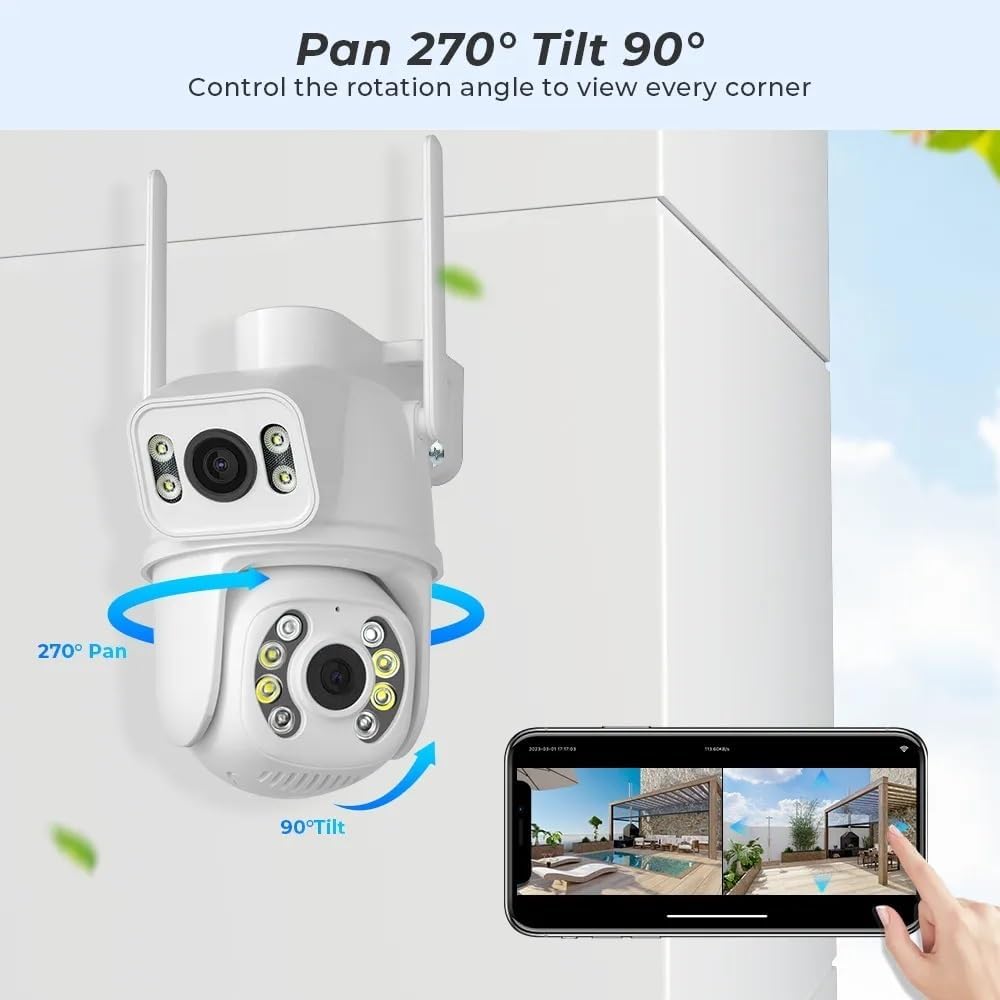
Figure 4.1: Pan and Tilt Functionality. This image demonstrates the camera's ability to pan horizontally up to 270 degrees and tilt vertically up to 90 degrees, allowing for comprehensive coverage of the surveillance area. Control is managed via the iCSee app.
From the live view interface in the iCSee App, use the directional controls to remotely adjust the camera's viewing angle. The camera supports 270° Pan and 90° Tilt rotation.
4.2. Smart Night Vision

Figure 4.2: Smart Night Vision Modes. This image illustrates the camera's versatile night vision capabilities, showing examples of clear images in both full-color (using white LEDs) and traditional infrared black-and-white modes. It also highlights the 'Double Light Vigilance' feature, which combines both for enhanced security.
The camera features built-in white LEDs and IR LEDs. You can switch between:
- Color Night Vision: Activates white LEDs for full-color images in low light.
- Infrared Night Vision: Activates IR LEDs for clear black and white images in complete darkness.
- Double Light Vigilance: Automatically switches to color night vision upon motion detection in dark environments.
Adjust these settings within the iCSee App's camera settings.
4.3. AI Human Detection and Auto Tracking

Figure 4.3: AI Auto Tracking in Action. This image visually represents the camera's smart tracking function, where it automatically detects and follows moving objects, specifically human figures, within its field of view. It highlights sensitive auto-tracking, 270° Pan, 90° Tilt, and smarter body tracking.
The camera uses advanced AI to distinguish human shapes, reducing false alarms from pets or swaying branches. When a human is detected, the camera can:
- Send instant notifications to your smartphone.
- Automatically track the detected human's movement across the surveillance area.
Enable and configure these features in the iCSee App's alarm settings.
4.4. Two-Way Audio
Utilize the built-in microphone and speaker for real-time two-way communication. Tap the microphone icon in the iCSee App's live view to speak through the camera, and listen to audio from the camera's surroundings.
4.5. Recording and Playback
The camera supports local storage via a Micro SD card (not included with all models) and cloud storage (subscription may be required). Recordings can be accessed and played back through the iCSee App.
- Local Record: Insert a Micro SD card (up to 128GB recommended) into the designated slot. The camera will automatically begin recording based on your settings (e.g., continuous, motion-triggered).
- Cloud Playback: Subscribe to cloud storage services via the iCSee App to store recordings remotely.
5. Maintenance
Proper maintenance ensures the longevity and optimal performance of your camera.

Figure 5.1: IP66 Waterproof Protection. This image emphasizes the camera's IP66 rating, indicating its robust protection against dust and water, making it suitable for outdoor use in various weather conditions, including sun, rain, and snow.
- Cleaning: Regularly wipe the camera lens and body with a soft, damp cloth to remove dust and dirt. Do not use harsh chemicals or abrasive cleaners.
- Weather Protection: The camera is IP66 rated for outdoor use, protecting it from rain, snow, and dust. However, avoid submerging the camera in water.
- Firmware Updates: Periodically check the iCSee App for available firmware updates to ensure your camera has the latest features and security enhancements.
- Power Supply: Ensure the power supply is protected from direct exposure to extreme weather if not already rated for outdoor use.
6. Troubleshooting
If you encounter issues with your camera, refer to the following common troubleshooting steps:
| Problem | Possible Solution |
|---|---|
| Camera offline in app |
|
| Cannot connect to Wi-Fi |
|
| No recording to SD card |
|
| Poor image quality at night |
|
For further assistance, please refer to the iCSee App's help section or contact SXBCyan customer support.
7. Specifications
Detailed technical specifications for the SXBCyan 4K PTZ WiFi Camera.
| Model Name | SXBCyan-1011 |
| Brand | SXBCyan |
| Effective Still Resolution | 4 MP, 8 MP (depending on version) |
| Video Capture Resolution | 4K |
| Connectivity Technology | Wi-Fi, Wired (Ethernet) |
| Wireless Communication Technology | Wi-Fi |
| Power Source | AC |
| International Protection Rating | IP66 |
| Special Feature | Night Vision (Color/IR), AI Human Detection, Auto Tracking, Two-Way Audio |
| Compatible Devices | Smartphone (iCSee App) |
| Item Weight | 2.2 pounds (approx. 1000 grams) |
| Package Dimensions | 1.18 x 0.79 x 0.39 inches |
| Recommended Uses | Outdoor Surveillance |
8. Warranty and Support
SXBCyan products are designed for reliability and performance. For information regarding product warranty, please refer to the warranty card included in your product packaging or visit the official SXBCyan website.
For technical support, troubleshooting beyond this manual, or inquiries about replacement parts, please contact SXBCyan customer service through the contact information provided on the product packaging or the official website. You can also find helpful resources and FAQs within the iCSee App.