
SXBCyan SXBCyan-1011
User Manual: 8MP 4K PTZ WiFi Camera
Model: SXBCyan-1011
Brand: SXBCyan
Introduction
This manual provides comprehensive instructions for the installation, operation, and maintenance of your SXBCyan 8MP 4K PTZ WiFi Camera. This dual-lens outdoor surveillance camera features AI human detection, auto tracking, and smart night vision, designed to provide reliable security monitoring.
Please read this manual thoroughly before using the product to ensure proper functionality and safety.
Product Features
- Real Two-Way Audio: Built-in microphone and speaker for real-time communication.
- Smart Night Vision: Equipped with white LED and IR LED for color or infrared black and white night vision.
- IP66 Waterproof / Dustproof: Durable design suitable for outdoor environments.
- AI Human Detection Alerts: Advanced AI technology for quick human target detection and instant app notifications.
- AI Auto Tracking: Automatically tracks moving objects within the protected area.
- Dual Lens System: Available in 4MP (2MP+2MP) and 8MP (4MP+4MP) versions for enhanced clarity.
- Pan 270° / Tilt 90°: Control the camera's rotation angle to view every corner.
Package Contents
Upon opening the package, please verify that all the following items are included:
- 1x PTZ Camera
- 1x User Manual
- 1x Power Supply
- 1x Screws Bag
- 1x Waterproof Lid

Image: Contents of the product package, including the dual-lens camera, user manual, power adapter, mounting screws, and a waterproof lid for connections.
Setup and Installation
Physical Installation
The camera is designed for outdoor use and can be mounted on a wall or ceiling. Ensure the mounting surface is sturdy enough to support the camera's weight. Use the provided screws and waterproof lid for secure installation and protection against elements.
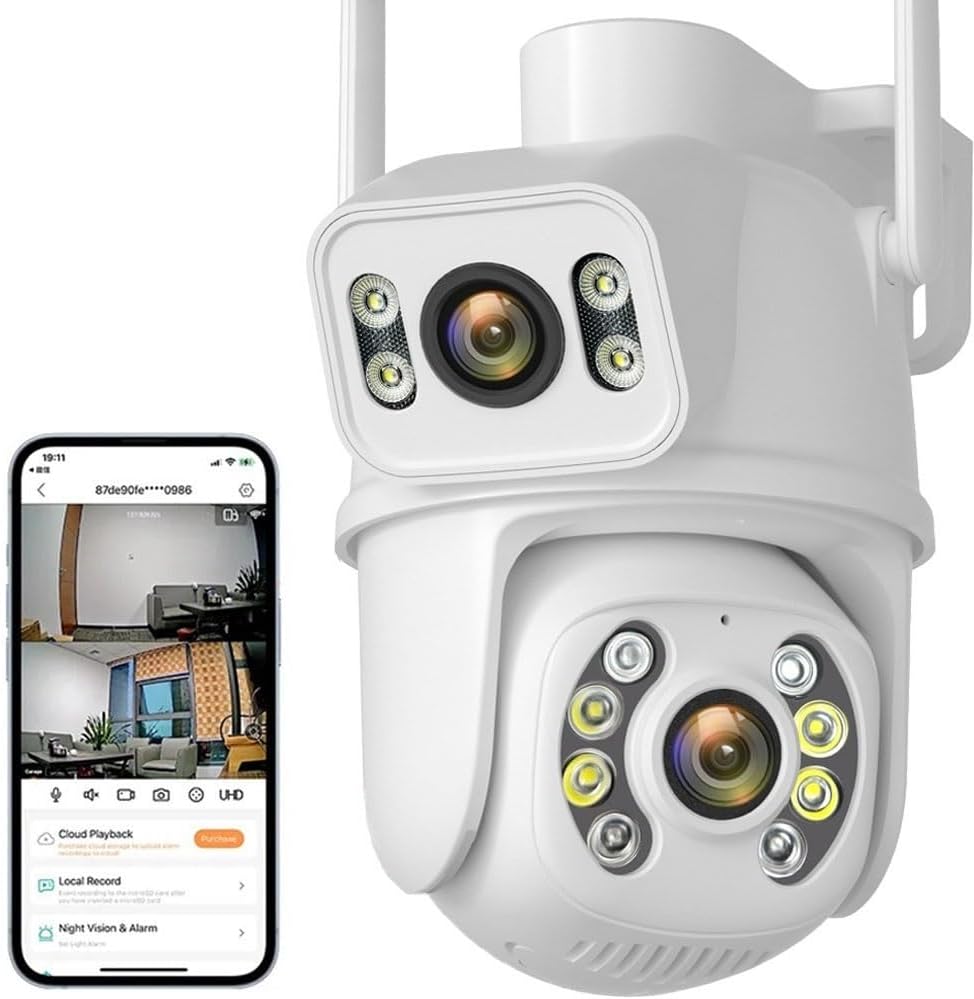
Image: The SXBCyan 8MP 4K PTZ WiFi Camera shown mounted, illustrating its design and typical installation scenario alongside a mobile app interface.
Power Connection
Connect the provided power supply to the camera's power input port. Ensure the connection is secure and protected from moisture, especially for outdoor installations.
Network Connection (iCSee App)
The camera supports three types of connection methods: Bluetooth, Wi-Fi, and LAN cable.
- Download the iCSee App: Search for "iCSee" in your smartphone's app store (iOS or Android) and install it.
- Bluetooth Connectivity:
Open the iCSee app and follow the on-screen instructions to add a new device via Bluetooth. This method allows for quick initial setup.
- Wi-Fi Connection:
After initial setup (or directly), select Wi-Fi connection within the app. Ensure your camera is within range of your Wi-Fi router. Enter your Wi-Fi network name (SSID) and password when prompted.
- LAN Cable Connection:
For a stable wired connection, connect an Ethernet cable from your router to the camera's LAN port. The camera will automatically connect to the network.

Image: Illustration of the three primary connection methods for the camera: Bluetooth for initial pairing, Wi-Fi for wireless network access, and LAN cable for a stable wired connection.
Operating Instructions
Live View and Control
Once connected, open the iCSee app to access the live view of your camera. You can control the camera's pan (270°) and tilt (90°) movements directly from the app to adjust the viewing angle.
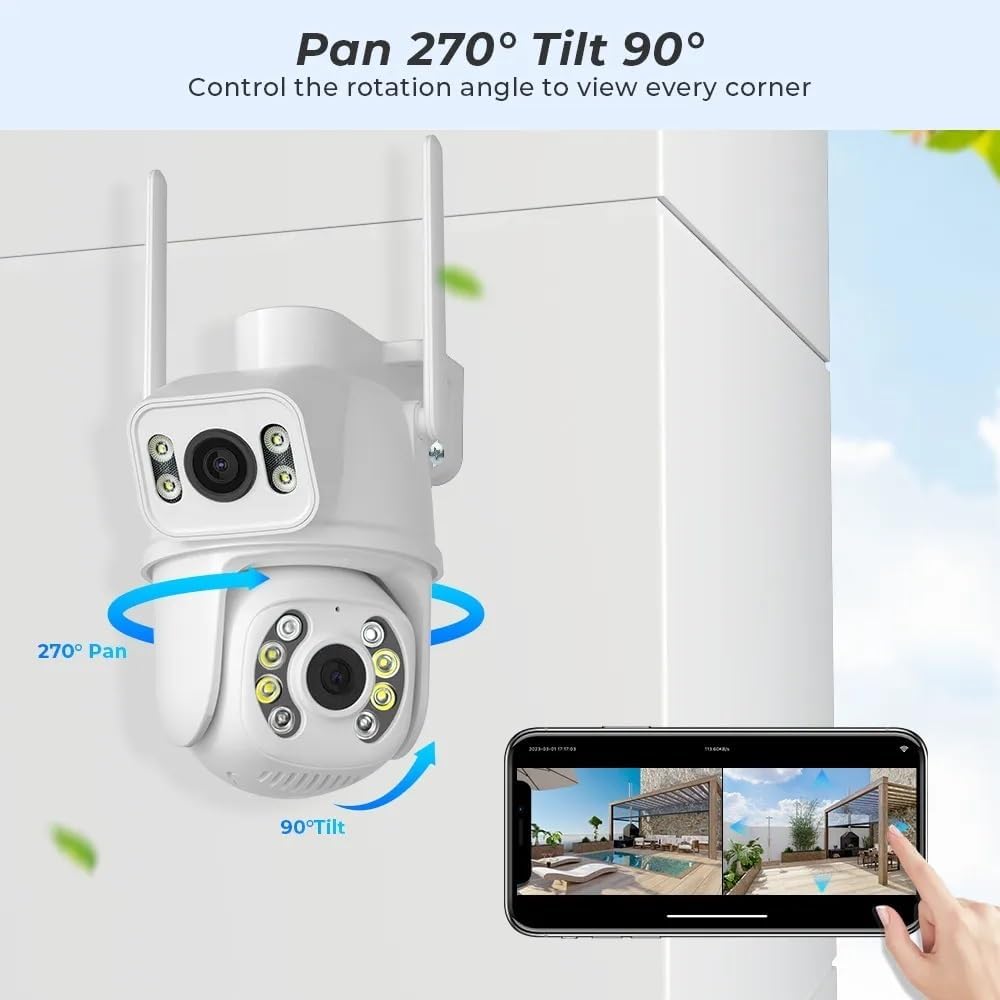
Image: Demonstrates the camera's pan (270°) and tilt (90°) rotation capabilities, controlled via the mobile application, allowing for comprehensive area coverage.
Smart Night Vision
The camera offers two night vision modes: color night vision (using white LEDs) and infrared black and white night vision (using IR LEDs). You can switch between these modes in the app settings based on your preference and lighting conditions.

Image: Illustrates the camera's smart night vision capabilities, showing both white light (color night vision) and infrared light (black and white night vision) modes for clear visibility in low-light conditions.
AI Human Detection and Auto Tracking
Enable AI Human Detection in the app to receive instant notifications when a human figure is detected. With AI Auto Tracking, the camera will automatically follow the detected person's movement within its field of view.

Image: Demonstrates the camera's auto-tracking function, where it intelligently follows moving objects, such as a person, within its surveillance area.
Two-Way Audio
Use the two-way audio feature to communicate with individuals near the camera. Tap the microphone icon in the app to speak, and the camera's built-in speaker will project your voice.
Maintenance
- Cleaning: Gently wipe the camera lens and body with a soft, dry cloth. Do not use harsh chemicals or abrasive cleaners.
- Firmware Updates: Regularly check the iCSee app for available firmware updates to ensure optimal performance and security.
- Power Supply: Ensure the power supply and cable are not damaged. Replace if necessary.
- Environmental Protection: While IP66 rated, avoid directing high-pressure water jets directly at the camera.

Image: Highlights the camera's IP66 waterproof and dustproof rating, indicating its resilience against various weather conditions like sun, rain, and snow.
Troubleshooting
| Problem | Possible Cause | Solution |
|---|---|---|
| Camera offline in app | No power; Wi-Fi signal weak/disconnected; Router issue. | Check power connection; Move camera closer to router or use LAN; Restart router. |
| No night vision | Night vision mode disabled; IR/White LEDs faulty. | Check night vision settings in app; Contact support if LEDs are faulty. |
| Motion detection not working | Detection sensitivity too low; Detection area not set; Obstructions. | Adjust sensitivity in app; Define detection zones; Clear obstructions. |
| Poor image quality | Dirty lens; Network bandwidth issue; Low light. | Clean lens; Ensure stable network; Utilize smart night vision. |
Specifications
| Feature | Detail |
|---|---|
| Brand | SXBCyan |
| Model Name | SXBCyan-1011 |
| Connectivity Protocol | Wi-Fi |
| Wireless Communication Technology | Wi-Fi |
| Mounting Type | Ceiling Mount, Wall Mount |
| Video Capture Resolution | 4k |
| Effective Still Resolution | 8 MP, 4 MP |
| International Protection Rating | IP66 |
| Item Weight | 2.2 pounds (approx. 1000 Grams) |
| Power Source | AC |
| Compatible Devices | Smartphone |
| Alert Type | Motion Only |
| Video Capture Format | MPEG-4 |

Image: Detailed product dimensions and component breakdown, including the location of the WiFi antenna, lenses, speaker, micro SD card slot, and reset button.
Warranty and Support
For warranty information, please refer to the specific terms provided at the time of purchase or contact your retailer. SXBCyan offers various protection plans for extended coverage.
For technical support or inquiries, please refer to the contact information provided in the packaging or visit the official SXBCyan website.
Ask a question about this manual
Ask about setup, troubleshooting, compatibility, parts, safety, or missing instructions. Manuals+ will review the question and use this page’s manual context to help answer it.