1. Introduction
This manual provides detailed instructions for the safe and efficient use of your Govee Smart Plug H5086. This device allows you to control your home appliances remotely, monitor energy consumption, and integrate with smart home ecosystems.
2. Safety Information
WARNING: To reduce the risk of electric shock, fire, or injury, please read and follow all instructions carefully.
- Do not exceed the maximum load of 15A / 1800W.
- For indoor use only.
- Do not immerse in water or expose to wet conditions.
- Do not disassemble or modify the device.
- Keep out of reach of children.
- Ensure the device is properly plugged into a grounded outlet.
- This smart plug is ETL and FCC certified, ensuring it meets stringent safety standards for reliable and secure operation.

Image: Diagram illustrating the Govee Smart Plug's overload protection system, showing current limits and safety features.
3. Package Contents
- Govee Smart Plug H5086 (Quantity: 4)
- User Manual (Quantity: 1)

Image: The Govee Smart Plug H5086 4-pack, showing the compact design and the accompanying mobile app interface for energy monitoring.
4. Product Overview
The Govee Smart Plug H5086 is a compact smart outlet designed for ease of use and advanced functionality. It features a standard 3-prong outlet, a manual power button, and an LED indicator.
- Power Button: Press to manually turn the connected device on/off.
- LED Indicator: Shows the status of the smart plug (e.g., connected, disconnected, on/off).
- Compact Design: Minimizes obstruction of adjacent outlets.
5. Setup
5.1 Download the Govee Home App
- Scan the QR code provided in the packaging or search for "Govee Home" in the App Store (iOS) or Google Play (Android).
- Download and install the app.
- Register or log in to your Govee account.
5.2 Device Pairing and Wi-Fi Connection
- Plug the Govee Smart Plug into a wall outlet. The LED indicator will flash, indicating it's in pairing mode.
- Open the Govee Home App, tap the "+" icon in the top right corner, and select "Add Device."
- The app will automatically detect nearby devices via Bluetooth. Select your Smart Plug (e.g., H5086_XXXX).
- Follow the in-app instructions to connect the Smart Plug to your 2.4GHz Wi-Fi network. (Note: 5GHz Wi-Fi is not supported).
- Once connected, the LED indicator will turn solid blue, and the device will appear in your app.
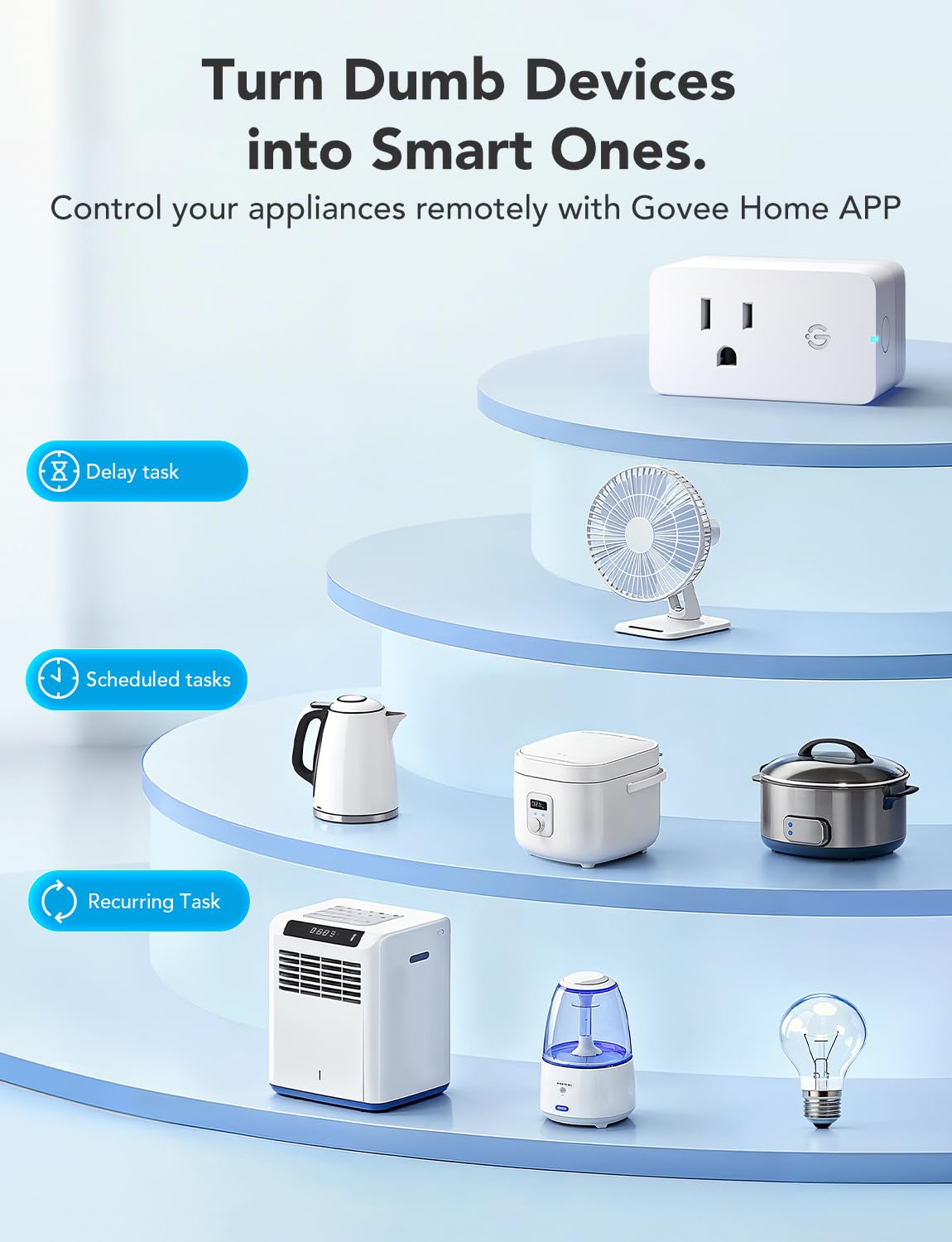
Image: Illustration of how Govee Smart Plugs can turn regular devices into smart ones, showing app control options like delay tasks, scheduled tasks, and recurring tasks.
6. Operating Instructions
6.1 Manual Control
Press the physical button on the side of the Smart Plug to manually turn the connected appliance on or off.
6.2 App Control
Use the Govee Home App to control your Smart Plug from anywhere with an internet connection.
- On/Off: Tap the power icon in the app to toggle the connected device.
- Scheduling: Set specific times for your devices to turn on or off automatically. This can be customized for different days of the week.
- Timers: Set a countdown timer for the device to turn off after a specified duration.
- Group Control: Group multiple Govee Smart Plugs together to control them simultaneously with a single command.
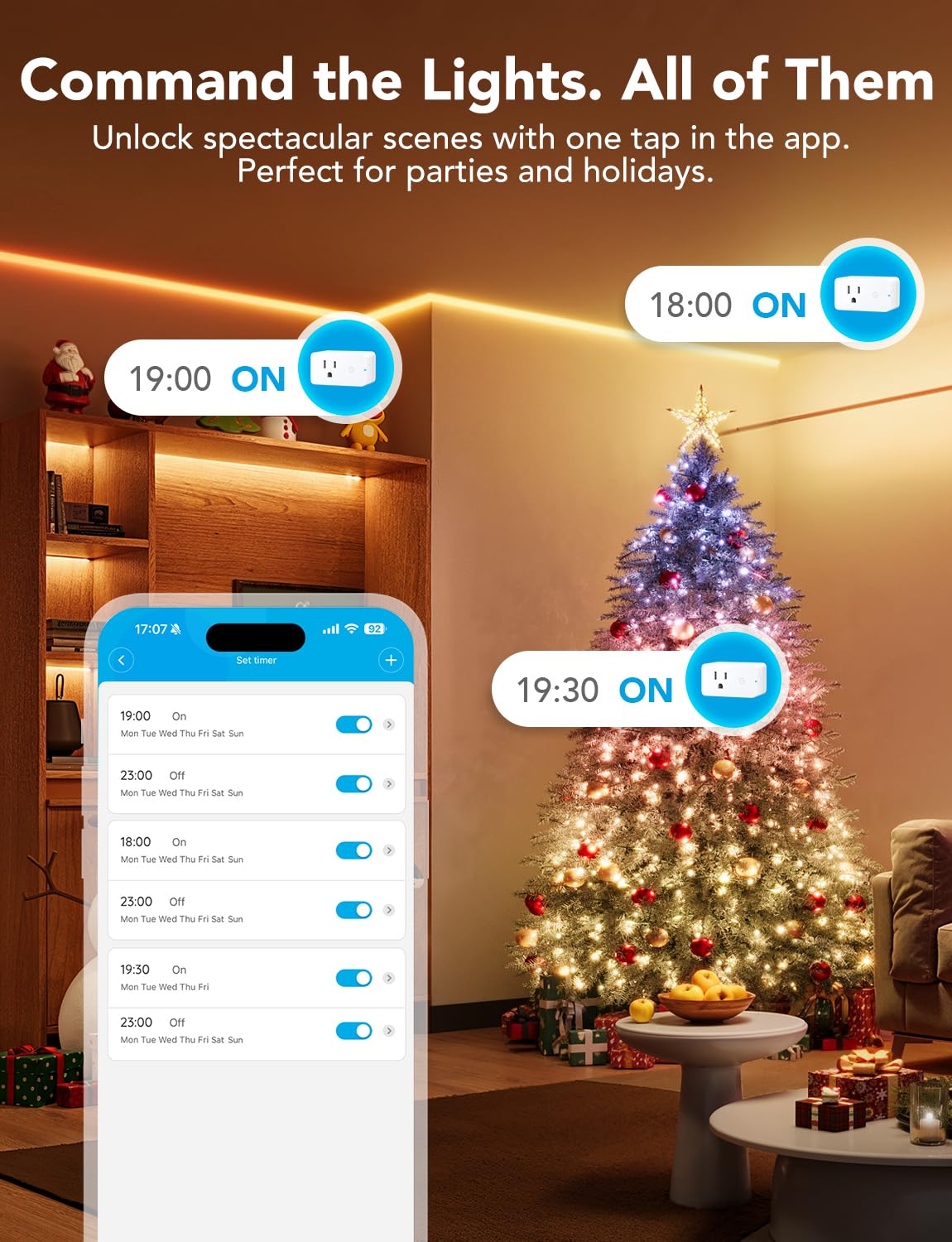
Image: The Govee Home App demonstrating scheduling features to control multiple smart plugs for holiday lighting.
6.3 Voice Control
Integrate your Govee Smart Plug with voice assistants like Amazon Alexa and Google Assistant for hands-free control.
- Ensure your Smart Plug is connected to the Govee Home App.
- Open your Alexa or Google Home app and enable the Govee skill/service.
- Follow the app's instructions to link your Govee account and discover devices.
- Use voice commands such as "Alexa, turn on the living room lamp" or "Hey Google, turn off the fan."
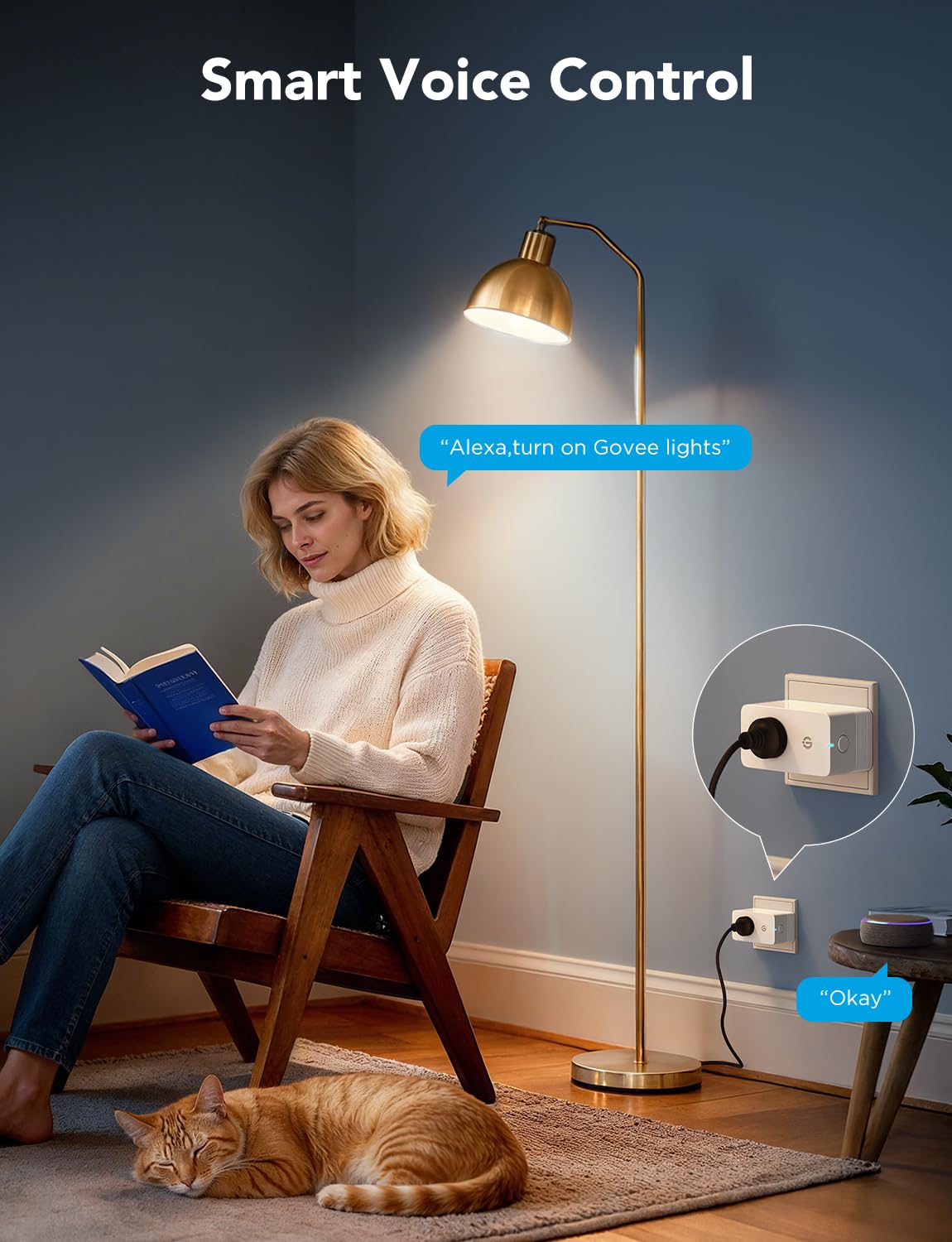
Image: A user interacting with a smart speaker to control a device connected to a Govee Smart Plug, demonstrating voice control functionality.
6.4 Energy Monitoring
The Govee Smart Plug provides real-time energy consumption data for connected devices.
- View real-time power (W), current (A), and voltage (V) in the Govee Home App.
- Access daily, weekly, and monthly energy usage reports for up to one year.
- Monitor accumulated kilowatt-hours (kWh) and runtime to identify energy-hungry devices and optimize usage.
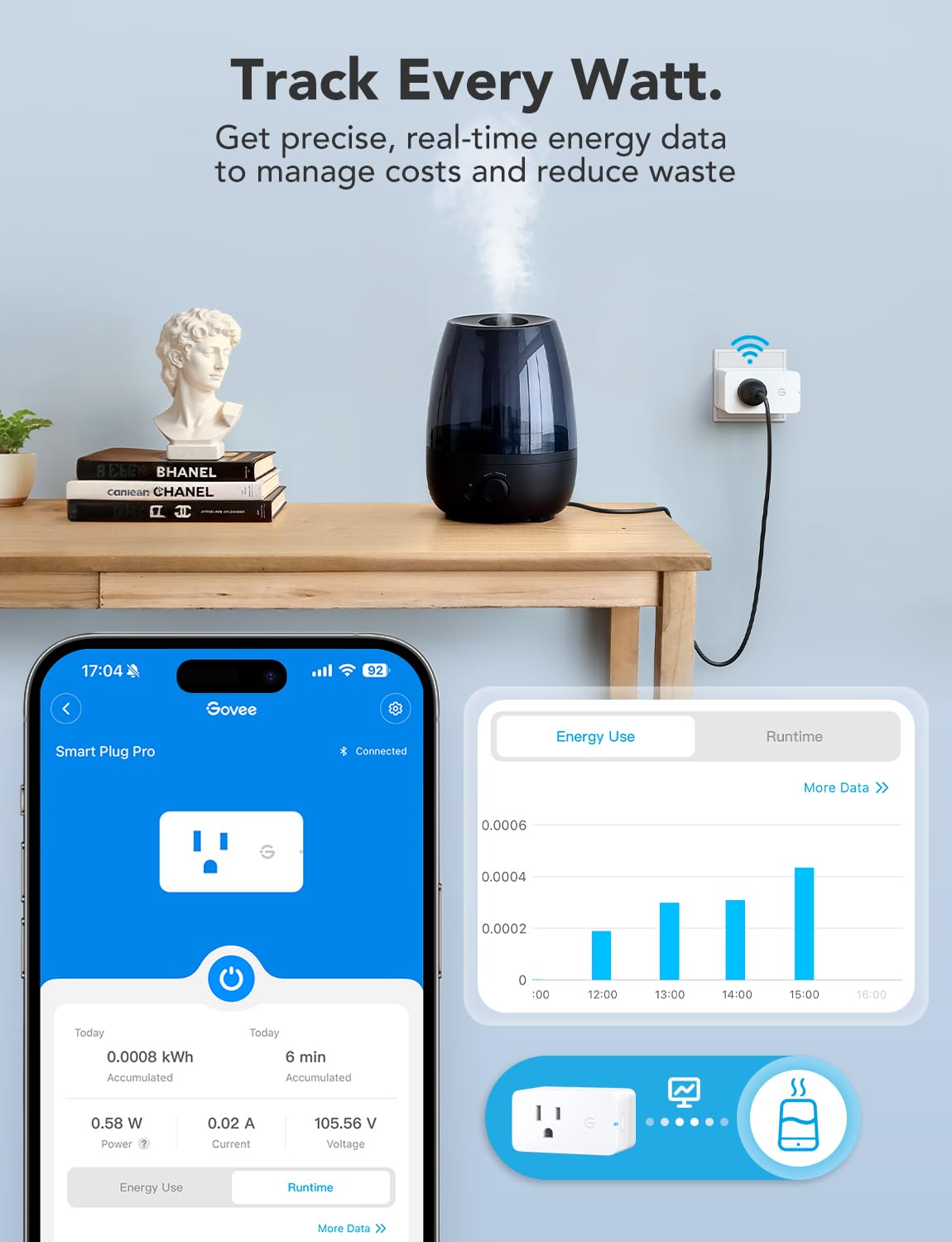
Image: A smartphone screen showing the Govee Home App's energy monitoring interface, displaying power, current, voltage, and historical energy use for a connected device.
6.5 Child Safety Lock
Activate the Child Safety Lock feature in the Govee Home App to prevent accidental manual operation of the plug.

Image: A visual representation of the Child Safety Lock feature, showing a smart plug in an outlet with a child nearby, and the app interface for activating the lock.
7. Maintenance
- Clean the Smart Plug with a dry, soft cloth. Do not use liquid cleaners.
- Ensure the plug is disconnected from the power outlet before cleaning.
- Store in a cool, dry place when not in use.
8. Troubleshooting
8.1 Device not connecting to Wi-Fi
- Ensure your Wi-Fi network is 2.4GHz. The Smart Plug does not support 5GHz networks.
- Check your Wi-Fi password for accuracy.
- Move the Smart Plug closer to your Wi-Fi router.
- Reset the Smart Plug by holding the power button for 5-10 seconds until the LED flashes rapidly, then attempt pairing again.
8.2 Voice control not working
- Verify that the Govee skill/service is enabled in your Alexa or Google Home app.
- Ensure your Govee account is correctly linked to your voice assistant.
- Check the device name in the Govee Home App and use clear, simple commands.
8.3 Energy monitoring data is inaccurate or not updating
- Ensure the Smart Plug has a stable Wi-Fi connection.
- Verify that the connected appliance is within the specified power limits (15A / 1800W).
- Restart the Govee Home App or the Smart Plug itself.
9. Specifications
| Feature | Detail |
|---|---|
| Model Number | H5086 |
| Input/Output | 120V ~ 60Hz 15A MAX |
| Max Power | 1800W |
| Connectivity | Wi-Fi (2.4GHz only), Bluetooth |
| Dimensions (L x W x H) | 2.68 x 2.4 x 1.5 inches |
| Weight | 13.4 ounces |
| Certifications | ETL, FCC |
10. Warranty and Support
Govee products come with a limited warranty. For specific warranty details, technical support, or customer service, please refer to the Govee Home App or visit the official Govee website. You can also contact Govee customer support directly through the app's feedback section.
11. Official Product Video
Video: An official Govee video showcasing the Smart Plug Pro with Real-Time Energy Monitoring, highlighting its features and benefits.


