
Aiwa AS55QUHDX3 GTV
Aiwa 139 cm (55 inches) QLED Display 4K Ultra HD Smart Google TV User Manual
Model: AS55QUHDX3 GTV
Introduction
Welcome to the world of immersive entertainment with your new Aiwa 139 cm (55 inches) QLED Display 4K Ultra HD Smart Google TV. This manual provides comprehensive instructions for setting up, operating, and maintaining your television to ensure optimal performance and longevity. Experience stunning visuals with QLED technology and 4K Ultra HD resolution, coupled with rich audio powered by Dolby Atmos and Aiwa Signature Sound. Navigate effortlessly with Google TV, offering personalized content recommendations and integrated smart features.
Important Safety Information
Please read all safety instructions carefully before using the television. Keep this manual for future reference.
- Do not block ventilation openings. Ensure adequate space around the TV for proper airflow.
- Do not place the TV near heat sources such as radiators, heat registers, stoves, or other apparatus (including amplifiers) that produce heat.
- Protect the power cord from being walked on or pinched, particularly at plugs, convenience receptacles, and the point where they exit from the apparatus.
- Only use attachments/accessories specified by the manufacturer.
- Unplug this apparatus during lightning storms or when unused for long periods of time.
- Refer all servicing to qualified service personnel. Servicing is required when the apparatus has been damaged in any way, such as power-supply cord or plug is damaged, liquid has been spilled or objects have fallen into the apparatus, the apparatus has been exposed to rain or moisture, does not operate normally, or has been dropped.
- Do not expose the TV to dripping or splashing. Do not place objects filled with liquids, such as vases, on the apparatus.
What's in the Box
Verify that all components are present before proceeding with the setup.
- 1N LED TV
- 4N Screws
- 1N Remote Control
- 2N AAA Batteries (for remote)
- 1N User Manual with Warranty Card
- 1N Set Table Stand
- 1N Wallmount (optional, may require professional installation)

Image: Front view of the Aiwa 55-inch QLED Smart Google TV, showcasing its bezel-less design and vibrant display.
Setup Guide
1. Physical Installation
Your Aiwa TV can be installed using the included table stand or a wall mount. Choose the method that best suits your viewing environment.
Table Stand Installation:
- Carefully place the TV screen-down on a soft, flat surface to prevent scratches.
- Attach the two stand legs to the designated slots at the bottom of the TV. Ensure they are oriented correctly.
- Secure the stand legs with the provided screws.
- Carefully lift the TV to its upright position on a stable, level surface.
Wall Mount Installation:
If using a wall mount (included), professional installation is recommended to ensure safety and proper alignment. Refer to the wall mount's specific instructions for detailed steps.

Image: Diagram showing the dimensions of the Aiwa 55-inch QLED TV, including height with and without stand, width, and depth.
2. Initial Power-On and Setup Wizard
- Connect the power cord to the TV and then to a power outlet.
- Press the power button on the TV or the remote control to turn on the TV.
- Follow the on-screen instructions to complete the initial setup, including language selection, network connection, and Google account sign-in.
3. Connectivity
Your Aiwa TV offers multiple connectivity options for various devices.
- HDMI Ports (x3): Connect Blu-ray players, gaming consoles, set-top boxes, etc. Supports HDMI 2.0.
- USB Ports (x2): Connect USB drives for media playback. Supports USB 2.0.
- LAN (Ethernet): For wired internet connection.
- Dual-band Wi-Fi: For wireless internet connection.
- 2-way Bluetooth: Connect wireless headphones, soundbars, or other Bluetooth devices.
- AV In: For older devices using composite video and stereo audio.

Image: Close-up view of the rear panel of the Aiwa 55-inch QLED TV, showing the various input and output ports including HDMI, USB, LAN, and AV In.
Operating Instructions
1. Smart Remote Control
The included smart remote control provides easy access to all TV functions and smart features.
- Power Button: Turns the TV on/off.
- Navigation Pad (Directional Buttons & OK): Navigate menus and select options.
- Back Button: Returns to the previous screen.
- Home Button: Accesses the Google TV home screen.
- Volume Up/Down: Adjusts volume.
- Channel Up/Down: Changes channels (if applicable).
- Google Assistant Button: Activates voice control for commands and searches.
- Hotkeys: Dedicated buttons for Netflix, Prime Video, YouTube, and Disney+ Hotstar for quick access.
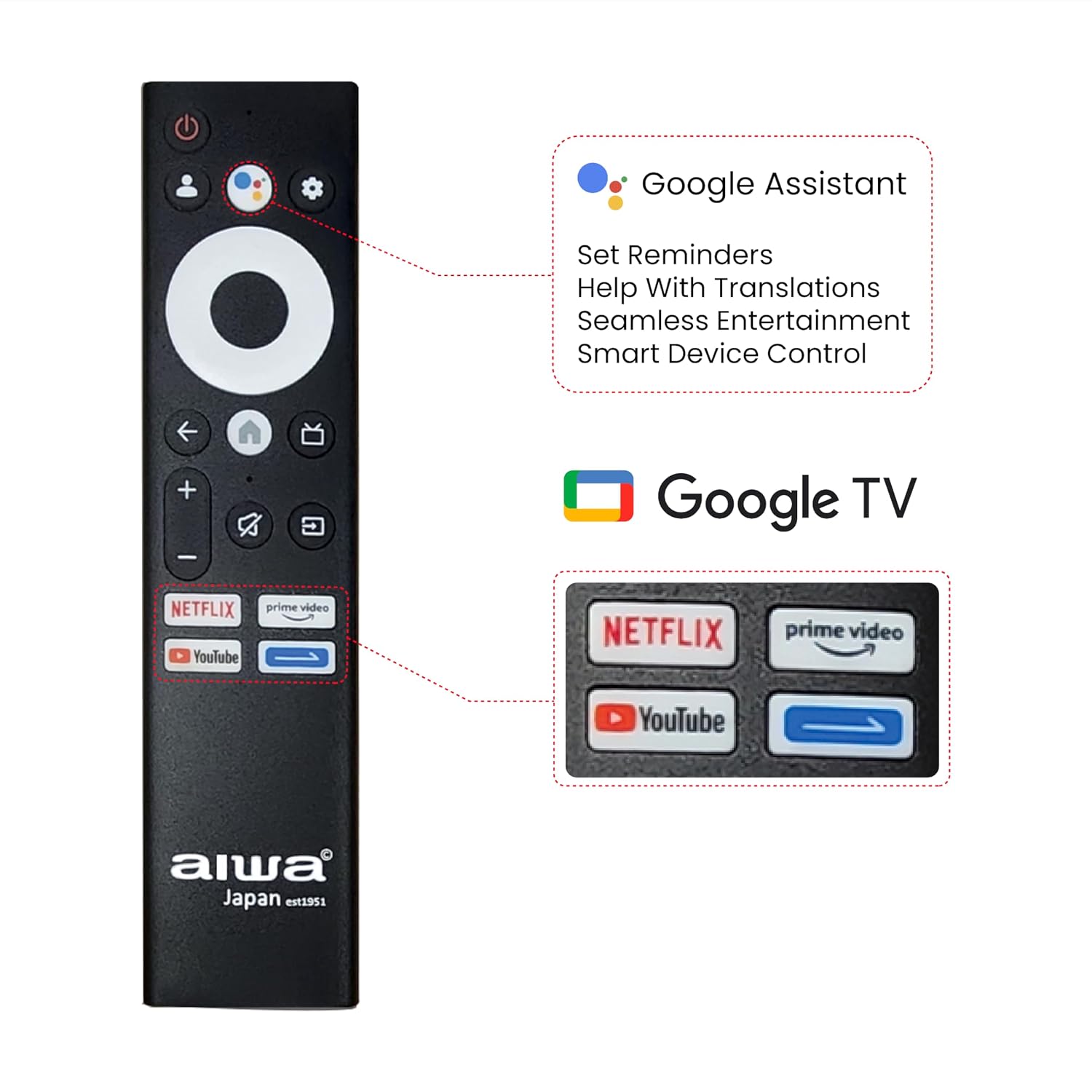
Image: The Aiwa Smart Remote Control, highlighting dedicated hotkeys for popular streaming services like Netflix, Prime Video, and YouTube, along with the Google Assistant button.
2. Google TV Features
Your Aiwa TV runs on Google TV, providing a personalized and intuitive entertainment experience.
- Content Recommendations: Discover new movies and shows based on your viewing history and preferences.
- Watchlist: Add content you want to watch later from various streaming services.
- Personal Profiles & Kids Profile: Create individual profiles for personalized experiences and a dedicated Kids Profile for family-friendly content.
- Google Assistant: Use voice commands to search for content, control smart home devices, get answers, and more.
- Built-in Chromecast: Cast content directly from your smartphone, tablet, or computer to the TV.
- 10,000+ Apps: Access a vast library of applications from the Google Play Store.

Image: A screenshot of the Google TV interface on the Aiwa TV, displaying a wide array of streaming applications and content recommendations.
3. Picture and Sound Settings
Customize your viewing and listening experience through the TV settings.
- Picture Modes: Select from Vivid, Standard, Sport, Movie, User, and Energy Saving modes.
- Dolby Vision & HDR10: Enhanced contrast and color for compatible content.
- Crysta Tech Vision & Black Reflect: Technologies for improved clarity and reduced glare.
- Sound Modes: Choose from Standard, Sport, Movie, and Music modes.
- Dolby Atmos Audio: Immersive, multi-dimensional sound experience.
- Aiwa Signature Sound: High-fidelity audio output.

Image: A collage showcasing key features of the Aiwa QLED TV, including QLED Google TV, Aiwa Signature Sound, Dolby Vision-Atmos, Chromecast built-in, HDR 10, and Bezel-less Design.
Maintenance
Proper maintenance ensures the longevity and optimal performance of your television.
- Cleaning the Screen: Gently wipe the screen with a soft, lint-free cloth. For stubborn marks, use a screen-specific cleaning solution applied to the cloth, not directly to the screen.
- Cleaning the Cabinet: Use a soft, dry cloth to wipe the TV cabinet. Do not use abrasive cleaners or solvents.
- Ventilation: Ensure the ventilation openings are clear of dust and debris. Do not block them.
- Power Cord: Regularly check the power cord for any damage. If damaged, contact service personnel.
Troubleshooting
Refer to this section for solutions to common issues you might encounter.
| Problem | Possible Cause | Solution |
|---|---|---|
| No power | Power cord not connected; Power outlet issue | Ensure power cord is securely plugged in. Check if the power outlet is working. |
| No picture, but sound is present | Incorrect input source; Loose HDMI/AV cable | Press the "Input" button on the remote to select the correct source. Check cable connections. |
| No sound, but picture is present | Volume muted or too low; Incorrect audio output setting | Increase volume. Check TV audio settings and ensure external audio devices are properly connected. |
| Remote control not working | Batteries depleted; Obstruction between remote and TV | Replace batteries. Remove any obstructions. Ensure remote is pointed at the TV's IR sensor. |
| Wi-Fi connection issues | Incorrect password; Router issues; Signal interference | Re-enter Wi-Fi password. Restart your router. Move TV closer to router or reduce interference. |
| Slow performance/lagging | Too many apps running; Low storage | Close unused applications. Clear cache or uninstall unnecessary apps to free up storage. Restart the TV. |
Specifications
Detailed technical specifications for the Aiwa AS55QUHDX3-GTV Smart Google TV.
| Feature | Detail |
|---|---|
| Model Name | AS55QUHDX3 GTV |
| Screen Size | 139 cm (55 Inches) |
| Display Technology | QLED |
| Resolution | 4K Ultra HD (3840x2160) |
| Refresh Rate | 60 Hertz |
| Viewing Angle | 178 Degrees |
| Operating System | Google TV |
| RAM Memory | 2 GB |
| Storage Capacity | 16 GB |
| Sound Output | 24 Watts |
| Audio Features | Aiwa Signature Sound, Dolby Atmos, High Fidelity Speakers |
| Connectivity | Dual band Wi-Fi, 2-way Bluetooth, 3x HDMI 2.0, 2x USB 2.0, 1x LAN |
| Special Features | Google Assistant, Built-in Chromecast, Far Field Technology, Voice enabled Smart Remote, Hotkeys for streaming services, Dolby Vision, HDR10, Crysta Tech Vision, Black Reflect |
| Product Dimensions | 9 x 19 x 80 cm (Depth x Width x Height) |
| Item Weight | 10.8 kg |
| Power Consumption | 150 Watts (On-mode) |
Warranty and Support
Your Aiwa AS55QUHDX3-GTV television comes with a standard manufacturer's warranty. Please refer to the warranty card included in the box for specific terms and conditions.
For installation, service support, or any technical assistance, please contact Aiwa customer service:
- Customer Service Helpline: 1800-120-5619
- Email: getintouch@aiwaindia.com
- Manufacturer: AIWA INDIA SALES & SERVICES PRIVATE LIMITED
- Address: 2E/26, Jhandewalan Extn, New Delhi -110055, India
Aiwa provides installation and service support across over 19,000 pincodes in India.

Image: A panoramic image representing the Aiwa brand, symbolizing its legacy and commitment to quality entertainment products.
Ask a question about this manual
Ask about setup, troubleshooting, compatibility, parts, safety, or missing instructions. Manuals+ will review the question and use this page’s manual context to help answer it.