1. Introduction
This manual provides comprehensive instructions for the setup, operation, and maintenance of your TYPONOS P21 Label Maker Machine. Please read this manual thoroughly before using the device to ensure proper function and longevity.
2. Package Contents
Verify that all items listed below are included in your package:
- 1 x TYPONOS P21 Label Maker Machine
- 1 x User Manual
- 1 x USB Type-C Charging Cable
- 1 x Roll of Label Tape (15x40mm, pre-installed)
- 1 x Guide Card

Figure 2.1: Contents of the TYPONOS P21 Label Maker package.
3. Setup Guide
3.1 Charging the Device
Before first use, fully charge the label maker using the provided USB Type-C cable. Connect the cable to the charging port on the device and a compatible USB power source. The indicator light will show charging status.
3.2 Installing the Label Roll
- Slide the cover button to open the label compartment cover.
- Place the label roll into the paper bin, ensuring the label side faces upwards and the roll is properly seated.
- Pull approximately 2-4 cm of label paper out of the machine, extending it past the cutter.
- Close the cover firmly until it clicks into place. Press the power button to calibrate the label and perform a test print.

Figure 3.2: Steps for installing the label roll.
3.3 App Installation and Bluetooth Connection
The TYPONOS P21 Label Maker operates via a dedicated mobile application. Follow these steps to connect:
- For iOS users: Download the 'Labelnize' app directly from the Apple App Store.
- For Android users: Scan the QR code provided in the instruction manual (or on the guide card) to download the 'Labelnize' app from the official website.
- Ensure Bluetooth is enabled on your mobile device.
- Open the 'Labelnize' app. The app will guide you to connect to the P21 Label Maker via Bluetooth. Select your device from the list.
- Once connected, the app will display a "Connected" status, and you can begin creating labels.

Figure 3.3: App download and Bluetooth connection process.
4. Operating Instructions
4.1 Creating and Editing Labels
The 'Labelnize' app provides a wide range of customization options for your labels:
- Text: Enter desired text. The app offers over 90 fonts and supports multiple languages.
- Templates: Utilize over 450 material options and various system templates for common uses (e.g., document, device cable, rice cooker).
- Icons & Borders: Add decorative icons and borders to personalize your labels.
- Barcodes & QR Codes: Generate and print barcodes or QR codes directly from the app.
- Pictures: Integrate images into your label designs.

Figure 4.1: Label creation and editing interface in the Labelnize app.
4.2 Printing Labels
Once your label design is complete in the app, select the print option. The P21 Label Maker uses thermal printing technology, eliminating the need for ink or toner. It prints at 203 DPI resolution and speeds up to 30 mm/s, producing clear, monochrome labels.

Figure 4.2: Key features of the P21 thermal printing technology.
4.3 Using the Built-in Cutter
After printing, use the integrated manual cutter to cleanly separate your label from the roll. Simply push the cutter lever down to cut the label.
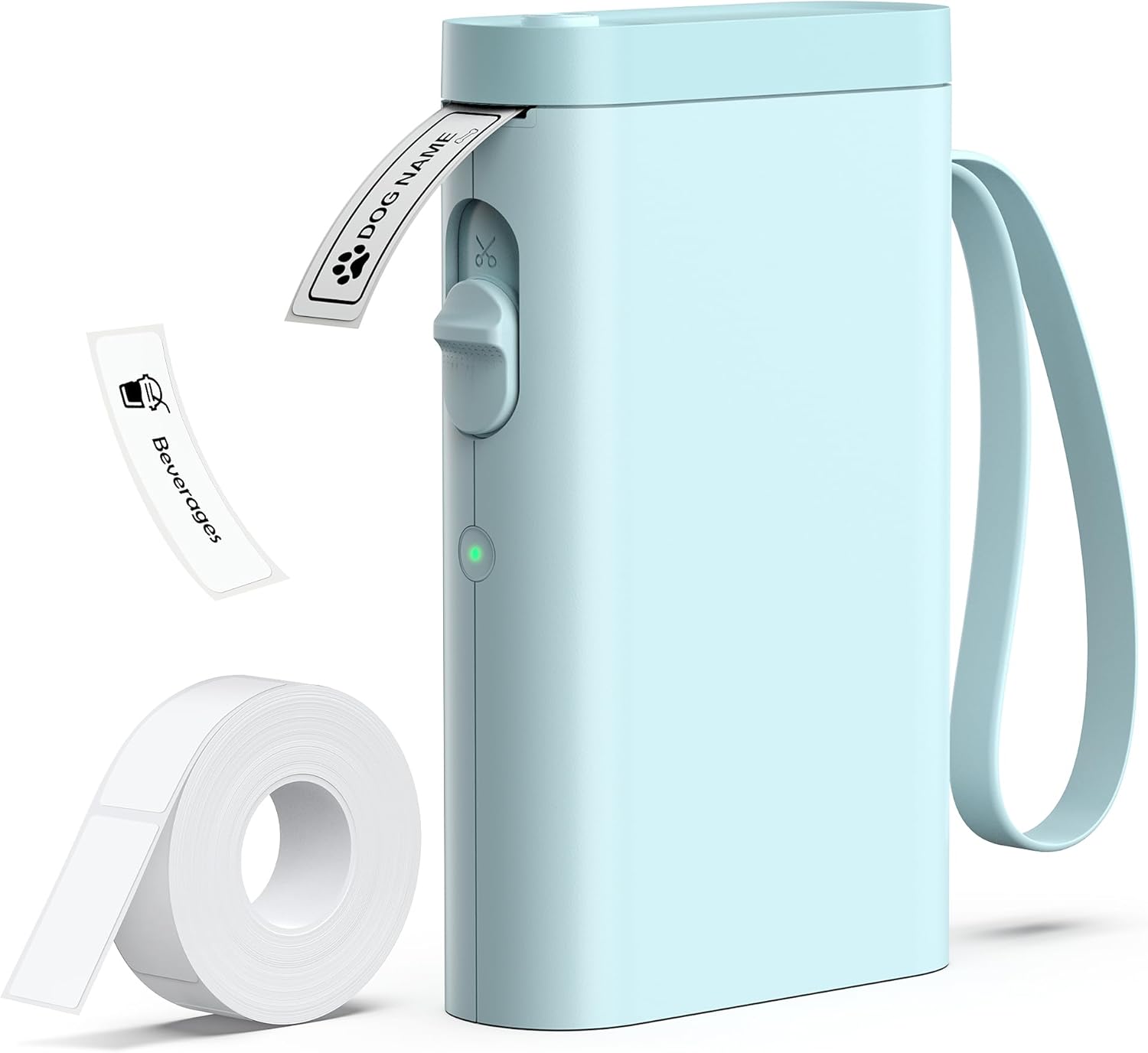
Figure 4.3: The P21 Label Maker with its manual cutter.
5. Maintenance
5.1 Cleaning the Device
- Ensure the device is powered off before cleaning.
- Use a soft, dry, lint-free cloth to wipe the exterior of the label maker.
- Do not use liquid cleaners, aerosols, or solvents, as these can damage the device.
- Gently clean the print head area with a cotton swab if print quality degrades, ensuring no debris is present.
5.2 Storage
- Store the label maker in a cool, dry place away from direct sunlight and extreme temperatures.
- Remove the label roll if storing for an extended period to prevent adhesion issues.
5.3 Battery Care
- To maintain battery health, recharge the device regularly, even if not in frequent use.
- Avoid fully discharging the battery frequently.
- Do not expose the device to temperatures below 0°C (32°F) or above 45°C (113°F).
6. Troubleshooting
If you encounter issues with your TYPONOS P21 Label Maker, refer to the following common problems and solutions:
| Problem | Possible Cause | Solution |
|---|---|---|
| Printer not connecting via Bluetooth | Bluetooth is off on mobile device; App not open; Printer not discoverable. | Ensure Bluetooth is enabled. Open the 'Labelnize' app and follow connection prompts. Restart the label maker and try again. |
| Poor print quality (faint, blurry, or incomplete prints) | Incorrect label roll installation; Print head dirty; Low battery; Non-TYPONOS labels used. | Reinstall the label roll correctly (refer to Section 3.2). Gently clean the print head. Charge the device fully. Use genuine TYPONOS labels for optimal results. Calibrate the machine via the app if available. |
| Printer not turning on or charging | Battery fully discharged; Faulty USB cable/power source. | Connect to a known working USB power source with the provided USB Type-C cable. Allow several minutes for charging to initiate if battery is completely drained. |
| Labels not feeding correctly or jamming | Label roll improperly installed; Debris in paper path. | Open the cover and re-seat the label roll, ensuring 2-4 cm of paper extends. Check for and remove any obstructions in the paper path. |
7. Specifications
| Feature | Detail |
|---|---|
| Brand | TYPONOS |
| Model Name | P21 Label Maker |
| Product Dimensions | 6.65"D x 4.47"W x 1.9"H |
| Item Weight | 11.3 ounces |
| Printing Technology | Thermal |
| Maximum Print Resolution | 203 DPI |
| Max Print Speed (Monochrome) | 30 mm/s |
| Connectivity Technology | Bluetooth |
| Control Method | App |
| Maximum Media Size | 15x40 mm |
| Print Media | Labels |
| Ink Color | Black (Inkless Thermal Printing) |
| Batteries | 1 Lithium Polymer battery (included) |
| Special Feature | Portable, Built-in Cutter |
| Date First Available | October 6, 2023 |
8. Warranty and Support
The TYPONOS P21 Label Maker Machine comes with a Limited Warranty. For specific warranty terms and conditions, please refer to the documentation included with your purchase or contact TYPONOS customer support.
For technical assistance, troubleshooting beyond this manual, or warranty claims, please contact TYPONOS customer support through their official website or the contact information provided on the product packaging.


