
1. Introduction
The Baatu Enable Tablet is designed to provide a secure and controlled digital environment for children, while offering robust performance for educational and entertainment purposes. This manual provides essential information for setting up, operating, and maintaining your device, along with details on its unique parental control features.
Key features include:
- Advanced Parental Controls: Manage screen time, block applications, monitor content, and track location with geofencing capabilities.
- Dedicated Parent App: A lifetime-free Baatu Parent App allows remote management of the tablet's settings and monitoring of usage.
- Performance: Powered by Android 12 OS and a MediaTek Processor, featuring a 10.1-inch Full HD Display, 4GB RAM, and 64GB ROM (expandable up to 128GB).
- Connectivity: Supports 4G and Wi-Fi calling, ensuring connectivity for virtual learning and communication.
- Camera: Equipped with an 8 MP main camera and a 5 MP front camera for video calls and capturing moments.
- Battery: A 6000 mAH battery provides extended usage.
2. Safety Information
Please read this section carefully before using your Baatu Enable Tablet to ensure safe and proper operation.
- Battery Safety: Do not attempt to replace the battery yourself. Use only the provided charging head and cable. Avoid exposing the tablet to extreme temperatures or direct sunlight.
- Water Resistance: This device is not water-resistant. Avoid exposure to liquids.
- Cleaning: Use a soft, dry cloth for cleaning. Do not use liquid cleaners or aerosols.
- Choking Hazard: Keep small parts, such as SIM cards or memory cards, away from young children to prevent choking.
- Hearing Protection: Avoid using headphones at high volume for extended periods to prevent hearing damage.
- Disposal: Dispose of the device and its accessories responsibly according to local regulations. Do not dispose of in household waste.
3. Package Contents
Verify that all items are present in your Baatu Enable Tablet package:
- Baatu Enable Tablet (Model BTX6226)
- Charging Head
- Charging Cable
4. Device Overview
Familiarize yourself with the physical components of your Baatu Enable Tablet.

Image: Front and back view of the Baatu Enable Tablet, showcasing its sleek design and camera module.
Physical Dimensions:
- Height: 10.1 mm
- Width: 16.3 cm
- Length: 24.5 cm
- Weight: 930 g
Key Components:
- Display: 10.1-inch Full HD screen.
- Cameras: 8 MP Main Camera (rear), 5 MP Front Camera.
- Speakers: Dual speakers for enhanced audio.
- Ports: Charging port, SIM card slot, headphone jack.
- Buttons: Power button, Volume buttons.
5. Setup
Follow these steps to set up your Baatu Enable Tablet for first-time use.
5.1 Initial Power On
- Press and hold the Power button located on the side of the tablet until the Baatu logo appears.
- Follow the on-screen prompts to select your language, region, and accept the terms and conditions.
5.2 Network Connection
To access online features, connect your tablet to a Wi-Fi network or insert a 4G SIM card.
5.2.1 Wi-Fi Connection
- Go to Settings > Network & internet > Wi-Fi.
- Toggle Wi-Fi On.
- Select your desired Wi-Fi network from the list.
- Enter the network password if prompted, then tap Connect.
5.2.2 4G SIM Card Installation (Optional)
- Locate the SIM card slot on the side of the tablet.
- Carefully open the SIM tray using the provided SIM ejector tool (if included) or a small paperclip.
- Insert your 4G Nano-SIM card into the tray with the gold contacts facing down.
- Gently push the tray back into the slot until it clicks into place.
- The tablet should automatically detect the network. If not, go to Settings > Network & internet > Mobile network to configure.
5.3 Baatu Parent App Setup
The Baatu Parent App is crucial for managing the tablet's parental controls. Download and install it on your personal smartphone.
- On your smartphone, download the 'Baatu Parent App' from your device's app store (Google Play Store or Apple App Store).
- Open the app and create a parent account.
- Follow the in-app instructions to pair your Baatu Enable Tablet with your parent account. This typically involves scanning a QR code displayed on the tablet during its initial setup or within its settings.
6. Operating Instructions
This section details the primary functions and parental control features of your Baatu Enable Tablet.

Image: A parent and child interacting with the Baatu Enable Tablet, highlighting its smart parental control features.
6.1 Parental Control Features (Managed via Baatu Parent App)
All parental control settings are configured and monitored through the Baatu Parent App on your smartphone.
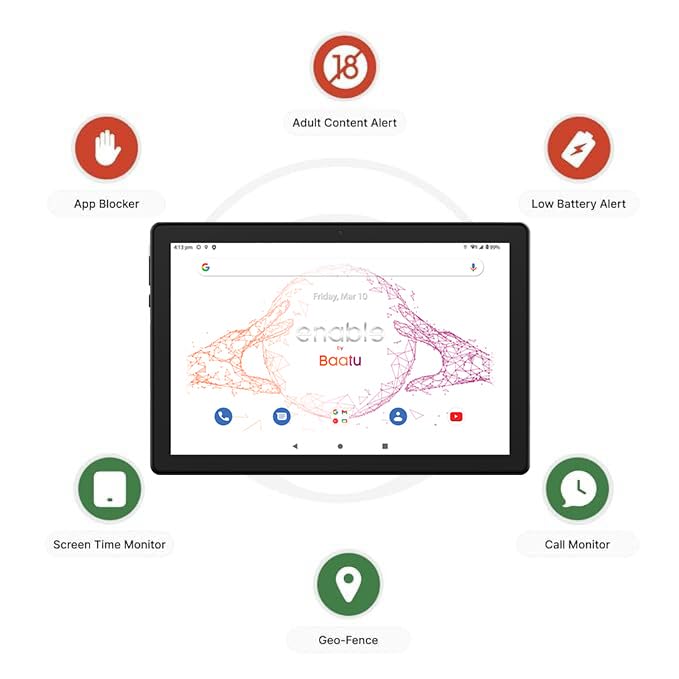
Image: The Baatu Enable Tablet display surrounded by icons representing parental control features: App Blocker, Adult Content Alert, Low Battery Alert, Screen Time Monitor, Call Monitor, and Geo-Fence.
- Screen Time Monitor: Set daily limits for tablet usage. The device will automatically lock once the allocated screen time is exhausted.
- App Blocker: Remotely block or unblock specific applications installed on the tablet.
- Content Monitor: Receive alerts if the child attempts to access or searches for inappropriate content online.
- Location Tracking & Geo-fencing: Track the tablet's live location and set up safe zones. You will be alerted if the device enters or exits these predefined areas.
- Call Monitor: Access reports on call usage, including duration and contacts.
- Low Battery Alert: Receive notifications when the tablet's battery level is critically low.
- Sleep Monitor: Configure specific sleep times during which the device will automatically lock.
6.2 Basic Tablet Functions
- Navigation: Use touch gestures (tap, swipe, pinch) to navigate the Android 12 interface.
- Applications: Download and install applications from the Google Play Store. Parental controls may restrict access to certain apps.
- Camera: Open the Camera app to take photos or record videos using the 8 MP main camera or 5 MP front camera.
- Connectivity: Utilize 4G for mobile data and calling, or connect to Wi-Fi for internet access. Bluetooth allows connection to wireless accessories.
7. Maintenance
Proper maintenance ensures the longevity and optimal performance of your Baatu Enable Tablet.
7.1 Charging the Battery

Image: The Baatu Enable Tablet displaying battery life metrics: 12 hours web browsing, 10 hours video playback, powered by a 6000 mAh battery.
Connect the provided charging cable to the tablet's charging port and the charging head to a power outlet. A full charge provides approximately 12 hours of web browsing or 10 hours of video playback.
7.2 Cleaning
To clean the tablet's screen and body, use a soft, lint-free cloth. For stubborn smudges, slightly dampen the cloth with water. Avoid using harsh chemicals, abrasive materials, or excessive moisture.
7.3 Software Updates
Regularly check for and install software updates to ensure your tablet has the latest features, security patches, and performance improvements.
- Ensure the tablet is connected to Wi-Fi and has sufficient battery life (at least 50%).
- Go to Settings > System > System update.
- Follow the on-screen instructions to download and install any available updates.
8. Troubleshooting
This section addresses common issues you might encounter with your Baatu Enable Tablet.
- Tablet is slow or unresponsive:
- Close unused applications running in the background.
- Clear cache data for frequently used apps.
- Restart the tablet.
- Ensure sufficient storage space is available (64GB ROM, expandable up to 128GB).
- Battery not charging or charging slowly:
- Ensure the charging cable and adapter are securely connected.
- Use only the original Baatu charging head and cable.
- Try a different power outlet.
- Check for any damage to the charging port, cable, or adapter.
- Screen frozen or black screen:
- Perform a forced restart by pressing and holding the Power button for about 10-15 seconds until the device restarts.
- If the issue persists, a factory reset might be necessary (note: this will erase all data).
- Wi-Fi or 4G connectivity issues:
- Toggle Wi-Fi or Mobile Data off and on again.
- Restart your Wi-Fi router or ensure your 4G SIM card is active and has data.
- Forget the Wi-Fi network and reconnect.
- Ensure the SIM card is correctly inserted.
9. Specifications
Detailed technical specifications for the Baatu Enable Tablet (Model BTX6226).
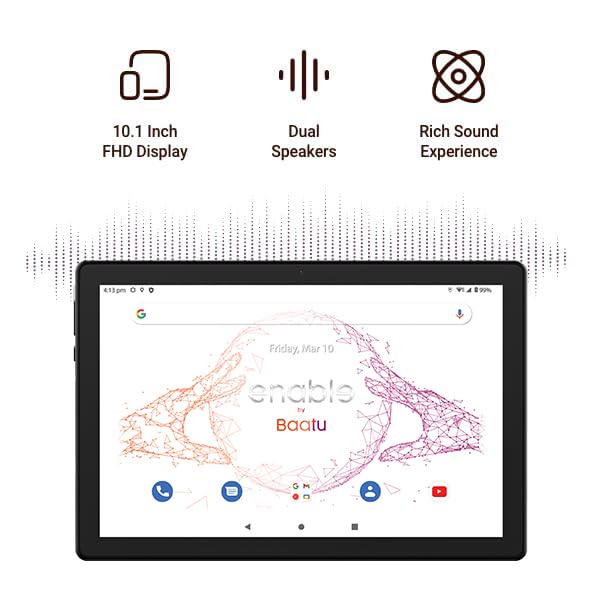
Image: The Baatu Enable Tablet highlighting its 10.1-inch FHD Display, Dual Speakers, and rich sound experience.

Image: The Baatu Enable Tablet with an overlay graphic indicating 4GB RAM, 64GB ROM, and an Android 12 MediaTek Processor.

Image: A close-up view of the Baatu Enable Tablet's rear camera module, detailing the 8 MP Main Camera and 5 MP Focused Front Camera.
| Brand | Baatu |
| Model Name | Enable Tab (BTX6226) |
| Operating System | Android 12 |
| Processor | MediaTek Processor |
| RAM | 4 GB |
| Internal Storage (ROM) | 64 GB (Expandable up to 128 GB) |
| Screen Size | 10.1 Inches |
| Screen Resolution | 1280 x 800 pixels (FHD Display) |
| Main Camera | 8 MP |
| Front Camera | 5 MP |
| Battery Capacity | 6000 mAH Lithium Polymer |
| Connectivity | 4G, Wi-Fi, Bluetooth |
| Dimensions (LxWxH) | 24.5 x 16.3 x 1.01 cm |
| Item Weight | 930 g |
| Included Components | Charging Head & Charging Cable |
10. Warranty and Support
10.1 Warranty Information
Specific warranty details for the Baatu Enable Tablet are typically provided at the point of purchase or within the product packaging. Please refer to your purchase documentation for the exact warranty period and terms. The average battery life is estimated at 3 years under normal usage conditions.
10.2 Customer Support
For any technical assistance, setup guidance, or troubleshooting not covered in this manual, please contact Baatu customer support:
- Email: care@baatu.in
- Phone: +91 63615 20571
Our device experts are available to assist you with the setup process and any other queries you may have.