
1. Introduction
Thank you for choosing the DWMM Wireless Single Din Car Stereo. This manual provides detailed instructions for the installation, operation, and maintenance of your new car stereo system. Please read this manual thoroughly before using the product to ensure proper functionality and safety. This unit is designed to enhance your driving experience with advanced features like wireless Apple CarPlay, Android Auto, an IPS touch screen, Bluetooth 5.1, FM/AM radio, and support for a backup camera.

Figure 1.1: DWMM Wireless Single Din Car Stereo and Included Components
This image displays the main car stereo unit along with its various accessories, including the microphone, backup camera, steering wheel remote, and standard remote control.
2. Safety Information
Always observe the following safety precautions to avoid injury or damage to the unit:
- Do not operate the unit in a manner that distracts you from driving.
- Ensure all wiring is correctly connected before powering on the unit. Incorrect wiring can cause damage or fire.
- Avoid exposing the unit to extreme temperatures, direct sunlight for prolonged periods, or excessive moisture.
- Do not attempt to disassemble or modify the unit. Refer all servicing to qualified personnel.
- Keep the volume at a level that allows you to hear outside traffic sounds.
3. What's in the Box
Please check the contents of your package against the list below:
- Single Din Car Stereo Unit
- Remote control (batteries not included)
- Microphone
- IOS electric wire
- Installation Instruction Manual
- Backup Camera (if included in package)
- Wiring Harnesses
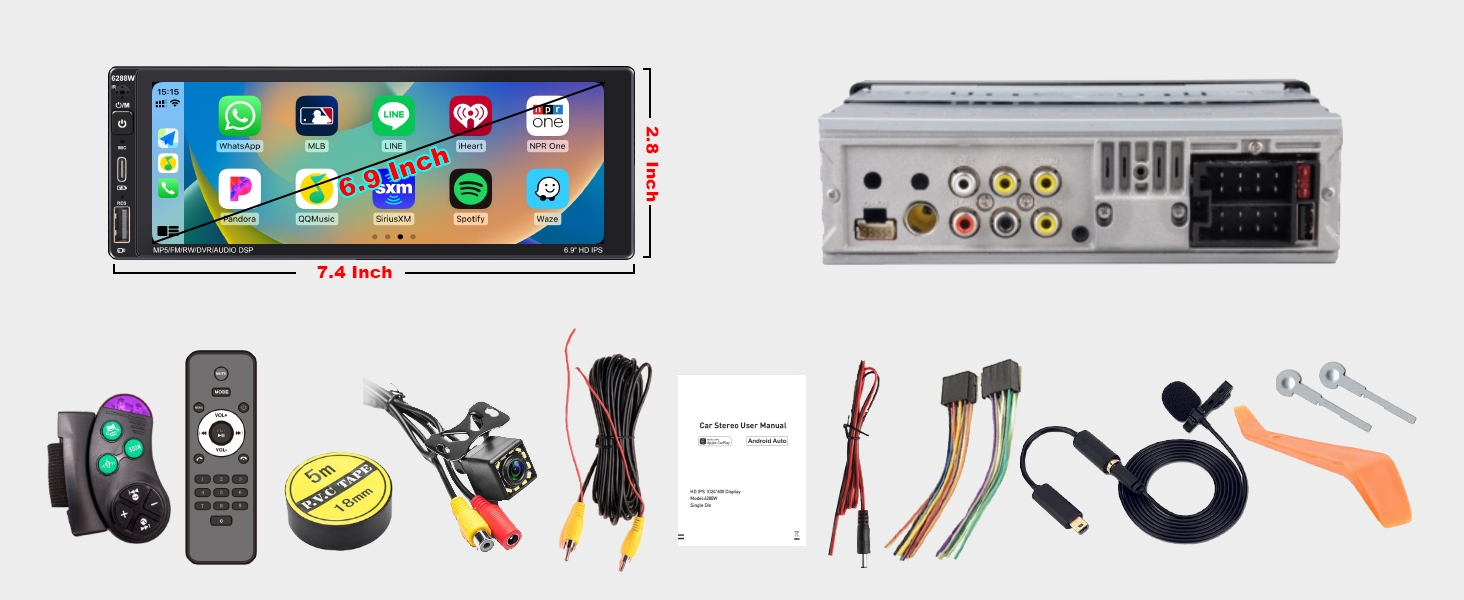
Figure 3.1: Package Contents and Unit Dimensions
This diagram illustrates the physical dimensions of the car stereo unit (7.4'' L x 2.8'' W x 3.4'' D) and provides a visual representation of all items typically included in the product package.
4. Setup
4.1. Installation
Professional installation is recommended for optimal performance and safety. Ensure the vehicle's battery is disconnected before beginning installation. Mount the single din unit securely in your vehicle's dashboard opening.
4.2. Wiring Diagram
Refer to the following diagram for correct wiring connections. Improper wiring can lead to malfunction or damage.
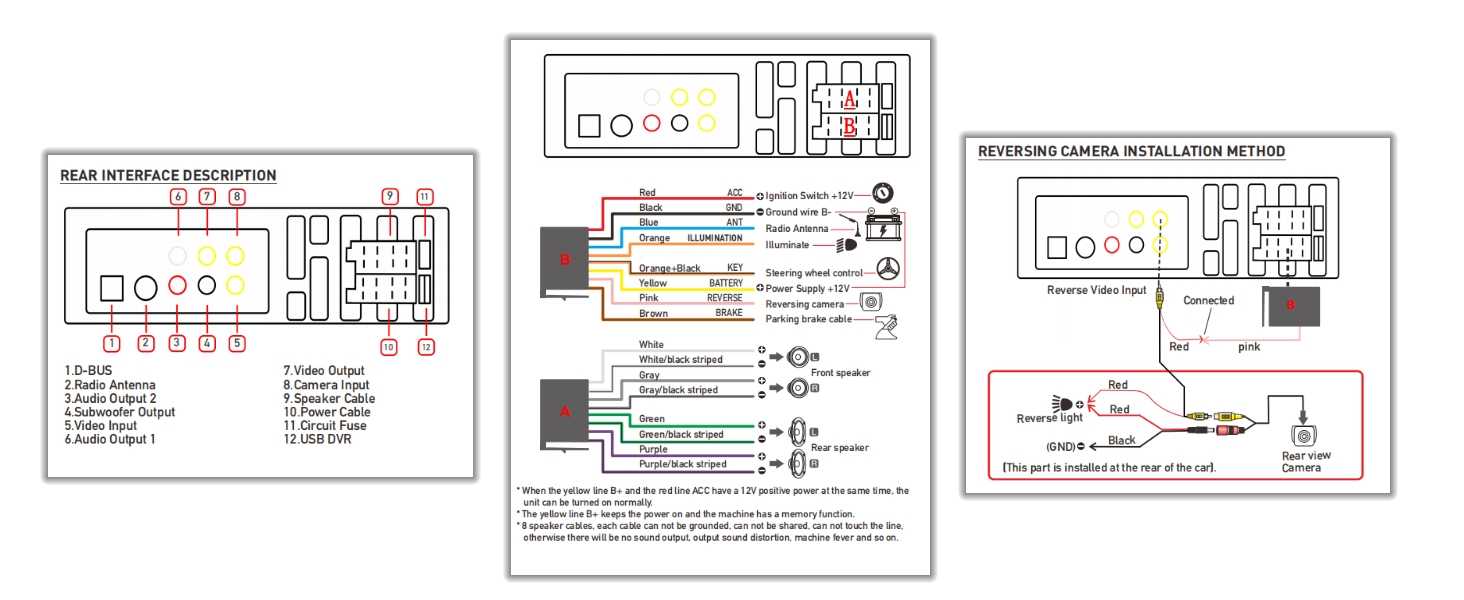
Figure 4.1: Wiring and Rear Interface Diagram
This image provides a comprehensive guide to the rear interface connections, main power and speaker wiring, and specific instructions for installing the reversing camera.
4.3. Initial Power On
After completing all wiring, reconnect the vehicle's battery. Press the power button on the unit or your vehicle's ignition to turn on the stereo. The IPS touch screen should illuminate, and the system will boot up.
5. Operating Instructions
5.1. IPS Touch Screen
The unit features an IPS high-definition display for vivid colors, clear details, and a broader viewing angle. Navigate the system by touching the icons and controls on the screen.

Figure 5.1: IPS Touch Screen Viewing Angles
This image demonstrates the superior clarity and color saturation of the IPS screen from various viewing angles compared to a standard display.
5.2. Wireless Apple CarPlay & Android Auto
Connect your smartphone wirelessly to access apps, calls, messages, and navigation directly on the car stereo screen. This feature provides a seamless and hands-free experience.

Figure 5.2: Wireless CarPlay and Android Auto Interface
This image shows the car stereo displaying both Apple CarPlay and Android Auto interfaces, highlighting the wireless connectivity with smartphones.
Video 5.1: Overview of 6.9 Inch Wireless Single Din Car Stereo Features
This video provides a brief demonstration of the key features of the DWMM 6.9 Inch Wireless Single Din Car Stereo, including its display, connectivity options, and user interface.
5.3. Car FM/AM Radio
The unit supports both AM and FM radio reception, allowing you to tune into a wide range of stations. Use the on-screen controls to scan, save, and switch between frequencies.

Figure 5.3: FM/AM Radio Interface
This image illustrates the user interface for tuning and managing FM and AM radio stations on the car stereo.
5.4. Updated Car Bluetooth 5.1
Benefit from Bluetooth 5.1 technology for seamless audio streaming and clear hands-free calls. Enjoy faster pairing, extended range, and higher stability compared to previous Bluetooth versions.

Figure 5.4: Bluetooth 5.1 Connectivity
This diagram visually represents the advanced Bluetooth 5.1 chip and its capabilities for stable audio streaming and hands-free communication.
5.5. Car GPS Navigation & Voice Control
The unit integrates with smartphone navigation apps, providing real-time precision and up-to-date traffic information. Utilize voice control (Siri/Google Assistant) for hands-free operation of navigation, calls, and music playback.

Figure 5.5: GPS Navigation and Voice Control
This image shows the car stereo displaying a GPS navigation map, alongside visual cues for voice commands to Siri and Google Assistant.
5.6. HD Rearview Camera
Enhance parking and reversing safety with the high-definition night vision, waterproof wide-angle backup camera. It provides clear visibility day or night, in any weather condition.
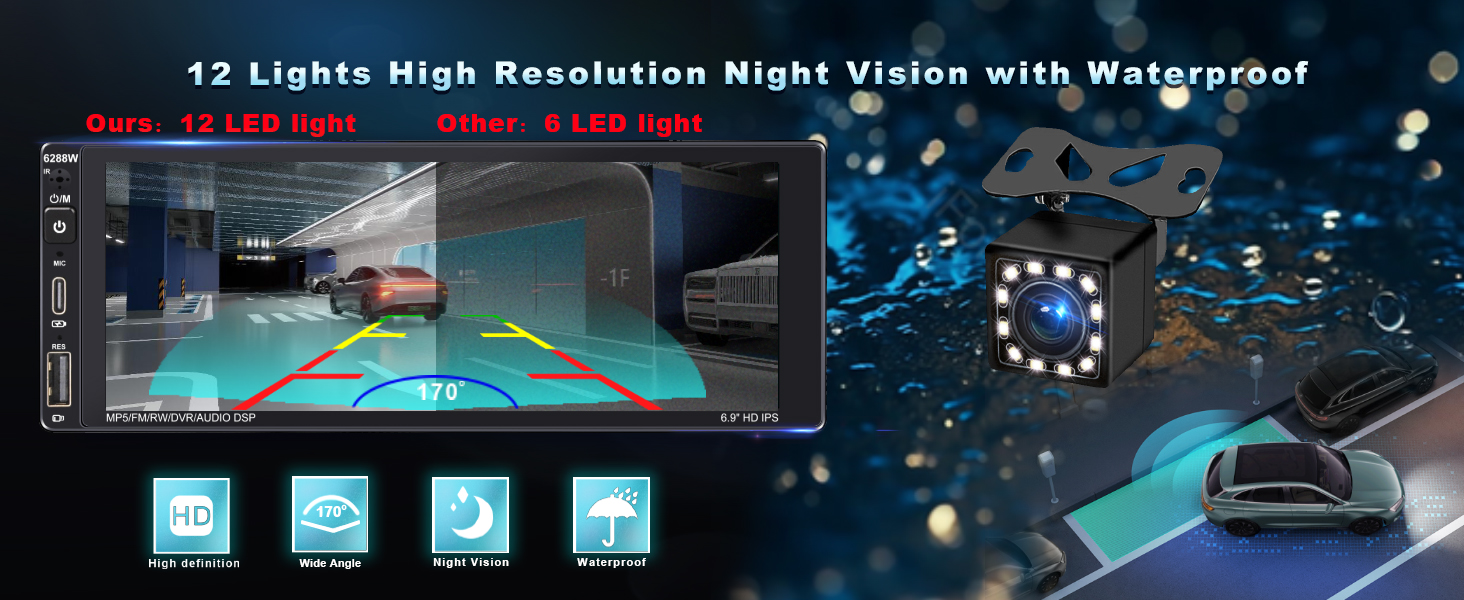
Figure 5.6: HD Rearview Camera View
This image depicts the car stereo screen displaying the wide-angle view from the backup camera, complete with parking assist lines and highlighting its night vision and waterproof capabilities.
5.7. Mirror Link
Quickly connect your smartphone via a cable to mirror its display onto the car stereo screen. This allows you to view content from your phone directly on the larger stereo display.

Figure 5.7: Mirror Link Functionality
This image illustrates a smartphone connected to the car stereo via a USB cable, with the phone's screen content being mirrored onto the larger stereo display.
5.8. EQ Balance Music Playing
Customize your audio experience with the built-in equalizer and balance controls. Adjust frequency bands and speaker balance to achieve your preferred sound profile.
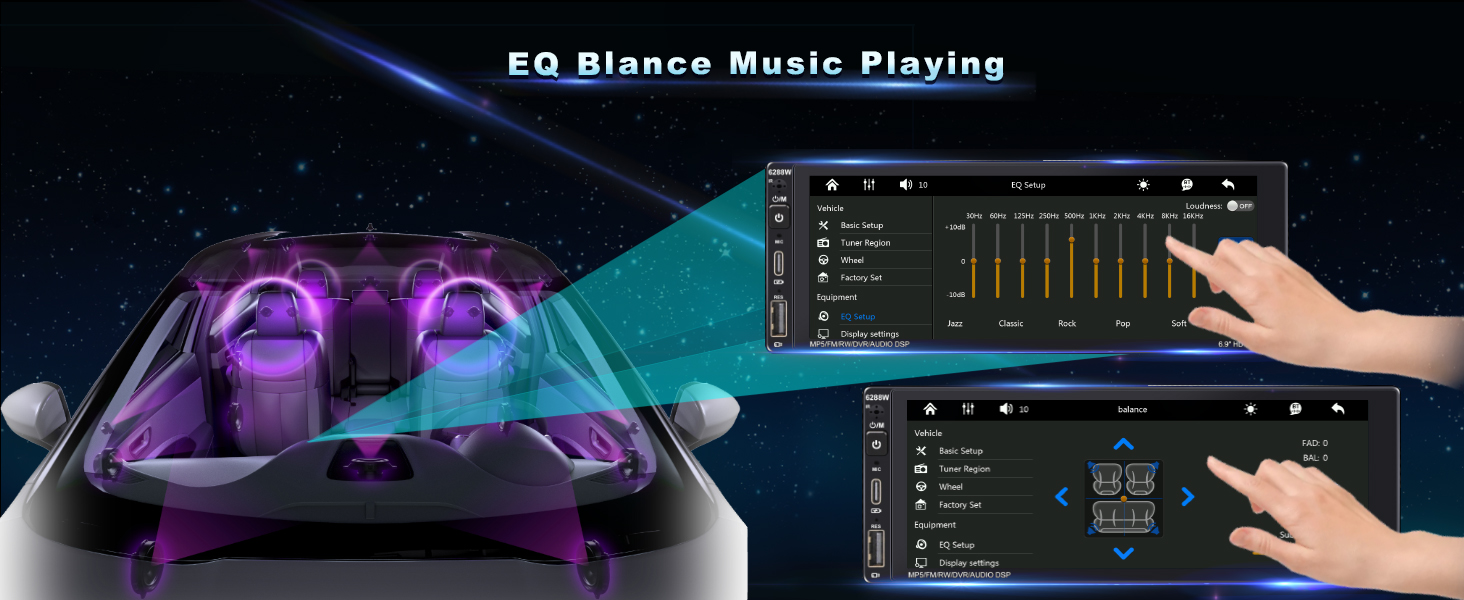
Figure 5.8: EQ and Balance Controls
This image displays the car stereo's interface for adjusting audio equalizer settings and speaker balance, allowing for personalized sound output.
5.9. Steering Wheel Control
For enhanced safety and convenience, the unit supports steering wheel controls. Use the included remote or integrate with existing vehicle controls to manage functions without taking your hands off the wheel.
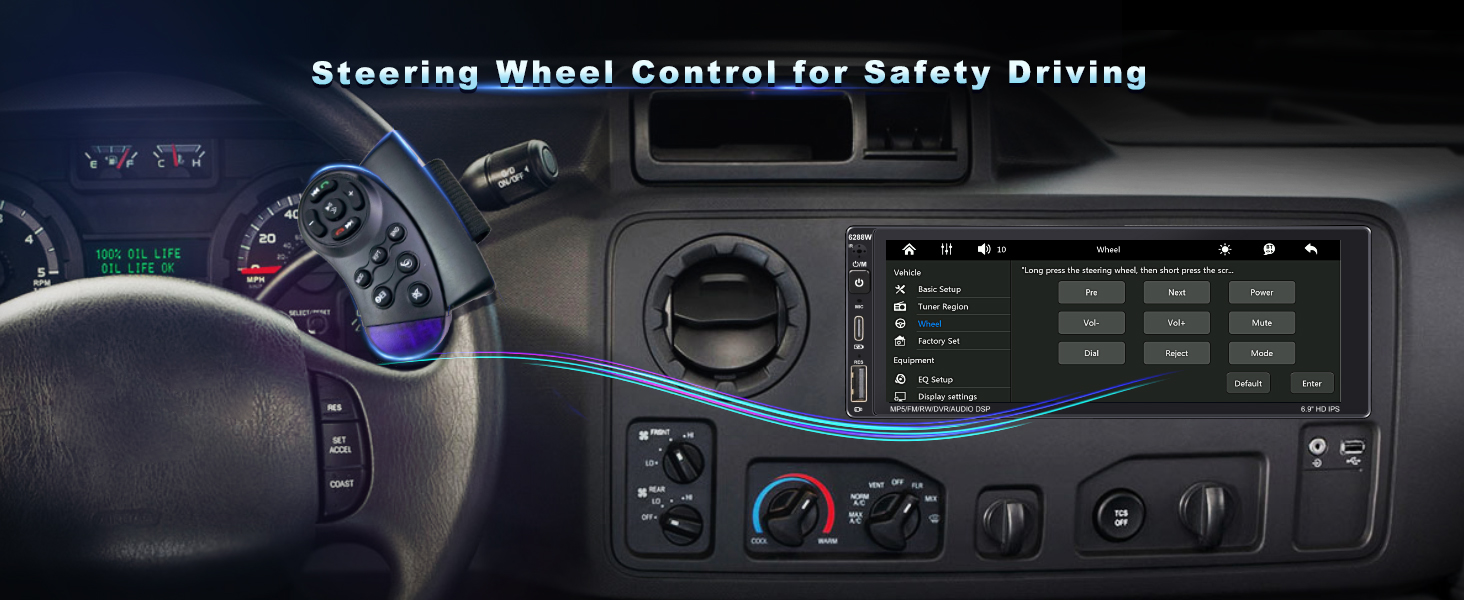
Figure 5.9: Steering Wheel Control Integration
This image shows a steering wheel with an attached remote control, illustrating how the car stereo can be operated safely and conveniently without diverting attention from the road.
5.10. Fast Charging & USB Input
The unit is equipped with USB and Type-C ports for fast charging of compatible devices and for connecting USB storage devices for media playback.
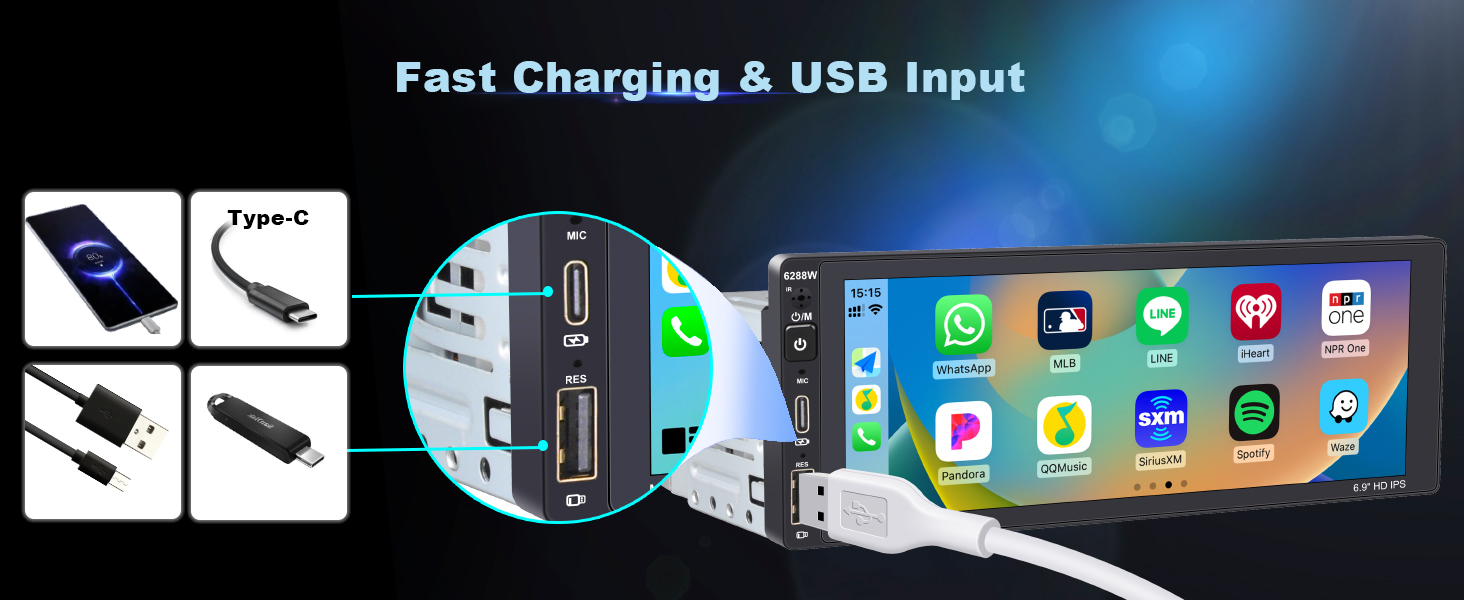
Figure 5.10: Fast Charging and USB Input Ports
This image provides a close-up view of the car stereo's USB and Type-C ports, demonstrating their use for fast charging and connecting various external devices.
6. Maintenance
To ensure the longevity and optimal performance of your DWMM Car Stereo, follow these maintenance guidelines:
- Cleaning the Screen: Use a soft, lint-free cloth to gently wipe the IPS touch screen. For stubborn smudges, slightly dampen the cloth with water or a screen-safe cleaner. Avoid abrasive materials or harsh chemicals.
- General Cleaning: Keep the unit free from dust and debris. Use a soft brush or compressed air to clean vents and button areas.
- Temperature Control: Avoid exposing the unit to extreme temperatures. Prolonged exposure to very hot or cold conditions can affect performance and lifespan.
- Software Updates: Periodically check the manufacturer's website for any available firmware or software updates to ensure your unit has the latest features and bug fixes.
- Cable Connections: Ensure all cables are securely connected and free from damage. Loose connections can lead to intermittent issues.
7. Troubleshooting
If you encounter issues with your DWMM Car Stereo, refer to the following common problems and solutions:
| Problem | Possible Cause | Solution |
|---|---|---|
| No Power / Unit Does Not Turn On | Loose power connection, blown fuse, vehicle battery issue. | Check all power wiring connections. Inspect the unit's fuse and vehicle's fuse box. Ensure vehicle battery is charged. |
| No Audio Output | Incorrect speaker wiring, volume too low, mute activated, incorrect audio source. | Verify speaker connections. Increase volume. Check if mute is active. Select correct audio source (e.g., FM, Bluetooth, CarPlay). |
| Wireless CarPlay/Android Auto Not Connecting | Bluetooth/Wi-Fi off on phone, incorrect pairing, phone software issue. | Ensure Bluetooth and Wi-Fi are enabled on your phone. Forget and re-pair the device. Restart both phone and car stereo. Update phone OS. |
| Backup Camera Not Displaying | Incorrect camera wiring, camera malfunction, reverse trigger not connected. | Check camera video input and power connections. Ensure the reverse trigger wire is correctly connected to the vehicle's reverse light circuit. |
| Touch Screen Unresponsive | System freeze, dirt on screen, hardware issue. | Perform a soft reset (refer to manual for specific reset method, usually a small reset button). Clean the screen. If issue persists, contact support. |
| Radio Signal Weak/Static | Antenna not connected, poor reception area, damaged antenna. | Ensure antenna is securely connected. Try tuning to a stronger station. Consider an antenna amplifier if in a weak signal area. |
If the problem persists after trying these solutions, please contact DWMM customer support for further assistance.
8. Specifications
| Feature | Detail |
|---|---|
| Brand | DWMM |
| Model Number | 6288W |
| Item Model Number | Single Din-Smart Carplay |
| Product Dimensions | 3.4"D x 7.4"W x 2.8"H (approx. 4.6 x 7 x 2.7 inches) |
| Item Weight | 1.5 pounds |
| Display Type | IPS Touch Screen |
| Connectivity Technology | Bluetooth 5.1, USB, Type-C |
| Special Features | Wireless Apple CarPlay, Android Auto, Backup Camera, Built-In Bluetooth, DSP, IPS Screen, GPS Navigation (via smartphone) |
| Wattage | 240 watts |
| Audio Output Mode | Stereo |
| Compatible Devices | Amplifier, Smartphone |
| Color | Black |
| Date First Available | October 6, 2023 |
9. Warranty and Support
For warranty information and customer support, please refer to the warranty card included in your product packaging or visit the official DWMM website. Keep your purchase receipt as proof of purchase for any warranty claims.
Customer Support Contact:
- Refer to your product packaging or the manufacturer's website for the most current contact information.