
1. Introduction
This manual provides essential information for setting up, operating, maintaining, and troubleshooting your HP Essential Laptop 14-dq0070nr. Please read this guide thoroughly to ensure proper use and to maximize the lifespan of your device.
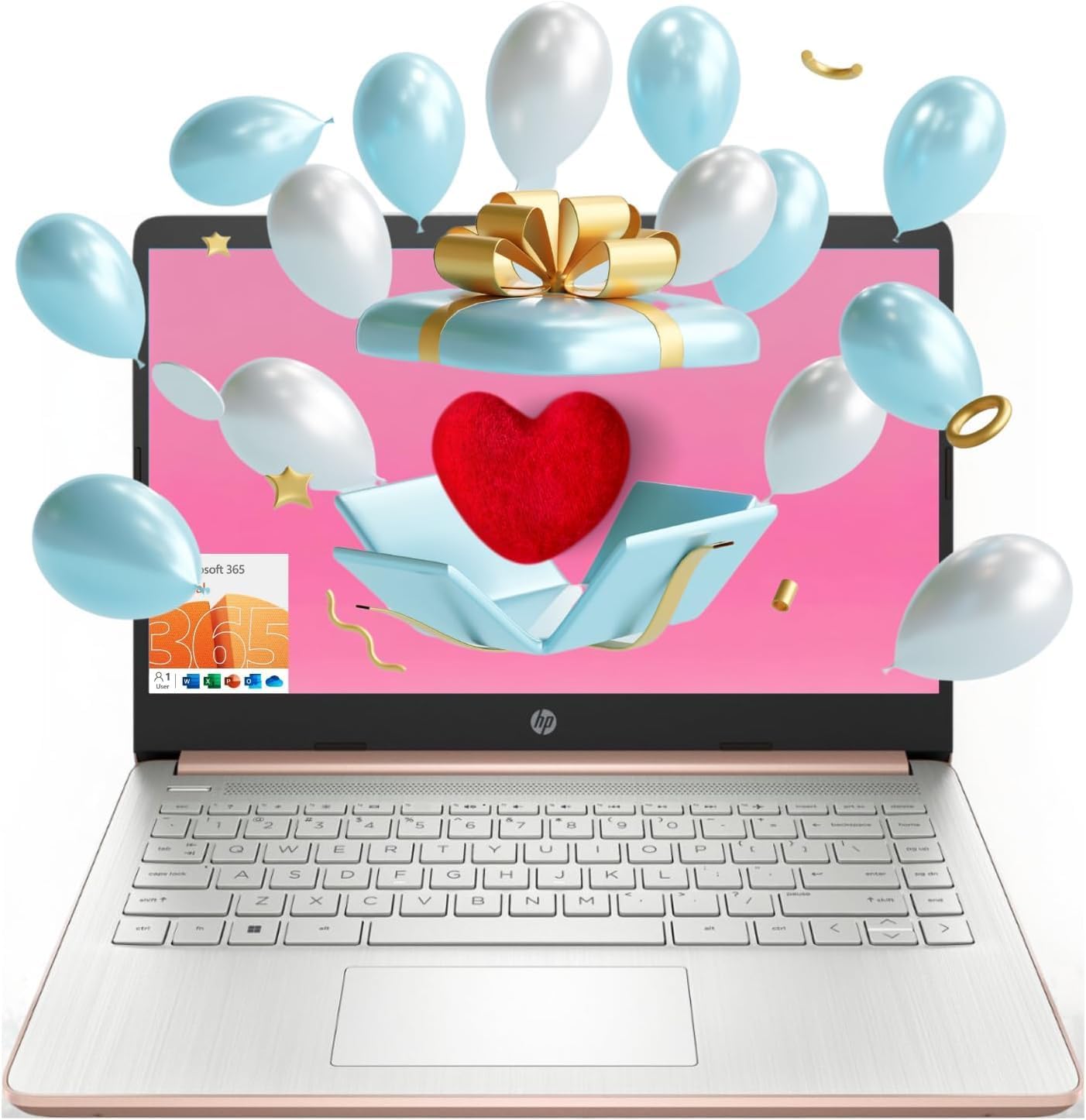
Figure 1: HP Essential Laptop 14-dq0070nr, Rose Gold variant.
2. Setup
2.1 Unboxing and Initial Inspection
Carefully remove your laptop and all accessories from the packaging. Verify that the following items are present:
- HP Essential Laptop 14-dq0070nr
- AC Power Adapter and Power Cord
- Documentation (this manual, warranty information)
Inspect the laptop for any physical damage. If any components are missing or damaged, contact your retailer or HP support immediately.
2.2 Connecting to Power
Before initial use, connect the laptop to a power outlet using the provided AC power adapter. This ensures the battery is charged and provides stable power during the initial setup process.
- Plug the AC adapter into the power connector on the side of the laptop.
- Plug the power cord into the AC adapter.
- Plug the other end of the power cord into a grounded electrical outlet.
2.3 Initial Power On and Windows 11 Setup
Press the power button located on the keyboard deck to turn on the laptop. The system will guide you through the Windows 11 initial setup process. Follow the on-screen instructions to:
- Select your region and language.
- Connect to a Wi-Fi network.
- Accept the license terms.
- Create or sign in with a Microsoft account.
- Set up security features like a PIN.
3. Operating Your Laptop
3.1 Understanding Laptop Components

Figure 2: Side view illustrating the various ports and connectors on the HP Essential Laptop.
Your HP Essential Laptop features several ports for connectivity:
- SuperSpeed USB Type-A: For connecting standard USB devices like mice, keyboards, and external drives.
- SuperSpeed USB Type-C: A versatile port for data transfer and connecting compatible devices.
- HDMI 1.4b: For connecting to external displays or projectors.
- Headphone/Microphone Combo Jack: For connecting headphones or a headset with a microphone.
- AC Smart Pin: For connecting the power adapter.
- Multi-format SD Media Card Reader: For reading and writing data to SD cards.
3.2 Using the Touchpad and Keyboard
The touchpad functions as your mouse. Tap to click, use two fingers to scroll, and pinch to zoom. The keyboard provides standard input for typing and includes function keys for quick access to system settings like volume and brightness.
3.3 Connecting to Wi-Fi and Bluetooth
To connect to Wi-Fi, click the network icon in the taskbar, select your desired network, and enter the password. For Bluetooth devices, go to Settings > Bluetooth & devices, turn on Bluetooth, and pair your device.
3.4 Webcam Usage
The integrated webcam can be used for video calls and conferences. Applications like Microsoft Teams or Zoom will automatically detect and utilize the webcam when needed.
4. Maintenance
4.1 Cleaning Your Laptop
Regular cleaning helps maintain your laptop's appearance and functionality:
- Use a soft, lint-free cloth slightly dampened with water or a screen cleaner for the display.
- Use compressed air to clear dust from keyboard keys and vents.
- Wipe the exterior surfaces with a soft, dry cloth. Avoid harsh chemicals.
4.2 Battery Care
To prolong battery life:
- Avoid extreme temperatures.
- Do not fully discharge the battery frequently.
- If storing the laptop for an extended period, ensure the battery is charged to about 50%.
4.3 Software Updates
Regularly check for and install Windows updates to ensure your system has the latest security patches and performance improvements. Go to Settings > Windows Update to manage updates.
5. Troubleshooting
This section addresses common issues you might encounter with your HP Essential Laptop.
5.1 Laptop Does Not Turn On
- Ensure the AC adapter is securely connected to both the laptop and a working power outlet.
- Verify the power outlet is functional by plugging in another device.
- If the battery is completely drained, it may take a few minutes of charging before the laptop can power on.
5.2 Wi-Fi Connectivity Issues
- Check if Wi-Fi is enabled in Windows settings.
- Restart your router and modem.
- Ensure you are within range of the Wi-Fi network.
- Try forgetting the network and reconnecting.
5.3 Slow Performance
- Close unnecessary applications running in the background.
- Check for and install any pending Windows updates.
- Run a disk cleanup to free up storage space.
- Consider restarting the laptop regularly.
5.4 Display Issues
- If the screen is blank, try pressing the brightness up key or connecting an external monitor via HDMI to check if the issue is with the laptop's display.
- Ensure display drivers are up to date via Windows Update or HP Support Assistant.
6. Specifications
Below are the technical specifications for the HP Essential Laptop 14-dq0070nr:
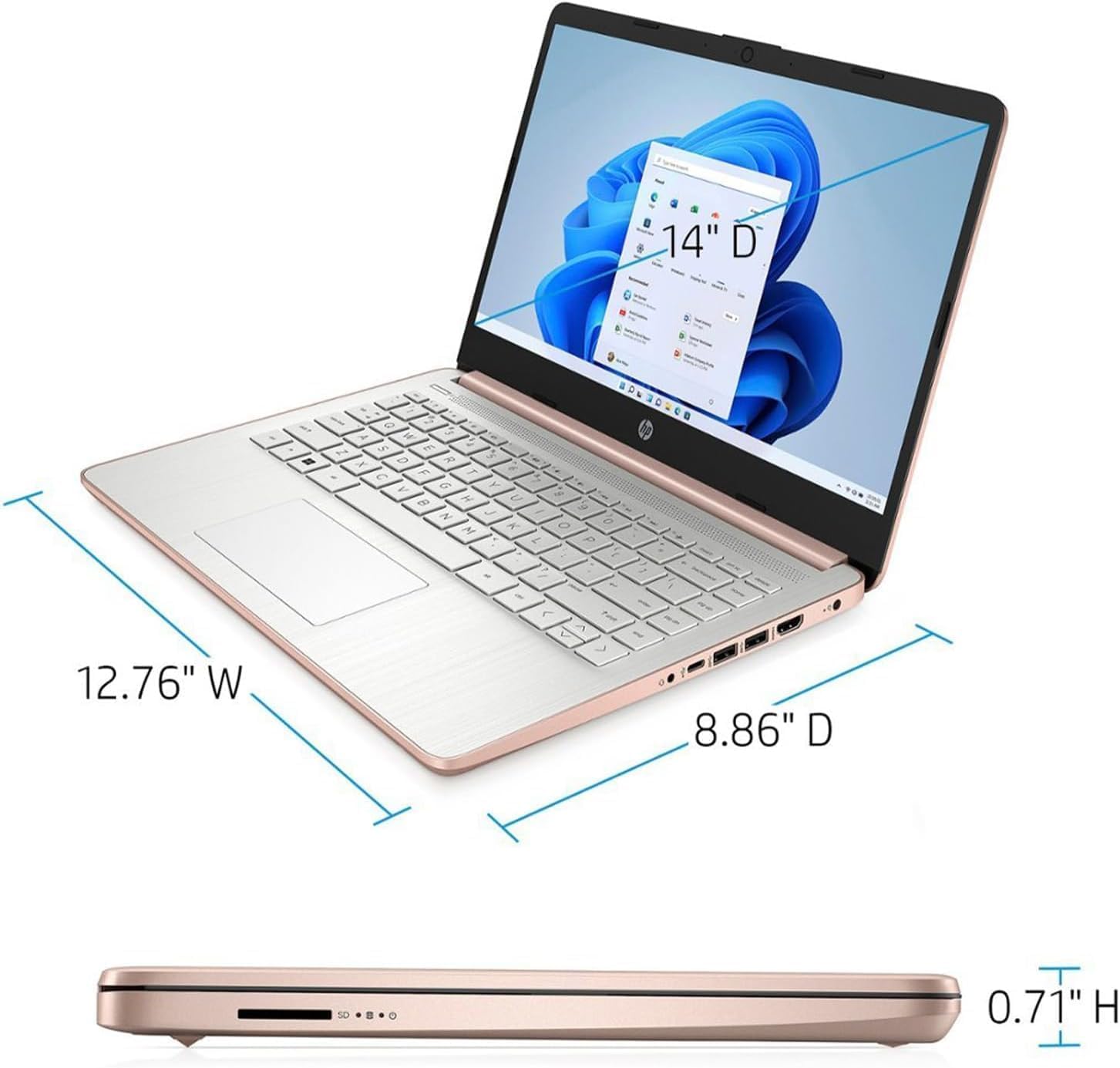
Figure 3: Physical dimensions of the HP Essential Laptop.
| Feature | Specification |
|---|---|
| Model Number | 14-dq0070nr |
| Processor | Intel Celeron N4120 (4 Cores, 4 Threads, 1.1 GHz base, up to 2.6 GHz turbo) |
| Graphics | Intel UHD Graphics 600 (Integrated) |
| Display | 14-inch HD (1366 x 768), micro-edge, BrightView, 220 nits, 45% NTSC |
| RAM | 8 GB DDR4 SDRAM (3200 MHz) |
| Storage | 64 GB eMMC |
| Operating System | Windows 11 Home |
| Wireless Connectivity | Wi-Fi (802.11n), Bluetooth |
| Ports | 2x SuperSpeed USB Type-A, 1x SuperSpeed USB Type-C, 1x HDMI, 1x Headphone/Mic Combo, 1x AC smart pin, 1x SD Card Reader |
| Webcam | Integrated Webcam |
| Dimensions (WxDxH) | 12.76 x 8.86 x 0.71 inches (32.41 x 22.50 x 1.80 cm) |
| Weight | 3.24 lbs (1.47 kg) |
| Color | Rose Gold |
| Power Source | AC & Battery (1 Lithium Ion battery included) |
7. Warranty and Support
7.1 Product Warranty
Your HP Essential Laptop comes with a standard manufacturer's warranty. Please refer to the warranty documentation included with your product for specific terms, conditions, and duration. Keep your proof of purchase for warranty claims.
7.2 Contacting Support
For technical assistance, warranty service, or further inquiries, please visit the official HP support website or contact HP customer service. You can typically find contact information and support resources by searching for "HP Support" online.