
1. Introduction
The Xigmatek Hero II Air 3F is a mid-tower PC case designed for optimal airflow and component compatibility. It features a tempered glass side panel, support for various motherboard form factors, and pre-installed cooling fans. This manual provides detailed instructions for the installation of components, operation, maintenance, and troubleshooting of your PC case.
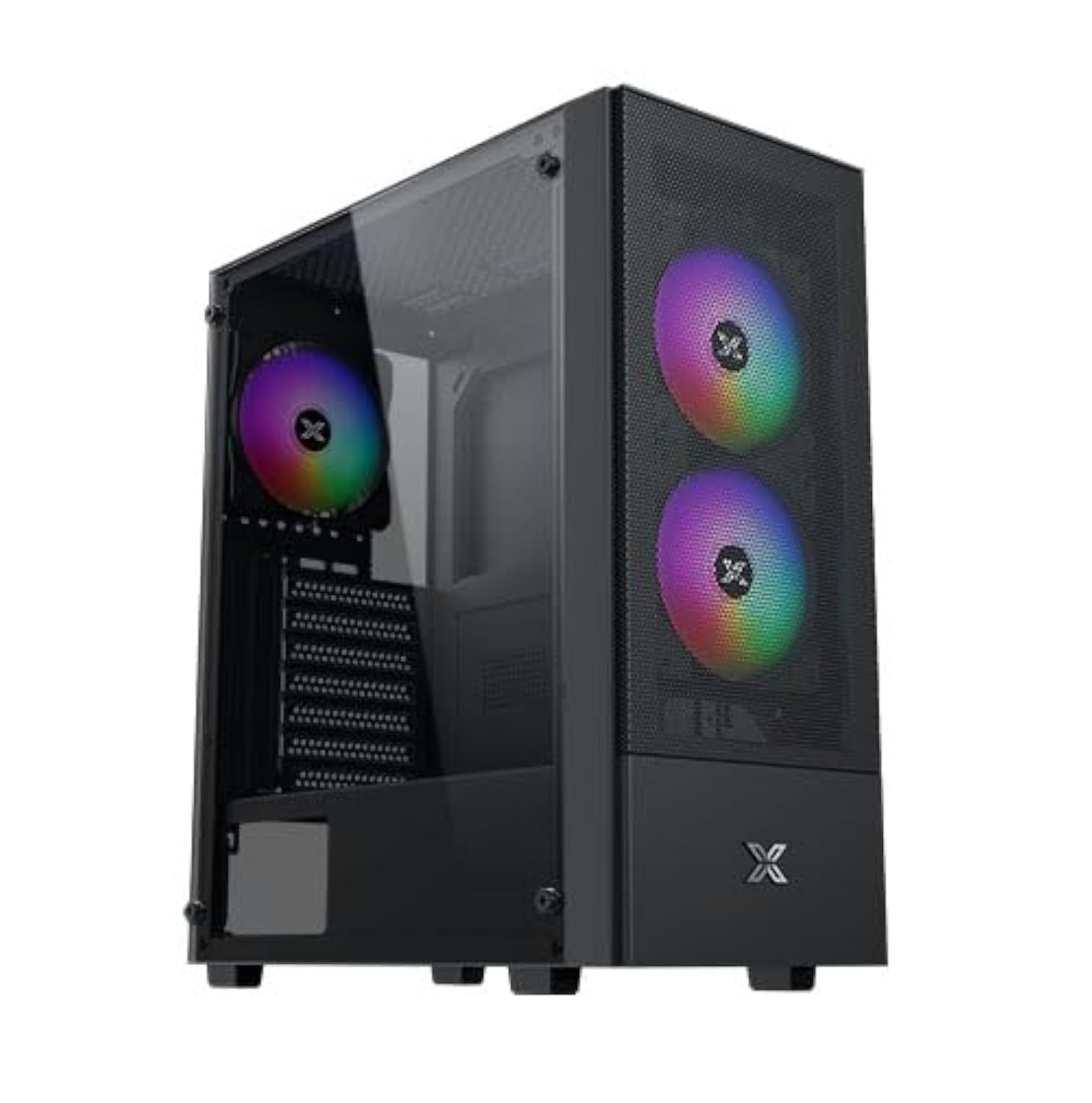
Figure 1: Xigmatek Hero II Air 3F Mid-Tower PC Case overview.
2. Safety Information
Please read and understand all safety instructions before installing components into the PC case.
- Always disconnect the power supply from the wall outlet before performing any installation or maintenance.
- Wear an anti-static wrist strap to prevent electrostatic discharge (ESD) damage to sensitive components.
- Handle components carefully to avoid physical damage.
- Keep small parts and screws away from children.
- Ensure proper ventilation around the PC case to prevent overheating.
- Do not operate the PC case with the side panel removed unless necessary for troubleshooting or maintenance.
3. Package Contents
Verify that all items are present in the package:
- Xigmatek Hero II Air 3F Mid-Tower PC Case
- Accessory box (containing screws, cable ties, and other small parts)
- 3 x 120mm fixed RGB fans (pre-installed)
- User Manual (this document)
4. Setup and Component Installation
Follow these steps to install your PC components into the Xigmatek Hero II Air 3F case.
4.1 Motherboard Installation
The case supports ATX, Micro-ATX, and Mini-ITX motherboards.
- Remove the tempered glass side panel by unscrewing the thumb screws.
- Install the I/O shield (if not pre-attached to your motherboard) into the rear opening of the case.
- Align your motherboard with the standoffs inside the case. Ensure the standoffs match your motherboard's form factor.
- Secure the motherboard with the provided screws.
- Install the CPU cooler. The case supports CPU air coolers up to 165mm in height.

Figure 2: Component clearance for motherboard (ATX), CPU cooler (165mm), and graphics card (340mm).
4.2 Storage Drive Installation
The case offers multiple storage options:
- HDD Cage: Supports 2 x 3.5" HDDs or 2 x 2.5" SSDs in a combo cage located at the bottom.
- MB Panel: Supports 2 x 2.5" SSDs mounted behind the motherboard tray.
- For 3.5" HDDs or 2.5" SSDs in the cage, slide the drive into the bay and secure with screws.
- For 2.5" SSDs behind the motherboard tray, mount the SSDs directly onto the designated spots using screws.

Figure 3: Locations for SSDs (behind motherboard tray) and HDD/SSD combo cage.
4.3 Power Supply Unit (PSU) Installation
The case supports standard PS2 ATX PSUs up to 165mm in length.
- Locate the PSU mounting bracket at the rear bottom of the case.
- Slide the PSU into the designated compartment from the rear of the case.
- Secure the PSU with screws from the outside of the case.
4.4 Graphics Card (GPU) Installation
The case accommodates graphics cards up to 340mm in length.
- Remove the necessary expansion slot covers from the rear of the case.
- Insert the graphics card into the appropriate PCIe slot on your motherboard.
- Secure the graphics card to the case with screws.
4.5 Fan and Liquid Cooling Installation
The Hero II Air 3F comes with three pre-installed 120mm fixed RGB fans. Additional fan and liquid cooling support is available:
- Front: 3 x 120mm fans (pre-installed)
- Top: 2 x 120mm or 2 x 140mm fans
- Rear: 1 x 120mm fan (pre-installed)
- Liquid Cooling Radiator Support: Front 360mm, Top 240mm, Rear 120mm.
- Mount additional fans or radiators to the designated locations using the appropriate screws.
- Ensure proper airflow direction for optimal cooling (intake at front, exhaust at rear/top).

Figure 4: Illustration of superior airflow design with front intake and rear exhaust.
4.6 Cable Management
The case provides space behind the motherboard tray and cutouts for efficient cable routing.
- Route power cables and data cables through the designated cutouts to the back of the motherboard tray.
- Use cable ties (provided in the accessory box) to bundle and secure cables, ensuring a clean interior and unobstructed airflow.
5. Operating the PC Case
Once all components are installed and cables are connected, you can operate your PC.
5.1 Front I/O Ports
The top-mounted I/O panel provides convenient access to essential ports and controls:
- Power Button: To turn the system on/off.
- Reset Button: To restart the system.
- USB 2.0 Ports (x2): For connecting USB 2.0 devices.
- USB 3.0 Port (x1): For connecting USB 3.0 devices.
- HD Audio Jack: For connecting headphones and microphones.
- LED Switch: To control the lighting of the pre-installed RGB fans.

Figure 5: Diagram of the top-mounted I/O ports including Power, Reset, USB 2.0, USB 3.0, HD Audio, and LED Switch.
5.2 Fan Operation and RGB Control
The pre-installed fans provide cooling for your system. The LED Switch on the I/O panel allows you to cycle through different lighting modes for the fixed RGB fans. Note that the pre-installed fans use Molex connectors for power.
6. Maintenance
Regular maintenance helps ensure optimal performance and longevity of your PC components.
- Dust Cleaning: Periodically clean dust filters and the interior of the case using compressed air or a soft brush. Dust accumulation can impede airflow and lead to overheating.
- Cable Management Check: Ensure cables remain neatly organized and do not obstruct airflow.
- Fan Inspection: Check fans for any obstructions or unusual noises.
7. Troubleshooting
This section addresses common issues you might encounter.
- Fans not spinning or RGB not lighting up:
- Ensure all fan power connectors (Molex) are securely connected to the power supply.
- Verify that the LED Switch cable from the I/O panel is correctly connected to the fan controller or motherboard header (if applicable). Note that the pre-installed fans have fixed RGB and are controlled by the LED switch.
- System not powering on:
- Check all power connections, including the 24-pin ATX, 8-pin CPU, and GPU power cables.
- Ensure the power button cable from the I/O panel is correctly connected to the motherboard's front panel header.
- Verify the PSU switch is in the "ON" position.
- Poor airflow or high temperatures:
- Check for dust buildup on fans and filters and clean them.
- Ensure fans are oriented correctly for optimal intake and exhaust.
- Verify that no cables are obstructing airflow paths.
8. Specifications
Detailed specifications for the Xigmatek Hero II Air 3F PC Case.

Figure 6: Official specifications table for the Hero II Air 3F.
| Feature | Specification |
|---|---|
| Product Name | Hero II Air 3F |
| Material | Steel Alloy |
| Dimensions (L x W x H) | 390 x 195 x 450 mm |
| Drive Bays | HDD Cage: 2 x 3.5" & 2.5" combo; MB Panel: 2 x 2.5" SSD |
| Expansion Slots | 7 Standard Slots |
| Motherboard Support | ATX, M-ATX, Mini ITX |
| Power Supply Support | Standard PS2 ATX PSU (Max 165mm length) |
| Fan Support | Top: 2 x 120mm or 2 x 140mm; Front: 3 x 120mm; Rear: 1 x 120mm |
| Liquid Cooling Support | Front: 360mm; Top: 240mm; Rear: 120mm |
| I/O Panel | 1 x USB 3.0, 2 x USB 2.0, HD Audio, LED Switch |
| CPU Cooler Height | Max 165mm |
| VGA Card Length | Max 340mm |
| PSU Length | Max 165mm |
| Pre-installed Fans | 3 x 120mm Fixed RGB Fans |
| Features | Tempered glass side panel, advanced cooling system, easy cable management |
9. Warranty Information
The Xigmatek Hero II Air 3F PC Case comes with a 2-year warranty from the date of purchase. This warranty covers manufacturing defects and material faults under normal use. It does not cover damage caused by misuse, accident, modification, or unauthorized repair. Please retain your proof of purchase for warranty claims.
10. Support
For further assistance, technical support, or warranty inquiries, please contact Xigmatek customer service through their official website or your local distributor.


