
Soyealink SRT875
Soyealink SRT875 5G Mobile WiFi Router User Manual
Model: SRT875 | Brand: Soyealink
Introduction
Thank you for choosing the Soyealink SRT875 5G Mobile WiFi Router. This device is designed to provide high-speed internet connectivity on the go, supporting both 4G and 5G networks across all frequencies. Featuring a responsive touchscreen and advanced Wi-Fi 6 technology, it delivers robust and efficient wireless performance. With its 5000 mAh battery, it ensures extended usage. The router can broadcast both 2.4 GHz and 5 GHz Wi-Fi networks simultaneously, offering flexibility for various devices. It also supports internet connection via its dedicated USB-C cable.
Package Contents
Please check the package carefully to ensure all items are present:
- Soyealink SRT875 5G Mobile WiFi Router
- USB-C Charging Cable
- Power Adapter
- User Manual (this document)

Product Overview
Familiarize yourself with the components and features of your SRT875 router.
Front View and Display

The front of the device features a touchscreen display for easy navigation and status monitoring. Indicators for the power key and SIM card slot are also visible.
Top and Bottom Views

The top edge of the router houses the power button, used for turning the device on/off and waking the screen.

The bottom edge includes the SIM card slot, the USB-C port for charging and wired internet connection, and a small pinhole for factory reset.
Back Label Information
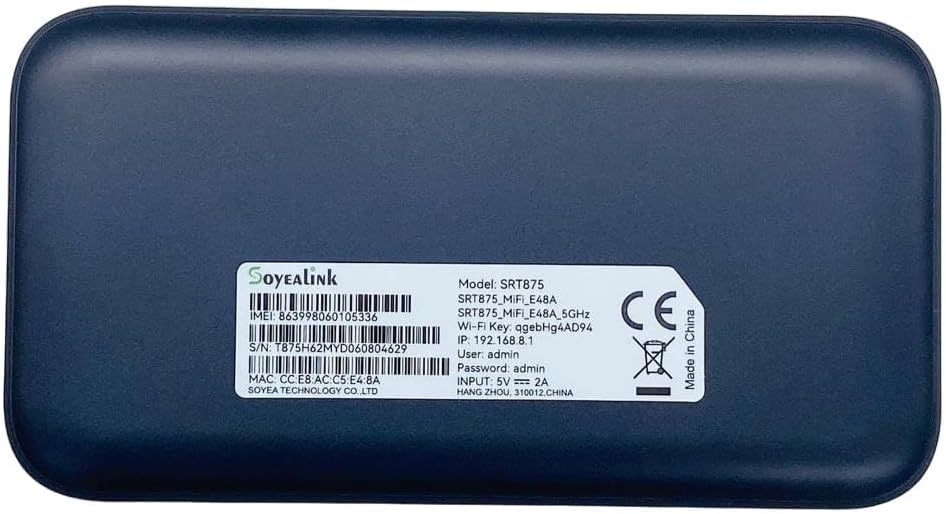
The back label provides critical information for your device:
- Model: SRT875
- IMEI: 863998060105336
- Wi-Fi Key: qgebbhg4AD94
- IP Address: 192.168.8.1
- User: admin
- Password: admin
Keep this information safe for future reference.
Setup
1. Inserting the SIM Card
- Locate the SIM card slot on the bottom edge of the router.
- Gently insert your activated Nano-SIM card into the slot with the gold contacts facing down and the notched corner aligned correctly.
- Push the SIM card in until it clicks into place.
2. Powering On the Device
- Press and hold the power button located on the top edge of the router for a few seconds until the screen lights up.
- The device will boot up and display network status on the touchscreen.
3. Initial Wi-Fi Connection
- On your computer, smartphone, or tablet, search for available Wi-Fi networks.
- Locate the Wi-Fi network name (SSID) displayed on the router's screen or on the back label (e.g., "SRT875_MiFi_E48A").
- Enter the Wi-Fi Key (password) found on the back label (e.g., "qgebbhg4AD94") to connect.
4. Accessing the Administration Panel
- Open a web browser on a device connected to the router's Wi-Fi.
- Type the IP address 192.168.8.1 into the address bar and press Enter.
- Enter the default username "admin" and password "admin" when prompted. It is highly recommended to change the default password after your first login for security purposes.
Operating Instructions
Touchscreen Navigation
The touchscreen allows you to view device status, network information, and manage basic settings directly. Swipe left or right to navigate through different screens displaying data usage, connected devices, network mode, and more.

Connecting Devices
Once the router is powered on and connected to the cellular network, devices can connect via Wi-Fi using the SSID and password. The router supports up to a certain number of devices simultaneously (check device specifications or administration panel for exact number).
Dual-Band Wi-Fi (2.4GHz & 5GHz)
The SRT875 broadcasts both 2.4 GHz and 5 GHz Wi-Fi networks. You can choose which band to use for your devices. The 2.4 GHz band offers wider coverage, while the 5 GHz band provides faster speeds over shorter distances. You can manage these settings via the administration panel.
Charging the Device
Connect the provided USB-C cable to the router's USB-C port and the other end to the power adapter. Plug the power adapter into a wall outlet. The screen will indicate charging status. A full charge ensures maximum portability.
Wired Internet Connection (USB-C)
The router can also provide internet access to a computer via its USB-C cable. Connect the router to your computer using the USB-C cable. The computer may recognize it as a network adapter, allowing for a direct wired connection.
Maintenance
- Battery Care: To prolong battery life, avoid extreme temperatures and do not leave the device fully discharged for extended periods.
- Cleaning: Use a soft, dry cloth to clean the device. Do not use liquid cleaners or aerosols.
- Software Updates: Periodically check the administration panel for available firmware updates to ensure optimal performance and security.
- Storage: When not in use for extended periods, store the device in a cool, dry place.
Troubleshooting
| Problem | Possible Cause | Solution |
|---|---|---|
| No network signal / Cannot connect to internet |
|
|
| Cannot connect to Wi-Fi |
|
|
| Slow internet speed |
|
|
| Device unresponsive / Needs reset | Software glitch or configuration issue. |
|
Specifications
| Model Number | SRT875 |
| Brand | Soyealink |
| Connectivity Technology | Wi-Fi, 4G, 5G |
| Wireless Communication Standard | 802.11ax (Wi-Fi 6) |
| Frequency Bands | 2.4 GHz, 5 GHz (Dual-Band) |
| Battery Capacity | 5000 mAh |
| Special Feature | Touchscreen, Quality of Service (QoS) |
| Included Components | USB-C Charger Cable |
| Recommended Uses | Home, Business, Travel, Remote Work |
| Package Dimensions | 15.5 x 9.2 x 7 cm |
| Item Weight | 420 grams |
Warranty and Support
Specific warranty information for the Soyealink SRT875 router is not provided in this manual. Please refer to the product packaging or contact your point of purchase for details regarding warranty coverage and terms.
For technical support or further assistance, please contact Soyealink customer service or the retailer from whom you purchased the device. Keep your purchase receipt and product serial number (found on the back label) handy when seeking support.
Related Documents - SRT875
 |
SoyeaLink B535-333 LTE Router Quick Start Guide A quick start guide for the SoyeaLink B535-333 LTE router, covering product overview, setup, connecting to Wi-Fi, managing the router, optional configurations, and FAQs. |
Ask a question about this manual
Ask about setup, troubleshooting, compatibility, parts, safety, or missing instructions. Manuals+ will review the question and use this page’s manual context to help answer it.