
Allone ALGA-NSWCSMYE
Allone Super Mini Controller User Manual
Model: ALGA-NSWCSMYE
Brand: Allone
1. Introduction
Thank you for purchasing the Allone Super Mini Controller. This compact and versatile controller is designed to enhance your gaming experience on various platforms, including Nintendo Switch, Switch Lite, Switch OLED, PC, tablets, and smartphones. Its palm-sized design and wireless connectivity offer convenience and freedom during gameplay. This manual provides essential information on setting up, operating, and maintaining your controller.
2. Product Overview
The Allone Super Mini Controller is a compact gamepad featuring a retro button layout. It is available in multiple vibrant colors and includes a wrist strap for secure handling.

Image 2.1: The yellow Allone Super Mini Controller with its attached wrist strap, showcasing its compact design.

Image 2.2: A collection of four Allone Super Mini Controllers, demonstrating the available color options: yellow, pink, light blue, and mint.
This controller is not only suitable for gaming but can also function as a left-hand device for various applications, allowing you to assign custom shortcuts for increased productivity.

Image 2.3: A user holding the pink controller, demonstrating its use as a left-hand device for illustration or design work on a tablet, allowing for assigned shortcuts.
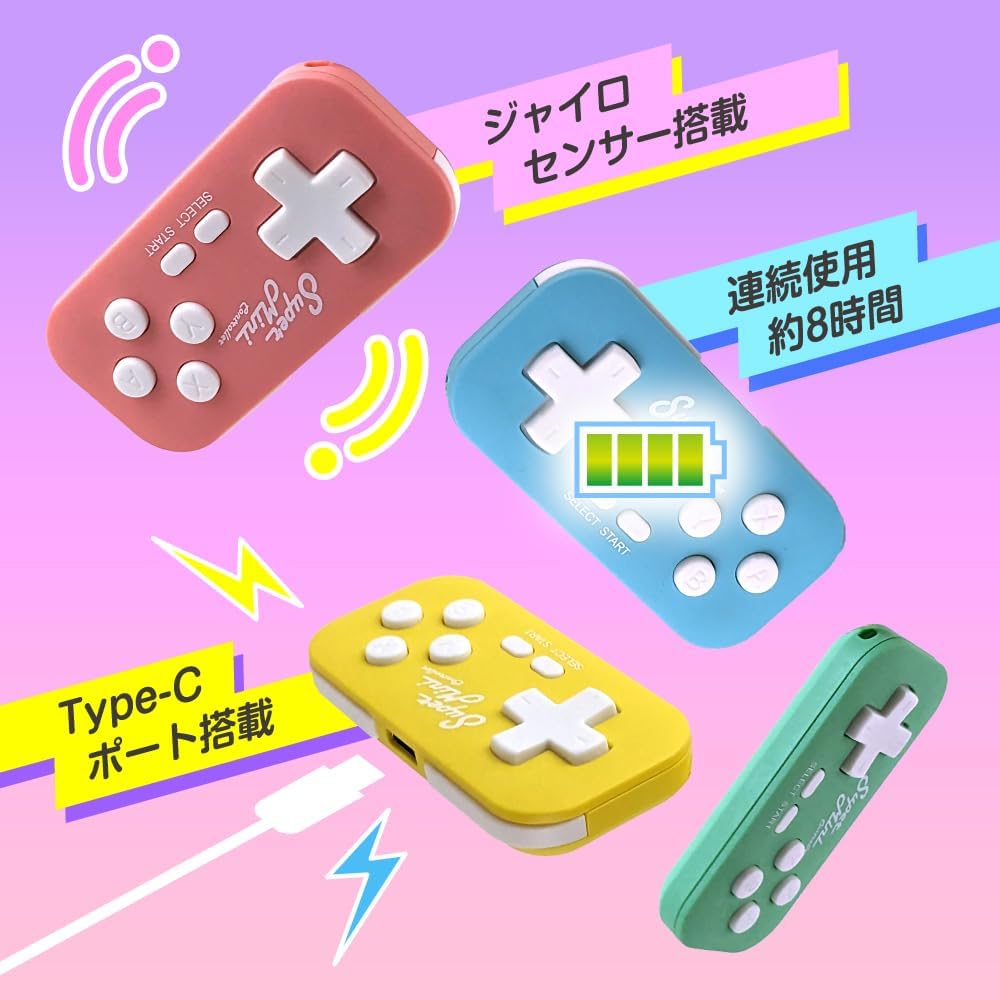
Image 2.4: An illustration showcasing key features of the controller, including its built-in gyro sensor, approximately 8 hours of continuous use on a full charge, and the convenient Type-C charging port.
Product Video
Video 2.1: An official product video demonstrating the features and usage of the Allone Super Mini Controller for Nintendo Switch.
3. Package Contents
- Allone Super Mini Controller Unit
- Wrist Strap
- Instruction Manual (includes Warranty Information)
- Type-C Charging and Communication Cable
4. Setup and Connection
4.1 Charging the Controller
Before first use, fully charge the controller. Connect the included Type-C cable to the controller's charging port and the other end to a USB power source (e.g., a computer USB port, USB wall adapter). The controller will fully charge in approximately 2 hours, providing about 8 hours of continuous use.
4.2 Pairing with Devices
The controller connects wirelessly via Bluetooth. The pairing method may vary slightly depending on your device (Nintendo Switch, PC, Tablet, Smartphone).
For Nintendo Switch / Switch Lite / Switch OLED:
- From the HOME Menu, select Controllers, then Change Grip/Order.
- While on the "Change Grip/Order" screen, press and hold the SYNC Button on the top of the Super Mini Controller for a few seconds until the player LEDs begin to flash.
- Once paired, the player LED(s) corresponding to the controller number will remain lit.
For PC / Tablet / Smartphone (Bluetooth Connection):
- Ensure Bluetooth is enabled on your PC, tablet, or smartphone.
- On the Super Mini Controller, press and hold the SYNC Button until the indicator lights begin to flash rapidly, indicating it's in pairing mode.
- On your device, search for new Bluetooth devices. The controller should appear as "GamepadSpace" or similar.
- Select the controller from the list to complete the pairing process.
- Note: Compatibility confirmed with iOS 16.5.1 and Android 13.
5. Operating Instructions
5.1 Basic Controls
The Super Mini Controller features a classic D-pad and action buttons (A, B, X, Y), along with SELECT and START buttons. Please note that this controller does not include ZL/ZR buttons, offering a more retro gaming experience.
- D-Pad: Directional input for movement and menu navigation.
- A/B/X/Y Buttons: Action buttons for in-game commands.
- SELECT Button: Typically used for menu selection or specific game functions.
- START Button: Used to pause games, open menus, or confirm selections.
5.2 Using as a Left-Hand Device
Beyond gaming, the controller can be configured as a left-hand device for productivity applications on PC, tablets, and smartphones. This allows you to assign various shortcut keys (e.g., copy, paste, fill, selection area, eyedropper, zoom in/out, undo) to the controller's buttons, streamlining your workflow in creative or professional software.
Refer to your device's operating system settings (e.g., iOS Switch Control, Android accessibility settings) or specific application settings for customizing button assignments for shortcut functions.
6. Maintenance and Care
- Keep the controller clean by wiping it with a soft, dry cloth.
- Avoid exposing the controller to extreme temperatures, humidity, or direct sunlight.
- Do not disassemble or attempt to repair the controller yourself, as this will void the warranty.
- Store the controller in a safe place when not in use to prevent damage.
7. Troubleshooting
| Problem | Possible Cause | Solution |
|---|---|---|
| Controller does not turn on. | Battery is depleted. | Charge the controller using the included Type-C cable. |
| Cannot pair with device. | Controller not in pairing mode; Bluetooth interference; device's Bluetooth is off. | Ensure controller is in pairing mode (flashing lights). Turn off and on device's Bluetooth. Move closer to the device. |
| Connection is unstable or disconnects frequently. | Low battery; too far from device; interference from other wireless devices. | Charge the controller. Move closer to the device. Reduce interference by moving away from other wireless devices. |
| Buttons are unresponsive or stiff. | Debris under buttons; manufacturing defect. | Gently clean around the buttons. If problem persists, contact customer support. |
8. Specifications
| Feature | Detail |
|---|---|
| Model Number | ALGA-NSWCSMYE |
| Brand | Allone |
| Controller Type | Gamepad |
| Connectivity | Wireless (Bluetooth), USB C for charging/communication |
| Compatible Devices | Nintendo Switch, Switch Lite, Switch OLED, PC, Tablets, Smartphones (iOS 16.5.1+, Android 13+) |
| Battery Capacity | 130mAh |
| Charging Time | Approx. 2 hours |
| Continuous Use Time | Approx. 8 hours |
| Main Material | ABS |
| Product Dimensions | 7.2 x 0.8 x 3.5 cm |
| Weight | 70 g |
| Color | Yellow (for this specific variant) |
| Special Features | Gyro sensor, TELEC certified, Usable as left-hand device for shortcuts. |
9. Safety Information
No specific safety warnings are provided beyond general electronic device precautions. Please handle the device with care and keep it away from water, extreme temperatures, and direct sunlight. Do not attempt to open or modify the device.
10. Warranty and Support
This product comes with a warranty. Please refer to the included instruction manual for detailed warranty terms and conditions. For any issues or inquiries, please contact Allone customer support. Allone conducts thorough inspections before shipping to ensure customer satisfaction and provides careful assistance for any defects.
For support, please visit the official Allone website or contact their customer service center as indicated in the warranty section of your physical manual.
Ask a question about this manual
Ask about setup, troubleshooting, compatibility, parts, safety, or missing instructions. Manuals+ will review the question and use this page’s manual context to help answer it.