
1. Introduction
This manual provides detailed instructions for the setup, operation, and maintenance of your SURKOS Mini WiFi Hidden Spy Camera Charger. This device is designed for discreet surveillance, offering 1080P video recording, night vision, and motion detection capabilities. Please read this manual thoroughly before using the product to ensure proper functionality and safety.

Image 1.1: The SURKOS Mini WiFi Hidden Spy Camera Charger, designed to blend in as a standard USB wall charger.
2. Package Contents
Verify that all items listed below are included in your package:
- 1 x SURKOS Mini WiFi Hidden Spy Camera Charger
- 1 x Micro SD Card (32GB)
- 1 x USB Card Reader
- 1 x User Manual
3. Product Features
The SURKOS Mini WiFi Hidden Spy Camera Charger offers a range of features for effective surveillance:
- Undetectable Design: Disguised as a standard USB wall charger, it emits no light or sound during recording.
- Full HD 1080P Video: Records clear audio and video at 1920x1080p resolution.
- Night Vision: Equipped with infrared (IR) night vision for recording in low-light or total darkness.
- Motion Detection: Automatically detects movement and sends alerts to your mobile device via the LOOKCAM app.
- Loop Recording: Overwrites older files when the memory card is full, ensuring continuous recording.
- Wi-Fi Connectivity: Allows remote viewing and recording from anywhere via the dedicated mobile application.
- Direct Recording: Can operate without Wi-Fi by continuously recording to the Micro SD card.
- Simultaneous Charging & Recording: Functions as a USB charger while recording.
- Wide Viewing Angle: 90-degree field of view.

Image 3.1: The camera operates without emitting any visible light during recording, ensuring discretion.
4. Setup
4.1 Component Identification
Familiarize yourself with the camera's components:
- USB Charging Port: Standard USB port for charging other devices.
- Camera Lens: Discreetly located on the front. Ensure the protective film is removed.
- Micro SD Card Slot: For inserting the memory card.
- Reset Button: Used to reset the device (requires a pin).
- WiFi Indicator: An LED that can be deactivated via the app.

Image 4.1: Diagram showing the reset button, microSD card slot, and WiFi indicator on the device.
4.2 Initial Preparation
- Insert Micro SD Card: Gently insert the included 32GB Micro SD card into the designated slot until it clicks into place. The camera supports cards up to 128GB.
- Remove Lens Film: Carefully peel off any protective film from the camera lens to ensure optimal video quality.
- Power On: Plug the camera charger into a standard wall outlet. The device will power on automatically.
4.3 App Installation
Download and install the LOOKCAM application on your smartphone. The app is compatible with both Android and iOS devices. Search for "LOOKCAM" in your device's app store.
4.4 Connecting to Wi-Fi
There are three primary methods to connect your camera:
- Connect to your Home Wi-Fi Router:
a. Open the LOOKCAM app and follow the instructions to add a new device.
b. Select your home Wi-Fi network and enter the password.
c. This allows real-time viewing and recording from anywhere in the world via the internet. - Connect Directly to the Camera's Wi-Fi Hotspot:
a. In your phone's Wi-Fi settings, connect to the camera's direct hotspot (usually named something like "IPC-XXXXXX").
b. This method allows local viewing and recording when you are within range of the camera's Wi-Fi signal, without needing an internet connection. - Record Continuously to Micro SD Card (No Wi-Fi Needed):
a. Simply insert the Micro SD card and plug the camera into a power outlet.
b. The camera will automatically begin continuous loop recording to the card.
c. To view recordings, remove the Micro SD card and use the included card reader to access files on a computer.

Image 4.2: Illustration of the three connection methods: Wi-Fi router, direct hotspot, and Micro SD card recording.
Important Note for Wi-Fi Connection:
For stable Wi-Fi operation, ensure the camera is placed near your Wi-Fi router or a signal repeater. Weak Wi-Fi signals can lead to connection drops and unreliable performance.
5. Operating Instructions
5.1 Remote Viewing and Recording (via App)
Once connected to your home Wi-Fi network:
- Open the LOOKCAM app on your smartphone.
- Select your camera from the device list to view the live feed.
- Use the app interface to start/stop recording, take snapshots, and access settings.
- You can also listen to audio from the camera's environment.

Image 5.1: The LOOKCAM app allows remote control, viewing, and sharing of videos with multiple users.
5.2 Motion Detection and Alerts
To enable motion detection:
- In the LOOKCAM app, navigate to the camera settings.
- Locate and enable the motion detection feature.
- Configure alert sensitivity and notification preferences.
When motion is detected, the camera will automatically start recording and send a warning message to your mobile device.
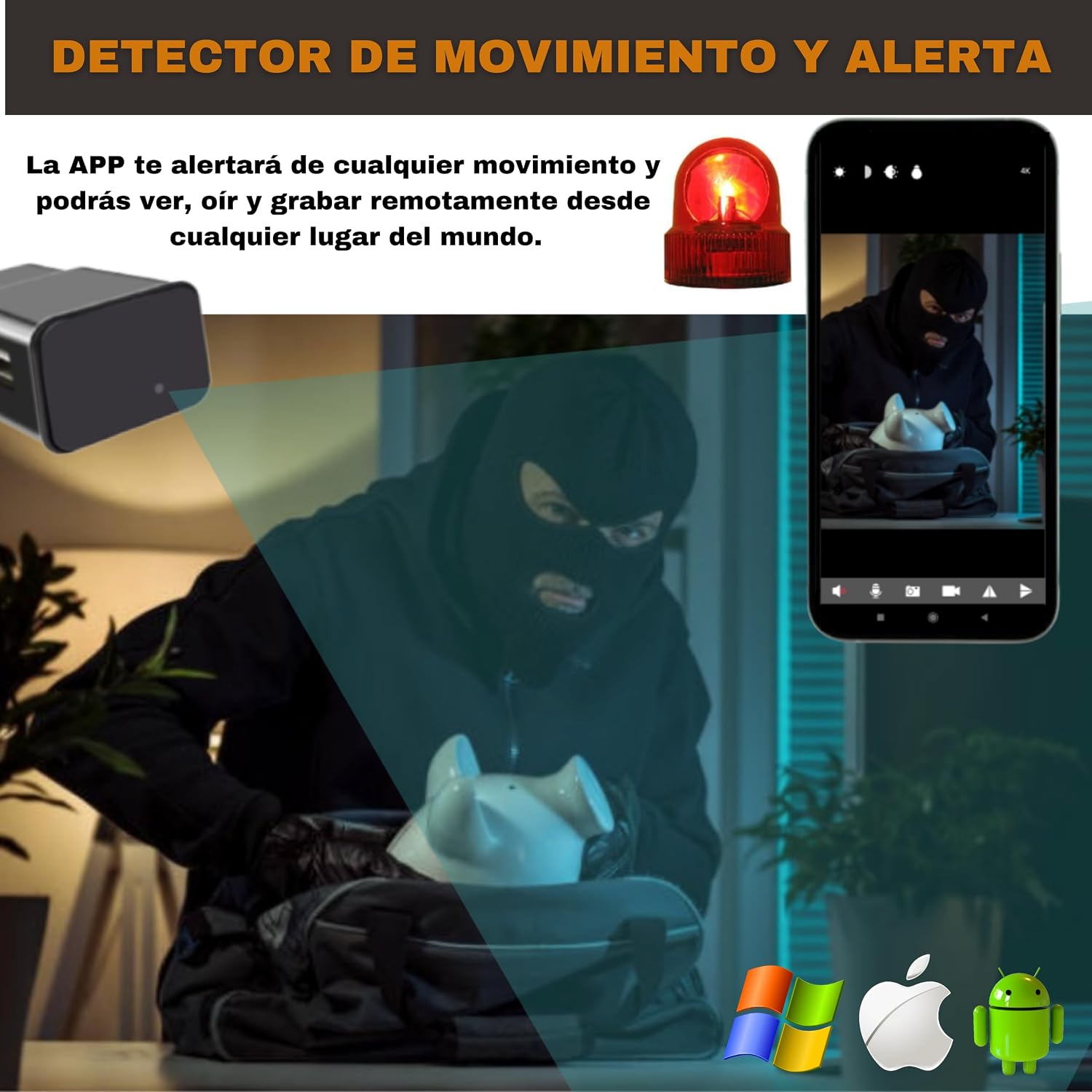
Image 5.2: The app provides alerts upon motion detection, allowing you to view and record remotely.
5.3 Night Vision
The camera automatically activates its infrared night vision in low-light conditions. This allows for clear recording even in complete darkness without emitting visible light.
5.4 Loop Recording
The camera supports loop recording. When the Micro SD card is full, the oldest video files will be automatically overwritten by new recordings. This ensures continuous surveillance without manual intervention.
6. Maintenance
- Lens Cleaning: Use a soft, dry cloth to gently clean the camera lens if it becomes dirty. Avoid abrasive materials or harsh chemicals.
- SD Card Management: Regularly back up important recordings from the Micro SD card to prevent data loss. Format the SD card periodically (e.g., monthly) through the app or on a computer to maintain optimal performance.
- Firmware Updates: Check the LOOKCAM app periodically for any available firmware updates for your camera. Keeping the firmware updated ensures the best performance and security.
- Placement: Ensure the camera is placed in a well-ventilated area to prevent overheating, especially during continuous operation.
7. Troubleshooting
- Q: The camera is not connecting to Wi-Fi.
- A: Ensure the camera is within close proximity to your Wi-Fi router or a signal repeater. Verify that the Wi-Fi password entered in the app is correct. Try resetting the camera by pressing the reset button for 10 seconds with a pin, then attempt to reconnect.
- Q: No video is being recorded.
- A: Check if the Micro SD card is properly inserted and formatted. Ensure there is sufficient space on the card. If using Wi-Fi mode, verify the camera is connected to the network and recording is enabled in the app. If recording without Wi-Fi, ensure the card is inserted and the device is powered.
- Q: The video quality is poor.
- A: Make sure the protective film has been removed from the lens. Clean the lens if it is dirty. Ensure adequate lighting for optimal video quality, especially if night vision is not active.
- Q: Motion detection alerts are not received.
- A: Verify that motion detection is enabled in the LOOKCAM app settings and that app notifications are allowed on your smartphone. Check the camera's Wi-Fi connection stability.
- Q: The camera gets warm during operation.
- A: It is normal for electronic devices to generate some heat during operation. However, if the device becomes excessively hot, unplug it immediately and contact support. Ensure it is placed in a well-ventilated area.
8. Specifications
| Feature | Detail |
|---|---|
| Brand | SURKOS |
| Model | B0CK62TN5Y |
| Video Resolution | 1080p (1920x1080) |
| Frame Rate | 30 frames per second |
| Video Format | AVI |
| Viewing Angle | 90 Degrees |
| Connectivity | Wi-Fi (Wireless), Wired (Power) |
| Special Features | Night Vision, Motion Detection |
| Compatible Devices | Smartphone (Android, iOS) |
| Power Source | Electric Cable (Plug-in) |
| Memory Card Support | Micro SD up to 128GB (32GB included) |
| Material | Plastic |
| Dimensions | 25 x 37 x 75 mm |
| IP Rating | IP54 |

Image 8.1: The compact dimensions of the camera charger: 3.7 cm width, 3.7 cm length, 2.3 cm height.
9. Warranty and Support
All SURKOS products undergo careful quality control. If you encounter any issues or have questions regarding your Mini WiFi Hidden Spy Camera Charger, please do not hesitate to contact us through the "contact seller" option on the platform where you purchased the product. Our support team will be happy to assist you.