
1. Introduction
Thank you for purchasing the Monster Image Pro MHV1-1051-CAN 720p HD LCD Projector. This manual provides essential information for the safe and efficient operation of your new projector. Please read it thoroughly before use and retain it for future reference.
This projector offers a native resolution of 1280x720p HD, supporting up to 1920x1080p HD maximum resolution. With 6000 lumens brightness, it is designed to deliver clear projections for various applications, from home cinema to presentations.
2. Safety Information
- Electrical Safety: Always use the provided power adapter. Do not expose the projector to rain or moisture to prevent electric shock.
- Ventilation: Ensure adequate ventilation around the projector. Do not block ventilation openings. Overheating can cause malfunction.
- Handling: Handle the projector with care. Avoid dropping or subjecting it to strong impacts.
- Lens Care: Do not look directly into the projector lens when the lamp is on, as the bright light can harm your eyes.
- Cleaning: Disconnect the power cord before cleaning. Use a soft, dry cloth. Do not use liquid or aerosol cleaners.
- Placement: Place the projector on a stable, level surface. Avoid placing it in direct sunlight or near heat sources.
3. Package Contents
Please check that all the following items are included in your package:
- Monster Image Pro MHV1-1051-CAN Projector
- Remote Control
- Power Adapter
- HDMI Cable (may vary by region)
- User Manual (this document)
4. Product Overview
Familiarize yourself with the various parts of your projector.

Figure 4.1: Front view of the Monster Image Pro MHV1-1051-CAN projector, showing the lens, focus and keystone adjustment dials, and control buttons on top. A remote control is positioned next to the projector.
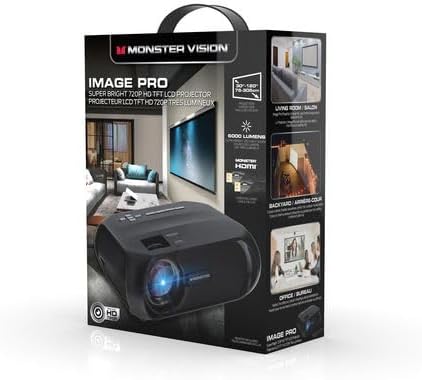
Figure 4.2: Packaging box for the Monster Image Pro projector, highlighting key features such as "Super Bright 720p HD TFT LCD Projector" and usage scenarios like living room, backyard, and office.
4.1 Projector Components
- Lens: Projects the image onto the screen.
- Focus Ring: Adjusts image clarity.
- Keystone Correction: Adjusts image distortion (trapezoid effect).
- Control Panel: Buttons for basic navigation and settings.
- Input Ports: HDMI, USB, AV, etc. (Refer to the back panel for specific ports).
- Power Port: Connects to the power adapter.
5. Setup
5.1 Placement
Choose a flat, stable surface for the projector. The distance from the screen will determine the image size. Ensure there is enough space for proper ventilation around the projector.
5.2 Power Connection
- Connect the power adapter to the projector's power port.
- Plug the other end of the power adapter into a wall outlet.
5.3 Connecting Input Devices
The projector supports various input sources. For optimal quality, use an HDMI connection.
- HDMI: Connect an HDMI cable from your source device (e.g., laptop, Blu-ray player, streaming stick) to the HDMI port on the projector.
- USB: Insert a USB drive into the USB port to play media files directly.
- AV: Use an AV cable to connect older devices.
5.4 Focus and Keystone Adjustment
- Turn on the projector and display an image.
- Rotate the Focus Ring on the projector lens until the image is clear and sharp.
- If the image appears trapezoidal (wider at the top or bottom), adjust the Keystone Correction dial until the image is rectangular.
6. Operating Instructions
6.1 Powering On/Off
- Power On: Press the power button on the projector or the remote control.
- Power Off: Press the power button again. Confirm shutdown if prompted.
6.2 Input Source Selection
After powering on, use the "Source" button on the remote or projector control panel to select the desired input (e.g., HDMI, USB, AV).
6.3 Menu Navigation
Use the arrow buttons on the remote or projector to navigate through the on-screen menu. Press "OK" or "Enter" to confirm selections. Use "Back" or "Exit" to return to the previous menu or exit the menu.
6.4 Basic Settings
- Picture Mode: Adjust brightness, contrast, color, and sharpness.
- Aspect Ratio: Select between 4:3 or 16:9 depending on your content.
- Sound: Adjust volume or mute the audio.
7. Maintenance
7.1 Cleaning the Lens
Use a soft, lint-free cloth specifically designed for optical lenses. Do not use abrasive cleaners or excessive force, as this can scratch the lens.
7.2 Cleaning the Projector Body
Wipe the exterior of the projector with a soft, dry cloth. For stubborn marks, a slightly damp cloth can be used, followed by a dry cloth. Ensure no liquid enters the ventilation openings.
7.3 Ventilation
Regularly check that the ventilation openings are free from dust and obstructions. Use a soft brush or compressed air to gently clean them.
7.4 Storage
When not in use for extended periods, store the projector in a cool, dry, dust-free environment. It is recommended to use the original packaging for storage and transport.
8. Troubleshooting
| Problem | Possible Cause | Solution |
|---|---|---|
| No power | Power cord not connected; Power outlet faulty; Projector off. | Check power connections; Try a different outlet; Press the power button. |
| No image | Incorrect input source; Input device not connected; Lens cap on. | Select correct input source; Connect input device securely; Remove lens cap. |
| Image blurry | Focus not adjusted; Projector too far/close. | Adjust the focus ring; Adjust projector distance. |
| Image distorted (trapezoid) | Keystone not adjusted; Projector not level. | Adjust the keystone correction dial; Ensure projector is on a level surface. |
| No sound | Volume too low/muted; Audio cable not connected; Source device audio settings. | Increase volume/unmute; Check audio connections; Adjust audio settings on source device. |
9. Specifications
| Feature | Detail |
|---|---|
| Model Name | Monster Image Pro MHV1-1051-CAN |
| Native Resolution | 1280 x 720 (720p HD) |
| Maximum Display Resolution | 1920 x 1080 (1080p HD) |
| Brightness | 6000 Lumens (150 ANSI Lumens) |
| Contrast Ratio | 1000:1 - 2000:1 |
| Display Type | LCD |
| Throw Ratio Range | 4:3 / 16:9 |
| Connectivity Technology | HDMI |
| Light Source Operating Life | 30000 Hours |
| Control Method | Remote |
| Form Factor | Portable |
| Parcel Dimensions | 33.29 x 24.9 x 12.4 cm |
| Item Weight | 1.93 kg |
10. Warranty and Support
This product comes with a standard manufacturer's warranty. For detailed warranty information, please refer to the warranty card included in your package or contact the retailer where you purchased the product.
For technical support, troubleshooting assistance, or service inquiries, please contact the customer support provided by the manufacturer or your retailer. Keep your purchase receipt as proof of purchase for warranty claims.