
1. Introduction
This manual provides detailed instructions for the PINHUI Cute Panda MP3 Player, Model X30. Please read this manual carefully before using the device to ensure proper operation and to maximize its features. This device is designed for children, offering a user-friendly interface and a range of entertainment and utility functions.
2. Package Contents
Verify that all items are present in your package:
- Bluetooth MP3 Player for Kids x 1
- Type-C USB Cable x 1
- 3.5mm Stereo Earphones x 1
- Bluetooth MP3 Player Lanyard x 1
- English User Manual x 1

Image: The package contents including the MP3 player, earphones, lanyard, Type-C USB cable, and user manual.
3. Product Overview
The PINHUI Cute Panda MP3 Player features a compact design with intuitive controls and a built-in speaker. The device is adorned with a cute panda theme and animal patterns on the back.

Image: Front view of the MP3 player showing the screen and control buttons, and the back view with animal illustrations.
3.1 Key Features
- Bluetooth 5.3: For faster and more stable wireless audio transmission.
- HiFi Lossless Sound: Supports MP3/WMA/APE/FLAC/WAV/DRM/ACELP audio formats.
- Built-in Speaker: Allows listening without headphones.
- 32GB Internal Storage: Stores over 5,000 songs.
- Expandable Storage: Supports up to 128GB Micro SD card.
- Multi-functional: Includes FM radio, alarm clock, pedometer, calendar, stopwatch, recording, screen brightness adjustment, backlight, power-saving shutdown, and timer shutdown.
- Child-Friendly Design: Cute panda appearance with a lanyard hole for portability.
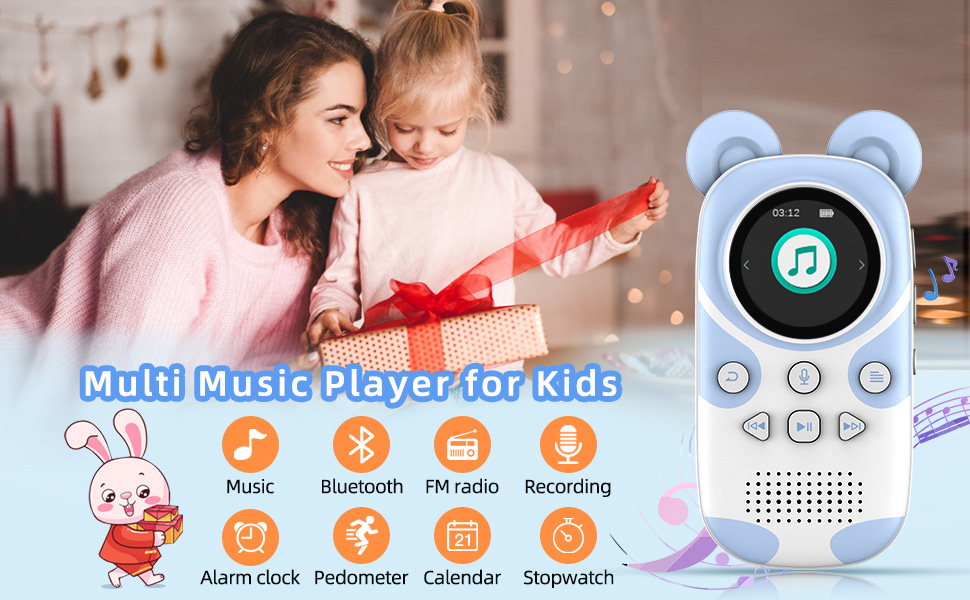
Image: An overview of the MP3 player's functions including Music, Bluetooth, FM Radio, Recording, Alarm Clock, Pedometer, Calendar, and Stopwatch.
4. Setup
4.1 Charging the Device
Before first use, fully charge the MP3 player. Connect the provided Type-C USB cable to the player's charging port and the other end to a USB power adapter (not included) or a computer's USB port.
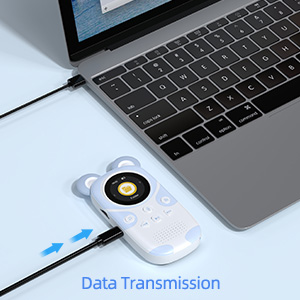
Image: The MP3 player connected via a Type-C USB cable to a laptop, illustrating data transmission and charging.
4.2 Inserting a Micro SD Card
The device has 32GB of built-in storage. To expand storage, insert a Micro SD card (up to 128GB, not included) into the designated slot. Ensure the card is inserted correctly until it clicks into place.
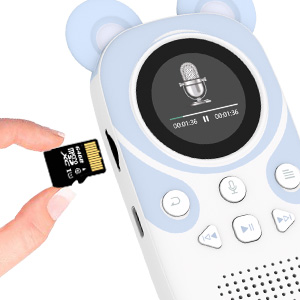
Image: A hand inserting a Micro SD card into the side slot of the MP3 player.
4.3 Transferring Music and Files
Connect the MP3 player to your computer using the Type-C USB cable. The device will appear as a removable disk. You can then drag and drop music files (MP3, WMA, APE, FLAC, WAV, DRM, ACELP) and other supported files into the player's internal storage or the Micro SD card.
5. Operating Instructions
5.1 Power On/Off
Press and hold the Power button (usually located on the side or top) to turn the device on or off.
5.2 Basic Navigation
Use the directional buttons around the screen to navigate through menus. The center button typically acts as "Enter" or "Select," and the "Return" button (often marked with a curved arrow) takes you back to the previous screen.
5.3 Music Playback
From the main menu, select "Music." Browse your files by artist, album, or folder. Select a song to begin playback. Use the play/pause, next, and previous track buttons for control.

Image: The MP3 player displaying music playback, highlighting its built-in speaker and 32GB internal storage, expandable to 128GB.
5.4 Bluetooth Connection
To connect to Bluetooth headphones or a speaker:
- Go to the Bluetooth menu on the MP3 player.
- Ensure your Bluetooth device is in pairing mode.
- Select "Search for devices" on the MP3 player.
- Choose your device from the list to connect.

Image: The MP3 player with icons representing Bluetooth headset and speaker connections, emphasizing Bluetooth 5.3 and HiFi Lossless Sound.
5.5 FM Radio
Plug in the earphones (they act as an antenna). Navigate to the FM Radio function. You can auto-scan for stations or manually tune to a frequency.
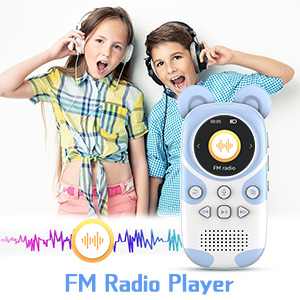
Image: The MP3 player displaying the FM Radio interface, with two children listening to music.
5.6 Recording
Select the "Recording" option from the main menu. Press the record button to start and stop recording. Recordings are saved as audio files.
5.7 Alarm Clock
Set an alarm time through the "Alarm Clock" menu. You can choose a specific sound or music file to wake up to.
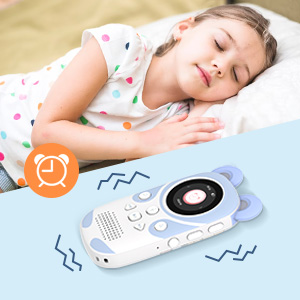
Image: The MP3 player next to a sleeping child, indicating the alarm clock feature.
5.8 Pedometer
Activate the pedometer function to track steps. Ensure the device is carried securely (e.g., using the lanyard) for accurate readings.
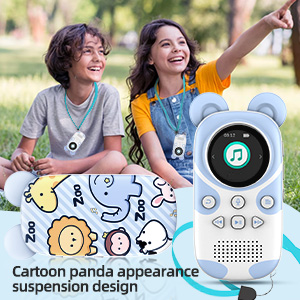
Image: Two children outdoors, one wearing the MP3 player with its lanyard, highlighting the cartoon panda design and portability.
5.9 Settings
Access the "Settings" menu to adjust various parameters:
- Volume Limit: Set a maximum volume level for hearing protection.
- Screen Brightness: Adjust the display brightness.
- Backlight Timer: Configure how long the backlight stays on.
- Power-Saving Shutdown: Set an inactivity period after which the device automatically turns off.
- Timer Shutdown: Schedule the device to turn off after a set duration.
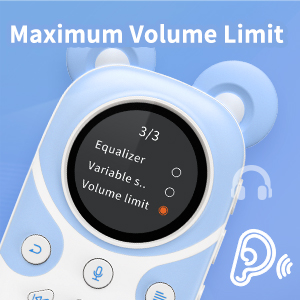
Image: A close-up of the MP3 player screen displaying the "Volume limit" option within the settings menu.
6. Maintenance
- Keep the device dry and away from extreme temperatures.
- Clean the screen and body with a soft, dry cloth.
- Avoid dropping the device or subjecting it to strong impacts.
- Regularly back up important files to a computer.
7. Troubleshooting
7.1 Device Does Not Turn On
- Ensure the battery is charged. Connect to a power source and try again.
- If the device is completely unresponsive, try a hard reset (refer to manufacturer support if a reset button is not visible).
7.2 Cannot Connect to Bluetooth Device
- Make sure both the MP3 player and the Bluetooth device are in pairing mode and within range.
- Ensure no other devices are currently connected to either the MP3 player or the Bluetooth accessory.
- Try restarting both devices.
7.3 Music Files Not Playing
- Check if the file format is supported (MP3/WMA/APE/FLAC/WAV/DRM/ACELP).
- Verify that the files are correctly transferred to the device's internal storage or Micro SD card.
- Ensure the volume is not set to zero or muted.
8. Specifications
| Feature | Detail |
|---|---|
| Product Dimensions | 4.2 x 0.9 x 2 inches |
| Item Weight | 1.59 ounces |
| Item Model Number | X30 |
| Batteries | 1 Lithium Polymer battery (included) |
| Brand | PINHUI |
| Special Features | Built-In Speaker, Equalizer, FM Radio |
| Connectivity Technology | Aux, Bluetooth, USB |
| Memory Storage Capacity | 32 GB (Expandable up to 128GB via Micro SD) |
| Screen Size | 1.5 Inches |
| Compatible Devices | Headphones |
| Media Type | Micro SD |
| Display Technology | LCD |
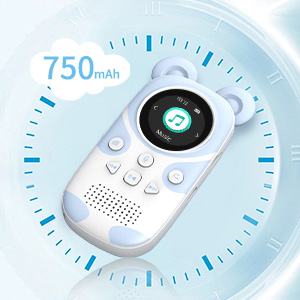
Image: The MP3 player with a clock graphic in the background, emphasizing its 750mAh battery capacity for long usage.
9. Warranty and Support
For warranty information and customer support, please refer to the contact details provided on the product packaging or visit the official PINHUI website. Keep your purchase receipt as proof of purchase.