
1. Important Safety Instructions
Please read all instructions carefully before assembling and using this product. Failure to follow these instructions may result in injury or damage to the product.
- Keep the packaging materials away from children to prevent choking hazards.
- Ensure all components are securely fastened before use. Regularly check for loose connections.
- Use only the power adapter supplied with the desk. Using an incorrect adapter may cause damage or fire.
- Do not place liquids directly on the desk surface, especially near electrical components.
- Keep hands and objects clear of moving parts during height adjustment to prevent pinching or crushing.
- The maximum weight capacity for this desk is 75 kg (165 lbs). Do not exceed this limit.
- This desk is designed for indoor use only.
- If the desk emits unusual noises, smells, or smoke, immediately unplug it from the power source and contact customer support.
2. Package Contents
Verify that all components listed below are present in your package. If any parts are missing or damaged, please contact customer support.
- Height-Adjustable Desk Frame (legs and crossbar)
- Desktop Sections (two pieces)
- Control Panel with Digital Display
- Power Adapter and Cable
- Assembly Hardware (screws, bolts, tools)
- Desk Hooks (for headphones/bags)
- Wire Management Tray
- Adjustable Feet and Optional Casters
- User Manual

Figure 2.1: High-density steel framework and two-piece desktop. This image shows the robust high-density steel frame supporting the two-piece wood-colored desktop, emphasizing the desk's sturdy construction and eco-friendly texture.

Figure 2.2: Additional components. An illustration of additional features: practical desk hooks for headphones or bags, a wire management tray to keep cables tidy, and the dual support options of adjustable feet or mobile casters.
3. Assembly Instructions
The HOMAVO Z2301 desk is designed for straightforward assembly. It consists of two main desktop sections and a robust frame. For detailed visual guidance, please refer to the 3D mounting videos available online or through the provided QR code in the physical manual.
3.1 Step-by-Step Assembly Overview
- Unpack Components: Carefully remove all parts from the packaging and lay them out on a clean, soft surface to prevent scratches.
- Assemble the Frame: Follow the included instructions to connect the desk legs to the crossbar and motor assembly. Ensure all screws are tightened securely.
- Attach Desktop Sections: Place the two desktop sections onto the assembled frame. Align them carefully and secure them using the provided screws.
- Install Control Panel: Mount the control panel to the underside of the desktop in the designated location.
- Connect Electronics: Connect the motor cables and control panel cable to the main control box. Plug in the power adapter.
- Install Accessories: Attach the desk hooks and wire management tray as desired. Choose between the adjustable feet or casters for the desk base.

Figure 3.1: Assembled HOMAVO Z2301 Electric Desk. An overview of the HOMAVO Z2301 electric standing desk, showcasing its spacious wood-colored desktop and white adjustable legs, set up with typical office equipment.
4. Operating Instructions
The HOMAVO Z2301 electric desk allows for effortless height adjustment and includes convenient memory functions.
4.1 Control Panel Overview

Figure 4.1: Control Panel. A close-up of the desk's control panel, featuring up/down arrows, a digital display, three memory preset buttons (1, 2, 3), and a 'Save' button, along with icons indicating features like anti-collision, 3-position memory, and USB charging.
- Up (⌃) / Down (⌄) Buttons: Press and hold to raise or lower the desk height. The digital display will show the current height.
- Digital Display: Shows the current desk height in centimeters.
- Memory Buttons (1, 2, 3): Store and recall preferred desk heights.
- 'S' (Save) Button: Used to save a desired height to a memory preset.
4.2 Adjusting Desk Height
Press and hold the Up (⌃) or Down (⌄) button until the desk reaches your desired height. Release the button to stop movement.

Figure 4.2: Height Adjustment Range. This diagram illustrates the adjustable height range of the desk, from a minimum of 70 cm (27.5 inches) to a maximum of 119 cm (46.8 inches), allowing for comfortable sitting and standing positions.
4.3 Setting Memory Presets
To save a specific height:
- Adjust the desk to your desired height using the Up/Down buttons.
- Press the 'S' button. The display will show 'S-'.
- Within 3 seconds, press one of the memory buttons (1, 2, or 3). The display will show 'S-1', 'S-2', or 'S-3' to confirm the height has been saved.
To recall a saved height, simply press the corresponding memory button (1, 2, or 3). The desk will automatically move to the saved position.
4.4 Anti-Collision Feature
The desk is equipped with an anti-collision system. If the desk encounters an obstacle during adjustment, it will automatically stop and reverse slightly to prevent damage. Ensure the area around the desk is clear before adjusting height.
4.5 Integrated Charging Ports
The control panel includes 18W fast charging USB-A and Type-C ports for convenient device charging.
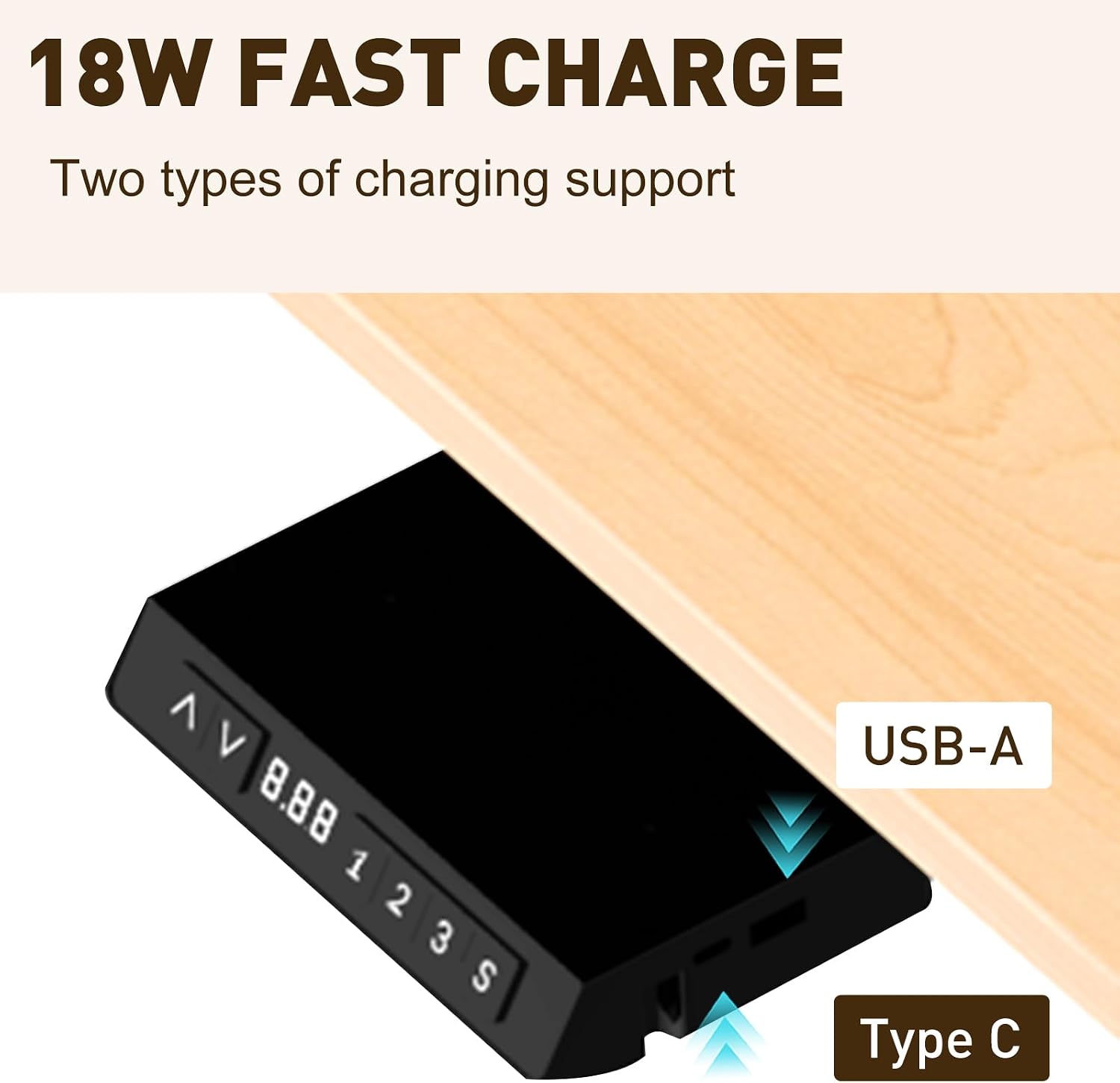
Figure 4.3: USB-A and Type-C Charging Ports. This image highlights the integrated 18W fast charging capabilities, including both USB-A and USB-C ports, conveniently located on the desk's control unit.
4.6 Sit-Stand Reminding
The desk may include a sit-stand reminder function to encourage regular posture changes. Refer to the specific control panel instructions for activation and customization of this feature.

Figure 4.4: Active Work Environment. A user demonstrating the standing functionality of the desk, paired with a walking treadmill, illustrating how the desk supports an active work environment.
5. Maintenance
Regular maintenance ensures the longevity and optimal performance of your HOMAVO Z2301 desk.
- Cleaning: Wipe the desk surface and frame with a soft, damp cloth. Avoid abrasive cleaners or harsh chemicals that could damage the finish.
- Cable Management: Periodically check and organize cables to prevent tangles and ensure they do not interfere with the desk's movement. Utilize the included wire management tray.
- Fastener Check: Every few months, inspect all screws and bolts to ensure they are tight. Re-tighten if necessary.
- Motor Care: The motor is designed for durability and quiet operation (below 48dB). Avoid overloading the desk beyond its 75 kg capacity to prevent strain on the motor.

Figure 5.1: Third-Generation Motor. An internal view highlighting the advanced third-generation motor system, designed for quieter, smoother, and more powerful height adjustments.
6. Troubleshooting
If you encounter issues with your HOMAVO Z2301 desk, refer to the common problems and solutions below.
6.1 Common Issues and Solutions
- Desk Not Moving:
- Check if the power cable is securely plugged into both the desk and the wall outlet.
- Ensure all motor and control panel cables are properly connected to the control box.
- Try unplugging the desk for 30 seconds and then plugging it back in to reset the system.
- Uneven Movement or Noise:
- Verify that the desk is not overloaded beyond its 75 kg capacity.
- Check for any obstructions under or around the desk that might impede movement.
- Ensure the desk is placed on a level surface.
- Error Codes on Display:
- If an error code appears, try resetting the desk by unplugging it for 30 seconds.
- If the error persists, consult the specific error code section in the full manual (if provided) or contact customer support.
- Memory Presets Not Working:
- Ensure you followed the correct procedure for saving presets (adjust height, press 'S', then press memory button).
- Re-save your desired heights.
If these steps do not resolve the issue, please contact HOMAVO customer support for further assistance.

Figure 6.1: Intelligent Control Chip. This image displays the intelligent control chip, which provides digital drive, sensitivity intelligence, and built-in overload and overheat protection for safe and precise operation, which can help prevent some operational issues.
7. Specifications
| Feature | Specification |
|---|---|
| Brand | HOMAVO |
| Model Number | Z2301 |
| Shape | Rectangular |
| Color | Wood-coloured |
| Desk Dimensions | 140 x 70 cm (55.1 x 27.5 inches) |
| Height Adjustment Range | 70 cm to 119 cm (27.5 to 46.8 inches) |
| Maximum Weight Capacity | 75 kg (165 lbs) |
| Motor Type | Third Generation |
| Lifting Speed | 25 mm/second |
| Noise Level | Below 48 dB |
| Control Panel Features | Digital Display, 3 Memory Presets, Anti-Collision, Sit-Stand Reminding |
| Charging Ports | 18W Fast Charge (USB-A, Type-C) |
| Included Components | Desk, Install Components, Manual |
8. Warranty and Support
HOMAVO is committed to providing high-quality products and customer satisfaction. For any questions, concerns, or warranty claims regarding your HOMAVO Z2301 Height-Adjustable Electric Desk, please contact our customer service team.
Please have your model number (Z2301) and purchase information ready when contacting support to ensure efficient service.
Contact information can typically be found on our official website or through your purchase platform.