
Yinker YK-SW041C
Yinker 4K HDMI Multiviewer 4x1 User Manual
Model: YK-SW041C
Introduction
The Yinker 4K HDMI Multiviewer 4x1 is a high-performance device designed to connect up to four HDMI input sources and display them on a single HDMI output screen, such as a monitor, projector, or TV. This multiviewer supports various display modes including Single, Quad, Picture-in-Picture (PBP), and Dual modes, offering flexibility for different viewing requirements. It is ideal for applications in security monitoring, gaming setups, conference rooms, and other professional or home entertainment environments.
Safety Information
- Ensure the device is placed on a stable, flat surface to prevent accidental falls.
- Do not expose the device to water, moisture, or extreme temperatures.
- Use only the provided power adapter. Using an incorrect adapter may damage the device and void the warranty.
- Avoid blocking ventilation openings to prevent overheating.
- Do not attempt to open or repair the device yourself. Refer all servicing to qualified personnel.
- Keep the device away from strong magnetic fields.
- Unplug the power adapter during lightning storms or when unused for long periods.
Package Contents

Image: Contents of the Yinker 4K HDMI Multiviewer 4x1 package. This image displays the main multiviewer unit, an IR remote control, a power adapter, and a user manual, all neatly arranged on a white surface.
Please check the package contents upon opening. If any items are missing or damaged, contact Yinker customer support.
- 1x Yinker 4K HDMI Multiviewer 4x1 Unit
- 1x Power Adapter (DC 12V)
- 1x IR Remote Control
- 1x User Manual
Product Overview

Image: A comprehensive view of the Yinker 4K HDMI Multiviewer 4x1 unit, showcasing its front panel with control buttons and IR receiver, and its rear panel with HDMI input/output ports and power input. The accompanying remote control is also visible.
Front Panel:
- IR: Infrared receiver for remote control.
- CH1-CH4 Buttons: Select individual HDMI input channels.
- MODE Button: Cycle through different display modes (Single, Quad, PBP, Dual).
Rear Panel:
- DC 12V: Power input port.
- HDMI 1-4: HDMI input ports for connecting source devices.
- HDMI OUT: HDMI output port for connecting to a display.
Setup
Follow these steps to set up your Yinker 4K HDMI Multiviewer:
- Connect HDMI Input Sources: Connect up to four HDMI source devices (e.g., gaming consoles, PCs, set-top boxes, security cameras) to the HDMI 1, HDMI 2, HDMI 3, and HDMI 4 input ports on the multiviewer using high-quality HDMI cables.
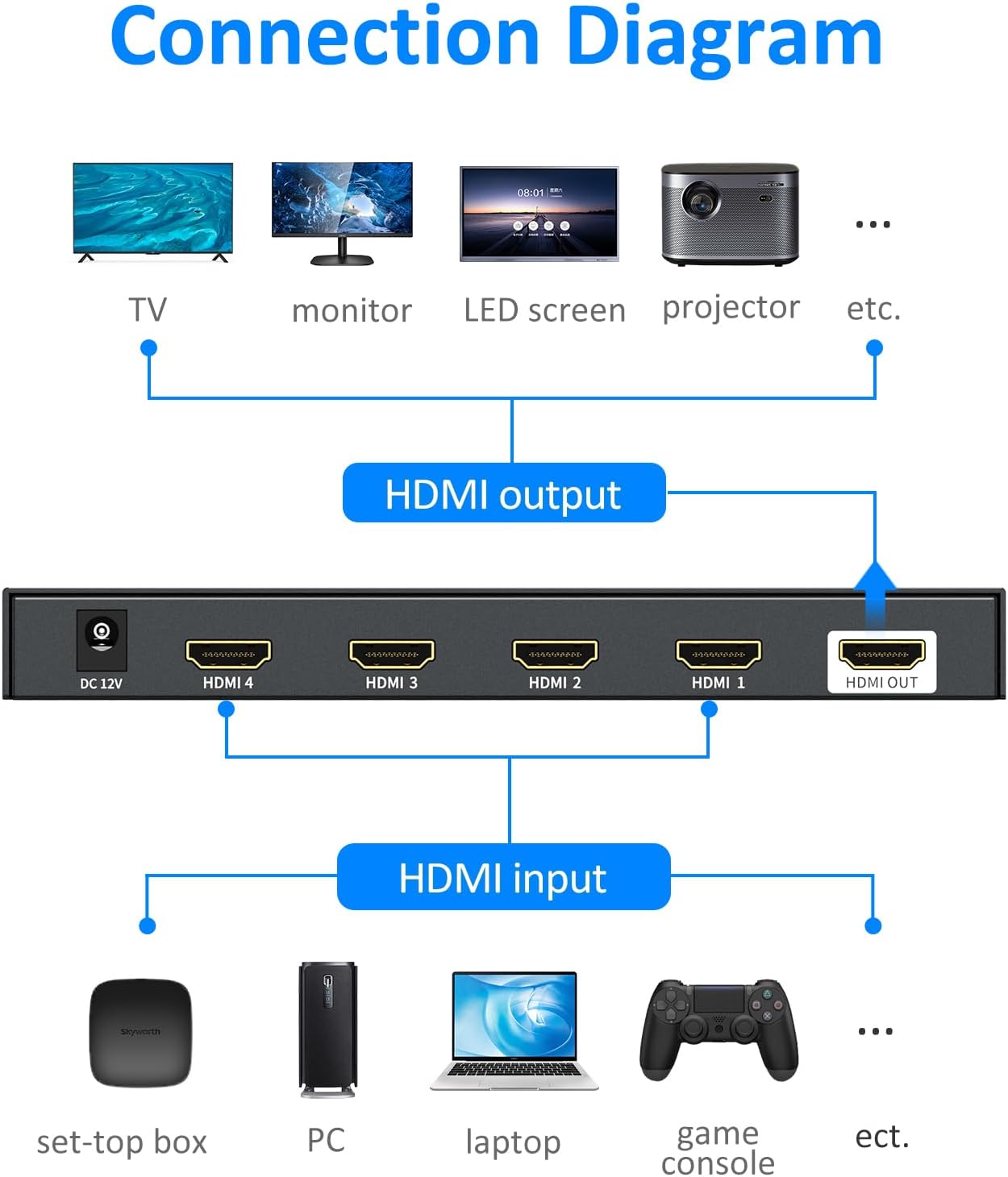
Image: A clear connection diagram illustrating how to connect various HDMI input devices (set-top box, PC, laptop, game console) to the HDMI input ports of the multiviewer, and how the HDMI output connects to a display (TV, monitor, LED screen, projector).
- Connect HDMI Output Display: Connect the HDMI OUT port of the multiviewer to the HDMI input of your display (TV, monitor, projector) using an HDMI cable.
- Connect Power Adapter: Plug the provided DC 12V power adapter into the DC 12V port on the multiviewer, then plug the adapter into a power outlet. The power indicator light on the multiviewer will illuminate.
- Power On Devices: Power on all connected HDMI source devices and your display.
- Select Input on Display: Set your display's input source to the HDMI port connected to the multiviewer.
The multiviewer is plug-and-play and does not require any software installation.
Operating Instructions
Switching Methods:
The Yinker 4K HDMI Multiviewer offers two convenient methods for switching between inputs and display modes:
- Panel Button: Use the CH1-CH4 buttons on the front panel to directly select an input, or the MODE button to cycle through display modes.
- IR Remote Control: Use the included IR remote control for full functionality, including direct input selection and mode switching. Ensure the remote is pointed towards the IR receiver on the front panel.
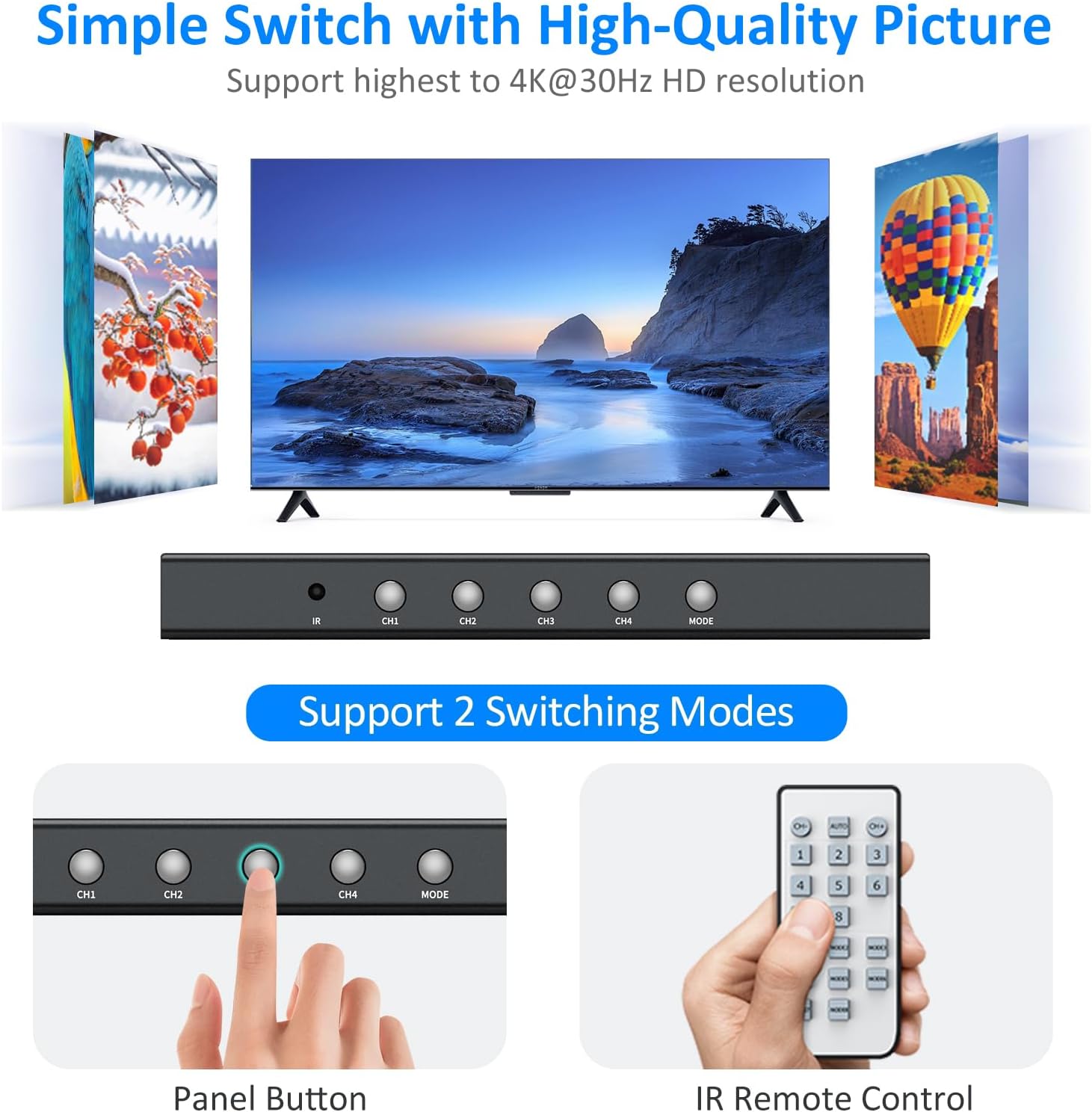
Image: This image highlights the two primary switching methods for the multiviewer: the physical buttons on the device's front panel (CH1, CH2, CH3, CH4, MODE) and the included IR remote control, demonstrating ease of use.
Display Modes:
The multiviewer supports four distinct display modes to suit various needs:
- Single Mode: Displays one selected HDMI input source in full screen. Use the CH1-CH4 buttons or corresponding remote buttons to select the desired input.
- Quad Mode: Displays all four HDMI input sources simultaneously on the screen, each occupying a quarter of the display area.
- Dual Mode: Displays two selected HDMI input sources side-by-side.
- PBP Mode (Picture-by-Picture): Displays one main HDMI input source in a larger window, with three other input sources displayed in smaller windows.

Image: This visual guide illustrates the four distinct display modes available on the Yinker 4K HDMI Multiviewer 4x1: Single Screen Mode (full display of one source), Quad Screen Mode (four sources equally divided), Dual Screen Mode (two sources side-by-side), and PBP Mode (one large source with three smaller ones).
Press the MODE button on the front panel or the remote to cycle through these display modes. Audio output will typically follow the main or selected input in multi-view modes. Refer to the remote control diagram in the user manual for specific button functions.
Seamless Switching:
The multiviewer features seamless switching between inputs, minimizing black screen delays when transitioning from one source to another in single mode. This ensures a smooth viewing experience.

Image: A visual comparison demonstrating the "Effective Seamless Switch" feature of the multiviewer, showing an instant transition between two video sources (represented by a beach scene and parrots) without the typical 2-3 second lag often seen in standard switches.
Troubleshooting
| Problem | Possible Cause | Solution |
|---|---|---|
| No picture on display. |
|
|
| Flickering or unstable picture. |
|
|
| Remote control not working. |
|
|
| Audio issues (no sound, distorted sound). |
|
|
Specifications
| Feature | Detail |
|---|---|
| Model Number | YK-SW041C |
| Connector Type | HDMI |
| HDMI Version | HDMI 1.4 |
| HDMI Input Resolution | Up to 4K@30Hz |
| HDMI Output Resolution | Up to 4K@30Hz (compatible with 1080P@60Hz, 720P, 1080i, 1024x768, 1360x768) |
| HDCP Compliance | HDCP 1.4 |
| Switching Modes | Panel Button & IR Remote |
| Display Modes | Single Mode, Quad Mode, PBP Mode, Dual Mode |
| Compatible Systems | Mac, Win11, Win7, Windows, Linux, Unix, Fedora, Raspbian, Ubuntu, etc. |
| Compatible Devices | Nintendo, Xbox, PS series, Blu-Ray Player, Roku, Chromecast, Web Camera, PC, Laptop, Gaming Console, Monitor, Television |
| Product Dimensions | 3.14 x 6.88 x 0.78 inches |
| Item Weight | 1.47 pounds |
| Power Supply | DC 12V Power Adapter |
| Remote Battery | 1 CR2032 battery required |

Image: This image illustrates the broad compatibility of the Yinker 4K HDMI Multiviewer 4x1 with various operating systems, including Windows (7, 10, XP, Vista), Mac, Linux, Unix, Fedora, and others, highlighting its versatility.
Maintenance
- Cleaning: Use a soft, dry cloth to clean the surface of the device. Do not use liquid or aerosol cleaners.
- Storage: When not in use for extended periods, store the device in a cool, dry place away from direct sunlight and extreme temperatures.
- Cable Management: Ensure HDMI cables are not excessively bent or strained, which can lead to signal degradation or cable damage.
Warranty and Support
Yinker products are designed for reliability and performance. For warranty information and technical support, please refer to the official Yinker website or contact Yinker customer service directly.
Contact Information:
- Website: Visit the Yinker Store on Amazon
- Email: Refer to the contact section on the official Yinker website or the included user manual for specific email support.
Please have your model number (YK-SW041C) and purchase details ready when contacting support.