
1. Introduction
Thank you for choosing the ienRon 9-Port 2.5G Ethernet Switch. This unmanaged switch is designed to provide high-speed network connectivity for various applications, including home entertainment, office, and small business environments. Featuring 8x 2.5 Gigabit Ethernet ports and 1x 10G SFP+ slot, it offers flexible and robust network expansion. This manual provides essential information for setting up, operating, and maintaining your device.
2. Safety Information
- Ensure the power adapter voltage matches your local power supply.
- Do not open the device casing; refer all servicing to qualified personnel.
- Keep the device away from water, fire, and high temperatures.
- Install the device in a well-ventilated area to prevent overheating.
- Use only the provided power adapter to avoid damage.
3. Package Contents
Verify that all items are present in your package:
- ienRon 9-Port 2.5G Ethernet Switch
- Power Adapter (12V2A)
- User Manual

Figure 3.1: ienRon 9-Port 2.5G Ethernet Switch and included accessories.
4. Product Overview
The ienRon 9-Port 2.5G Ethernet Switch features a durable metal casing and a fanless design for silent operation. It includes 8x 2.5Gbps RJ45 ports and 1x 10Gbps SFP+ slot, along with a VLAN switch for network segmentation.
4.1 Front Panel Layout

Figure 4.1: Front Panel Overview
- Ports 1-8 (2.5Gbps RJ45): These ports support 10/100/1000M/2.5G auto-sensing and Auto MDI/MDIX. Yellow LED indicates speed, Green LED indicates Link/ACT.
- SFP+ Port (10Gbps): Compatible with 1G/2.5G/10G SFP modules (not included). Yellow LED indicates 10G Link, Green LED indicates Link Success.
- VLAN Switch: Toggles VLAN mode on/off.
- Power Input: Connects to the 12V2A power adapter.
5. Setup
The ienRon 9-Port 2.5G Ethernet Switch is designed for simple plug-and-play operation. No software configuration is required.
5.1 Connecting the Power Adapter
- Connect the provided 12V2A power adapter to the power input port on the switch.
- Plug the power adapter into a suitable power outlet. The power LED on the switch will illuminate.
5.2 Connecting Network Devices
- For standard Ethernet connections, use Cat6 or higher Ethernet cables to connect your devices (e.g., computers, NAS, gaming consoles, WiFi 6 access points) to any of the 2.5Gbps RJ45 ports (Ports 1-8).
- For high-speed fiber optic connections, insert a compatible 1G/2.5G/10G SFP module (not included) into the 10G SFP+ slot, then connect your fiber optic cable.
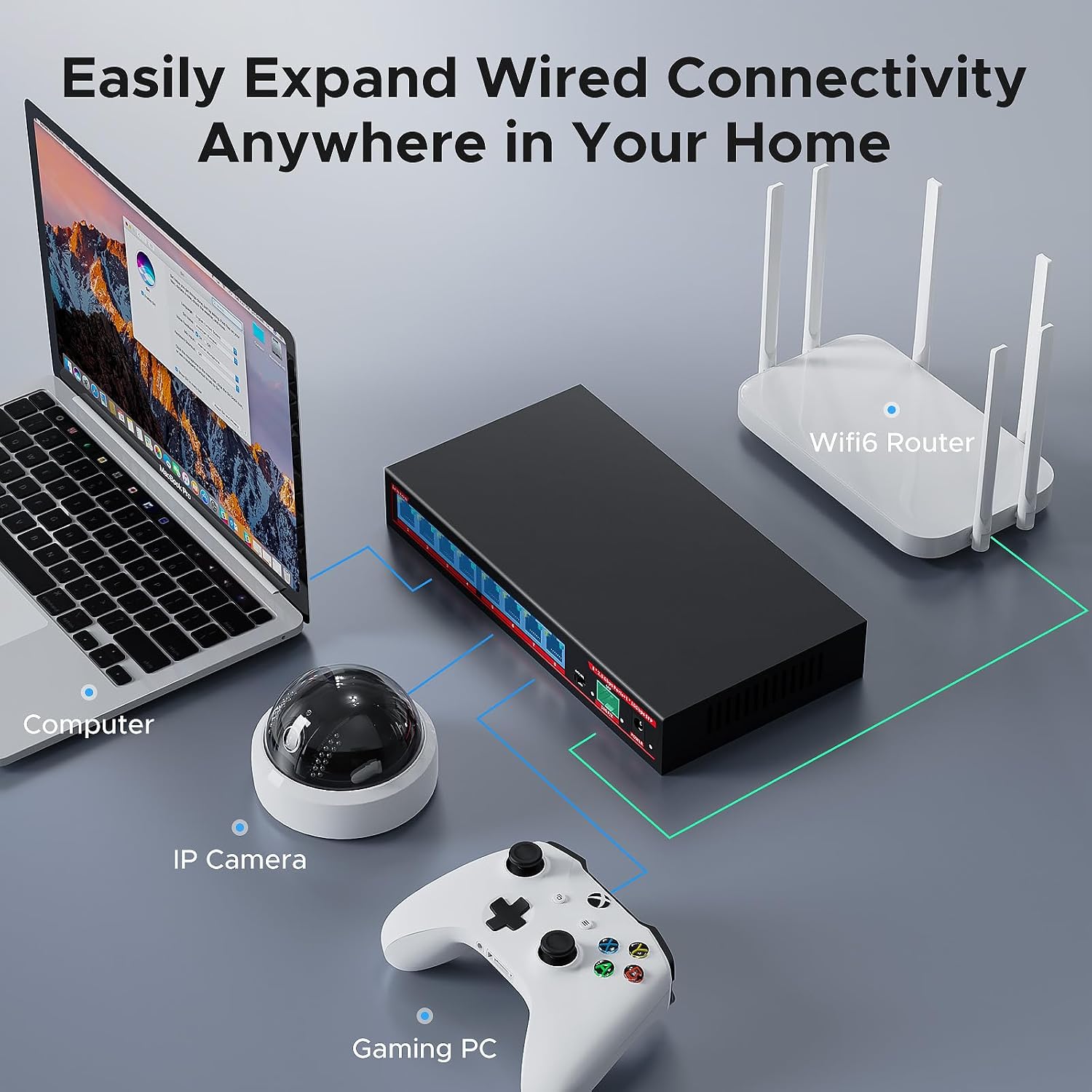
Figure 5.1: Connecting Network Devices
5.3 VLAN Mode Operation
The switch features a VLAN mode for enhanced security and network segmentation.
- VLAN Mode ON: When the VLAN button is set to 'ON', ports 1 through 8 are isolated from each other. Devices connected to these ports can only communicate with the uplink port (SFP+ port). This prevents direct communication between devices on ports 1-8, enhancing security for specific applications like IP cameras.
- VLAN Mode OFF: When the VLAN button is set to 'OFF', all ports (1-8 and SFP+) can communicate with each other, allowing for standard network data sharing.

Figure 5.2: VLAN Mode Configuration
Video 5.1: Demonstration of the ienRon 9-Port 2.5G Switch's ease of use and powerful features, including VLAN mode.
6. Operating the Switch
Once powered on and devices are connected, the switch operates automatically. It is an unmanaged switch, meaning no software configuration is needed for basic network functionality.
6.1 LED Indicators
Monitor the LED indicators on each port to verify connection status and speed:
- RJ45 Ports (1-8):
- Yellow LED: Indicates connection speed (e.g., 2.5G).
- Green LED: Indicates Link/Activity (flashing means data transfer).
- SFP+ Port:
- Yellow LED: Indicates 10G Link.
- Green LED: Indicates Link Success (flashing means data transfer).
- Power LED: Solid red when the switch is powered on.
Video 6.1: Overview of the ienRon 2.5G switch features and benefits.
7. Maintenance
Proper maintenance ensures the longevity and optimal performance of your switch.
- Cleaning: Use a soft, dry cloth to clean the exterior of the switch. Do not use liquid or aerosol cleaners.
- Ventilation: Ensure the cooling holes on the device are not obstructed. The fanless design relies on natural convection for heat dissipation.
- Environment: Operate the switch within the specified temperature range (-10~50°C) and humidity levels. Avoid direct sunlight or extreme temperatures.
- Cable Management: Keep network cables organized and free from kinks or excessive bends to maintain signal integrity.
8. Troubleshooting
If you encounter issues with your ienRon switch, refer to the following common problems and solutions:
| Problem | Possible Cause | Solution |
|---|---|---|
| Transmission speed does not reach 2.5G. | Network cable quality or device compatibility. | Ensure your network cable is 8-core Cat6 or above. Verify connected devices support 2.5G speeds. |
| SFP+ port is not working. | Incompatible SFP module or optical fiber module issue. | Check if the optical fiber module and switch/optical modem are the same brand and model. Ensure the module supports 1.25G/2.5G/10G. |
| Switch turns off when SFP is connected. | SFP module incompatibility. | The SFP+ port only supports 1.25G/2.5G/10G optical fiber modules. Ensure your module is compatible. |
| No link light on a connected port. | Cable issue, device off, or port fault. | Check cable connections, ensure the connected device is powered on, and try a different port or cable. |
If the problem persists after trying these solutions, please contact ienRon customer support.
9. Specifications
Detailed technical specifications for the ienRon 9-Port 2.5G Ethernet Switch:
| Feature | Description |
|---|---|
| Number of Ports | 8x 2.5G RJ45, 1x 10G SFP+ |
| Switching Capacity | 60Gbps |
| MAC Address Table | 16K |
| Packet Forwarding Rate | 44.64Mpps |
| Jumbo Frame | 4MB |
| Power Adapter | 12V2A |
| Voltage | AC100-240V |
| Working Temperature | -10~50°C |
| Transmission Distance | 100m (RJ45) |
| Installation Ways | Desktop / Wall-Mount |
| Case Material | Metal |
| Product Dimensions | 8.2"L x 4.3"W x 1.2"H (21cm x 11cm x 3.2cm) |
| Item Weight | 1.85 pounds |

Figure 9.1: Product Dimensions and Wall Mount Option
10. Warranty and Support
ienRon products are designed for reliability and performance. This product comes with a standard manufacturer's warranty. For specific warranty details, please refer to the warranty card included in your package or visit the official ienRon website.
For technical support, troubleshooting assistance, or any product-related inquiries, please contact ienRon customer service. Contact information can typically be found on the product packaging, the official ienRon website, or through your retailer.

