1. Introduction
Thank you for choosing the OFFTV Fingerprint Door Lock. This smart lock provides advanced security and convenient access through multiple methods, including fingerprint recognition, passcodes, and smartphone application control. This manual will guide you through the installation, operation, and maintenance of your new door lock to ensure optimal performance and security.
2. Product Overview & Package Contents
The OFFTV Fingerprint Door Lock is designed for modern homes and offices, offering a keyless entry solution with robust features. It includes an auto-lock function for enhanced security and a sleek, modern design.

This image displays the complete OFFTV Fingerprint Door Lock assembly, including the exterior handle with keypad and fingerprint sensor, the interior handle, and two mechanical backup keys. A smartphone screen showing the control app is also visible.
Package Contents:
- OFFTV Fingerprint Door Lock (Front and Rear Panels)
- Mortise Lock Body
- Strike Plate and Strike Box
- Mounting Screws and Accessories
- Mechanical Keys (2)
- Installation Template
- User Manual
3. Installation & Setup
Proper installation is crucial for the lock's functionality and security. Please follow the steps carefully. For detailed visual instructions, refer to the included installation template and diagrams.
3.1 Door Preparation
- Ensure your door meets the required thickness and backset specifications.
- Use the provided template to mark and drill holes on the door if necessary.
3.2 Installing the Lock
- Install the mortise lock body into the door edge.
- Attach the exterior panel, ensuring the spindle is correctly aligned.
- Connect the cable from the exterior panel to the interior panel.
- Secure the interior panel to the door using the provided screws.
- Install batteries (4x AAA, not included) into the battery compartment on the interior panel.
- Test the lock's mechanical function with a mechanical key.

This diagram illustrates the flexibility of the OFFTV Fingerprint Door Lock, showing how it can be installed on both left-opening and right-opening doors. It also highlights the automatic locking feature.
3.3 Initial Setup & App Pairing
- Download the designated smart lock application (e.g., Tuya Smart or Smart Life) from your smartphone's app store.
- Create an account and log in.
- Enable Bluetooth on your smartphone.
- In the app, select 'Add Device' and follow the on-screen instructions to pair your lock. You may need to wake up the lock by touching the keypad.
- Once paired, set up an administrator fingerprint and passcode through the app. This is essential for managing other users.
4. Operating Instructions
Your OFFTV Fingerprint Door Lock offers multiple convenient ways to unlock and secure your door.
4.1 Unlocking with Fingerprint
- Place your registered finger flat on the fingerprint sensor.
- The lock will emit a confirmation sound or light indicator if the fingerprint is recognized.
- Turn the handle to open the door.
This image provides a detailed view of the fingerprint sensor on the OFFTV Smart Door Lock, emphasizing its 160x160 DPI sensor which is 35% larger than older models, providing higher identification efficiency for quick unlocking.
4.2 Unlocking with Passcode
- Touch the keypad to activate it.
- Enter your registered passcode followed by the '#' key.
- The lock will confirm successful entry.
- Turn the handle to open the door.
Anti-Peeping Passcode: To enhance security, you can enter random digits before or after your actual passcode. For example, if your passcode is 123456, you can enter 987123456012#.

This image demonstrates the virtual password anti-snooping feature, where users can enter random digits before or after the actual password to prevent others from guessing the code.
4.3 Unlocking with Smartphone App
- Open the smart lock application on your smartphone.
- Ensure Bluetooth is enabled and you are within range of the lock.
- Tap the unlock icon within the app.
- The lock will disengage, allowing you to turn the handle.
The app also allows you to manage users, generate one-time passwords, and view unlocking history.

This image displays the smartphone application interface for the OFFTV Smart Door Lock, illustrating features like adding fingerprints, creating one-time passwords, and viewing unlocking history in real-time via Bluetooth connectivity.
4.4 Unlocking with Mechanical Key (Emergency)
In case of battery depletion or electronic malfunction, use the provided mechanical keys to unlock the door. Insert the key into the keyhole and turn to unlock.
4.5 Locking the Door
The OFFTV Fingerprint Door Lock features an automatic locking mechanism. After the door closes, the lock will automatically engage after a preset time (typically 5 seconds). You can adjust this setting via the smartphone app.
5. Maintenance
Regular maintenance ensures the longevity and reliable operation of your smart door lock.
5.1 Battery Replacement
The lock will provide a low battery warning through the app and/or an indicator light/sound. Replace all four AAA batteries promptly to avoid being locked out. Use high-quality alkaline batteries for best performance.
5.2 Emergency Power
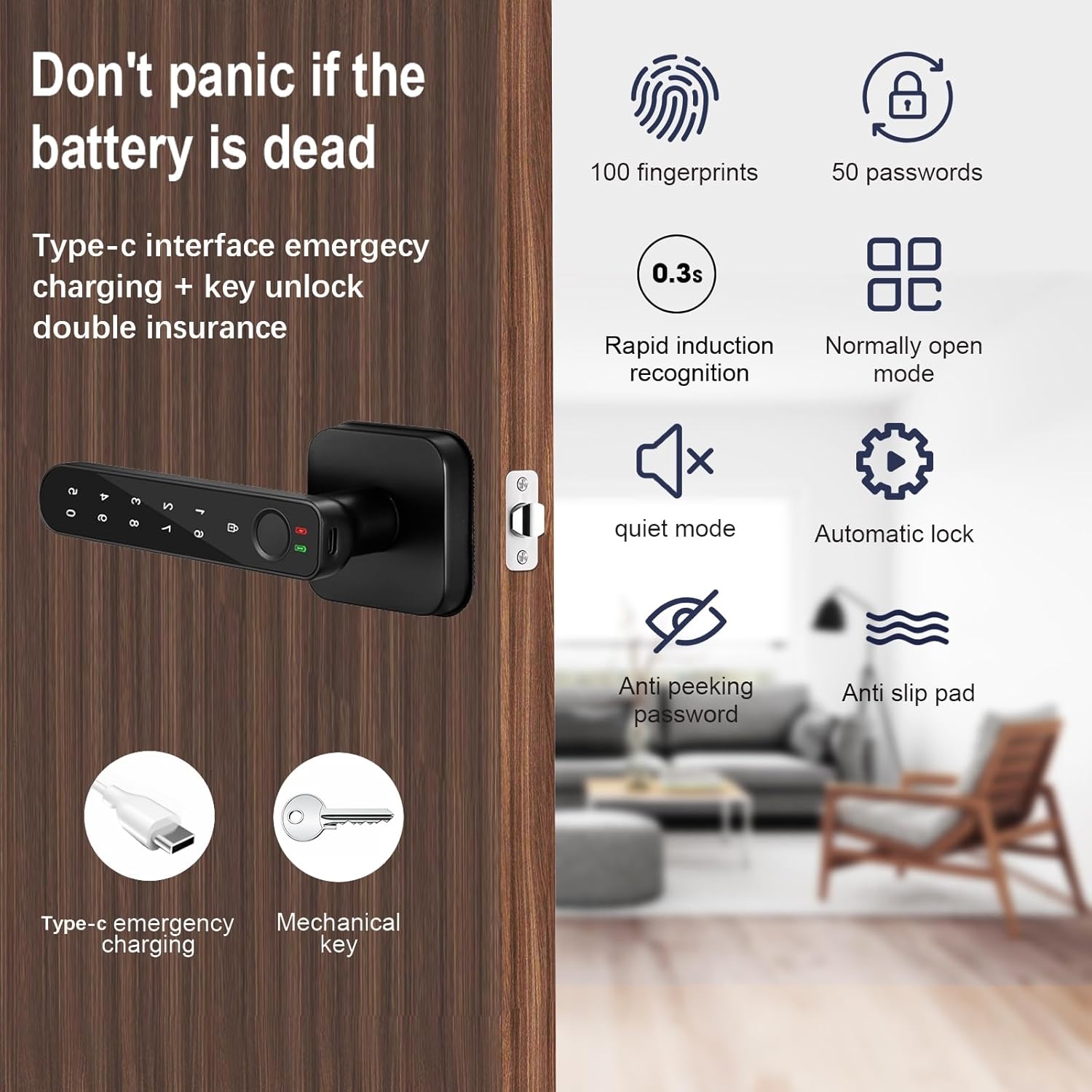
If the batteries die completely before replacement, you can temporarily power the lock using a Type-C USB cable connected to a power bank. Plug the Type-C cable into the emergency power port on the exterior panel to provide enough power for a single unlock.

This image highlights the emergency features of the OFFTV Fingerprint Door Lock, showing the Type-C interface for emergency charging and the mechanical key for backup access, ensuring entry even if the battery is depleted.
5.3 Cleaning
Wipe the lock's surface, keypad, and fingerprint sensor with a soft, dry cloth. Avoid using abrasive cleaners or solvents that could damage the finish or electronic components.
6. Troubleshooting
If you encounter issues with your OFFTV Fingerprint Door Lock, refer to the following common problems and solutions:
| Problem | Possible Cause | Solution |
|---|---|---|
| Fingerprint not recognized | Finger is dirty/wet, sensor is dirty, fingerprint not registered correctly. | Clean finger and sensor. Re-register fingerprint if necessary. Try a different registered finger. |
| Keypad unresponsive | Low battery, keypad malfunction. | Replace batteries. Use emergency Type-C power. Try mechanical key. |
| App cannot connect to lock | Bluetooth off, out of range, app not updated, lock not paired. | Ensure Bluetooth is on and you are close to the lock. Restart app and phone. Re-pair the lock if needed. |
| Lock does not auto-lock | Auto-lock feature disabled or setting changed. | Check auto-lock settings in the smartphone app. Ensure the door closes completely. |
| Lock makes unusual noises | Mechanical obstruction, internal issue. | Check for any obstructions around the latch bolt. If persists, contact support. |
7. Specifications
| Feature | Detail |
|---|---|
| Brand | OFFTV |
| Special Features | Auto-Lock, Fingerprint, Keyless, Anti-Peeking Password, Quiet Mode |
| Lock Type | Biometric, Keypad |
| Dimensions (L x W x H) | 6.5 x 2.4 x 2.8 inches |
| Item Weight | 2.42 Pounds |
| Material | Zinc |
| Finish Type | Powder Coated |
| Connectivity Protocol | Bluetooth |
| Control Method | App, Hand Control, Mechanical Knob |
| Power Source | 4x AAA Batteries (not included) |
| Emergency Power | Type-C USB |
| UPC | 757876938806 |
8. Warranty & Support
The OFFTV Fingerprint Door Lock comes with a standard manufacturer's warranty against defects in materials and workmanship. Please refer to the warranty card included in your package for specific terms and conditions.
For technical support, troubleshooting assistance, or warranty claims, please contact OFFTV customer service through the contact information provided on the product packaging or the official OFFTV website. When contacting support, please have your product model (B0CJMS2JLB) and purchase date ready.