
1. Introduction
This manual provides detailed instructions for the Volkano VK-20196-BK Granite Series Rechargeable Wireless Mouse. This device is designed to enhance productivity with its wireless connectivity and ergonomic design. Please read this manual thoroughly before using the product to ensure proper operation and longevity.

Figure 1: Top view of the Volkano Granite Series Rechargeable Wireless Mouse.
2. Package Contents
Verify that all items are present in the package:
- 1 x Volkano Granite Series Rechargeable Wireless Mouse (Black)
- 1 x USB Receiver
- 1 x USB Charging Cable
- 1 x User Manual
3. Product Overview
The Volkano Granite Series mouse features a sleek design and ergonomic comfort for extended use. It operates using reliable 2.4GHz wireless technology.

Figure 2: Angled view of the mouse, highlighting its contours.
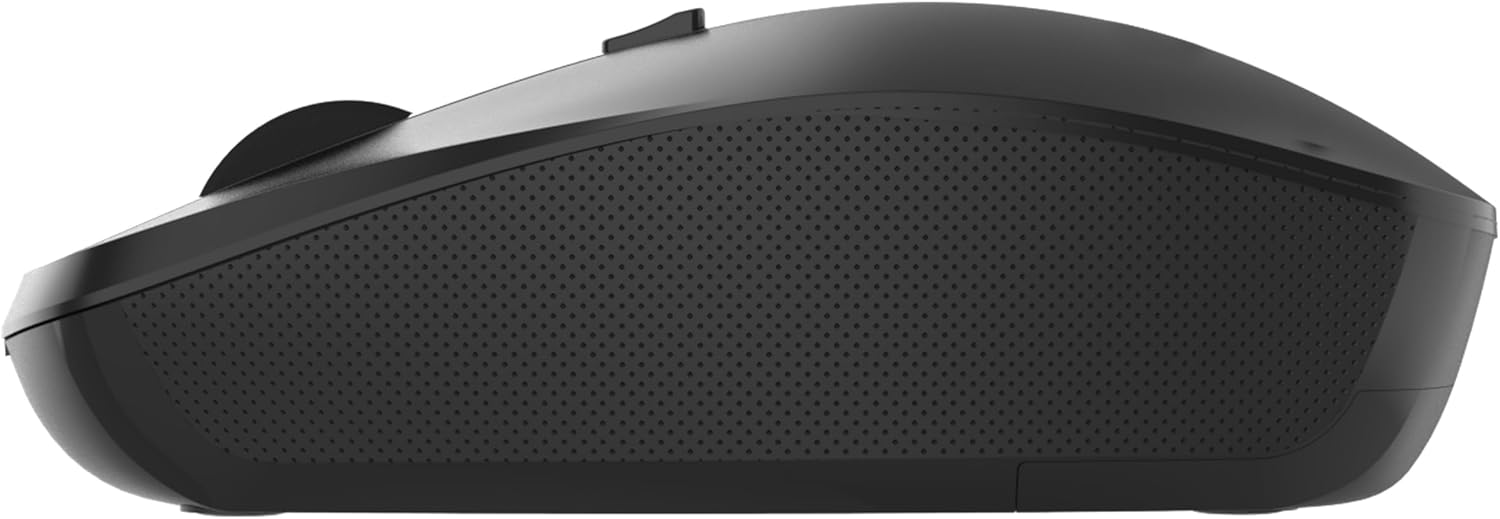
Figure 3: Side view of the mouse, showing its ergonomic shape.
4. Setup
The mouse features a simple plug-and-play setup, requiring no driver installation.
- Charge the Mouse: Before first use, connect the mouse to a USB power source using the provided USB charging cable. The charging port is located at the front of the mouse. Allow sufficient time for a full charge.
- Insert USB Receiver: Locate the USB receiver, typically stored in a compartment on the underside of the mouse. Remove it and insert it into an available USB port on your computer.
- Power On: Turn on the mouse using the power switch, usually located on the underside.
- Automatic Connection: The mouse should automatically connect to your computer. If it does not, try moving the mouse closer to the receiver or re-inserting the receiver.

Figure 4: Front view of the mouse, illustrating the USB charging port.
5. Operation
Once connected, the mouse functions as a standard computer mouse. It includes left and right click buttons, a scroll wheel, and a DPI adjustment button.
- Left Click: Primary selection and activation.
- Right Click: Accesses contextual menus.
- Scroll Wheel: Navigates vertically through documents and web pages. Can also function as a middle click button.
- DPI Adjustment: The mouse features multiple DPI (Dots Per Inch) settings. Press the DPI button (usually located behind the scroll wheel) to cycle through available sensitivity levels. This allows you to adjust cursor speed to your preference.
6. Charging
The Volkano Granite Series mouse is equipped with a built-in rechargeable battery.
- Charging Indicator: A small LED indicator on the mouse will typically show the charging status (e.g., red for charging, off or green for fully charged).
- Charging Process: Connect the provided USB charging cable to the mouse's charging port and the other end to a USB power source (e.g., computer USB port, USB wall adapter).
- Battery Life: Battery life varies based on usage. Recharge the mouse when you notice a decrease in performance or when the low battery indicator activates.
7. Maintenance
To ensure optimal performance and extend the lifespan of your mouse, follow these maintenance guidelines:
- Cleaning: Use a soft, dry cloth to clean the exterior of the mouse. For stubborn dirt, slightly dampen the cloth with water. Avoid using harsh chemicals or abrasive cleaners.
- Storage: When not in use for extended periods, store the mouse in a cool, dry place.
- Avoid Extreme Conditions: Do not expose the mouse to extreme temperatures, direct sunlight, or excessive moisture.
- Handle with Care: Avoid dropping the mouse or subjecting it to strong impacts.
8. Troubleshooting
If you encounter issues with your Volkano Granite Series mouse, refer to the following common solutions:
- Mouse Not Responding:
- Ensure the mouse is powered on.
- Check if the battery is charged. Recharge if necessary.
- Verify the USB receiver is securely plugged into a working USB port on your computer.
- Try plugging the USB receiver into a different USB port.
- Move the mouse closer to the USB receiver to rule out interference.
- Erratic Cursor Movement:
- Clean the optical sensor on the underside of the mouse.
- Ensure you are using the mouse on a suitable surface (non-reflective, opaque).
- Check for strong electromagnetic interference from other devices.
- Connection Drops Frequently:
- Ensure the mouse is fully charged.
- Reduce the distance between the mouse and the USB receiver.
- Avoid placing large metal objects between the mouse and receiver.
9. Specifications
| Feature | Specification |
|---|---|
| Brand | Volkano |
| Model Name | Granite Series Rechargeable Wireless Mouse |
| Model Number | VK-20196-BK |
| Color | Black |
| Connectivity Technology | 2.4 GHz Wireless (USB Receiver) |
| Movement Detection Technology | Optical |
| Special Feature | Portable, Rechargeable Battery |
| Compatible Devices | Personal Computer |
| Hand Orientation | Ambidextrous |
10. Warranty and Support
Your Volkano Granite Series Rechargeable Wireless Mouse is covered by a manufacturer's warranty.
- Standard Warranty: This product includes a 1-year limited warranty from the date of purchase.
- Extended Coverage: You may be eligible to extend your coverage for an additional 12 months, totaling 24 months of coverage. Please refer to the product packaging or the official Volkano website for registration details to activate the extended warranty.
- Customer Support: For any questions, assistance, or warranty claims, please contact Volkano customer support through their official channels. Your satisfaction is important.