
1. Introduction
This manual provides comprehensive instructions for the installation, operation, and maintenance of your Tapo TC40 Pan/Tilt Smart Security Outdoor Camera. Designed for robust outdoor surveillance, the TC40 offers 1080p Full HD video, 360° horizontal and 130° vertical coverage, smart person detection, motion tracking, color night vision, two-way talk, and IP65 weather resistance. Please read this manual carefully before using the device to ensure proper setup and functionality.

Image: The Tapo TC40 camera alongside a smartphone displaying its live feed, highlighting its outdoor security capabilities.
2. What's in the Box
Verify that all components are present in the package before proceeding with installation:
- TC40 Camera
- DC Power Adapter
- Quick Start Guide Mounting Screws
- Mounting Template
- Anchors and Screws

Image: The Tapo TC40 camera and its included DC power adapter, ready for connection.
3. Product Overview
The Tapo TC40 camera features a durable, weatherproof design suitable for outdoor environments. It includes a pan/tilt mechanism for wide area coverage, a high-definition lens, infrared LEDs for night vision, a built-in microphone and speaker for two-way audio, and a microSD card slot for local storage.
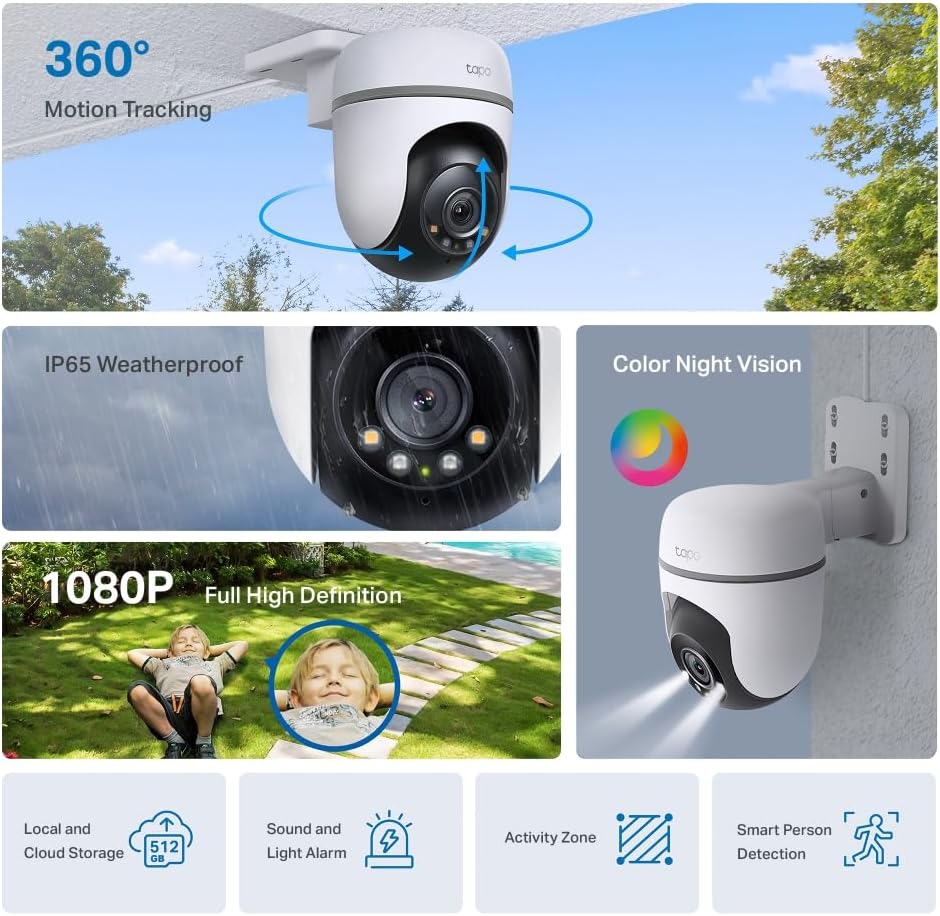
Image: An overview of the Tapo TC40 camera, illustrating its 360° motion tracking, IP65 weatherproof rating, 1080p Full HD resolution, and color night vision capabilities.
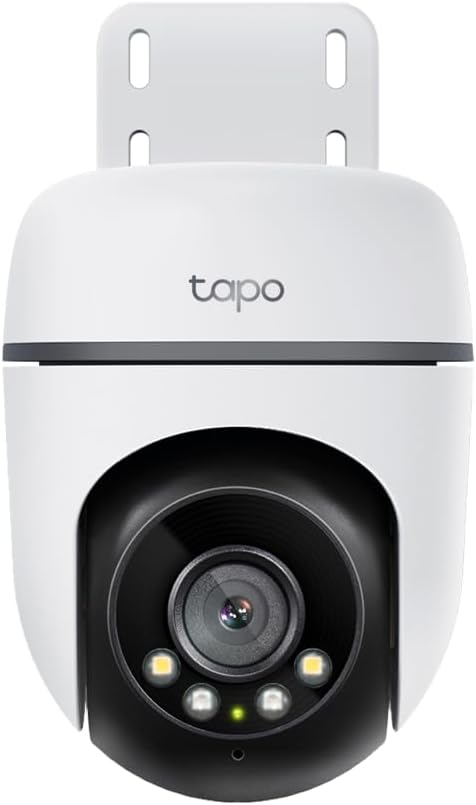
Image: A direct front view of the Tapo TC40 camera, showcasing its lens and integrated lights.

Image: The Tapo TC40 camera demonstrating its IP65 weatherproof rating, shown enduring rain, snow, and direct sunlight.
4. Setup
4.1 Initial Power-Up
- Unpack the camera and all accessories from the box.
- Connect the DC power adapter to the camera's power input.
- Plug the power adapter into a suitable outdoor power outlet. The camera will power on and its LED indicator will begin to flash.
4.2 Connecting to Wi-Fi
- Download the Tapo app from the App Store or Google Play Store.
- Open the Tapo app and follow the on-screen instructions to add your TC40 camera. The app will guide you through connecting the camera to your home Wi-Fi network.

Image: A screenshot from the Tapo app illustrating the easy setup process, including mounting template instructions.
4.3 Mounting the Camera
The TC40 supports multiple installation options including wall, eave, or pole mounting. Use the included mounting template, anchors, and screws for secure installation.
- Choose a suitable location for optimal coverage and power access.
- Use the mounting template to mark drill holes.
- Drill holes and insert anchors if necessary.
- Secure the mounting bracket using the provided screws.
- Attach the camera to the mounting bracket.

Image: Visual representation of various installation options for the Tapo TC40, including wall, eave, and pole mounts.
Video: A product overview video demonstrating the unboxing, setup, and key features of the Tapo TC40 camera.
5. Operating Instructions
5.1 Live View and Pan/Tilt Control
Access the live feed of your camera through the Tapo app. Use the on-screen controls to pan (360° horizontal) and tilt (130° vertical) the camera lens to monitor different areas. The 1080p Full HD resolution ensures clear and sharp images.
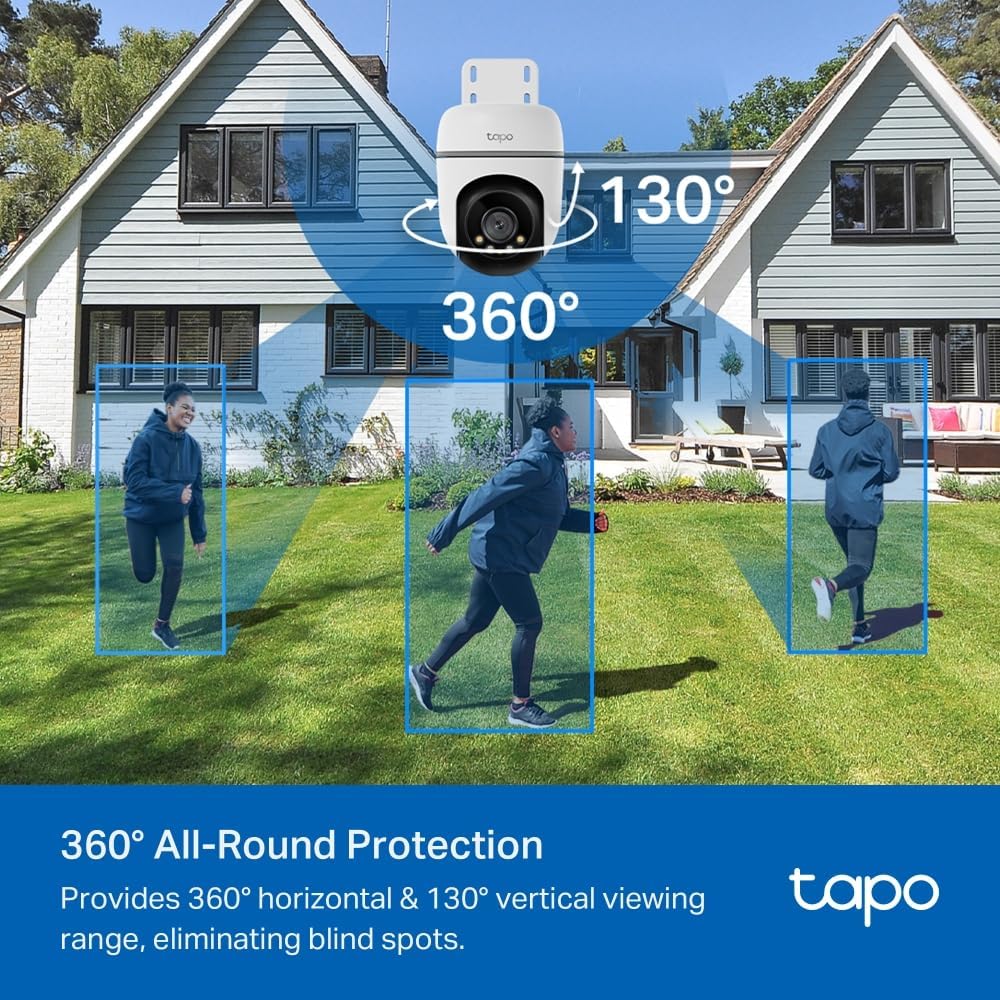
Image: The Tapo TC40 camera illustrating its 360° horizontal and 130° vertical viewing range, providing comprehensive coverage.
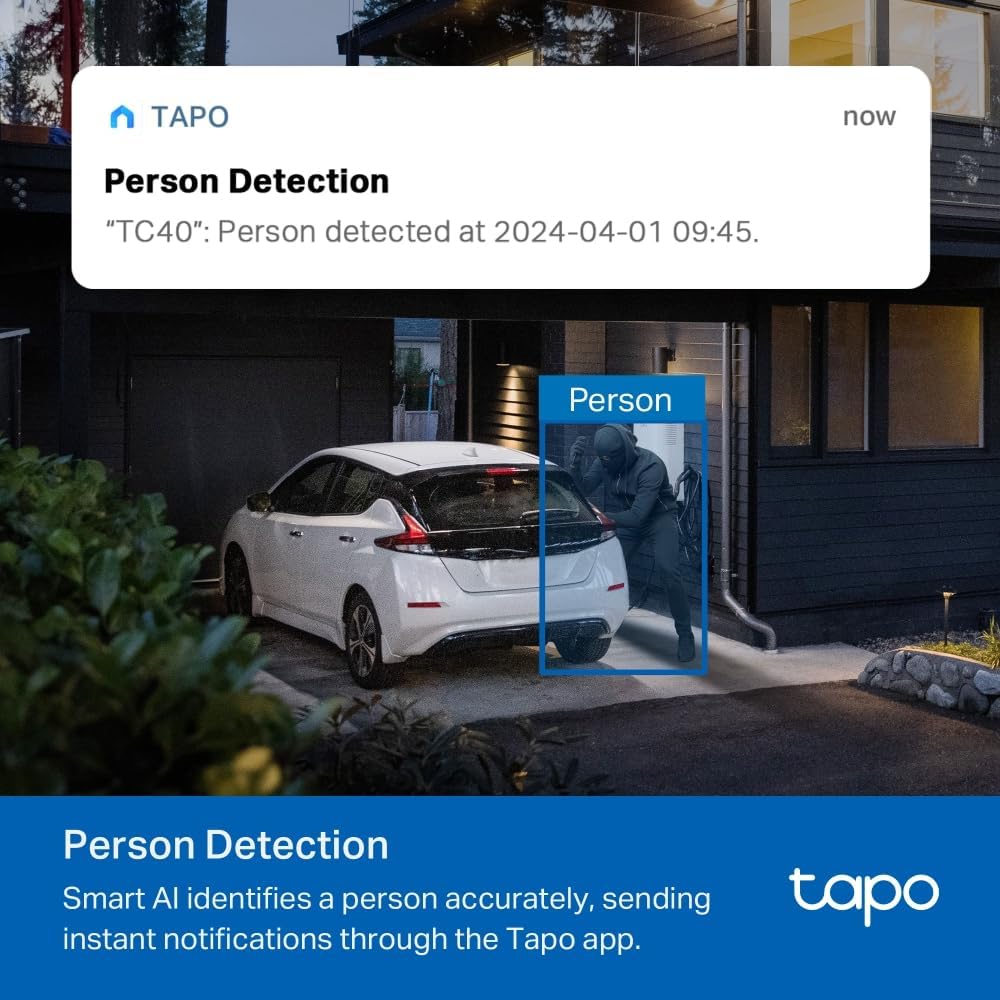
Image: A smartphone screen displaying the Tapo app's interface for controlling the camera's pan and tilt functions.
5.2 Smart Detection and Motion Tracking
The TC40 features intelligent AI for person detection and motion tracking. When motion or a person is detected, the camera can automatically track the movement and send instant notifications to your phone.

Image: A notification on a smartphone indicating person detection by the Tapo TC40 camera, with the detected person highlighted.
5.3 Two-Way Talk
Utilize the built-in microphone and speaker for two-way communication. This allows you to speak to visitors or deter unwanted guests directly through the camera via the Tapo app.

Image: A visual representation of the two-way talk feature, showing a person speaking through the camera to a delivery driver.
5.4 Color Night Vision
The TC40 provides clear color night vision up to 30 meters (98 feet), even in total darkness, ensuring continuous surveillance around the clock.
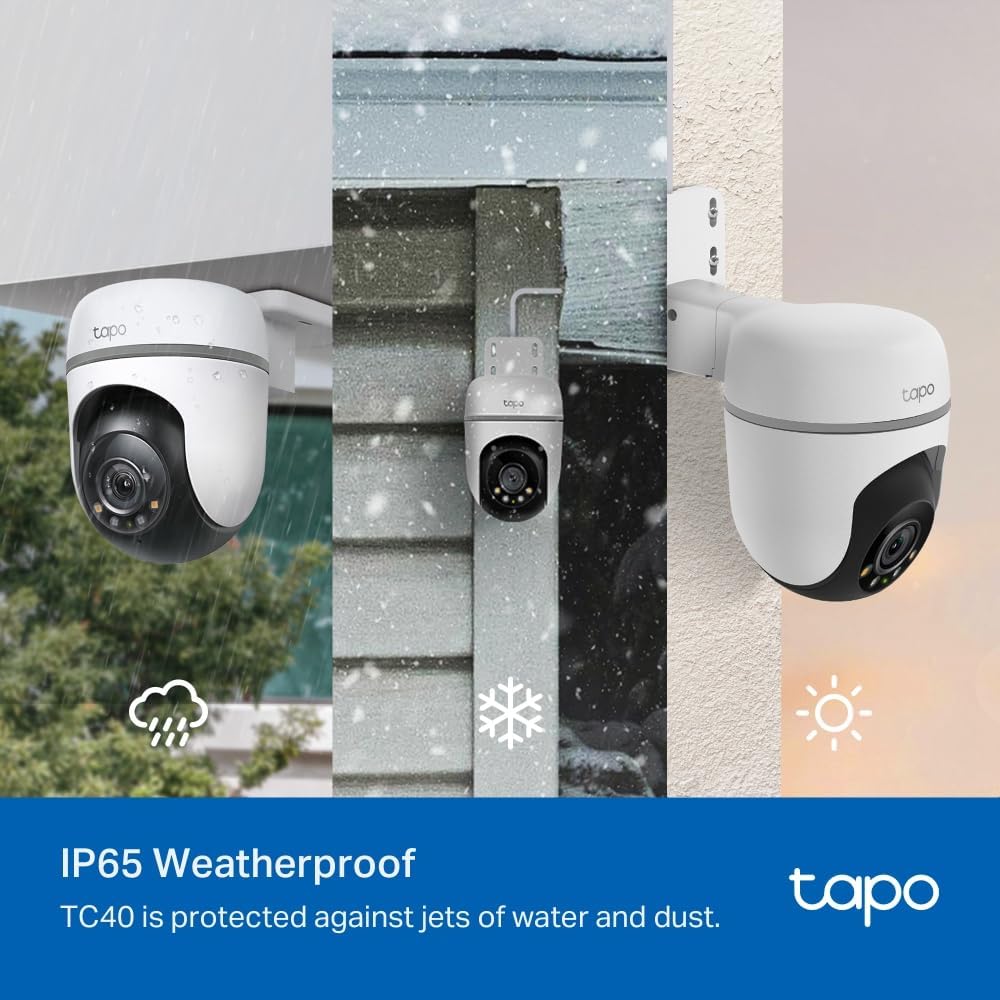
Image: A comparison showing the enhanced clarity and detail of color night vision provided by the Tapo TC40 versus standard night vision.
5.5 Sound and Light Alarm
Activate the integrated siren and spotlight alarm to deter unwanted intruders. This feature can be customized via the Tapo app.
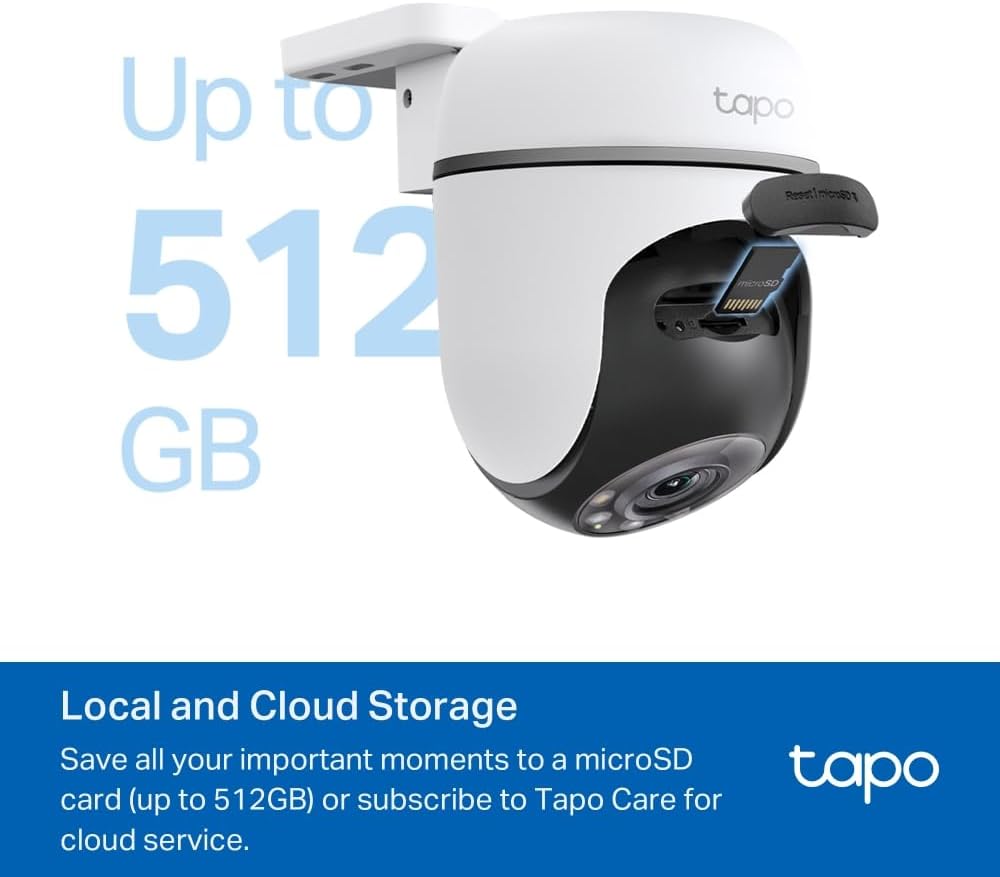
Image: The Tapo TC40 camera activating its sound and light alarm to deter a potential intruder.
5.6 Storage Options
Recorded videos can be saved to an installed microSD card (up to 512 GB, sold separately) or via the Tapo Care cloud storage service for convenient access and backup.
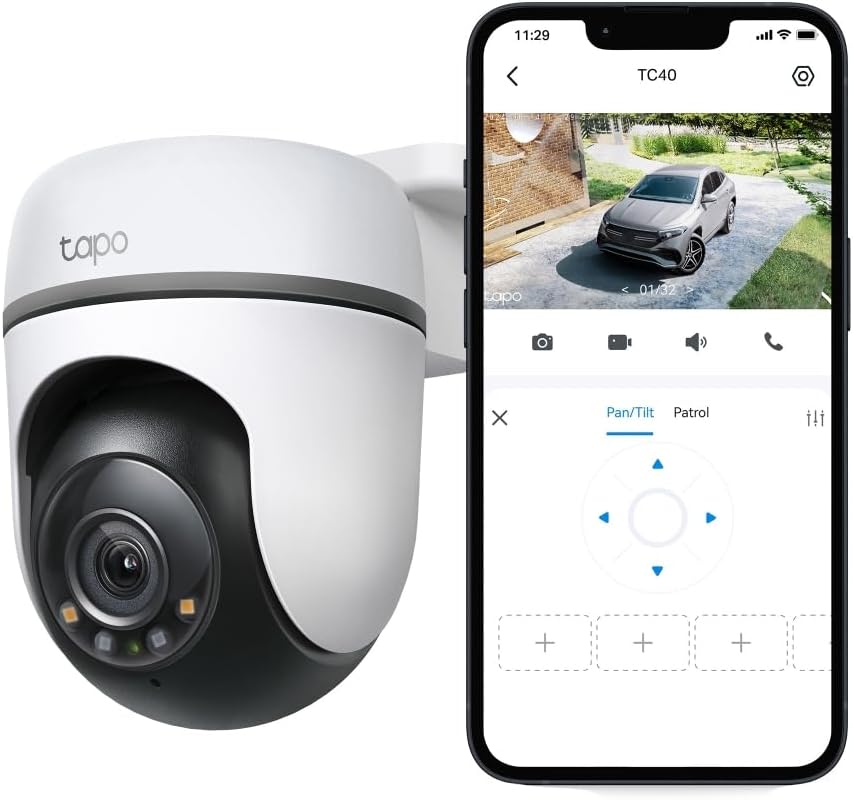
Image: The Tapo TC40 camera highlighting its support for both local microSD card storage and cloud storage options.
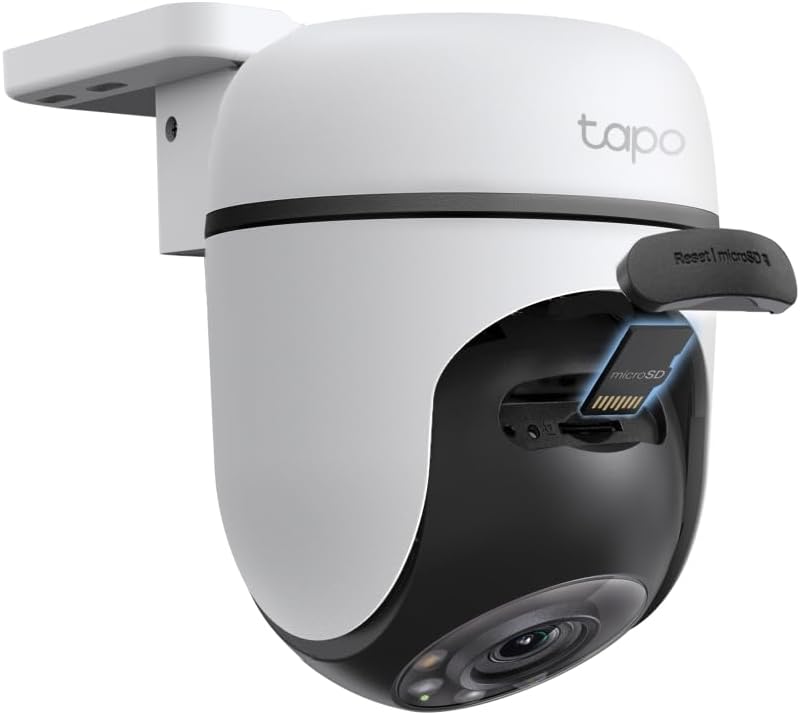
Image: A close-up view of the microSD card slot on the Tapo TC40 camera, indicating where to insert the storage card.
5.7 Privacy Mode
The Tapo app allows you to enable a privacy mode, which physically closes the camera lens, ensuring your privacy when needed. Streaming and recording functions are disabled in this mode.
Image: The Tapo app interface showing the privacy mode option, which physically adjusts the camera lens for privacy.
6. Maintenance
- Cleaning: Gently wipe the camera lens and body with a soft, dry cloth. Avoid using harsh chemicals or abrasive cleaners.
- Firmware Updates: Regularly check for and install firmware updates via the Tapo app to ensure optimal performance, security, and access to new features.
- Power Connection: Periodically inspect the power cable and adapter for any signs of damage or wear, especially in outdoor environments.
- Storage Management: If using a microSD card, periodically review and manage stored footage to ensure sufficient space.
7. Troubleshooting
If you encounter issues with your Tapo TC40 camera, consider the following common solutions:
- No Power: Ensure the power adapter is securely connected to both the camera and a working power outlet.
- Wi-Fi Disconnection: Check your Wi-Fi router's status. Ensure the camera is within Wi-Fi range. Try restarting both the camera and your router.
- Poor Video Quality: Verify your internet connection speed. Ensure the camera lens is clean and free from obstructions.
- Motion Detection Issues: Adjust the motion detection sensitivity and activity zones in the Tapo app. Ensure there are no physical obstructions blocking the camera's view.
- Two-Way Audio Problems: Check the volume settings on your phone and within the Tapo app. Ensure the camera's microphone and speaker are not obstructed.
For more detailed troubleshooting steps or persistent issues, refer to the comprehensive help section within the Tapo app or visit the official Tapo support website.
8. Specifications
| Feature | Specification |
|---|---|
| Model Name | TC40 |
| Indoor/Outdoor Usage | Outdoor |
| Power Source | Corded Electric |
| Connectivity Protocol | HomePlug, Wi-Fi |
| Controller Type | App Control, Voice Control |
| Mounting Type | Wall Mount |
| Video Capture Resolution | 1080p |
| Color | White |
| Night-Vision Range | 30 Metres |
| Frame Rate | 15 frames_per_second |
| Wattage | 7 watts |
| Item Dimensions L x W x H | 12.4 x 9 x 12.3 centimetres |
| Water Resistance Level | Waterproof (IP65) |
| Zoom Type | Digital Zoom |
9. Warranty and Support
Your Tapo TC40 camera comes with a manufacturer's warranty. For detailed warranty information, product registration, and technical support, please visit the official Tapo website or contact Tapo customer service. The Tapo app also provides access to support resources and FAQs.