
Introduction
This manual provides comprehensive instructions for the StarTech.com 4-Port USB-C Hub (Model: HB31C3A1CDPPD3). This device expands your USB-C enabled computer's connectivity, offering multiple USB 3.2 Gen 2 (10Gbps) ports and a USB-C port with DisplayPort Alternate Mode for video output, alongside 100W Power Delivery pass-through. It is designed for seamless integration with various operating systems, including Windows, macOS, ChromeOS, iPadOS, and Android.
Package Contents
- 1 x StarTech.com 4-Port USB-C Hub (HB31C3A1CDPPD3)
- 1 x User Manual
Product Features and Overview
The StarTech.com HB31C3A1CDPPD3 hub is equipped with the following features:
- 4-Port USB 3.2 Gen 2 (10Gbps) Expansion: Includes three USB-A ports and one USB-C port for connecting various peripherals.
- USB-C DisplayPort Alternate Mode: The downstream USB-C port supports video output up to 4K 60Hz, allowing connection to compatible USB-C portable or desktop monitors.
- 100W Power Delivery 3.0 Pass-Through: Enables charging of the host laptop by connecting its USB-C power supply to the hub's PD port, reserving 18W for the adapter and providing up to 82W for laptop charging.
- Integrated 1ft (30cm) USB-C Host Cable: Provides flexible placement and reduces strain on the host device's port.
- Overcurrent Protection (OCP) & Wake on USB: Enhances device safety and functionality.
- Driverless Setup: Automatically detected and configured upon connection to a host computer.
- Connectivity Tools: Includes USB Event Monitoring and Windows Layout utilities for IT professionals.

Figure 1: The StarTech.com 4-Port USB-C Hub, showcasing its compact design and integrated USB-C host cable.
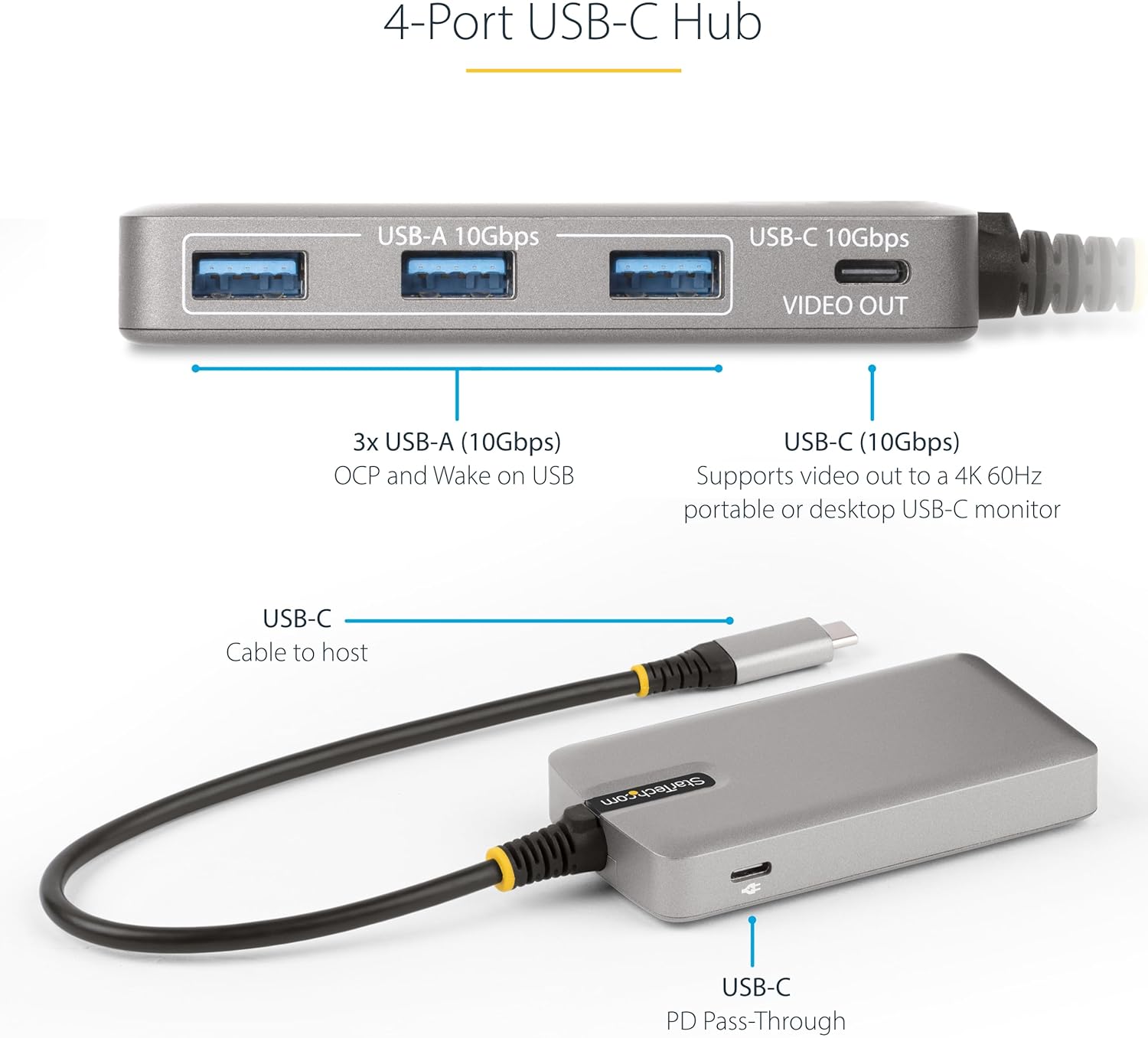
Figure 2: Detailed view of the hub's ports, including three USB-A 10Gbps ports, one USB-C 10Gbps video out port, and the USB-C PD Pass-Through port.
Setup Instructions
- Connect the Hub to Your Host Device: Plug the integrated USB-C host cable of the HB31C3A1CDPPD3 hub into an available USB-C port on your laptop, desktop, or compatible mobile device.
- Connect Peripherals:
- For USB-A devices (e.g., keyboards, mice, external drives), connect them to the three USB-A 10Gbps ports.
- For USB-C devices requiring data transfer, connect them to the USB-C 10Gbps port.
- Connect a USB-C Monitor (Optional): If your host computer supports USB-C DisplayPort Alternate Mode, connect a USB-C portable or desktop monitor to the USB-C 10Gbps port labeled "VIDEO OUT". Ensure your monitor supports video input via USB-C.
- Connect Power Delivery (Optional, Recommended for Video Output): To charge your host laptop and ensure stable power for connected devices, especially a USB-C monitor, connect your host laptop's USB-C power adapter to the USB-C port labeled "PD Pass-Through" on the hub. This port supports up to 100W Power Delivery 3.0.

Figure 3: The USB-C Hub facilitating connections between a laptop, an external monitor, and various peripherals, demonstrating a typical setup.
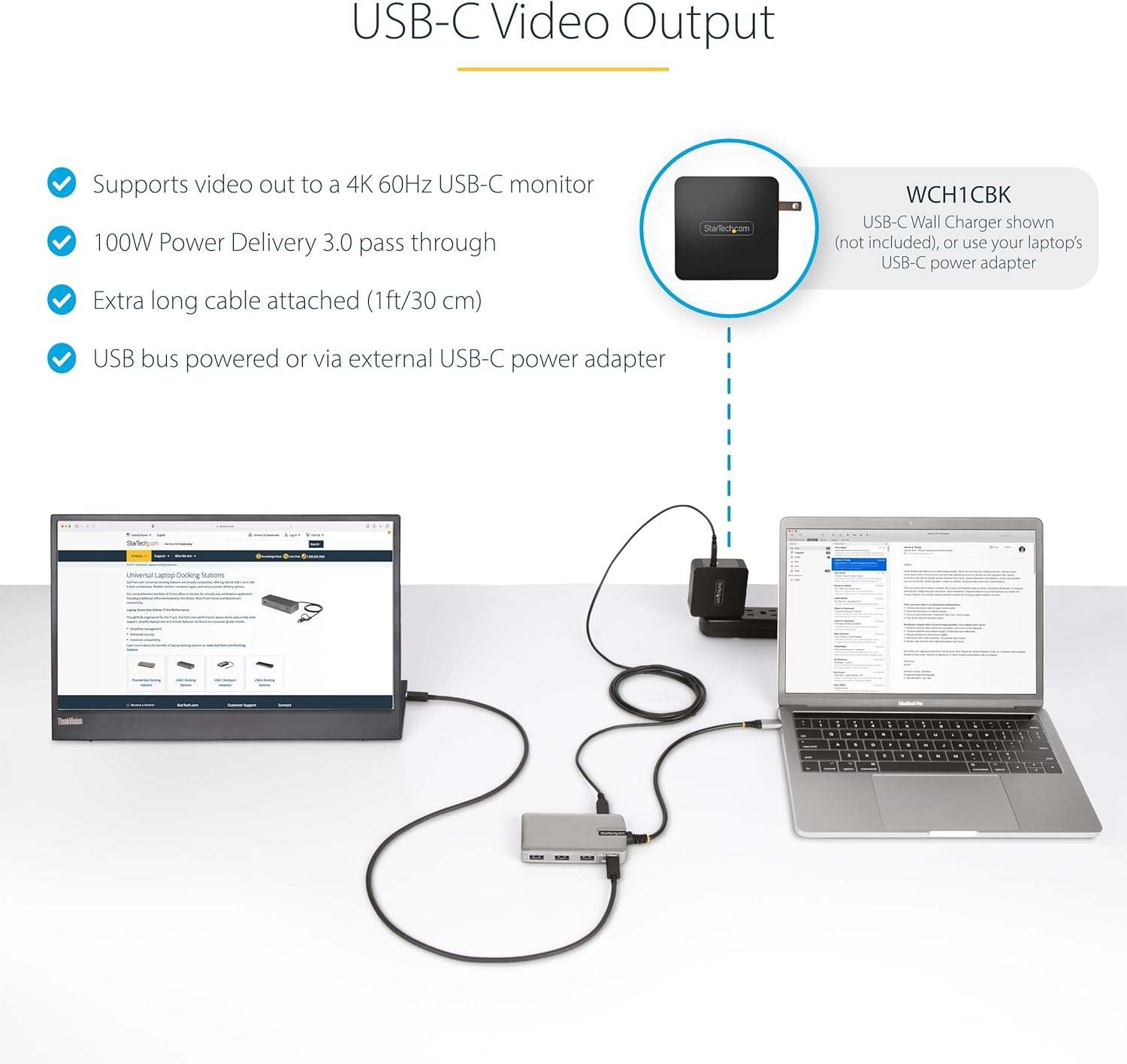
Figure 4: Diagram illustrating the USB-C video output capability and the importance of connecting an external USB-C power adapter for 100W Power Delivery pass-through when using a USB-C monitor.
Operating Instructions
The StarTech.com HB31C3A1CDPPD3 hub is designed for plug-and-play functionality. Once connected, your operating system should automatically detect and configure the hub and any connected devices.
- Data Transfer: Use the USB-A and USB-C data ports to connect and transfer data with your USB devices at speeds up to 10Gbps.
- Video Output: When a USB-C monitor is connected to the "VIDEO OUT" port, your host device should extend or mirror its display. Ensure your host device's USB-C port supports DisplayPort Alternate Mode. For stable video output, especially with 4K 60Hz monitors, it is highly recommended to connect an external USB-C power adapter to the hub's PD Pass-Through port.
- Power Delivery: The PD Pass-Through port allows your host laptop to receive power through the hub. This is crucial for maintaining battery charge while using power-intensive peripherals or external displays.
- Connectivity Tools (Windows Only): StarTech.com provides optional software utilities for Windows users to enhance management and troubleshooting:
- USB Event Monitoring: Logs and timestamps USB device connections and disconnections, useful for system administrators.
- Windows Layout Utility: Helps restore application window locations upon reconnecting to the hub, improving workflow efficiency.

Figure 5: Overview of StarTech.com's optional connectivity tools for Windows, including USB Event Monitoring and Windows Layout Utility.
Maintenance
To ensure the longevity and optimal performance of your StarTech.com USB-C Hub, follow these maintenance guidelines:
- Cleaning: Use a soft, dry, lint-free cloth to clean the exterior of the hub. Avoid using abrasive cleaners, solvents, or strong chemicals, as they may damage the surface.
- Storage: Store the hub in a cool, dry place away from direct sunlight and extreme temperatures.
- Handling: Avoid dropping the device or subjecting it to strong impacts. Do not bend or excessively pull the integrated USB-C cable.
- Ventilation: Ensure the hub is placed in an area with adequate airflow to prevent overheating, especially during prolonged use with power-intensive devices.
Troubleshooting
If you encounter issues with your StarTech.com USB-C Hub, refer to the following common troubleshooting steps:
- No Power or Intermittent Connectivity:
- Ensure the hub's integrated USB-C host cable is securely connected to your computer's USB-C port.
- If using Power Delivery, verify that your USB-C power adapter is properly connected to the hub's "PD Pass-Through" port and that it provides sufficient wattage (e.g., 60W or higher for laptops).
- Try connecting the hub to a different USB-C port on your host device, if available.
- No Video Output to USB-C Monitor:
- Confirm that your host computer's USB-C port supports DisplayPort Alternate Mode. Not all USB-C ports support video output.
- Ensure the USB-C monitor is connected to the hub's "VIDEO OUT" port.
- Connect an external USB-C power adapter to the hub's "PD Pass-Through" port. Some USB-C monitors require the hub to be externally powered to function correctly.
- Try disconnecting and reconnecting the USB-C monitor cable from the hub.
- Check your computer's display settings to ensure the external monitor is detected and configured (e.g., extended or duplicated display).
- USB Devices Not Recognized:
- Ensure the USB device is fully inserted into the hub's port.
- Try connecting the USB device to a different port on the hub.
- If it's a high-power USB device (e.g., external hard drive), ensure the hub is receiving sufficient power via the PD Pass-Through port.
- Restart your host computer.
Specifications
| Attribute | Value |
|---|---|
| Brand | StarTech.com |
| Model Number | HB31C3A1CDPPD3 |
| Connectivity | 3x USB-A (10Gbps), 1x USB-C (10Gbps, DP Alt Mode Video Out), 1x USB-C (PD Pass-Through) |
| Video Output Resolution | Up to 4K 60Hz (via USB-C DP Alt Mode) |
| Power Delivery | 100W PD 3.0 Pass-Through (up to 82W for host charging) |
| Host Connector | Integrated USB-C Cable (1ft/30cm) |
| Operating System Compatibility | Windows, macOS, ChromeOS, iPadOS, Android |
| Dimensions (LxWxH) | 3.9 x 2.1 x 0.6 inches (98 x 54 x 16 mm) |
| Item Weight | 3.52 ounces (100 g) |
| Color | Space Gray |

Figure 6: Physical dimensions of the StarTech.com USB-C Hub and its integrated cable length.
Warranty and Support
StarTech.com provides a comprehensive warranty for this product. For detailed warranty information, please refer to the warranty card included with your product or visit the official StarTech.com website.
For technical support, product information, or assistance with troubleshooting, StarTech.com offers free 24-hour support for IT professionals. You can contact their support team through their website or by phone. Please have your product model number (HB31C3A1CDPPD3) and serial number (if applicable) ready when contacting support.
Online Resources:


