1. Introduction
The QIACHIP eWeLink Remote Transmitter (Model: TX31-6) is a smart remote control designed for seamless integration with QIACHIP brand products that utilize the eWeLink APP. This transmitter allows for convenient control of compatible devices, supporting full on/full off functionality for up to four paired devices. It operates on a 2.4GHz frequency and requires two AAA batteries (not included) for operation. Please note that this device is not compatible with 433MHz systems or Tuya-branded products.
2. Product Overview

Figure 2.1: Two QIACHIP eWeLink Remote Transmitters. Each remote features four numbered buttons (1, 2, 3, 4) and two additional buttons labeled "ALL ON" and "ALL OFF" at the bottom.

Figure 2.2: A hand holding the QIACHIP remote control, demonstrating its use to control a light bulb. The image highlights the "ALL ON/ALL OFF" functionality.
The QIACHIP eWeLink Remote Transmitter is a compact, handheld device designed for ease of use. It features four individual control buttons (labeled 1, 2, 3, 4) and two master control buttons ("ALL ON" and "ALL OFF"). These master buttons allow for simultaneous control of all paired devices. The remote requires two AAA batteries for power, which are not included in the package.
3. Setup and Pairing
3.1 Battery Installation
- Locate the battery compartment on the back of the remote transmitter.
- Open the battery compartment cover.
- Insert two AAA batteries, ensuring correct polarity (+/-).
- Close the battery compartment cover securely.
3.2 Pairing with eWeLink Devices
The QIACHIP eWeLink Remote Transmitter must be paired with compatible QIACHIP eWeLink devices (e.g., smart lamp holders, relay modules, Zigbee sockets) via the eWeLink APP. Follow these steps:
- Pair the Smart Breaker in the eWeLink APP: Ensure your QIACHIP smart device is already paired and configured within the eWeLink APP.
- Access Device Settings: In the eWeLink APP, navigate to the specific smart device you wish to pair the remote with. Click on the "..." icon (top right corner) to access Device Settings.
- Find eWeLink Remote Option: Scroll down and locate the "eWeLink Remote" option within the settings.
- Initiate Pairing: Follow the on-screen tips provided by the eWeLink APP to initiate the remote pairing process. Tap the button to "learn a remote".
- Press Remote Button: When prompted, press the desired button on your QIACHIP eWeLink Remote Transmitter (e.g., button 1, 2, 3, 4, ALL ON, or ALL OFF) to complete the pairing for that specific function.
- Confirm Pairing: The APP will confirm "Remote added successfully" once the pairing is complete. Repeat for other buttons if desired.
Video 3.1: This video demonstrates the step-by-step process of pairing the QIACHIP 2.4GHz remote transmitter with a smart breaker using the eWeLink APP. It shows how to access device settings, find the eWeLink Remote option, and complete the learning process for a remote button.

Figure 3.1: Diagram illustrating the pairing concept between a ZigBee Switch and the RM2.4G remote controller. It also notes that "ALL ON" and "ALL OFF" buttons control all functions and cannot learn other functions.

Figure 3.2: This image depicts how a single QIACHIP remote control can be used to manage multiple smart lamp holders (up to four, labeled 1-4), showcasing its multi-device control capability.
4. Operating Instructions
Once paired, the QIACHIP eWeLink Remote Transmitter provides intuitive control over your smart devices.
- Individual Control: Press buttons 1, 2, 3, or 4 to control the specific device or function that button was paired with. For example, if button 1 is paired with a light, pressing it will toggle that light on or off.
- Full On: Press the "ALL ON" button to simultaneously turn on all devices that have been paired with any of the remote's individual buttons.
- Full Off: Press the "ALL OFF" button to simultaneously turn off all devices that have been paired with any of the remote's individual buttons.
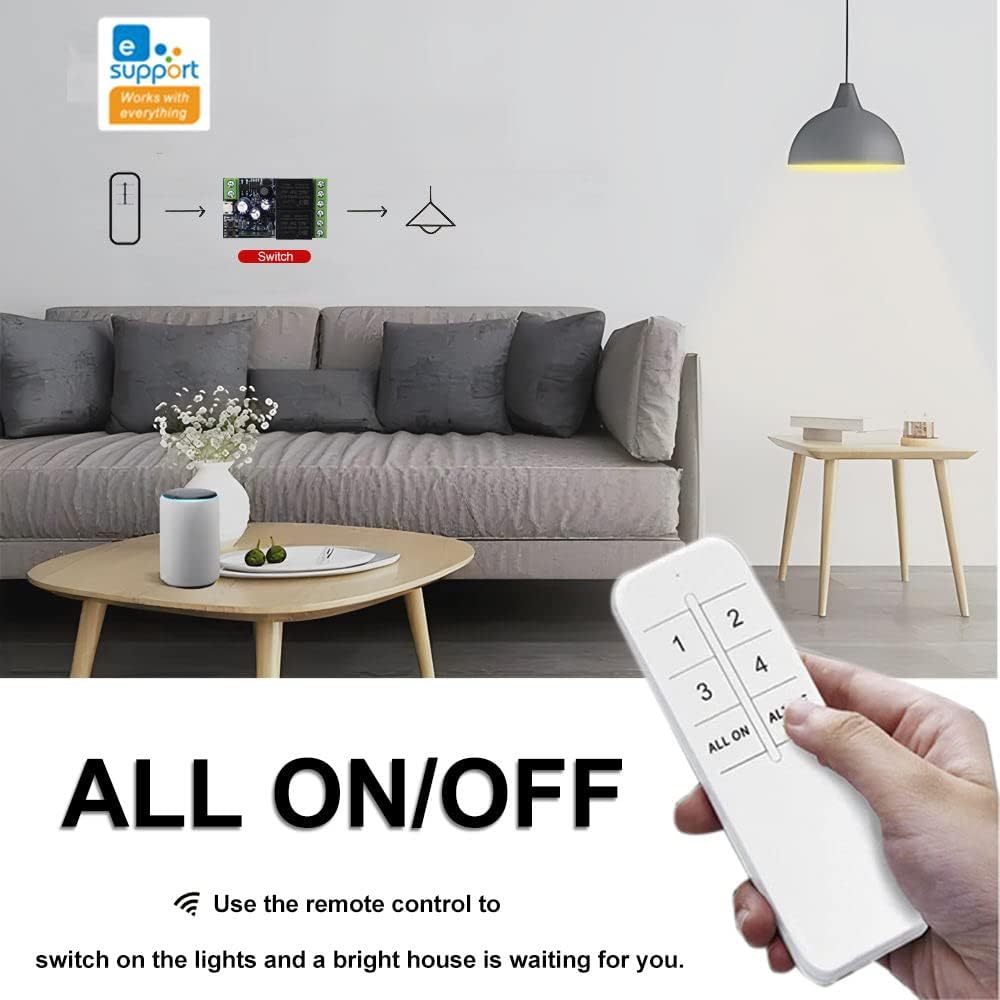
Figure 4.1: An illustration showing the QIACHIP remote control being used to switch lights on or off, emphasizing the "ALL ON/OFF" feature for convenient whole-home control.

Figure 4.2: This image displays various control methods for smart devices, including control via a smartphone app, the QIACHIP remote control, and a wireless stick-on wall switch, highlighting the flexibility of the system.
5. Maintenance
- Cleaning: Use a soft, dry cloth to clean the surface of the remote. Do not use abrasive cleaners or solvents.
- Battery Replacement: Replace batteries when the remote's performance degrades or it stops responding. Always use new AAA batteries.
- Storage: Store the remote in a cool, dry place away from direct sunlight and extreme temperatures.
- Avoid Water: This device is not waterproof. Avoid exposure to water or high humidity.
6. Troubleshooting
| Problem | Possible Cause | Solution |
|---|---|---|
| Remote not responding. | Low or dead batteries. | Replace with new AAA batteries. |
| Remote not controlling device. | Not paired correctly or device is out of range. | Re-pair the remote with the device following Section 3.2. Ensure the device is within the remote's operating range. |
| "ALL ON/OFF" buttons not working. | No devices paired to individual buttons, or pairing issue. | Ensure individual buttons (1-4) are successfully paired with devices. Re-pair if necessary. |
| Remote interferes with other devices. | Interference from other 2.4GHz devices. | Ensure other 2.4GHz devices are not causing interference. This remote only supports 2.4GHz. |
If you continue to experience issues, please refer to the QIACHIP support resources or contact customer service.
7. Specifications
- Model: TX31-6
- Brand: QIACHIP
- Connectivity Technology: 2.4GHz (eWeLink Remote)
- Power Source: 2 x AAA Batteries (not included)
- Max Number of Supported Devices: Up to 4 (individual control)
- Dimensions: 5.5 x 4.7 x 1.2 inches (Package Dimensions)
- Item Weight: 2.56 ounces
- Compatibility: QIACHIP eWeLink APP compatible products (e.g., Bluetooth lamp holder, WiFi lamp holder, Zigbee lamp holder, WiFi smart relay module, Zigbee socket, Mini Wifi Switch). Not compatible with 433MHz or Tuya products.
- Special Feature: Ergonomic design
8. Warranty and Support
For warranty information and technical support, please refer to the official QIACHIP website or contact their customer service directly. Keep your purchase receipt for warranty claims.
QIACHIP Store: Visit the QIACHIP Store on Amazon