Introduction
Thank you for choosing the SIMBAE Smart Camera. This multifunctional camera is designed for home security and surveillance, offering 1080P high-definition video, night vision, motion detection, and Wi-Fi connectivity. This manual provides detailed instructions on how to set up, operate, and maintain your camera to ensure optimal performance.
Please read this manual thoroughly before using the product and keep it for future reference.
Safety Information
- Do not expose the camera to extreme temperatures, humidity, or dust.
- Avoid dropping or subjecting the camera to strong impacts.
- Use only the provided charging cable and recommended power sources.
- Keep the camera away from water and other liquids.
- Do not attempt to disassemble or modify the camera. This will void the warranty.
- Ensure proper ventilation around the camera during operation.
Package Contents
Please check the package to ensure all items are present:
- 1x SIMBAE Smart Camera
- 1x Holder
- 1x Charging Cable
- 1x Instruction Manual

Image: The package contents, showing the smart camera, its holder, a charging cable, and the instruction manual.
Product Overview
The SIMBAE Smart Camera is a compact and versatile device. Its main features include 1080P high-definition recording, built-in Wi-Fi for remote access, and infrared night vision for clear monitoring in low-light conditions.

Image: A close-up view of the SIMBAE Smart Camera, highlighting its compact design and front-facing lens.
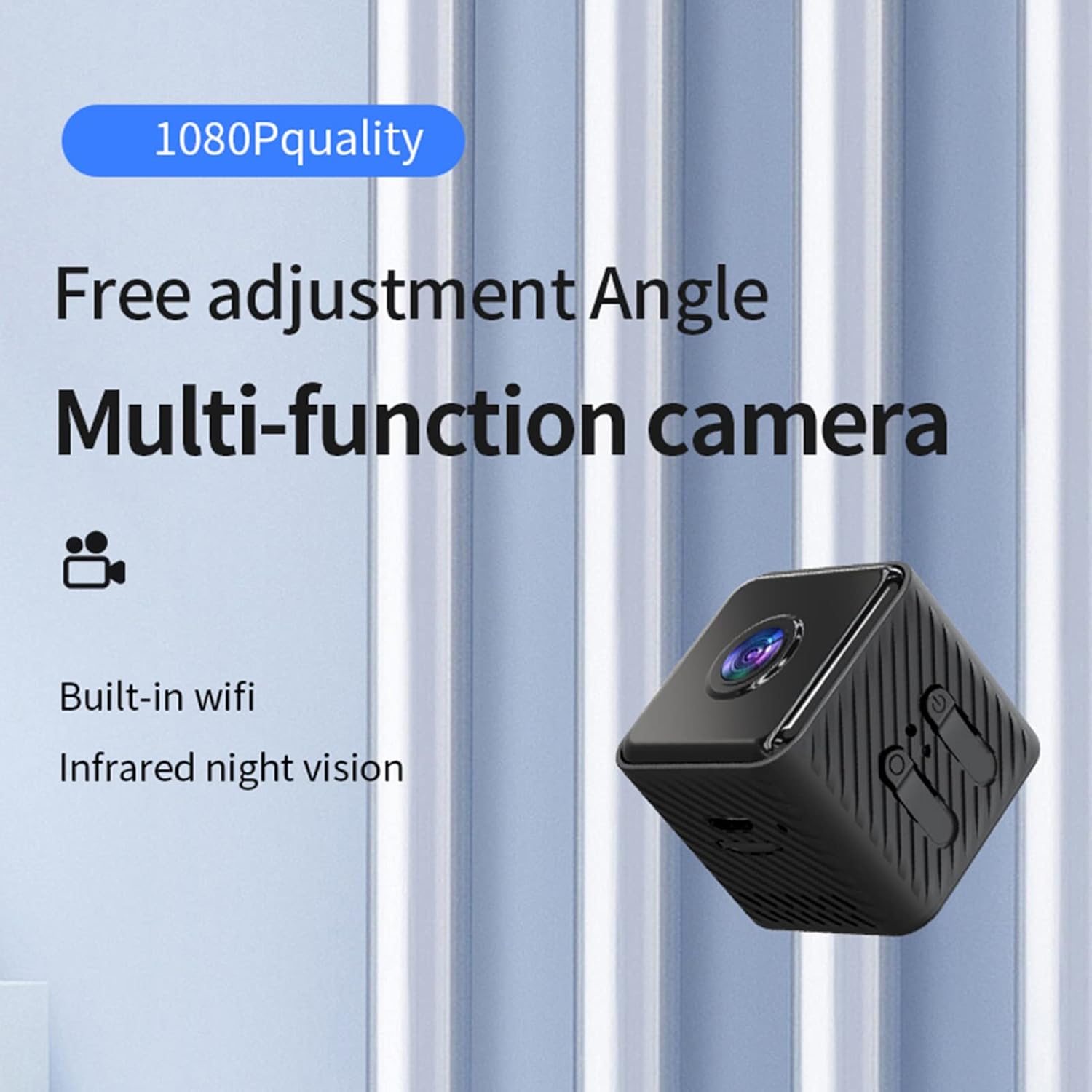
Image: An illustrative diagram showcasing the key features of the camera, including its 1080P resolution, multi-functionality, Wi-Fi capability, and night vision.

Image: A visual representation of the camera's compact dimensions, measuring 3.2cm x 3.2cm x 3cm.
Specifications
| Feature | Detail |
|---|---|
| Video Capture Resolution | 1080p |
| Color | Black |
| Wireless Communication Technology | Wi-Fi |
| Item Dimensions (L x W x H) | 5.83 x 3.03 x 1.57 inches (Product Dimensions) |
| Item Weight | 3.88 ounces |
| Focus Type | Auto Focus |
| Zoom Type | Optical Zoom |
| Alert Type | Motion Only |
| Video Capture Format | AVI |
| Compatible Devices | Smartphone |
| Connectivity Protocol | Wi-Fi |
| Controller Type | Android (Implies iOS compatibility via app) |
| Mounting Type | Wall Mount |
| Working Time | 90 minutes |
| Charging Time | 30 minutes |
| APP | iWFCam |
| Storage Support | 4-64GB (Micro SD Card, not included) |
Setup Guide
1. Charging the Camera
Before first use, fully charge the camera. Connect the provided charging cable to the camera's charging port and a USB power adapter (not included). The charging indicator light will show the charging status. A full charge takes approximately 30 minutes.
2. Inserting a Micro SD Card
The camera supports Micro SD cards from 4GB to 64GB for local storage. Locate the Micro SD card slot on the camera. Gently insert the Micro SD card with the gold contacts facing down until it clicks into place. To remove, push the card in again until it springs out.
3. App Installation (iWFCam)
Download the 'iWFCam' app from your smartphone's app store (Google Play Store for Android or Apple App Store for iOS). Alternatively, scan the QR code provided in the physical instruction manual to quickly find the app.
4. Connecting to Wi-Fi / AP Hotspot
The camera can connect to your home Wi-Fi network for remote viewing or operate via its own AP hotspot for direct monitoring within a short range.
- Wi-Fi Connection (Recommended for Remote Access):
- Power on the camera.
- Open the iWFCam app and follow the on-screen instructions to add a new device.
- Select your home Wi-Fi network and enter the password.
- The camera will connect to your Wi-Fi, allowing remote access from anywhere with an internet connection.
- AP Hotspot Connection (Direct Connection):
- Power on the camera.
- On your smartphone, go to Wi-Fi settings and connect to the camera's unique AP hotspot (usually named something like 'MV_XXXXXX').
- Open the iWFCam app. The camera should automatically appear as an online device.
- This mode allows direct monitoring within approximately 10 meters, even if there is no internet connection.

Image: A visual guide to using the camera's AP hotspot for direct monitoring when a network connection is unavailable.
Operating the Camera
1. Live View and Recording
Once connected, open the iWFCam app to view the live feed from your camera. You can initiate manual recording, take snapshots, and access recorded footage directly from the app.
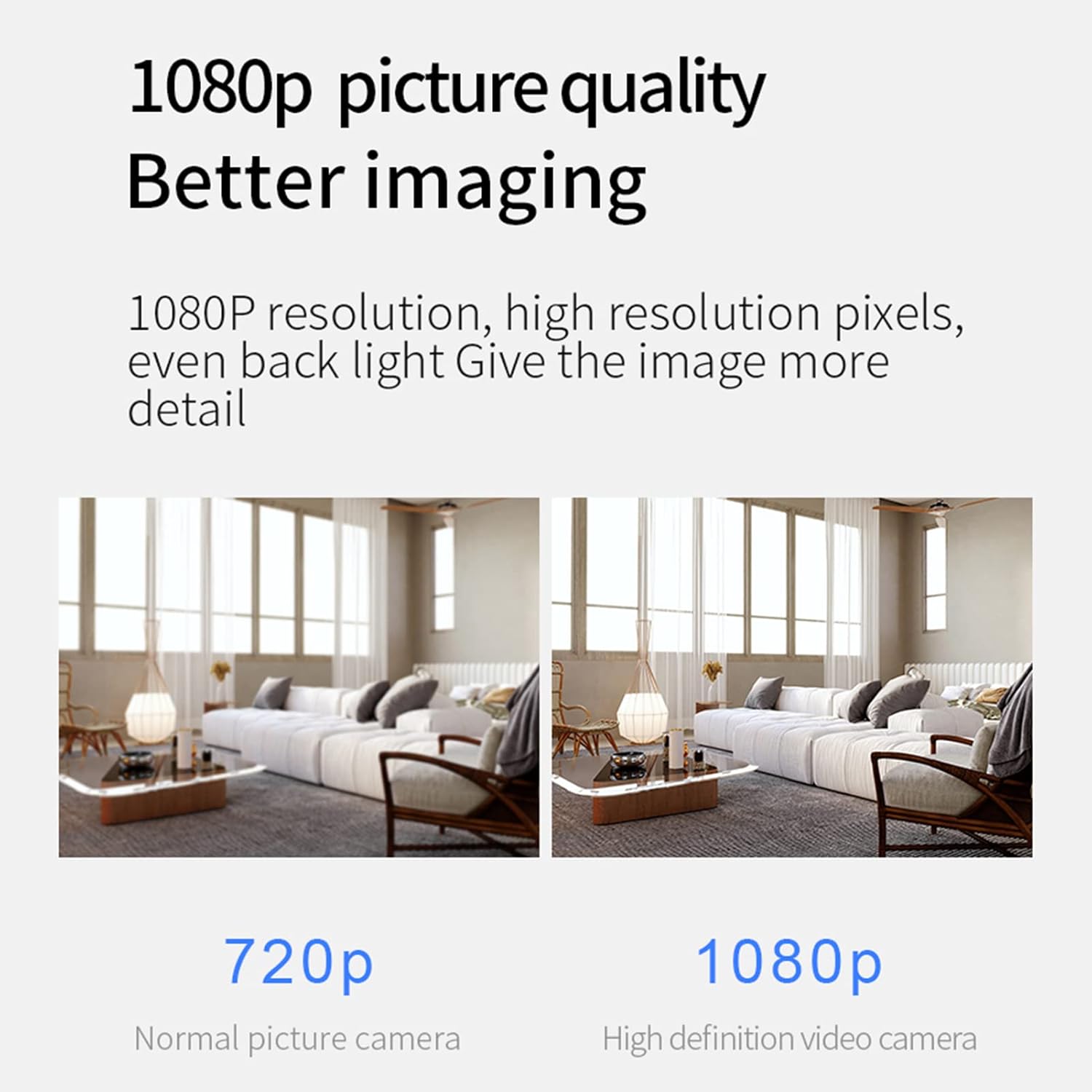
Image: A visual comparison highlighting the enhanced clarity and detail provided by the camera's 1080P high-definition lens compared to 720P.
2. Night Vision
The camera features infrared night vision, which automatically activates in low-light conditions. This allows for clear monitoring up to 5-10 meters even in complete darkness.
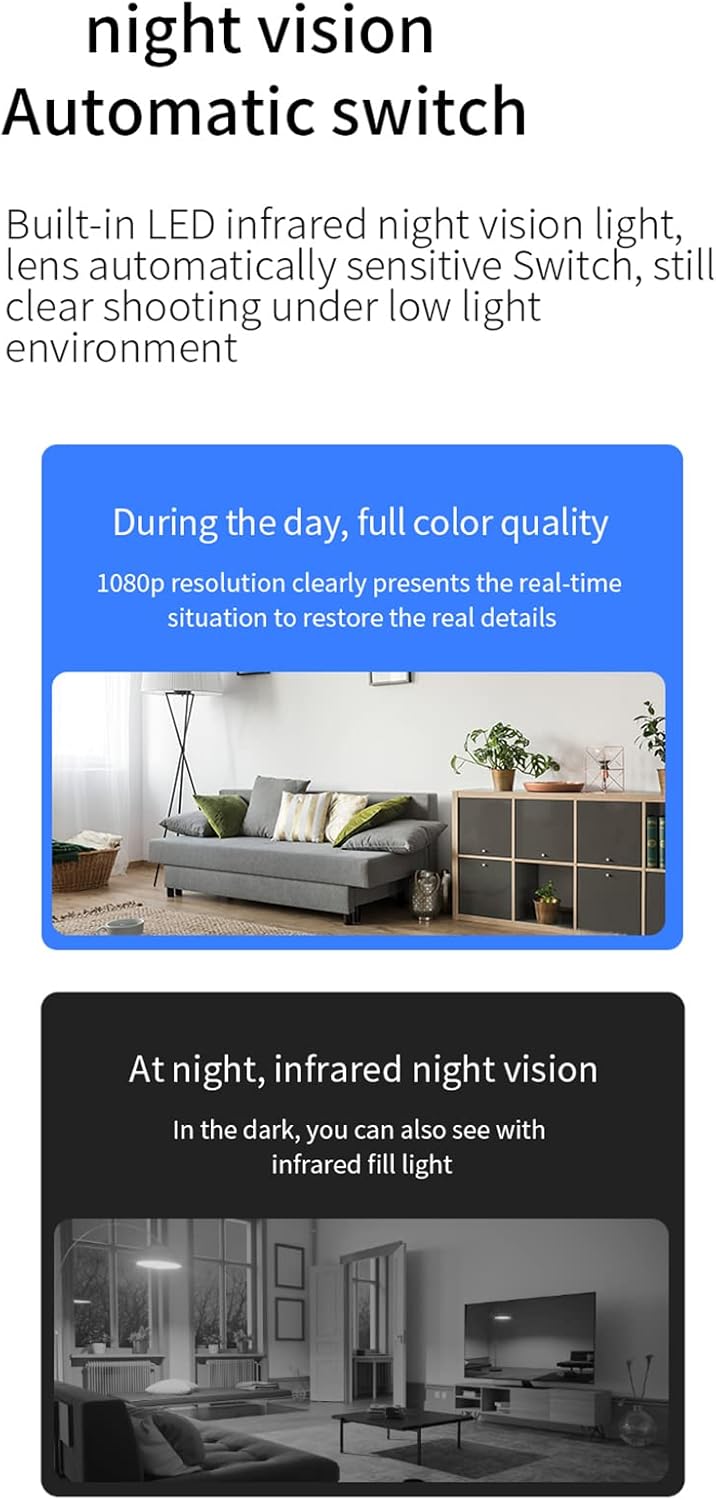
Image: Illustrates the camera's automatic night vision feature, showing clear images both in full color during the day and in infrared at night.
3. Motion Detection and Alerts
Enable motion detection in the iWFCam app settings. When motion is detected within the camera's field of view, you will receive a push notification on your smartphone, alerting you to activity.
4. Loop Recording and Storage Management
The camera supports loop recording. When the Micro SD card storage is full, the camera will automatically overwrite the oldest video files with new ones, ensuring continuous recording without manual intervention.

Image: A diagram explaining the loop recording feature, where the camera automatically manages storage by overwriting the oldest files when the memory card is full.
Maintenance
- Cleaning: Use a soft, dry cloth to clean the camera lens and body. Do not use liquid cleaners or aerosols.
- Storage: When not in use for extended periods, store the camera in a cool, dry place away from direct sunlight.
- Firmware Updates: Periodically check the iWFCam app for any available firmware updates to ensure optimal performance and new features.
Troubleshooting
- Camera not powering on:
- Ensure the camera is fully charged. Connect it to the charging cable and a power source for at least 30 minutes.
- Cannot connect to Wi-Fi:
- Ensure your Wi-Fi network is 2.4GHz (5GHz networks are not supported). Check your Wi-Fi password. Move the camera closer to the router. Reset the camera and try connecting again.
- No recording to SD card:
- Ensure the Micro SD card is inserted correctly and is within the supported capacity (4-64GB). Format the SD card through the app settings if it's a new card or if issues persist. Check if the card is damaged.
- Motion detection alerts not received:
- Ensure motion detection is enabled in the app settings. Check your phone's notification settings to allow notifications from the iWFCam app. Ensure the camera has a stable internet connection.
- Poor image quality:
- Ensure the camera lens is clean. Check your internet connection speed if viewing remotely, as a slow connection can affect streaming quality. Ensure the camera is placed in a well-lit area during the day.
Warranty and Support
The SIMBAE Smart Camera comes with a standard manufacturer's warranty. Please refer to the warranty card included in your package for specific terms and conditions. For technical support, troubleshooting assistance, or warranty claims, please contact SIMBAE customer service through the contact information provided on the product packaging or the official SIMBAE website.