Introduction
This manual provides detailed instructions for the setup, operation, maintenance, and troubleshooting of your Honio Barcode Scanner Model W. Please read this manual thoroughly before using the device to ensure proper functionality and to maximize its lifespan.
Package Contents
Verify that all items are present in your package:
- 1 x Barcode Scanner
- 1 x User Manual
- 1 x Receiver (USB Dongle)
- 1 x USB Cable
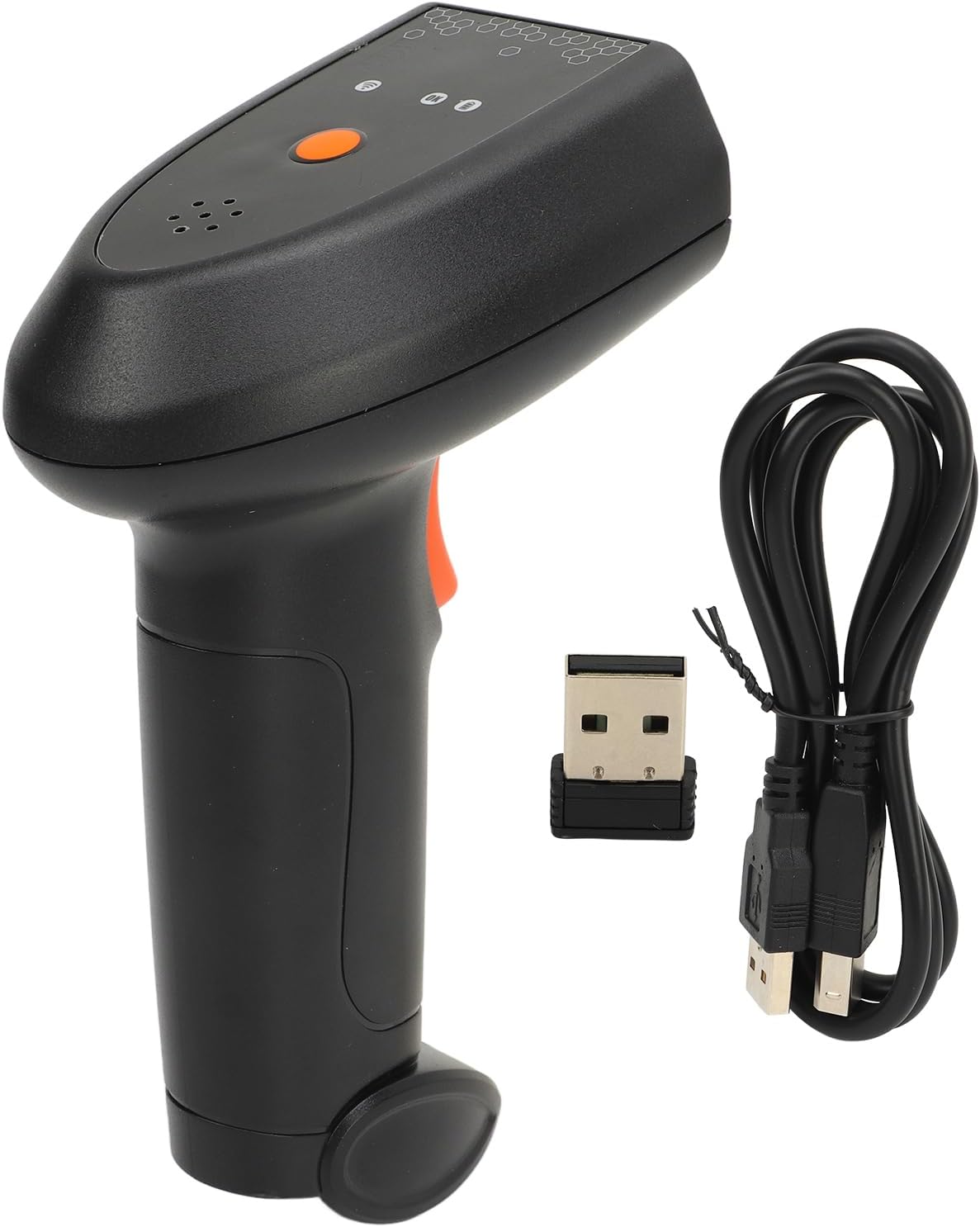
Image: The Honio Barcode Scanner, its USB receiver, and the USB charging cable included in the package.
Setup
1. Charging the Scanner
Before initial use, ensure the barcode scanner is fully charged. Connect the provided USB cable to the scanner's charging port and to a power source (e.g., computer USB port or USB wall adapter). The LED indicator will show charging status.
2. Connecting the Receiver
The scanner uses 2.4G wireless technology for connection. Insert the USB receiver into an available USB port on your computer or host device. The system should automatically recognize and install the necessary drivers.

Image: Close-up of the USB receiver and USB charging cable.
3. Pairing the Scanner
Once the receiver is connected, turn on the barcode scanner. The scanner should automatically pair with the receiver. A successful connection will be indicated by the LED indicator light and a confirmation sound (buzzer or voice announcement).
Operating Instructions
1. Basic Scanning
Point the scanner's reading window at the barcode you wish to scan. Press the trigger button. The scanner will emit a light beam. Ensure the beam covers the entire barcode for an accurate read. A successful scan is confirmed by a beep, voice announcement, and/or a change in the LED indicator light.
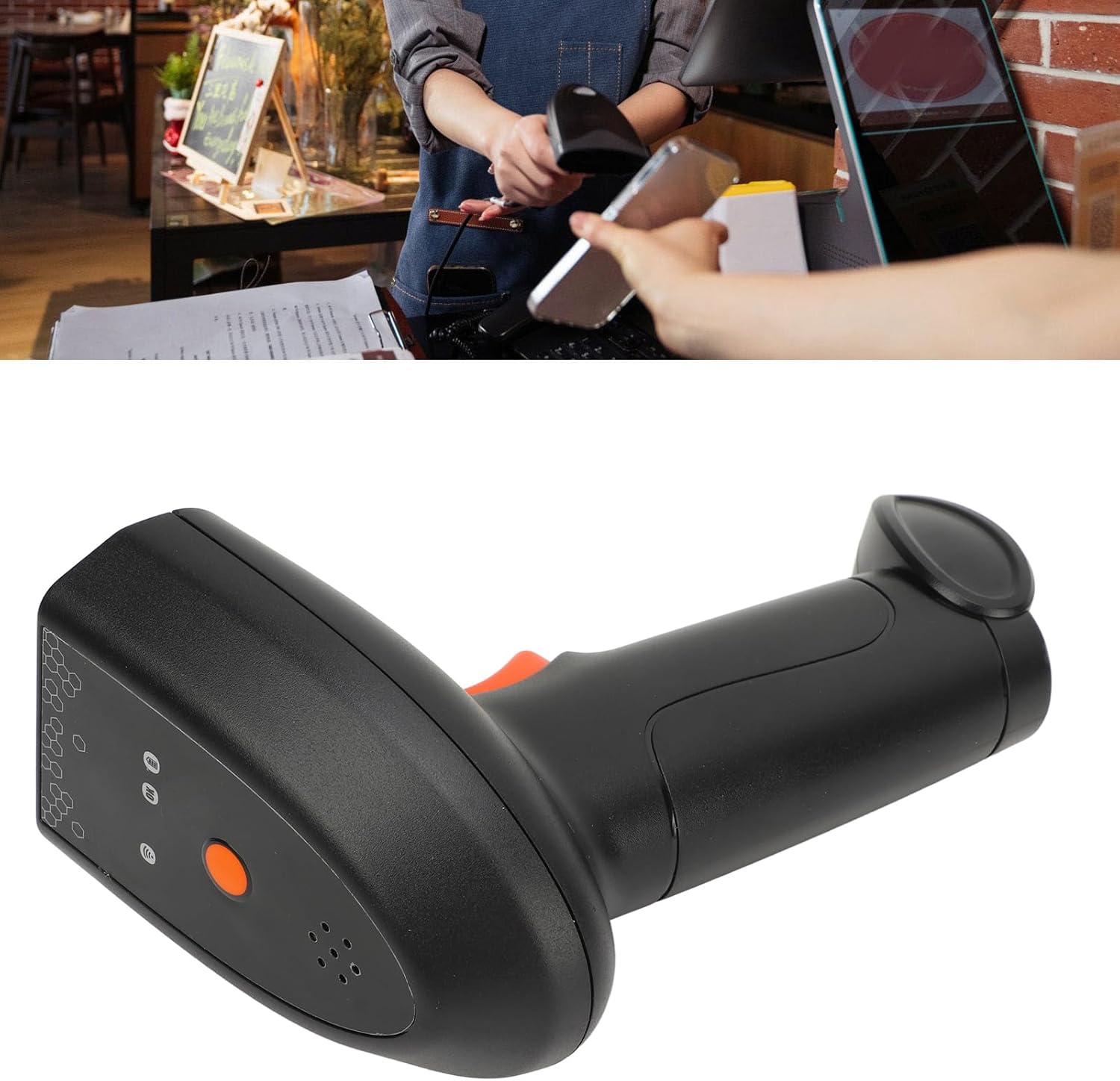
Image: A Honio Barcode Scanner being used to scan an item at a retail counter, demonstrating its application.
2. Feedback Indicators
- LED Indicator: Provides real-time connection status and scanning feedback.
- Buzzer: Emits an audible beep for successful scans and other alerts.
- Voice Announcement: Provides verbal feedback for certain operations or statuses.
3. Supported Barcode Types
The Honio Barcode Scanner Model W supports a wide range of 1D and 2D barcode symbologies:
- 1D Barcodes: EAN13, EAN 8, UPC A, UPC E0, UPC E1, Code128, Code39, Code93, Interleaved 2 of 5, Industrial 25, 2 of 5, Code11, CodeBar, RSS 14, RSS Ltd, RSS Exp, Standard 2 of 5, Plessey, ChinaPost 25, GS1 Composite, etc.
- 2D Barcodes: QR, Data Matrix (DM), PDF417, Han Xin, QRCode, MaxiCode, Aztec, Code16K, etc.
Maintenance
1. Cleaning
To maintain optimal performance, keep the scanner's reading window clean. Use a soft, lint-free cloth, slightly dampened with water or a mild cleaning solution. Avoid abrasive materials or harsh chemicals that could scratch the window or damage the casing.
2. Durability and Handling
The scanner features an IP54 dust and water rating, providing protection against limited dust ingress and water spray. It is also designed to withstand impacts from drops up to 1.5 meters onto concrete surfaces. Despite its robust design, handle the scanner with care to prevent unnecessary damage.
Troubleshooting
If you encounter issues with your Honio Barcode Scanner, refer to the following common problems and solutions:
- Scanner not turning on: Ensure the battery is charged. Connect the scanner to a power source using the USB cable.
- Scanner not connecting to host device:
- Verify the USB receiver is securely plugged into a functional USB port.
- Ensure the scanner is within the operating range of the receiver.
- Try re-pairing the scanner by scanning the appropriate pairing barcode (refer to the included user manual for specific instructions if needed).
- Scanner not reading barcodes:
- Ensure the barcode is clean, undamaged, and clearly visible.
- Check that the scanner's reading window is clean.
- Adjust the distance and angle between the scanner and the barcode.
- Confirm that the barcode type is supported by the scanner (refer to the "Supported Barcode Types" section).
- No feedback (beep/LED) after scanning: Check the scanner's settings. The feedback modes (buzzer, voice, LED) might be disabled. Refer to the included user manual for configuration barcodes to enable these features.
For further assistance, consult the detailed user manual included in your package or contact customer support.
Specifications
| Feature | Description |
|---|---|
| Model | W |
| Material | ABS |
| Decoding Type (1D) | EAN13, EAN 8, UPC A, UPC E0, UPC E1, Code128, Code39, Code93, Interleaved 2 of 5, Industrial 25, 2 of 5, Code11, CodeBar, RSS 14, RSS Ltd, RSS Exp, Standard 2 of 5, Plessey, ChinaPost 25, GS1 Composite, etc. |
| Decoding Type (2D) | QR, Data Matrix (DM), PDF417, Han Xin, QRCode, MaxiCode, Aztec, Code16K, etc. |
| Power Supply | Built-in lithium battery capacity 2000mAh |
| Sealing Grade | IP54 |
| Seismic Rating | Withstands 5 or more impacts from falling from a height of 1.5 meters to cement floor |
| Reminder Mode | Buzzer, voice announcement, LED indicator light |
| Connectivity Technology | 2.4G Wireless, USB Cable |
| Compatible Devices | Desktop, Laptop |
Warranty and Support
For warranty information or technical support, please refer to the specific warranty card included with your product or contact your retailer. Keep your purchase receipt as proof of purchase.