
Dupad story M9 Bluetooth Keyboard
Mini Voice Bluetooth Keyboard with Touchpad
Model: M9 Bluetooth Keyboard
Brand: Dupad story
1. Product Overview
The Dupad story M9 Mini Voice Bluetooth Keyboard is a versatile input device designed for various platforms including PC, Smart TV, Laptop, Projector, Smartphone, Gaming Console, and Tablet. It offers dual-mode connectivity (2.4G wireless and Bluetooth 5.0), a responsive touchpad, voice input capabilities, and an IR learning function for remote control integration. Its compact design and colorful backlighting enhance usability in diverse environments.

Image: Front view of the Mini Voice Bluetooth Keyboard, showcasing its full QWERTY layout, touchpad, and colorful backlighting.
2. Package Contents
- 1 x Mini Voice Bluetooth Keyboard
- 1 x USB Receiver (located in the battery compartment)
- 1 x USB Charging Cable
- 1 x User Manual
3. Key Features
- Voice Input: Integrated high-fidelity microphone for voice search (Google Assistant compatible).
- Dual-mode Connectivity: Supports 2.4G wireless and Bluetooth 5.0 for wide compatibility.
- Rechargeable Colorful Backlit: 8 backlight colors for operation in dark environments, powered by a built-in lithium-ion battery.
- IR Learning: 5-button infrared learning function to replace existing IR remote controls.
- Touchpad: Multi-touch support and gesture functionality for precise navigation.
4. Setup
4.1. Charging the Keyboard
Before first use, fully charge the keyboard. Connect the provided USB charging cable to the keyboard's charging port and the other end to a USB power source (e.g., computer USB port, USB wall adapter). The charging indicator light will illuminate during charging and turn off when fully charged.
4.2. 2.4G Wireless Connection
- Locate the USB receiver in the battery compartment at the back of the keyboard.
- Insert the USB receiver into an available USB port on your device (PC, Smart TV, etc.).
- Turn on the keyboard using the power switch. The keyboard should automatically connect to the receiver.

Image: A user holding the keyboard, demonstrating its use with a TV, highlighting the 2.4G wireless technology.
4.3. Bluetooth 5.0 Connection
- Ensure the keyboard is powered on.
- Press and hold the "Fn" key and the "BT" key simultaneously to activate Bluetooth pairing mode. The Bluetooth indicator light will flash.
- On your device (e.g., smartphone, tablet, smart TV), go to Bluetooth settings and search for new devices.
- Select "M9 Keyboard" (or similar name) from the list of available devices to pair.
- Once paired, the Bluetooth indicator light on the keyboard will stop flashing.
5. Operating Instructions
5.1. Keyboard Layout and Functions
The keyboard features a full QWERTY layout with dedicated function keys and a touchpad. Refer to the diagram below for key identification and functions.

Image: Detailed diagram of the keyboard layout, labeling the touchpad, microphone, direction keys, left/right buttons, and various function key combinations (e.g., Fn + F1 for mouse sensitivity, Fn + Enter for Task Manager, Fn + Backlight key for color switch).
- Direction Keys: For navigation within menus and content.
- Left/Right Buttons: Act as left and right mouse clicks.
- Fn Key Combinations: Many keys have secondary functions accessed by holding the 'Fn' key. Examples include adjusting mouse sensitivity, opening Task Manager, print screen, turning touchpad on/off, maximizing current page, and opening development tools.
5.2. Touchpad Functions
The integrated touchpad supports multi-touch gestures for enhanced navigation:
- Single Finger Tap: Left click.
- Two Finger Tap: Right click.
- Two Finger Scroll: Scroll up/down or left/right.
- Pinch to Zoom: Zoom in/out (application dependent).
5.3. Voice Input Function
Press the dedicated voice button (microphone icon) on the keyboard to activate the voice input feature. This allows you to quickly access entertainment, get answers, and control devices through voice commands. Please note that this function primarily works with the built-in voice input search box or compatible applications like Google Assistant, and does not support cross-app voice commands like Alexa Voice Remote.
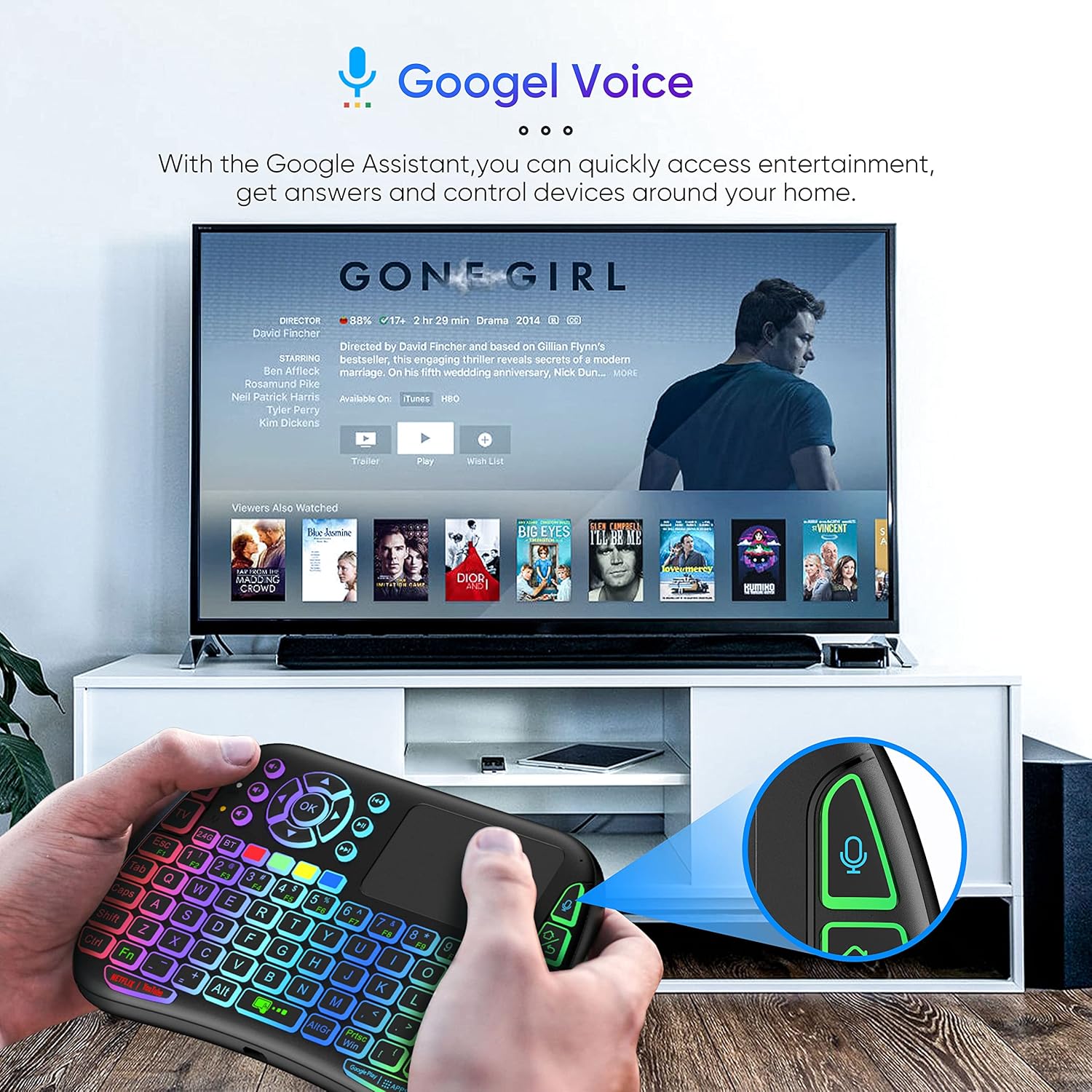
Image: A user holding the keyboard, demonstrating the voice input feature while interacting with a smart TV displaying Google Assistant.
5.4. IR Learning Function
The keyboard features 5 programmable buttons for IR learning, allowing it to mimic functions from your existing infrared remote controls. This can consolidate your remote controls into one device.
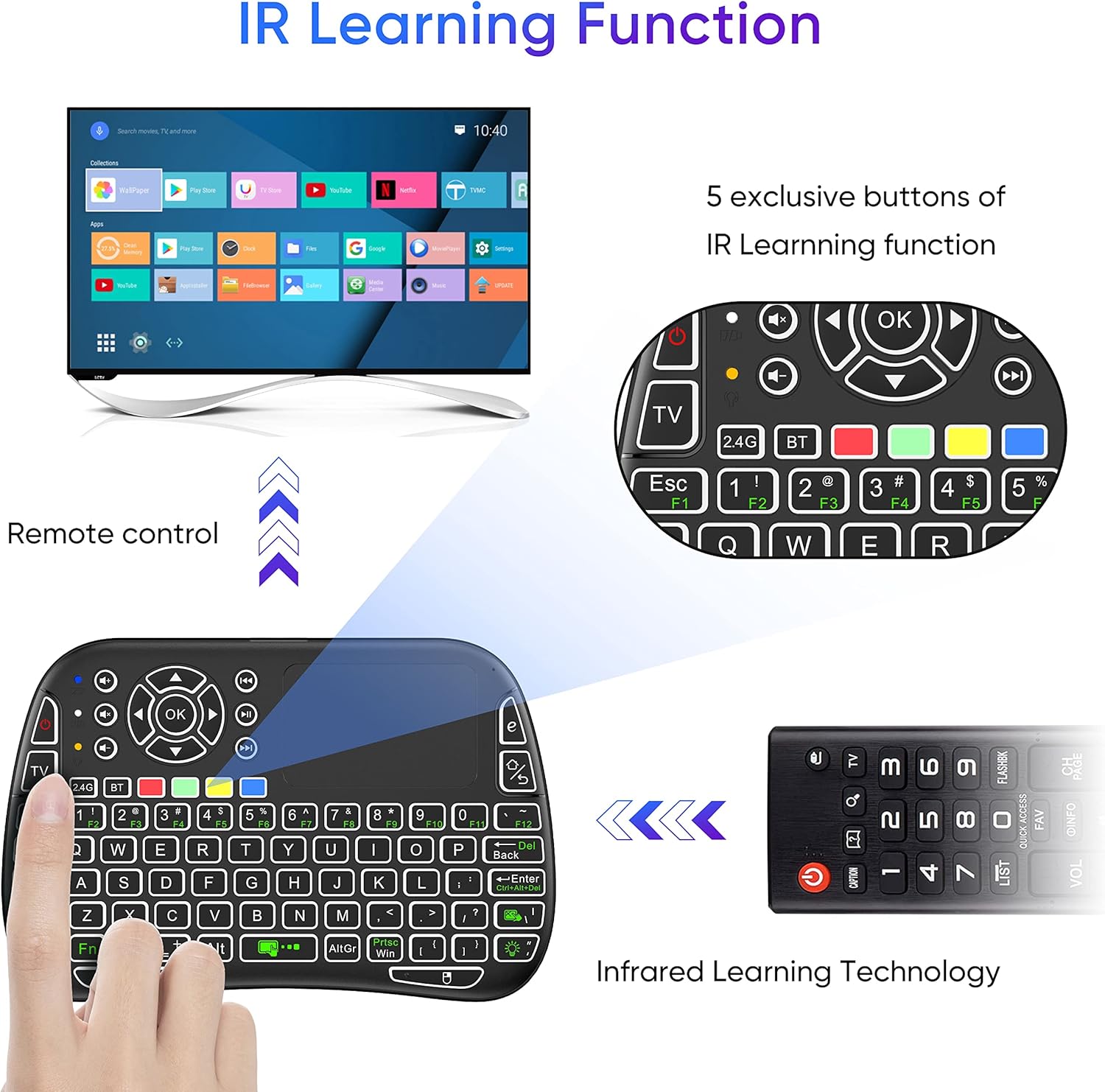
Image: Diagram illustrating the IR learning process, showing the keyboard's IR learning buttons and a traditional remote control.
Steps for IR Learning:
- Place the keyboard and your original IR remote control head-to-head, about 1-3 cm apart.
- Press and hold the 'TV' button on the keyboard until the LED indicator starts flashing slowly.
- Press the button on the keyboard you wish to program (one of the 5 IR learning buttons). The LED indicator will flash rapidly.
- Press the corresponding button on your original IR remote control. The LED indicator on the keyboard will flash three times and then stay solid, indicating successful learning.
- Repeat for other buttons as needed. Press the 'TV' button again to exit IR learning mode.
5.5. Backlight Control
The keyboard features 8 different backlight colors. To switch between colors, press the 'Fn' key and the backlight key (usually indicated by a light bulb icon) simultaneously. This allows for convenient operation in low-light conditions.
6. Maintenance
6.1. Cleaning
To clean the keyboard, gently wipe the surface with a soft, dry, or slightly damp cloth. Avoid using harsh chemicals, abrasive cleaners, or excessive moisture, as these can damage the device.
6.2. Battery Care
The keyboard is equipped with a built-in rechargeable lithium-ion battery. To prolong battery life:
- Charge the keyboard regularly, especially when the battery low indicator appears.
- Avoid fully discharging the battery frequently.
- Store the keyboard in a cool, dry place when not in use for extended periods.

Image: View of the keyboard's underside, showing the battery compartment with the BL-5B battery and the USB receiver slot.
7. Troubleshooting
| Problem | Possible Cause | Solution |
|---|---|---|
| Keyboard not responding (2.4G) | Low battery; USB receiver not properly inserted; Out of range. | Charge the keyboard; Re-insert USB receiver; Move closer to the device (within 10m/32.8ft). |
| Keyboard not pairing (Bluetooth) | Bluetooth not activated on keyboard/device; Device not in pairing mode. | Ensure 'Fn+BT' is pressed to activate pairing; Check device's Bluetooth settings. |
| Voice input not working | Not in a compatible app; Microphone blocked. | Ensure you are using a compatible app (e.g., Google Assistant search box); Check for obstructions around the microphone. |
| Backlight not working/changing | Low battery; Incorrect key combination. | Charge the keyboard; Ensure 'Fn' key is held while pressing the backlight key. |
| IR learning fails | Incorrect distance/angle; Original remote battery low. | Adjust distance (1-3cm) and angle; Ensure original remote has sufficient battery. |
8. Specifications
- Brand: Dupad story
- Model: M9 Bluetooth Keyboard
- Connectivity Technology: Bluetooth 5.0, 2.4G RF
- Compatible Devices: PC, Smart TV, Laptop, Projector, Smartphone, Gaming Console, Tablet
- Keyboard Description: Compact Voice-enabled Backlit Bluetooth Keyboard with Touchpad and IR Learning
- Recommended Uses: Multimedia
- Special Features: Backlit (8 colors), Rechargeable, Voice Input, IR Learning, Touchpad
- Number of Keys: 84
- Keyboard Backlighting Color Support: RGB
- Maximum Connection Distance: 10m / 32.8ft (may vary with environment)
- Battery Life: Up to 10 days continuous working time, up to 50 days standby time
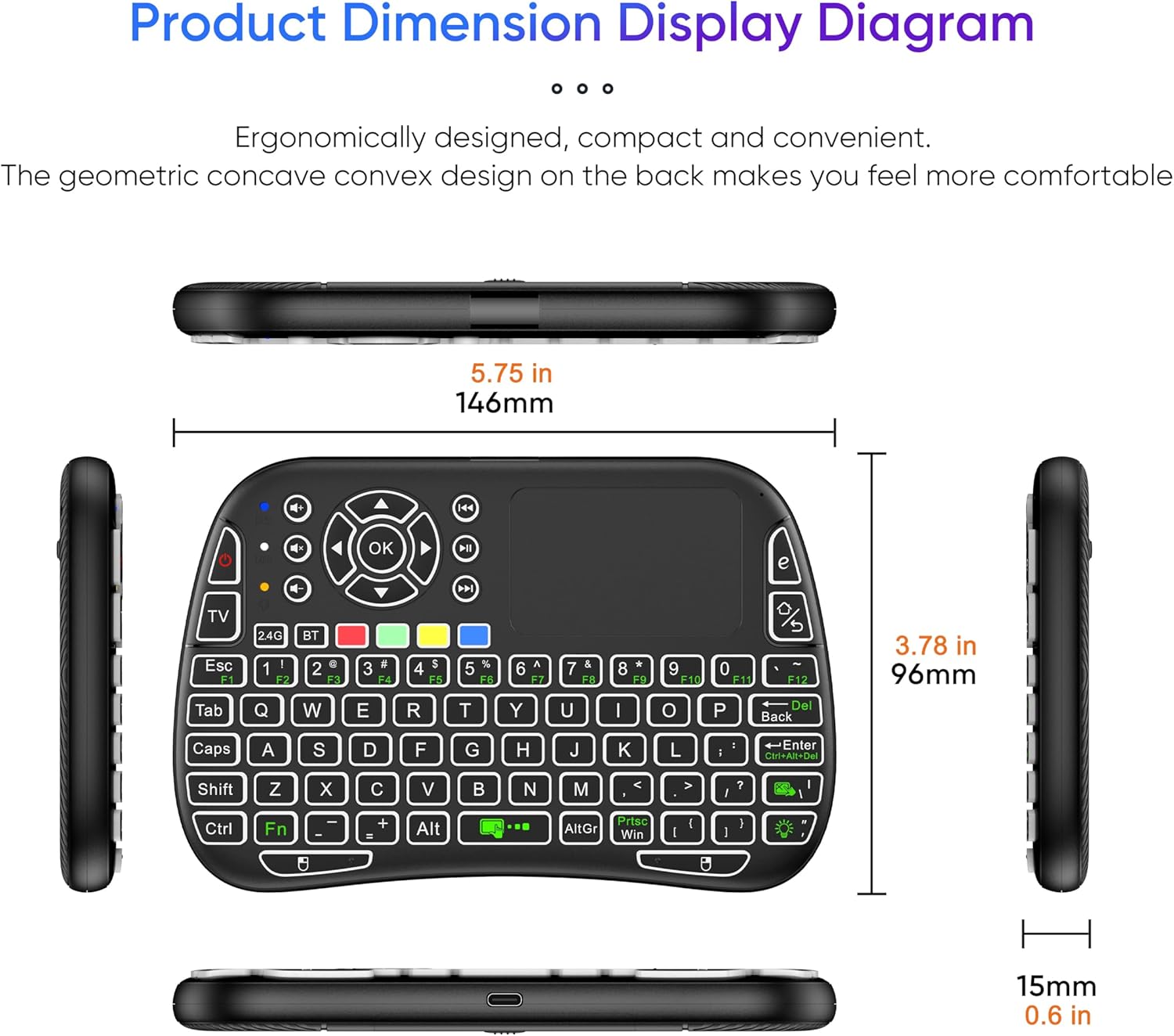
Image: Diagram showing the dimensions of the keyboard: 5.75 inches (146mm) length, 3.78 inches (96mm) width, and 0.6 inches (15mm) thickness.
9. Warranty and Support
This product comes with an unconditional 30-day money-back guarantee and lifetime after-sales service. If you encounter any issues or are not satisfied with your Mini Wireless Keyboard, please do not hesitate to contact the seller or Dupad story customer support for assistance. Your satisfaction is our aim.
10. Compatibility Overview
The Dupad story Mini Voice Bluetooth Keyboard is designed for broad compatibility with various operating systems and devices, making it a versatile peripheral for your entertainment and computing needs.
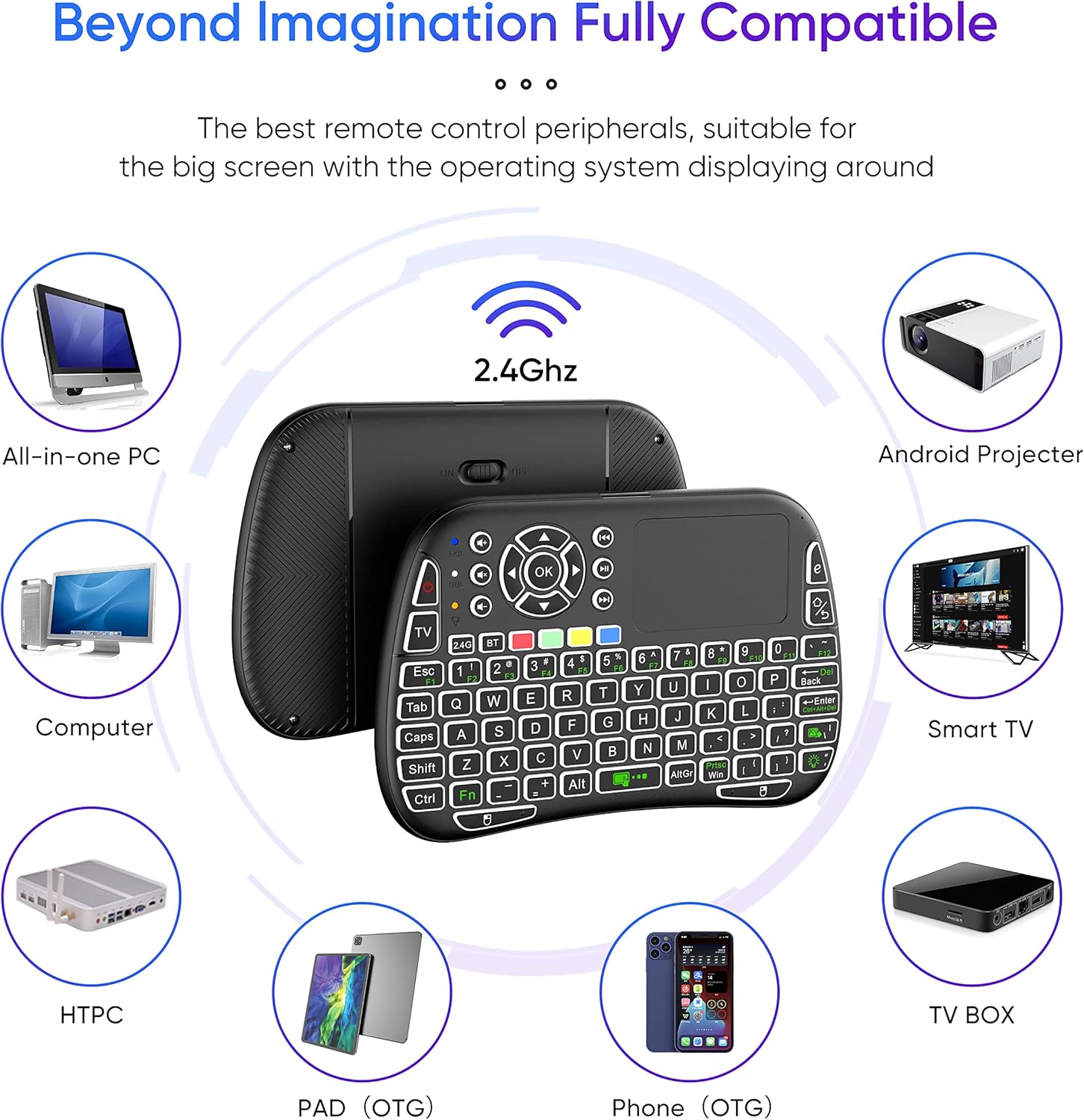
Image: A visual representation of the keyboard's compatibility with various devices, including All-in-one PC, Computer, HTPC, PAD (OTG), Phone (OTG), TV BOX, Smart TV, and Android Projector.
11. Important Notes
- The voice search function is primarily designed for built-in voice input search boxes or compatible applications (e.g., Google Assistant) and may not work across all apps or with specific voice assistants like Alexa.
- The maximum connection distance of 10m/32.8ft may be reduced depending on environmental factors such as obstacles or interference.
- No official product videos were provided by the seller for embedding in this manual.
Related documentsM9 Bluetooth Keyboard

Ask a question about this manual
Ask about setup, troubleshooting, compatibility, parts, safety, or missing instructions. Manuals+ will review the question and use this page’s manual context to help answer it.