1. Introduction
This manual provides comprehensive instructions for the Wei Long Amazon FBA 40-up Labels. These self-adhesive labels are designed for efficient use with laser and inkjet printers, meeting Amazon's FBA requirements for product and shipping labeling. Please read this manual thoroughly to ensure proper usage and optimal results.
2. Product Overview
The Wei Long 40-up labels come in a package of 100 A4 sheets, providing a total of 4000 individual labels. Each label measures 52.5x29.7 mm. They are designed for compatibility with most standard inkjet and laserjet printers, as well as copiers.

Image 2.1: A stack of Wei Long 40-up label sheets, indicating the quantity of 100 sheets and 4000 labels.
Key features include:
- Quantity: 100 sheets, 40 labels per sheet, totaling 4000 labels.
- Size: A4 paper format, with individual labels measuring 52.5x29.7 mm.
- Printer Compatibility: Suitable for use with inkjet printers, laserjet printers, and copiers.
- Easy Peel Design: Labels are designed for easy removal from the backing sheet by bending the sheet to expose the edge.
- Strong Adhesion: Self-adhesive backing ensures labels stick securely to various flat surfaces such as cardboard, paper, envelopes, and glass.
- Versatile Use: Ideal for SKU labels, address labels, and other inventory or shipping identification needs.

Image 2.2: A close-up view of the labels highlighting clear printing and the strong adhesive quality, with examples of labeled packages in the background.
3. Setup
Before printing, ensure your printer is correctly configured for label printing.
3.1 Printer Preparation
- Check Printer Compatibility: Confirm your printer is an inkjet or laserjet model.
- Load Labels: Place the Wei Long label sheets into your printer's paper tray. Ensure they are loaded correctly according to your printer's instructions to prevent misalignment. The printable side is typically the brighter, smoother side.
- Printer Settings: Access your printer's settings or preferences. Select 'A4' as the paper size and choose 'Labels' or a similar media type if available. This helps optimize print quality and prevent smudging.

Image 3.1: A Canon printer actively printing FBA labels on a Wei Long label sheet.
4. Operating Instructions
4.1 Printing Labels
To print your FBA labels, follow these steps:
- Software Configuration: When generating labels from your Amazon Seller Central account or other label printing software, select the correct label format. For these labels, choose the '40-up labels 52.5 x 29.7 mm on A4' option.
- Test Print: It is recommended to perform a test print on a plain sheet of paper first to verify alignment and print quality before using the actual label sheets.
- Print: Once settings are confirmed, proceed with printing your labels.
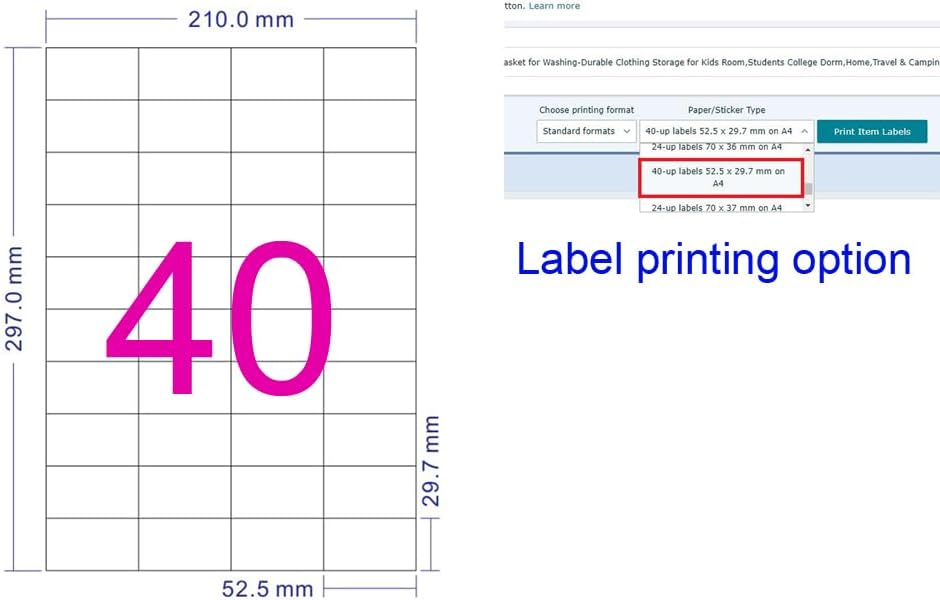
Image 4.1: A visual representation of the 40-up label layout on an A4 sheet with dimensions, alongside a screenshot showing the '40-up labels 52.5 x 29.7 mm on A4' selection in a printing interface.
4.2 Applying Labels
After printing, apply the labels to your products or packages:
- Peel Labels: Gently bend the label sheet to lift the edge of a label, then peel it off. The easy-peel design facilitates this process.
- Surface Preparation: Ensure the surface where the label will be applied is clean, dry, and free of dust or oils for optimal adhesion.
- Apply: Carefully place the label onto the desired surface, pressing firmly from the center outwards to remove any air bubbles and ensure full contact.

Image 4.2: A hand demonstrating the easy-peel feature by lifting a label from its backing sheet.

Image 4.3: Examples of Wei Long labels applied to different items, including shipping boxes, envelopes, and retail packaging.
For FBA labels, ensure the barcode X002XHQYM7 (example FNSKU) is clearly visible and not obstructed.
5. Maintenance
Proper storage of unused label sheets is crucial for maintaining their quality and adhesive properties.
- Storage: Store label sheets in a cool, dry place away from direct sunlight and extreme temperatures. Keep them flat to prevent curling or damage to the adhesive.
- Packaging: Return unused sheets to their original packaging or a protective container to shield them from dust and moisture.
6. Troubleshooting
If you encounter issues while using your Wei Long labels, consider the following common solutions:
- Labels Misaligning During Print:
- Verify that the paper size in your printer settings is set to 'A4'.
- Ensure the label format selected in your printing software is '40-up labels 52.5 x 29.7 mm on A4'.
- Check that the label sheets are loaded correctly and straight in the printer tray.
- Ink Smudging or Poor Print Quality:
- Confirm you are using the correct printer type (inkjet for inkjet labels, laser for laser labels). These labels are compatible with both.
- Allow sufficient drying time for inkjet prints before handling.
- Check your printer's ink/toner levels.
- Labels Not Sticking Properly:
- Ensure the application surface is clean, dry, and smooth.
- Apply firm, even pressure across the entire label surface during application.
- Avoid touching the adhesive side of the label with your fingers.
- Difficulty Peeling Labels:
- Utilize the easy-peel feature by gently bending the sheet to lift the label edge.
7. Specifications
| Feature | Detail |
|---|---|
| Manufacturer | WEI LONG |
| Brand | Wei Long |
| Item Model Number | Label-40-UP/100 Sheets |
| Color | White (40 Labels) |
| Material Type | Paper |
| Cover Material | Paper |
| Shape | Rectangular |
| Number of Items | 100 Sheets (4000 Labels) |
| Sheet Size | A4 Paper |
| Individual Label Size | 52.5 x 29.7 mm |
| Item Weight | 2.2 pounds |
| Product Dimensions | 2.07 x 1.17 x 0.08 inches (packaging) |
| Finish Type | Uncoated |
8. Warranty and Support
For any questions, concerns, or support regarding your Wei Long Amazon FBA labels, please contact the seller directly through the platform where the purchase was made. Please refer to your purchase documentation for specific return or warranty policies.