
Introduction
This manual provides detailed instructions for the installation, operation, and maintenance of your Lelukee LK001 Digital Cabinet Lock. Please read this manual thoroughly before installation and use to ensure proper function and longevity of the product. This electronic coded lock offers a secure and convenient keyless solution for various applications.
Product Features
- Digital Password: Supports 3 to 15 digit passwords, with each digit ranging from 1 to 7.
- Multiple User Codes: Capable of storing up to 20 groups of user passwords.
- Versatile Application: Suitable for cabinets, mailboxes, file drawers, sauna lockers, school lockers, and DIY wooden furniture.
- Rechargeable Battery: Features a built-in lithium battery, providing over 2000 unlocks or 8-9 months of use on a single charge.
- Factory Reset: Includes a rear recovery key for restoring factory settings.
- Touch Screen Interface: Modern and responsive touch control method.
Package Contents
Verify that all components are present before beginning installation:
- Digital Cabinet Lock Unit
- Various Lock Latches (for different scenarios)
- Screws
- Washers
- Hexagon Nut
- Rear Recovery Key
- USB Charging Cable (not explicitly listed but implied by rechargeable battery)

This image displays the main components provided with the lock: the digital keypad unit, different types of lock latches for various applications, screws, washers, a hexagon nut for securing, and the charging port on the lock body.
Specifications
| Brand | Lelukee |
| Model Number | LK001 |
| Lock Type | Combination Lock |
| Material | Metal |
| Item Dimensions (L x W x H) | 0.3 x 0.1 x 0.2 inches (Lock body) |
| Item Weight | 9.6 ounces |
| Control Method | Touch |
| Power Source | Built-in Lithium Battery (Rechargeable) |
Setup and Installation
Follow these steps to properly install your Lelukee Digital Cabinet Lock:
- Prepare the Installation Surface: Ensure the cabinet door or drawer where the lock will be installed is clean and free of obstructions.
- Drill Fixing Hole: Using the provided dimensions, drill a circular hole of approximately 18mm diameter. For enhanced stability and anti-rotation, a 16mm square notch should be created around the circular hole.

This diagram illustrates the precise measurements of the lock unit and the recommended dimensions for the installation hole, including a 16mm square for anti-rotation.
- Insert Lock Body: Insert the threaded portion of the digital lock unit through the prepared hole from the exterior side of the cabinet/drawer.
- Secure with Hardware: From the interior side, place a washer over the threaded shaft, followed by the hexagon nut. Tighten the hexagon nut securely to hold the lock in place.
- Attach Latch: Select the appropriate lock latch for your cabinet type (wooden or metal) and attach it to the end of the lock shaft using the provided screw. Ensure the latch is oriented correctly to engage with the cabinet frame when locked.

These diagrams provide a visual guide for installing the lock, showing how it is mounted through a cabinet door and secured with the included hardware for both wooden and metal material types.

This image shows the digital cabinet lock installed on a cabinet door, highlighting the internal locking mechanism and how the latch engages with the cabinet frame.
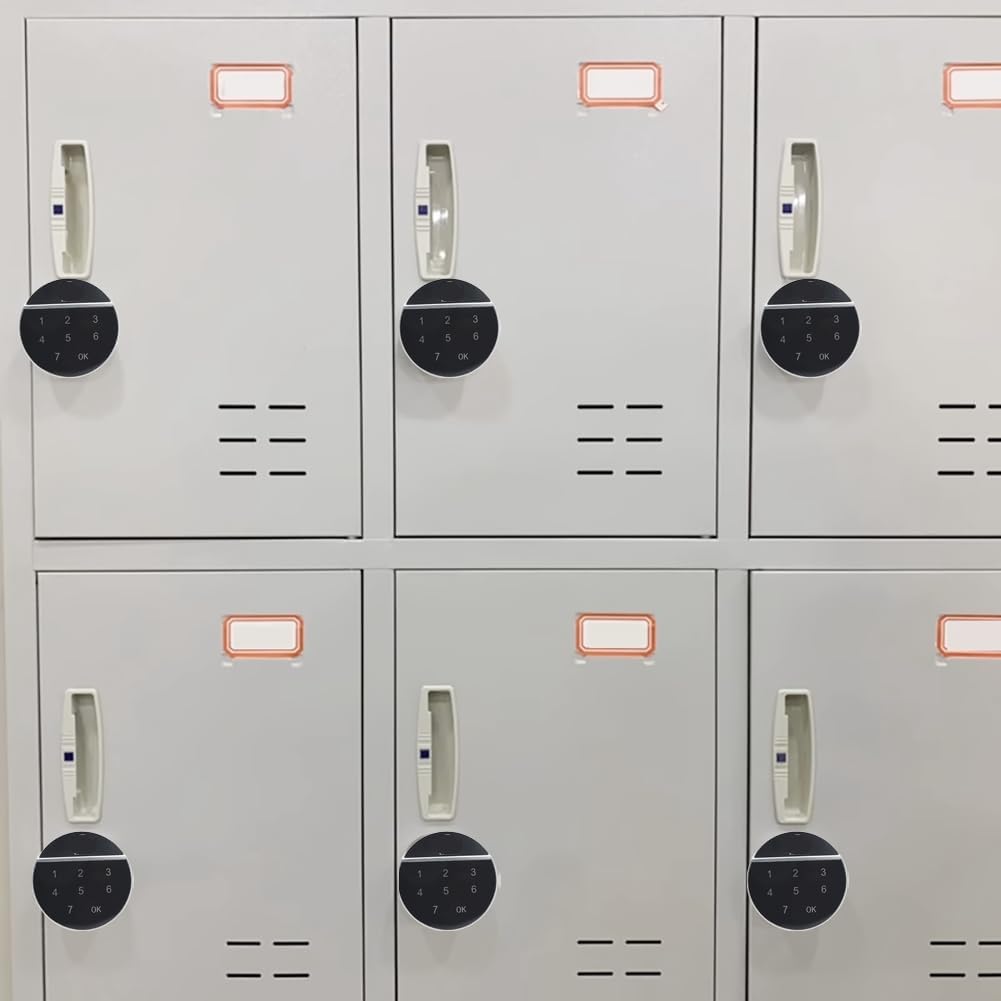
This image demonstrates the application of multiple Lelukee Digital Cabinet Locks on a series of school lockers, showcasing their use in a multi-user environment.
Operating Instructions
Initial Setup (Setting Master Code)
- When first powered on, the lock will be in factory default mode.
- To set the master code, press the 'OK' button.
- Enter your desired 3-15 digit master code (using digits 1-7).
- Press 'OK' to confirm. The lock will beep to indicate successful master code setting.
Adding User Codes
- Enter the master code and press 'OK'.
- Follow the specific instructions in the full product manual (not provided here) to enter programming mode for adding user codes.
- Enter the new user code (3-15 digits) and press 'OK'. Repeat for up to 20 user codes.
Unlocking and Locking
- To Unlock: Touch the keypad to activate. Enter a valid master or user code, then press 'OK'. The lock will disengage, allowing you to open the cabinet/drawer.
- To Lock: Close the cabinet/drawer. The lock will automatically engage after a few seconds, or you can manually press 'OK' to lock it immediately.
This video provides a visual guide to the installation process of the digital cabinet lock, including securing the unit and attaching the latch. It also shows how to operate the lock by entering a code to unlock and lock a cabinet.
Maintenance
- Charging: When the battery is low, the lock will indicate with a warning. Connect the USB charging cable to the charging port on the lock unit and a suitable power source. A full charge typically lasts 8-9 months with average use.
- Cleaning: Use a soft, dry cloth to clean the touch screen and lock body. Avoid abrasive cleaners or solvents that could damage the finish or electronics.
- Regular Checks: Periodically check the tightness of the hexagon nut and the security of the latch attachment.
Troubleshooting
- Lock Not Responding: Ensure the battery is charged. If the battery is completely depleted, connect it to a power source for a few minutes before attempting to operate.
- Forgotten Code: If you forget your master or user code, use the provided rear recovery key to restore the lock to factory settings. This will erase all stored codes, and you will need to set a new master code.
- Incorrect Code Entry: If an incorrect code is entered multiple times, the lock may temporarily disable the keypad. Wait a few moments before trying again.
- Latch Not Engaging: Check if the latch is properly aligned with the cabinet frame. Adjust the latch or the strike plate if necessary.
Warranty and Support
For warranty information or technical support, please refer to the product packaging or contact Lelukee customer service directly. Keep your purchase receipt as proof of purchase.