
Tekswamp 7754
NCR 7754 Touchscreen POS Terminal User Manual
Model: 7754
1. Product Overview
The NCR 7754 is a robust touchscreen Point of Sale (POS) terminal designed for continuous operation in commercial environments. It features a 15-inch LED LCD with high brightness and a resistive or capacitive touch screen, making it suitable for various business applications. This terminal is equipped with an Intel D2700 Dual-Core processor, 4GB DDR3 RAM, and a 40GB Solid State Drive (SSD), running on Microsoft Windows Embedded Standard.
Key features include standard Intel Architecture, industry-standard storage (SATA interface for SSD), DDR3 memory, and comprehensive USB/RS232 connectivity. The system is pre-configured with necessary drivers for immediate deployment.

Figure 1: Front view of the NCR 7754 POS Terminal with the screen active, showing the Windows Embedded Standard interface and the included AC adapter.
2. Setup Instructions
2.1 Unpacking and Inspection
- Carefully remove the NCR 7754 terminal and its accessories from the packaging.
- Verify that all components are present: the POS terminal, AC adapter, and any included cables.
- Inspect the terminal for any visible damage incurred during shipping. Report any damage to the supplier immediately.
2.2 Connecting the Power Adapter
Connect the provided AC adapter to the power input port on the rear of the NCR 7754 terminal. Plug the other end of the AC adapter into a standard electrical outlet.
Figure 2: The AC adapter connected to the NCR 7754 terminal, ready for power supply.
2.3 Connecting Peripherals
The NCR 7754 offers a variety of ports for connecting peripherals. Refer to the image below for port identification.
- USB Ports: Connect USB devices such as keyboards, mice, barcode scanners, or printers to the available USB 2.0 ports (3 standard, 1 powered 12V).
- Ethernet (LAN): Connect an Ethernet cable to one of the 10/100/1000 Mbps Base-T Ethernet ports for network connectivity.
- DVI Port: For external display connectivity, use the DVI port.
- RJ12 Ports: Four RJ12 (12V) ports are available for connecting cash drawers or other compatible peripherals. An expansion card provides two additional ports.

Figure 3: Detailed view of the rear I/O panel of the NCR 7754, showing DVI, LAN, Power, CD1/CD2, HDD, STAT, and USB ports.
For cable management, route cables behind the door located at the base of the stand.

Figure 4: Underside view of the NCR 7754 stand, indicating the cable routing area behind a removable panel.
3. Operating the Terminal
3.1 Powering On/Off
- Power On: Press the power button, typically located on the side or rear of the unit. The system will boot into Microsoft Windows Embedded Standard.
- Power Off: To shut down the system, use the standard Windows shutdown procedure: Click the "Start" button, then select "Shut down" or "Power off". Do not disconnect power directly without proper shutdown to prevent data corruption.
3.2 Touchscreen Operation
The 15-inch touchscreen supports both resistive and capacitive input, providing responsive interaction with the operating system and applications. Use a stylus or your finger for navigation and input.

Figure 5: Side view of the NCR 7754, highlighting the adjustable angle of the touchscreen display.
3.3 Software and Drivers
The terminal comes with all necessary drivers pre-installed, ensuring full functionality upon startup. For specific POS software installation or configuration, refer to the software provider's documentation.
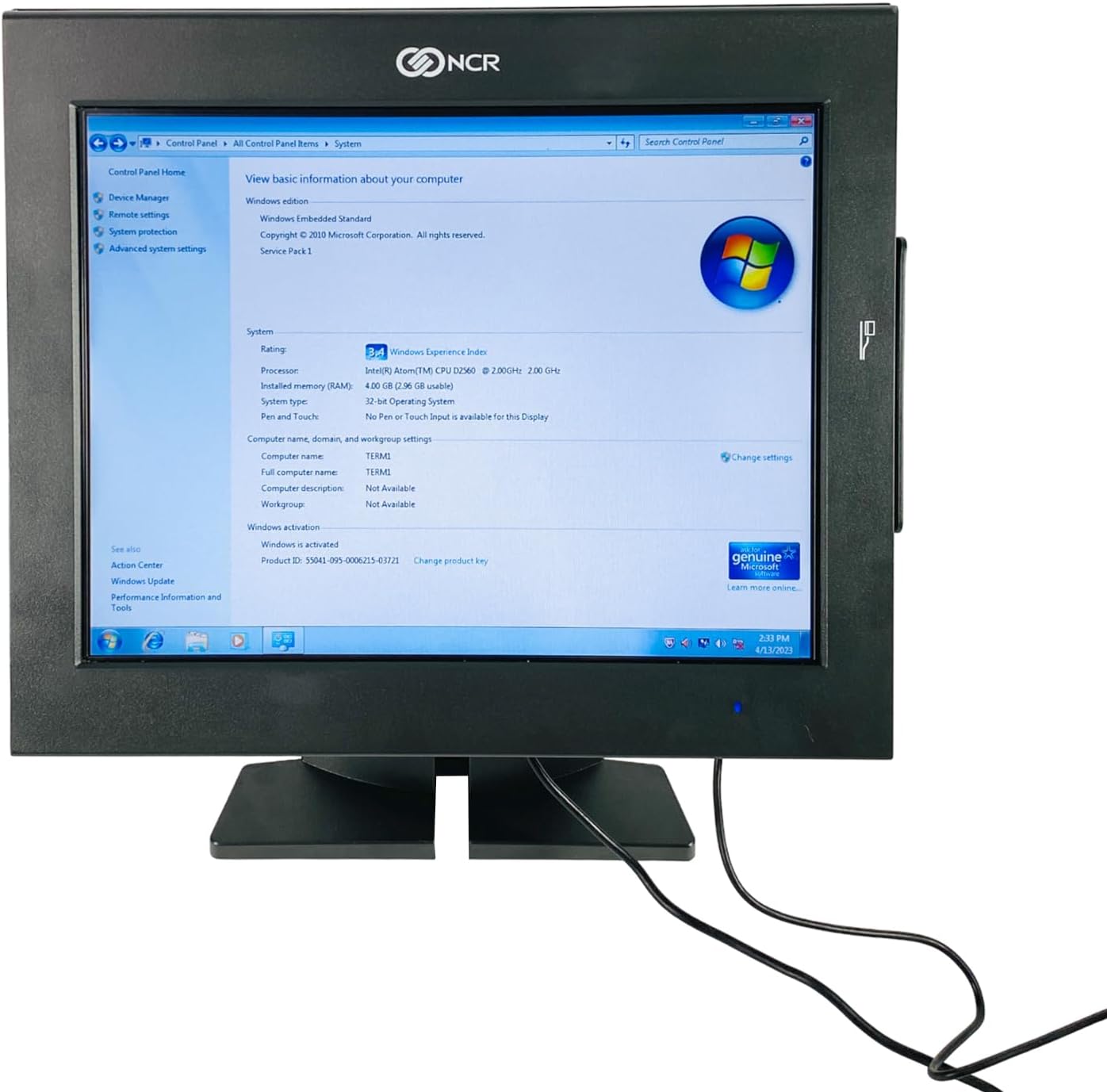
Figure 6: Front view of the NCR 7754 terminal, showing the system information screen within Windows Embedded Standard.
4. Maintenance
4.1 Cleaning the Terminal
- Screen: Use a soft, lint-free cloth lightly dampened with a non-abrasive screen cleaner. Do not spray cleaner directly onto the screen.
- Casing: Wipe the exterior casing with a soft, dry cloth. For stubborn marks, a slightly damp cloth with mild soap solution can be used, ensuring no liquid enters the ports or vents.
- Ventilation: Ensure the ventilation slots on the terminal are clear of dust and debris to prevent overheating.

Figure 7: Rear view of the NCR 7754, showing the ventilation slots on the upper casing.
4.2 Software Updates
Regularly check for and apply operating system updates for Microsoft Windows Embedded Standard to ensure system stability and security. Consult your IT administrator or software vendor for specific update procedures relevant to your POS environment.
5. Troubleshooting
| Problem | Possible Cause | Solution |
|---|---|---|
| Terminal does not power on. | No power, faulty power adapter, or internal issue. |
|
| Touchscreen is unresponsive. | Software glitch, calibration issue, or physical damage. |
|
| No network connectivity. | Loose Ethernet cable, network configuration issue, or faulty port. |
|
For issues not covered here, please contact technical support.
6. Technical Specifications
| Feature | Detail |
|---|---|
| Model | NCR 7754 |
| Display Size | 15-inch |
| Display Type | Color, LED LCD/backlight, Resistive or Capacitive Touch Screen |
| Processor | Intel D2700 Dual-Core Logical Processors (4 - 2.13Ghz with HT) |
| RAM | 4GB DDR3 |
| Storage | 40GB Solid State Drive (SATA interface) |
| Operating System | Microsoft Windows Embedded Standard |
| USB Ports | 3 x USB 2.0, 1 x Powered USB (12V) |
| RJ12 Ports | 4 x RJ12 (12V), expansion card for 2 additional ports |
| Video Output | DVI |
| Ethernet | 10/100/1000 Mbps Base-T |
| Dimensions (Approx.) | Refer to physical product for exact measurements. |
| Weight (Approx.) | 3.9 pounds |
7. Warranty and Support
7.1 Warranty Information
This NCR 7754 POS Terminal comes with a 6-month warranty from the date of purchase. The warranty covers defects in materials and workmanship under normal use. It does not cover damage caused by misuse, accidents, unauthorized modifications, or external factors such as power surges.
For warranty claims, please retain your proof of purchase and contact the seller, Tekswamp, directly.
7.2 Technical Support
For technical assistance, troubleshooting, or inquiries regarding your NCR 7754 terminal, please contact Tekswamp support. Provide your product model number (7754) and a detailed description of the issue when seeking support.
You can visit the Tekswamp Store on Amazon for more information or to contact their customer service.
Ask a question about this manual
Ask about setup, troubleshooting, compatibility, parts, safety, or missing instructions. Manuals+ will review the question and use this page’s manual context to help answer it.