
Introduction
The Canon XA60 Professional UHD 4K Camcorder is a compact and lightweight camera designed for professional video production. It offers UHD 4K capture capabilities, a 1/2.3" CMOS sensor, and a range of features suitable for documentary and journalism-style productions. This manual provides essential information for setting up, operating, maintaining, and troubleshooting your camcorder.
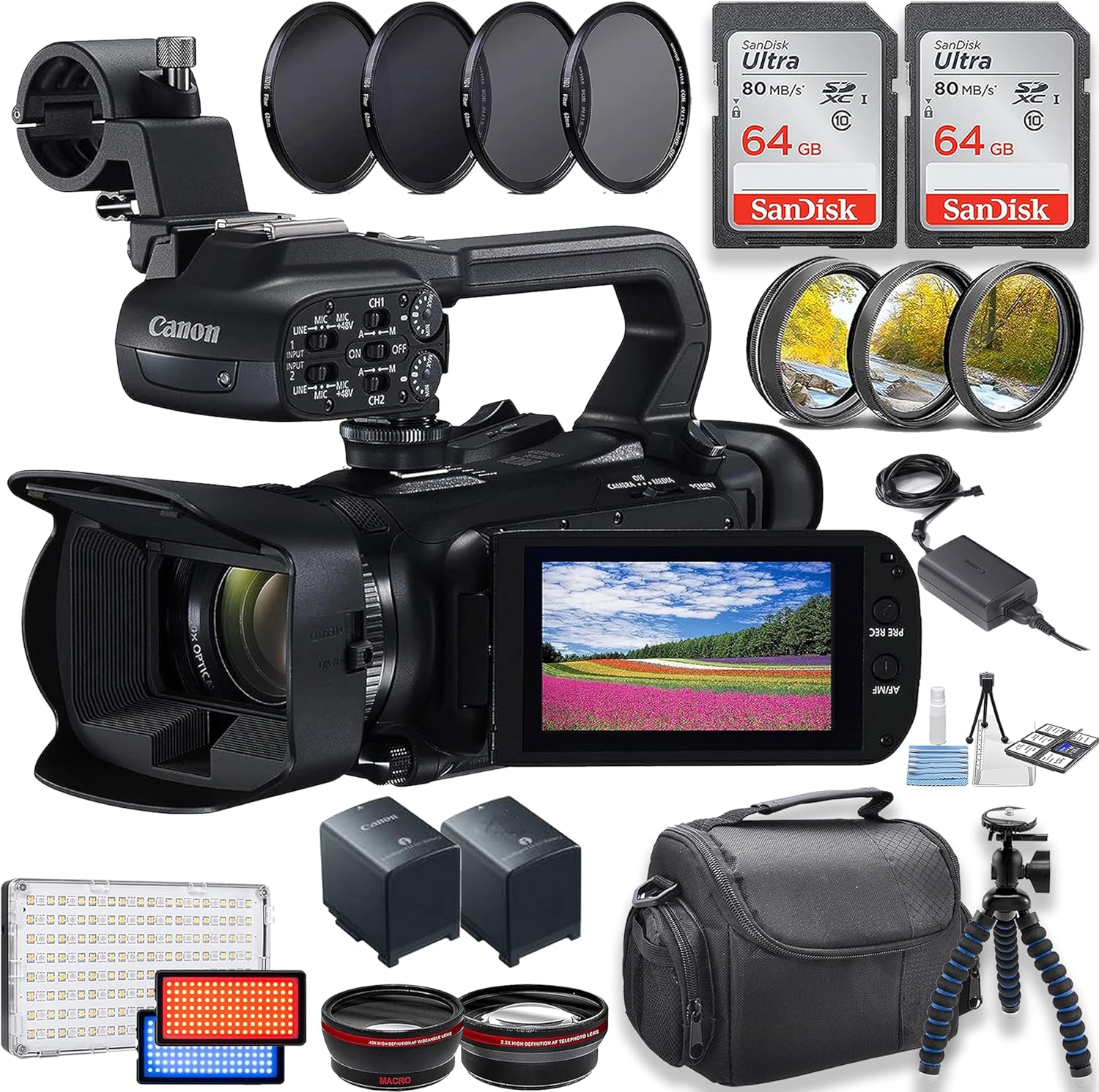
Image: The Canon XA60 Professional UHD 4K Camcorder shown with various bundled accessories including memory cards, filters, and an LED video light.
Key Features:
- UHD 4K30 and Full HD 1080p60 video capture.
- Integrated 20x 4K/HD optical zoom lens with 8-blade circular iris.
- 1/2.3" CMOS sensor and DIGIC DV6 image processor.
- Dynamic IS 5-axis image stabilization.
- 3.5" touchscreen LCD and built-in OLED electronic viewfinder (EVF).
- Dual SD card slots for flexible recording.
- Two XLR audio inputs and one mini-HDMI output.
Setup
1. Unboxing and Initial Inspection
Carefully remove all components from the packaging. Verify that all items are present:
- Canon XA60 Professional UHD 4K Camcorder
- Canon PD-E1 USB Power Adapter
- Canon BP-820 Lithium-Ion Single Battery Pack (and potentially an extra battery)
- Lens Hood with Lens Barrier
- Handle Unit
- Memory Cards (e.g., 2pc 64GB SD cards)
- Filter Kits (e.g., 3 Piece Filter Kit, 4 Piece Macro Kit, Wide and Tele Filters)
- LED Video Light
- Tripod
- Camera Case
- Cleaning Kit
2. Battery Installation and Charging
- Insert the BP-820 Lithium-Ion Battery Pack into the battery compartment on the rear of the camcorder until it clicks into place.
- Connect the Canon PD-E1 USB Power Adapter to the camcorder and a power outlet to charge the battery. The charging indicator will illuminate.
- Ensure the battery is fully charged before first use.
3. Memory Card Insertion
The XA60 features dual SD card slots.
- Locate the SD card slots, typically on the side or rear of the camcorder.
- Insert the 64GB SD memory cards into the slots with the label facing the correct direction until they click.
- To remove, gently push the card in until it springs out.
4. Attaching Accessories
- Handle Unit: Attach the handle unit to the top of the camcorder by aligning the mounting points and securing it with the locking mechanism. This provides additional audio inputs (XLR) and controls.
- Lens Hood: Attach the lens hood to the front of the lens to reduce glare and protect the lens.
- LED Video Light: Mount the LED video light onto the accessory shoe on the handle unit or camcorder body. Connect it as per the light's instructions.
- Tripod: Secure the camcorder to a tripod using the tripod mount screw on the bottom for stable shooting.

Image: The Canon XA60 camcorder, showcasing its compact design and handle unit attachment point.
Operating Instructions
1. Powering On/Off
Locate the power switch, typically near the battery compartment or on the side. Slide or press it to the 'ON' position to power on the camcorder. To power off, slide or press it to the 'OFF' position.
2. Basic Recording
- Select Recording Mode: Use the mode dial or menu to select your desired recording mode (e.g., UHD 4K30, Full HD 1080p60).
- Framing Your Shot: Use the 3.5" touchscreen LCD or the built-in OLED electronic viewfinder (EVF) to compose your shot. Adjust the angle of the LCD for comfortable viewing.
- Zoom: Use the zoom rocker on the handle or camcorder body to zoom in (telephoto) or out (wide-angle). The camcorder features a 20x optical zoom, extendable to 800x digitally.
- Focus: The XA60 offers various autofocus modes (Hybrid, Normal, Face Only, Instant, Canon's Medium) and full manual focus. Select the appropriate mode via the menu or dedicated button. For manual focus, use the focus ring on the lens.
- Start/Stop Recording: Press the REC button (usually red) to start recording. Press it again to stop.

Image: Side view of the Canon XA60 camcorder, highlighting the control layout and handle unit.
3. Advanced Settings
- Image Stabilization: The Dynamic IS 5-axis image stabilization system helps minimize camera shake. Ensure it is enabled in the menu for smoother footage.
- Audio Input: Utilize the two XLR audio inputs on the handle unit for professional microphones, ensuring high-quality audio capture. Adjust audio levels using the dedicated controls.
- Dual SD Card Recording: The camcorder supports automatic switching between cards when one fills up, or simultaneous recording to both cards for backup. Configure this in the recording settings.
- Output: Connect the camcorder to an external monitor or recorder via the mini-HDMI port for live monitoring or higher-quality external recording. The camcorder can output up to 1920 x 1080p 10-bit 4:2:2 video at 59.94 fps.
- User-Assignable Buttons: Customize the function of user-assignable buttons to quickly access frequently used settings.

Image: Front view of the Canon XA60 camcorder, showing the lens and 4K branding.
Maintenance
1. Cleaning
- Lens: Use a soft, lint-free cloth or a lens brush from the cleaning kit to gently remove dust and smudges. For stubborn marks, use a specialized lens cleaning solution.
- Body: Wipe the camcorder body with a soft, dry cloth. For tougher dirt, slightly dampen the cloth with water. Avoid harsh chemicals.
- LCD Screen: Use a microfiber cloth specifically designed for screens.
2. Storage
- Store the camcorder in a cool, dry place, away from direct sunlight and extreme temperatures.
- If storing for an extended period, remove the battery.
- Use the provided camera case for protection during transport and storage.
3. Battery Care
- Avoid fully discharging the battery frequently.
- Charge the battery in a well-ventilated area.
- If the battery will not be used for a long time, charge it to about 50% and store it separately from the camcorder.
Troubleshooting
This section addresses common issues you might encounter with your Canon XA60 camcorder.
| Problem | Possible Cause | Solution |
|---|---|---|
| Camcorder does not power on. | Battery is not charged or not inserted correctly. | Ensure battery is fully charged and correctly inserted. Check power adapter connection if using AC power. |
| Cannot record video. | Memory card full, locked, or not inserted. Incorrect recording settings. | Check memory card capacity and ensure it's unlocked. Reinsert card. Verify recording mode and settings. |
| Poor image quality. | Lens is dirty. Incorrect focus or exposure settings. | Clean the lens. Adjust focus manually or select an appropriate autofocus mode. Check lighting and exposure settings. |
| No audio recording. | Microphone not connected or audio levels too low. | Ensure external microphone is properly connected to XLR inputs. Adjust audio recording levels. Check internal microphone settings. |
| Video appears jerky or shaky. | Image stabilization is off or insufficient for conditions. | Ensure Dynamic IS 5-axis image stabilization is enabled. Use a tripod for very stable shots. |
Specifications
Detailed technical specifications for the Canon XA60 Professional UHD 4K Camcorder.
| Feature | Specification |
|---|---|
| Item Model Number | Canon XA60 |
| Item Weight | 2 pounds |
| Product Dimensions | 3 x 3 x 4 inches |
| Photo Sensor Technology | CMOS |
| Video Capture Resolution | 4K |
| Maximum Focal Length | 73 Millimeters |
| Maximum Aperture | 1.8 f |
| Flash Memory Type | SD |
| Video Capture Format | MP4 |
| Supported Audio Format | PCM, Dolby Digital/AC-3 |
| Screen Size | 3.5 Inches |
| Connectivity Technology | Wireless |
| Color | Black |
| Special Features | Wireless, compact |
Warranty and Support
For detailed warranty information, please refer to the official warranty card or documentation included with your Canon XA60 camcorder at the time of purchase. Warranty terms and conditions may vary by region.
If you require technical assistance, repairs, or have questions not covered in this manual, please contact Canon customer support through their official website or the contact information provided in your product packaging. Ensure you have your product model number (Canon XA60) and serial number ready when contacting support.


