
1. Overview
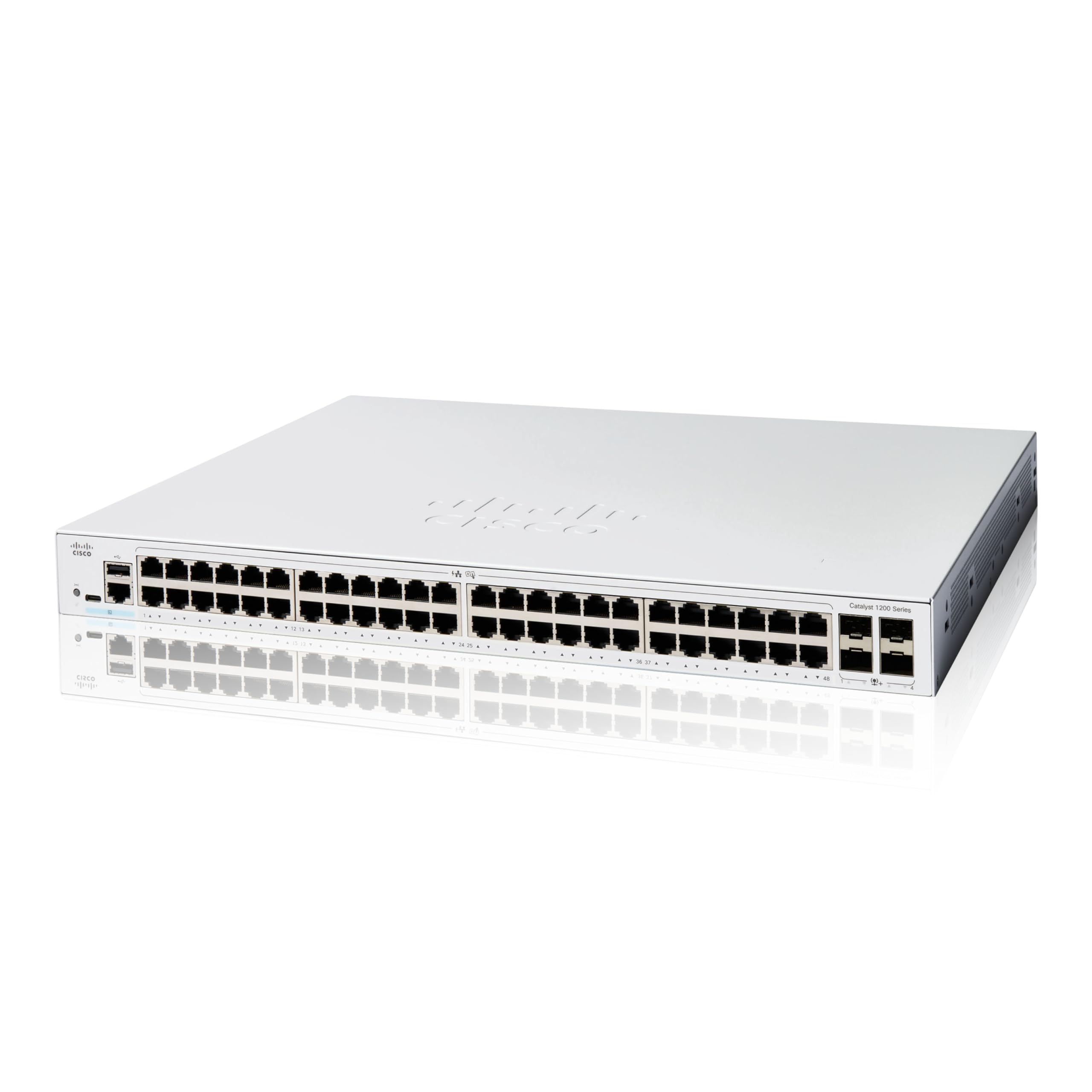
The Cisco Catalyst 1200-48T-4G Smart Switch is designed to provide powerful network performance, security, and reliability for small business networks. It integrates a comprehensive suite of network features to support your operational needs.
Key features include:
- 48 ports 10/100/1000 + 4x 1GE SFP for versatile connectivity.
- Intuitive management via the Cisco Business mobile app, local web interface, and Cisco Business Dashboard.
- Integrated IEEE 802.1X port security, denial-of-service (DoS) attack prevention, and access control lists (ACLs) for enhanced network security.
- Energy-efficient operation compliant with IEEE 802.3az, optimizing power usage and reducing operational costs.
- No subscription or licenses required for use.

Introduction Video
Video 1: An introductory overview of the Cisco Catalyst series switches, highlighting their features and benefits for small businesses.
2. Package Contents
Verify that your package contains the following items:
- Cisco Catalyst 1200-48T-4G Smart Switch
- Power cord or adapter
- USB Type C cable
- Mounting hardware
Unboxing Video
Video 2: A detailed unboxing of the Cisco Catalyst 1200 Series Switches, showing all included components.
3. Setup
Follow these steps to set up your Cisco Catalyst 1200-48T-4G Smart Switch:
- Unpack the Switch: Carefully remove the switch and all accessories from the packaging.
- Connect Power: Connect the power adapter to the switch's power input and then plug the power cord into an electrical outlet. Ensure the power LED on the switch illuminates.
- Connect to Router: Use an Ethernet cable to connect one of the switch's Gigabit Ethernet ports to your network router or gateway.
- Connect Devices: Connect your network devices (computers, servers, access points) to the remaining Ethernet ports on the switch.
- Initial Configuration (Optional): For initial setup and advanced configuration, download the Cisco Business mobile app or access the local web interface. Scan the QR code on the switch or refer to the Quick Start Guide for details.

4. Operating the Switch
Once powered on and connected, the Cisco Catalyst 1200-48T-4G Smart Switch operates automatically to provide network connectivity. For advanced management and monitoring, utilize the Cisco Business mobile app or the web-based user interface.
Cisco Business Mobile App
The Cisco Business mobile app allows you to:
- Monitor device status and network performance.
- Perform actions such as rebooting devices or upgrading firmware.
- Manage connected clients and view usage statistics.
The app is available for both Android and iOS devices.
Web User Interface and Cisco Business Dashboard
For more detailed control and advanced configuration options, access the switch's web user interface or the Cisco Business Dashboard. These tools provide comprehensive settings for VLANs, QoS, security, and other network parameters.
5. Maintenance
Regular maintenance ensures optimal performance and longevity of your switch:
- Firmware Updates: Periodically check for and install the latest firmware updates to benefit from new features, performance improvements, and security patches. This can often be done via the Cisco Business mobile app or web interface.
- Cleaning: Keep the switch free from dust and debris. Use a soft, dry cloth to clean the exterior. Ensure ventilation openings are clear to prevent overheating.
- Environmental Conditions: Operate the switch within recommended temperature and humidity ranges to prevent damage.
- Cable Management: Ensure all network cables are securely connected and properly organized to prevent accidental disconnections or damage.
6. Troubleshooting
If you encounter issues with your switch, consider the following troubleshooting steps:
- No Power: Verify that the power cord is securely connected to both the switch and the electrical outlet. Check if the power adapter is functioning correctly.
- No Network Connectivity: Ensure all Ethernet cables are properly connected to the correct ports on the switch and connected devices. Check the link/activity LEDs on the switch ports; they should be lit or blinking.
- Slow Performance: Check for excessive network traffic or potential loops. Ensure your router and ISP connection are functioning optimally. Consider updating the switch firmware.
- Accessing Web Interface/App: Ensure your device is connected to the same network as the switch. Verify the correct IP address or use the discovery features of the Cisco Business mobile app.
- Factory Reset: As a last resort, if the switch is unresponsive or misconfigured, perform a factory reset. Refer to the Quick Start Guide for instructions on how to perform a factory reset. Note: A factory reset will erase all custom configurations.
7. Specifications
| Feature | Description |
|---|---|
| Brand | Cisco |
| Model Number | C1200-48T-4G |
| Number of Ports | 48 |
| Interface | 48x 10/100/1000 Gigabit Ethernet, 4x 1GE SFP |
| Data Transfer Rate | 1000 Megabits Per Second |
| Product Dimensions | 22.4"L x 16.4"W x 3.8"H |
| Item Weight | 4.49 Kilograms |
| Voltage | 100 Volts (AC) |
| Platform | No Operating System |
| UPC | 889728521765 |
8. Warranty and Support
The Cisco Catalyst 1200-48T-4G Smart Switch comes with a Limited Lifetime Hardware Warranty, which includes return-to-factory replacement. Additionally, you receive 1-year complimentary phone support from the Small Business Support Center.
For further assistance, documentation, or to contact support, please visit the official Cisco website or refer to the Quick Start Guide included with your product.
Online resources for Cisco Catalyst 1200 Series Switches can be found at: cisco.com/go/c1200

