
1. Overview
The micfuns KT900DSP is a versatile digital pre-stage effector designed to enhance your audio experience, particularly for karaoke and live sound applications. It integrates advanced anti-howling technology, a powerful DSP reverb chip, and multiple input options including USB, MP3, Bluetooth, and Optical. This manual provides detailed instructions for setting up, operating, and maintaining your KT900DSP unit.

Image: The micfuns KT900DSP unit, showcasing its sleek design and front panel controls.
2. Product Features
- Digital Pre-stage Effector: Advanced digital processing for superior audio quality.
- Anti-Howling Technology: Utilizes multi-point frequency shift technology to effectively suppress feedback and prevent voice collapse, ensuring clear and comfortable singing.
- Built-in Effect Chip: Delivers rich reverberation and echo effects for professional-grade vocal performance.
- Multiple Input Options: Supports 4-way input including audio input (RCA), AUX audio input, Optical fiber with antenna, USB, and Bluetooth for versatile connectivity.
- Diverse Output Ports: Features subwoofer output, Center Speaker Output, recording signal output, and XLR output ports for comprehensive system integration.
- User-Friendly Controls: Intuitive interface with hidden knobs for fine-tuning sound adjustments.
- Wide Application: Ideal for weddings, concerts, bars, outdoor performances, and home karaoke setups.

Image: Visual representation of the FBX One Touch Anti-Whistling feature, highlighting its feedback suppression capabilities.
3. Package Contents
Upon unpacking your micfuns KT900DSP, please ensure all items are present:
- micfuns KT900DSP Digital Pre-stage Effector Unit
- Power Cable
- Remote Control
- Small Screwdriver (for fine adjustments)
- User Manual (this document)
4. Controls and Interfaces
Front Panel Controls
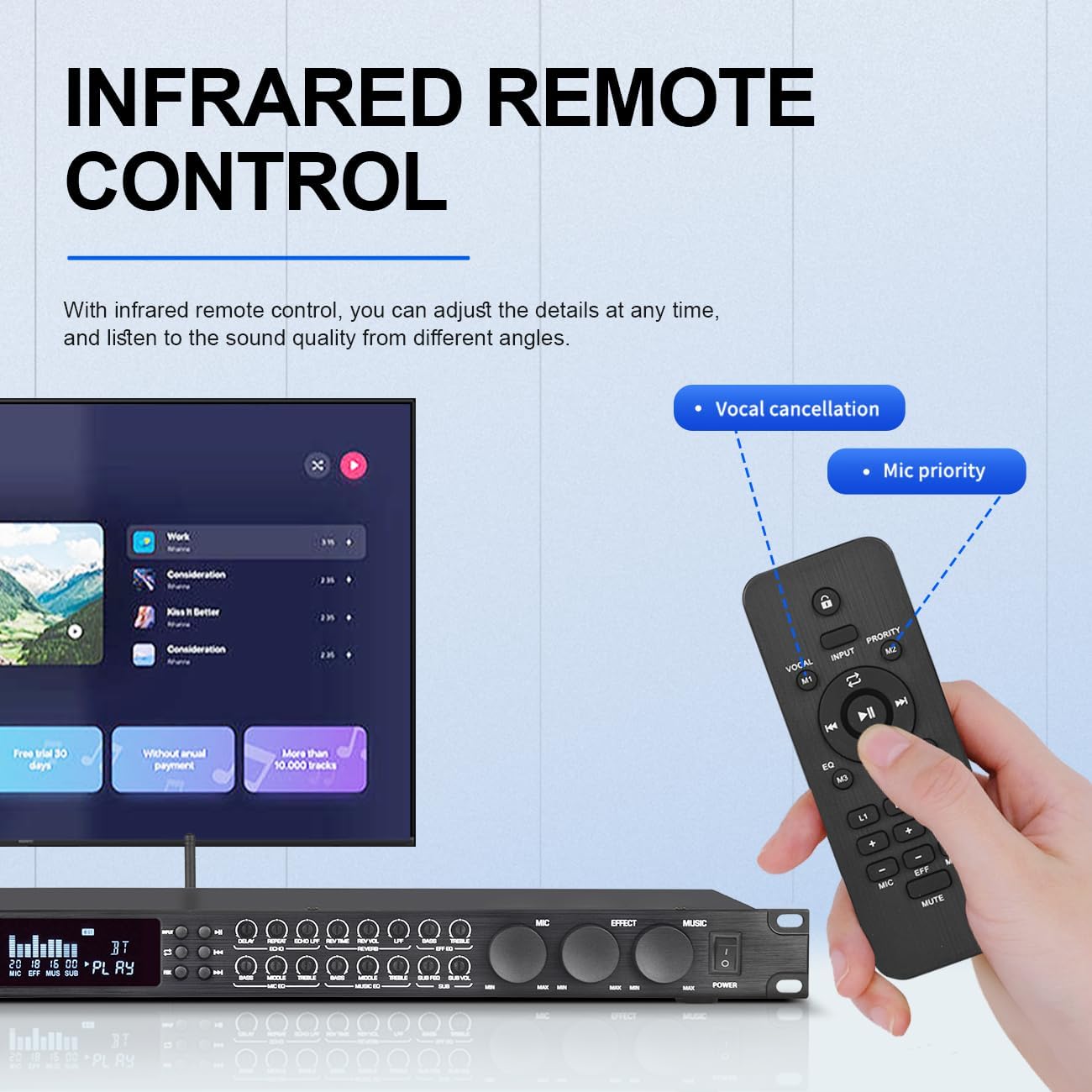
Image: Detailed view of the KT900DSP front panel, showing various knobs, buttons, and display.
- Mic Bass: Adjusts the low-frequency level of the microphone.
- Mic Midrange: Adjusts the mid-frequency level of the microphone.
- Mic Treble: Adjusts the high-frequency level of the microphone.
- Music Bass: Adjusts the low-frequency level of the music.
- Music Midrange: Adjusts the mid-frequency level of the music.
- Music Treble: Adjusts the high-frequency level of the music.
- Bass Frequency: Controls the cutoff frequency for bass.
- Bass Volume: Adjusts the overall bass volume.
- Echo Delay: Controls the delay time of the echo effect.
- Echo Repeat: Adjusts the number of echo repetitions.
- Echo Lowpass: Filters out high frequencies from the echo.
- Reverb Time: Adjusts the duration of the reverberation.
- Reverb Low Frequency: Controls the low-frequency component of the reverb.
- Balanced Bass: Adjusts the balance of bass frequencies.
- Mic Master Volume: Overall volume control for microphones.
- Effect Master Volume: Overall volume control for effects.
- Master Music Volume: Overall volume control for music.
- Audio Input Options: Buttons to select input sources (USB, BT, Optical, AUX).
- Play/Pause: Controls media playback.
- Previous Song: Skips to the previous track.
- Next Song: Skips to the next track.
- One-Touch Anti-Whistle (FBX): Activates feedback suppression.
- High-Definition Display: Shows current settings and status.
- USB Port: For USB media playback.
- Infrared Reception: For remote control signals.
Rear Panel Connections
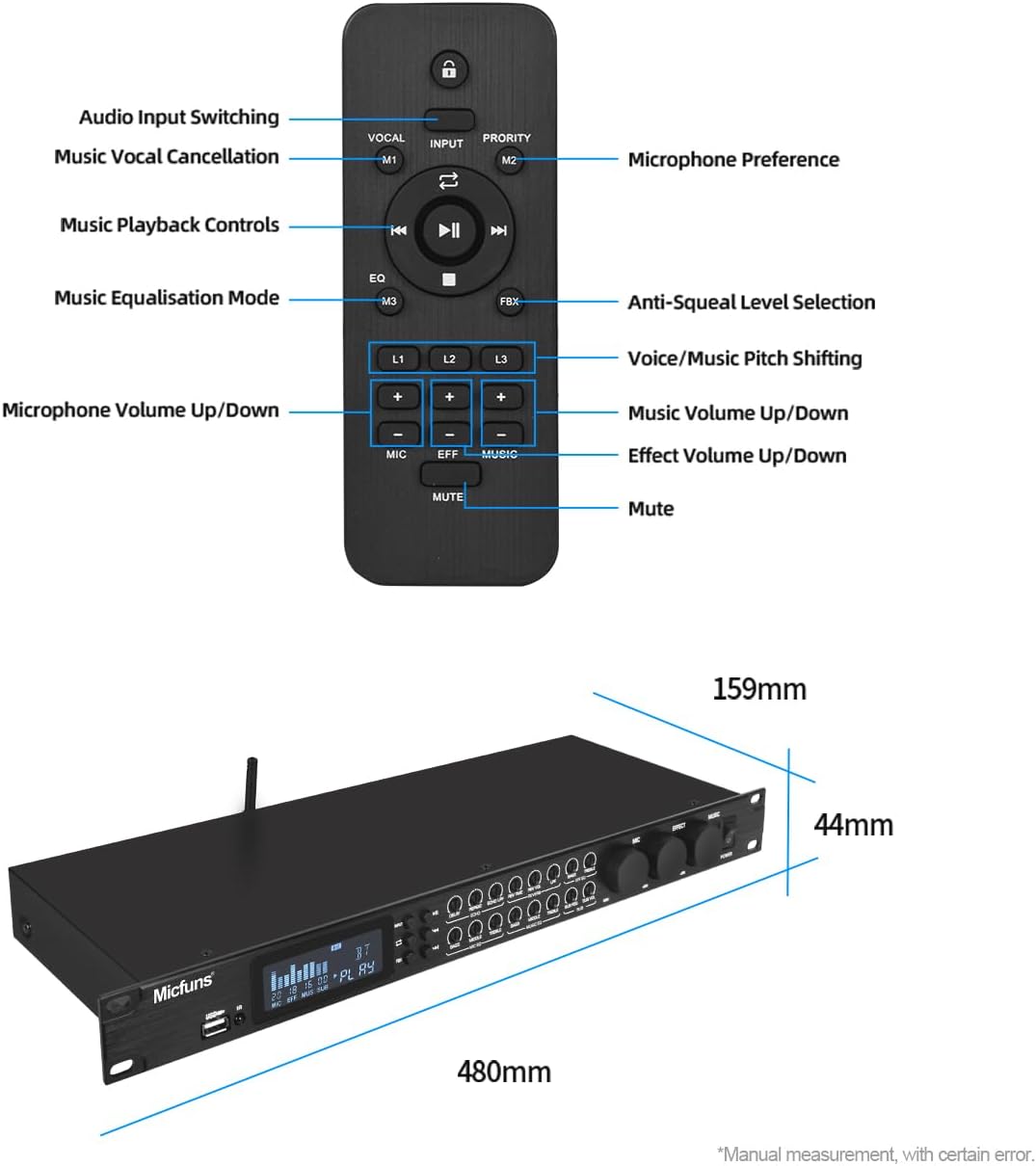
Image: Detailed view of the KT900DSP rear panel, showing various input and output ports.
- Bass Output XLR: Balanced XLR output for subwoofer.
- Right Channel Output XLR: Balanced XLR output for the right main speaker.
- Left Channel Output XLR: Balanced XLR output for the left main speaker.
- Left/Right Output RCA: Unbalanced RCA outputs for main speakers.
- Digital Coaxial Signal Input: Coaxial audio input.
- Digital Fibre-Optic Signal Input: Optical audio input.
- Auxiliary Signal 2 Input RCA: RCA auxiliary input 2.
- Auxiliary Signal 1 Input RCA: RCA auxiliary input 1.
- Music Signal Preset Volume: Adjusts the preset volume for music input.
- Mic Input Volume: Adjusts the volume for microphone inputs.
- Mic Input: 1/4" TRS microphone input jacks.
- Power Input: AC power connection.
Remote Control
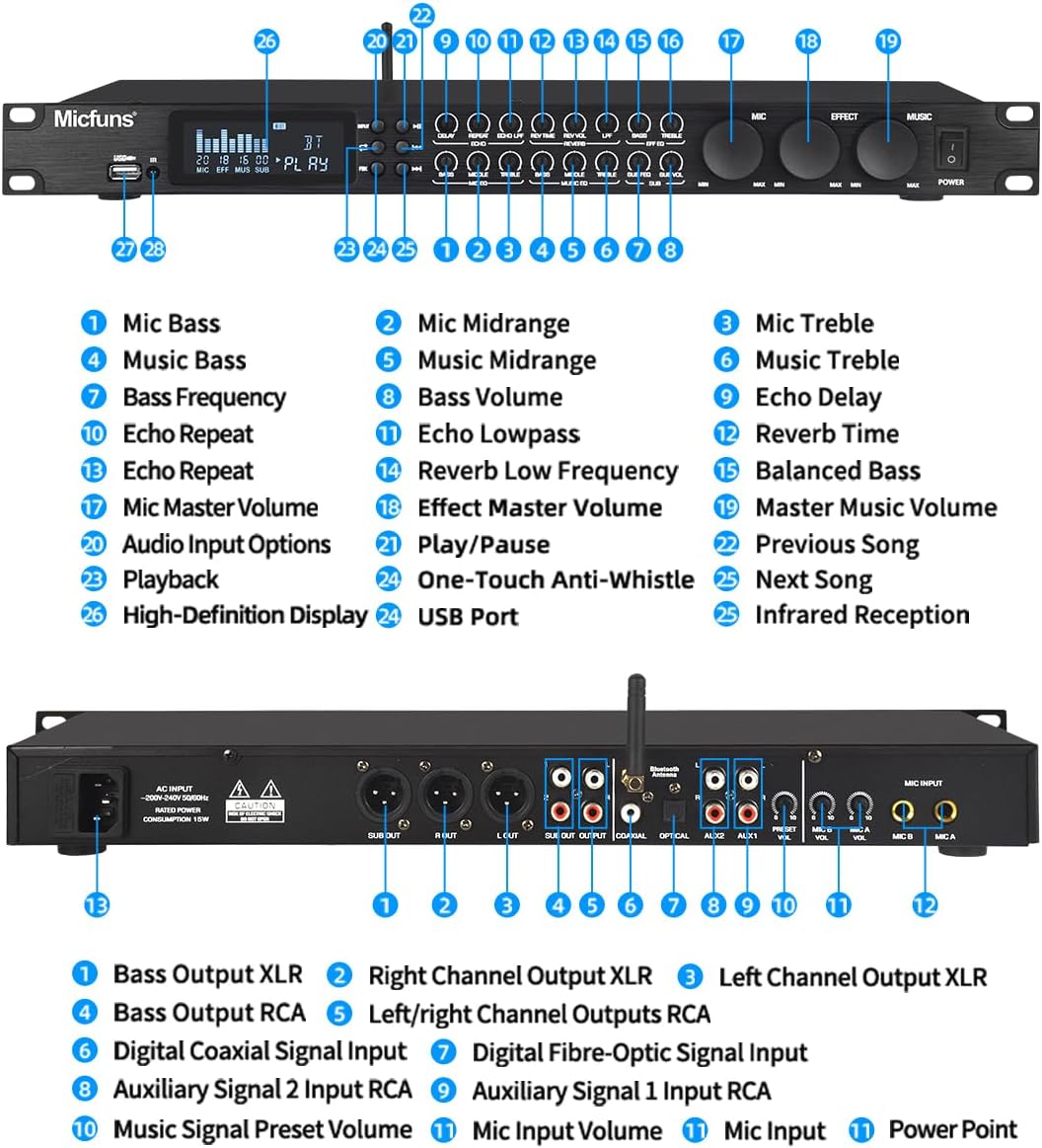
Image: Layout of the remote control for the KT900DSP, detailing button functions.
- Audio Input Switching: Selects between different audio sources.
- Music Vocal Cancellation: Removes vocals from music tracks.
- Microphone Preference: Prioritizes microphone audio.
- Music Playback Controls: Play, pause, skip tracks.
- Music Equalisation Mode: Cycles through preset music EQ modes.
- Anti-Squeal Level Selection: Adjusts the level of feedback suppression.
- Voice/Music Pitch Shifting: Adjusts the pitch of vocals or music.
- Microphone Volume Up/Down: Adjusts microphone volume.
- Music Volume Up/Down: Adjusts music volume.
- Effect Volume Up/Down: Adjusts effect volume.
- Mute: Mutes all audio output.
5. Setup and Connections
Power Connection
Connect the provided power cable to the Power Input port on the rear panel of the KT900DSP and then to a suitable AC power outlet.
Antenna Installation
Screw the provided Bluetooth antenna into the 'Bluetooth Antenna' port on the rear panel. For wireless microphones, ensure their antennas are also properly installed and extended.
Audio Input Connections
The KT900DSP supports various audio input methods:
- AUX (RCA): Connect your audio source (e.g., CD player, DVD player, computer) to the 'Auxiliary Signal 1 Input RCA' or 'Auxiliary Signal 2 Input RCA' ports using RCA cables.
- Optical/Coaxial: For digital audio sources (e.g., TV, game console), connect to the 'Digital Fibre-Optic Signal Input' or 'Digital Coaxial Signal Input' ports. Ensure your audio device has an optical fiber output interface if using optical.
- USB: Insert a USB flash drive containing MP3 audio files into the 'USB Port' on the front panel.
- Bluetooth: Enable Bluetooth on your mobile device and pair with the KT900DSP. Select 'BT' as the input source on the unit.
Audio Output Connections
Connect the KT900DSP to your amplifier, powered speakers, or recording device:
- XLR Outputs: Use XLR cables to connect the 'Left Channel Output XLR' and 'Right Channel Output XLR' to your main amplifier or powered speakers. For a subwoofer, use the 'Bass Output XLR'.
- RCA Outputs: Use RCA cables to connect the 'Left/Right Output RCA' to an amplifier or recording device.
Microphone Connections
Plug your wired microphones into the 'Mic Input' jacks on the front panel. For wireless microphones, ensure they are paired with the unit and their volume is adjusted.
For a visual guide on connections and basic operation, please refer to the video below:
Video: A detailed usage guide demonstrating wiring and operation for a similar digital karaoke processor. This video illustrates connecting XLR cables for main and subwoofer outputs, RCA inputs for audio sources, and basic control adjustments.
6. Operating Instructions
Power On/Off
Press the 'POWER' button on the front panel to turn the unit on or off.
Input Selection
Use the 'INPUT' button on the front panel or the remote control to cycle through available audio sources: USB, BT (Bluetooth), OPT (Optical), COAX (Coaxial), AUX1, AUX2.
Volume Control
- Master Music Volume: Use the large 'MUSIC VOL' knob on the front panel to adjust the overall music volume.
- Mic Master Volume: Use the 'MIC VOL' knob to adjust the overall microphone volume.
- Effect Master Volume: Use the 'EFFECT' knob to adjust the overall volume of the applied effects.
- Individual EQ Volumes: Use the smaller knobs for 'Mic Bass', 'Mic Midrange', 'Mic Treble', 'Music Bass', 'Music Midrange', 'Music Treble' to fine-tune specific frequency ranges.
Effect Adjustment
The KT900DSP offers various effects to enhance vocals:
- Echo: Adjust 'Echo Delay' and 'Echo Repeat' knobs for desired echo characteristics.
- Reverb: Adjust 'Reverb Time' and 'Reverb Low Frequency' knobs for desired reverberation.
- Exciter: Use the 'Exciter' knob to add brightness and presence to vocals.
Anti-Howling (FBX)
Press the 'FBX' button on the front panel to activate the anti-howling feature. This will help eliminate microphone feedback. The remote control also offers 'Anti-Squeal Level Selection' for further adjustment.
Bluetooth Playback
Once your device is paired via Bluetooth and 'BT' input is selected, you can control music playback using the 'Play/Pause', 'Previous Song', and 'Next Song' buttons on the front panel or remote.
Video: A demonstration of a professional home KTV audio effector, highlighting its features and sound quality. This video provides a general overview of a similar product's capabilities.
7. Specifications
| Feature | Specification |
|---|---|
| Item Weight | 5.29 pounds |
| Product Dimensions | 3.54 x 21.65 x 10.24 inches |
| Date First Available | September 14, 2023 |
8. Troubleshooting
If you encounter any issues with your KT900DSP, please refer to the following common problems and solutions:
- No Sound Output:
- Ensure the unit is powered on and all cables (input and output) are securely connected.
- Check all volume levels (master, music, mic, effect) and ensure they are not muted or set too low.
- Verify the correct input source is selected.
- Check the connected amplifier or powered speakers for power and volume.
- Microphone Feedback (Howling):
- Activate the 'FBX' (Anti-Whistle) feature on the front panel or remote.
- Reduce microphone volume or adjust microphone EQ settings (Bass, Mid, Treble).
- Adjust the position of microphones relative to speakers.
- Bluetooth Connection Issues:
- Ensure the Bluetooth antenna is securely attached.
- Select 'BT' as the input source on the KT900DSP.
- Make sure Bluetooth is enabled on your mobile device and it's within range.
- Forget the device on your mobile phone's Bluetooth settings and try pairing again.
- Distorted Sound:
- Reduce the master volume or individual input/mic volumes to prevent clipping.
- Check cable connections for any damage or loose contacts.
- Ensure the impedance of connected devices is compatible.
9. Maintenance
To ensure the longevity and optimal performance of your micfuns KT900DSP, follow these maintenance guidelines:
- Cleaning: Use a soft, dry cloth to wipe the exterior of the unit. Avoid using liquid cleaners, solvents, or abrasive materials.
- Ventilation: Ensure the unit has adequate ventilation to prevent overheating. Do not block any ventilation openings.
- Storage: When not in use for extended periods, store the unit in a cool, dry place away from direct sunlight and extreme temperatures.
- Handling: Handle the unit with care to avoid physical damage.
10. Warranty and Support
Your micfuns KT900DSP comes with a standard manufacturer's warranty. Please refer to the warranty card included in your package for specific terms and conditions. For technical support, troubleshooting assistance, or warranty claims, please contact your retailer or the manufacturer's customer service department.
Keep your purchase receipt as proof of purchase for any warranty-related inquiries.