
BAROCCOMiSTEL MD600 Alpha BT RGB
MiSTEL MD600 Alpha BT RGB Split Keyboard User Manual
Model: MD600 Alpha BT RGB
Brand: BAROCCOMiSTEL
1. Introduction
The MiSTEL MD600 Alpha BT RGB is an ergonomic, 60% split mechanical keyboard designed for comfort and performance. It features PBT double-shot keycaps, Bluetooth 5.0 connectivity, and compatibility with both Mac and Windows operating systems. This manual provides detailed instructions for setting up, operating, maintaining, and troubleshooting your keyboard.
What's in the Box
- MiSTEL MD600 Alpha BT RGB Split Keyboard
- USB Cable
- User Manual (this document)

2. Setup
2.1 Connecting the Keyboard Halves
The MD600 Alpha is a split keyboard, allowing for ergonomic positioning. Connect the left and right halves using the provided USB-C to USB-C cable. Ensure both ends are securely plugged into the respective ports on each keyboard half.

2.2 Wired Connection
To use the keyboard in wired mode, connect the main USB-C cable from the keyboard (typically the right half, marked 'PC') to an available USB port on your computer. The keyboard will be automatically recognized by your operating system (Mac/Windows).
2.3 Wireless (Bluetooth 5.0) Connection
The MD600 Alpha supports Bluetooth 5.0 for wireless connectivity. It can pair with up to three devices simultaneously.
- Ensure the keyboard is charged or connected via USB for initial setup.
- Turn on the Bluetooth function on your computer or device.
- On the keyboard, press Fn + X, Fn + C, or Fn + V to select one of the three Bluetooth profiles. The corresponding LED indicator will blink, indicating pairing mode.
- On your device, search for Bluetooth devices and select "MiSTEL MD600 Alpha" (or similar) from the list.
- Once paired, the LED indicator will stop blinking and remain solid.
- To switch between paired devices, simply press Fn + X, Fn + C, or Fn + V.

3. Operating Instructions
3.1 Ergonomic Design and Layout
The MD600 Alpha features an ergonomic split design and a 60% curvy Alice layout. This design allows you to adjust the keyboard distance and position to match your body shape and natural finger alignment, reducing strain and promoting better posture.


3.2 Adjustable Keyboard Angle
Magnetic rubber feet are included, allowing you to adjust the keyboard's angle and height for optimal comfort. You can achieve tilting (6°) or tenting (4.5°) positions based on your preference.

3.3 Macro Function Mode
The entire keyboard is programmable, allowing you to assign macros, remap most keys, and create custom key bindings. This customization is beneficial for gamers, typists, and programmers to tailor the keyboard to specific workflows.
3.4 Dual Mode: Wireless & Wired
Enjoy the flexibility of both wireless (Bluetooth) and wired connectivity. The wireless mode provides a clean desktop setup, while the wired mode ensures faster response times, ideal for gaming.

3.5 Battery Information
The MD600 Alpha has a built-in 2000mAh lithium battery. Charging takes approximately 3.5 hours. Battery life in Bluetooth mode is about 220 hours without backlighting and 1.5-2 hours with LED RGB backlighting enabled.
3.6 Key Switches and Keycaps
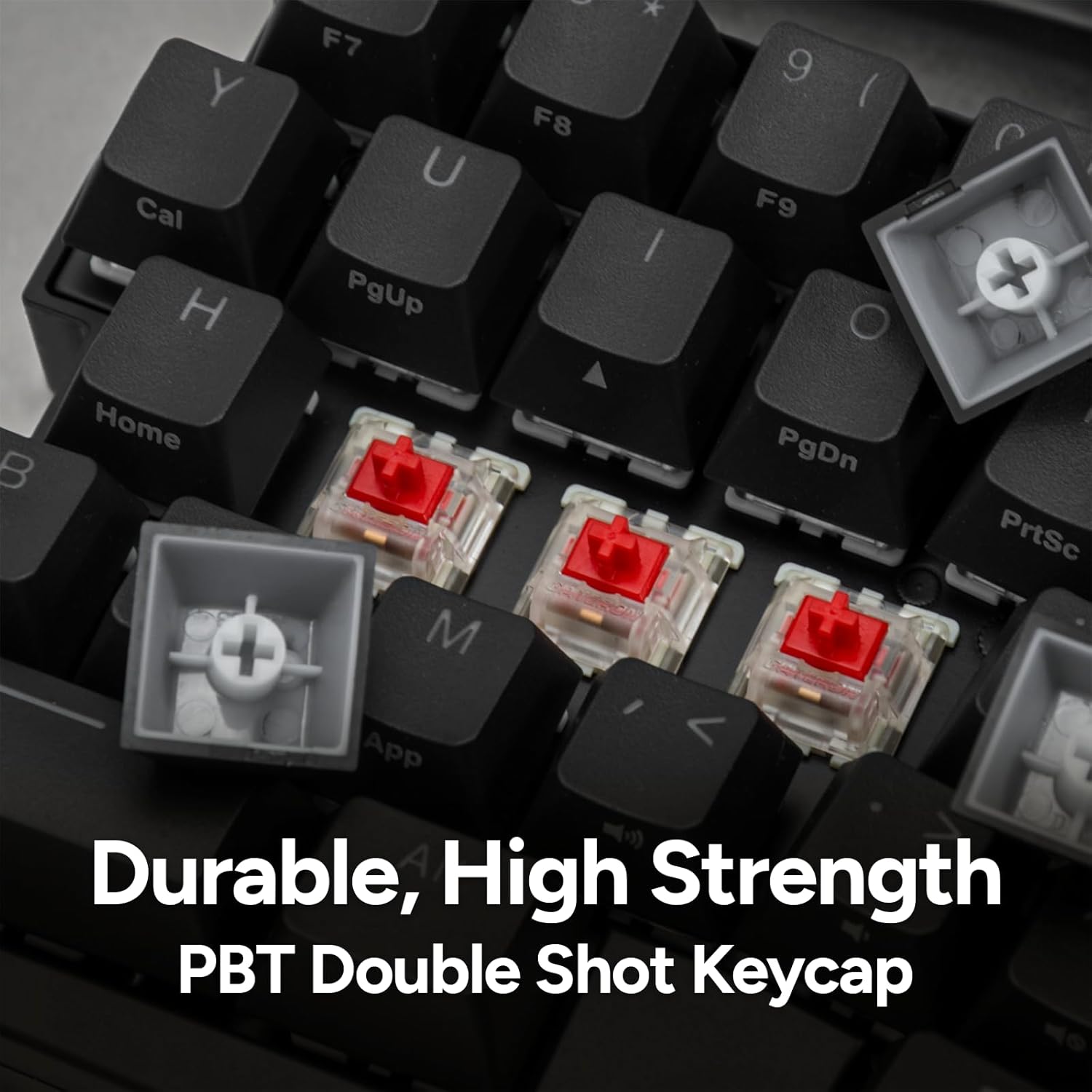
This model features Cherry MX Silent Red mechanical key switches, known for their quiet operation and linear feel. The keyboard is hot-swappable, allowing you to change switches without soldering. The keycaps are PBT Double Shot with an OEM profile, ensuring durability and legends that will not fade.

3.7 RGB Backlighting
The keyboard features customizable RGB backlighting. Refer to the manufacturer's official software or key combination guide for detailed instructions on adjusting lighting modes and colors.
4. Maintenance
4.1 Cleaning the Keyboard
To clean your keyboard, gently wipe the keycaps and chassis with a soft, damp cloth. For deeper cleaning, you may remove the keycaps using a keycap puller and clean underneath. Avoid using harsh chemicals or abrasive materials.
4.2 Replacing Key Switches
As the keyboard is hot-swappable, you can easily replace individual key switches without soldering. Use a switch puller tool to carefully remove the existing switch and insert a new compatible 3-pin or 5-pin mechanical switch. Ensure the pins align correctly before pressing the new switch into place.
5. Troubleshooting
5.1 Connectivity Issues
- Wired Connection Not Detected: Ensure the USB cable is securely connected to both the keyboard and the computer. Try a different USB port or cable.
- Bluetooth Pairing Failure: Ensure the keyboard is in pairing mode (LED blinking). Turn off and on your device's Bluetooth. Remove previous pairings for the keyboard on your device and try pairing again. Ensure the keyboard battery is not critically low.
- Intermittent Connection: Move the keyboard closer to your device to reduce interference. Ensure no other strong wireless signals are interfering.
5.2 Key Functionality Issues
- Keys Not Responding: Check if the keyboard is properly connected (wired or wireless). If hot-swappable, ensure the switch is fully seated. Try replacing the switch if it's faulty.
- Incorrect Key Output: This may indicate a macro or remapping issue. Refer to the manufacturer's software or reset instructions to restore default key functions.
5.3 Backlighting Issues
- Lights Not On/Dim: Ensure the keyboard is powered on and the battery is charged if in wireless mode. Adjust brightness settings using keyboard shortcuts or software.
- Inconsistent Lighting: This could be a software issue. Try reinstalling or updating the keyboard's control software.
6. Specifications
| Feature | Detail |
|---|---|
| Product Dimensions | 13.5 x 5.24 x 1.06 inches |
| Item Weight | 2.18 pounds |
| Manufacturer | MISTEL Co., Ltd |
| ASIN | B0CJ2GJS3S |
| Country of Origin | Taiwan |
| Batteries | 1 Lithium Polymer batteries required. (included) |
| Connectivity Technology | Wired/Wireless (Bluetooth 5.0) |
| Keyboard Description | Standalone, Split Ergonomic Mechanical |
| Special Feature | Backlit (RGB), Hot-swappable switches, Programmable Macro Function |
| Color | Cherry MX Silent Red (Switches), RGB (Backlighting) |
| Number of Keys | 64 |
| Style | Modern |
| Material | Acrylonitrile Butadiene Styrene (ABS) |
7. Warranty and Support
For detailed warranty information and technical support, please refer to the official BAROCCOMiSTEL website or contact their customer service directly. Keep your proof of purchase for warranty claims.