
Introduction
This manual provides detailed instructions for the installation, operation, maintenance, and troubleshooting of your new Laptop Keyboard for the Hyundai HyBook HTLB14INC4Z1SSG. Please read this manual carefully before proceeding with installation to ensure proper function and to avoid damage to your device.
Setup and Installation
Installing a laptop keyboard requires careful handling. If you are not comfortable performing this procedure, it is recommended to seek professional assistance.
Required Tools:
- Small Phillips head screwdriver
- Plastic pry tool (spudger)
- Anti-static wrist strap (recommended)
Installation Steps:
- Power Off and Disconnect: Ensure your laptop is completely powered off and disconnected from the power adapter. Remove the battery if it is external.
- Prepare Work Area: Work on a clean, flat, and static-free surface.
- Remove Old Keyboard:
- Locate and remove any screws securing the keyboard, often found on the bottom of the laptop or under a top bezel.
- Carefully use a plastic pry tool to release the keyboard from its clips or bezel.
- Gently lift the keyboard and disconnect the ribbon cable(s) from the motherboard. Note the orientation of the cable and the locking mechanism.
- Connect New Keyboard:
- Align the new keyboard's ribbon cable(s) with the connector(s) on the motherboard.
- Insert the cable(s) firmly and secure the locking mechanism. Ensure the cable is not bent or creased.
- Secure New Keyboard: Carefully place the new keyboard into its housing, ensuring all clips engage and it sits flush. Reinstall any screws removed in step 3.
- Reassemble and Test: Reinstall the battery (if removed) and connect the power adapter. Power on the laptop and test all keys to ensure proper functionality.
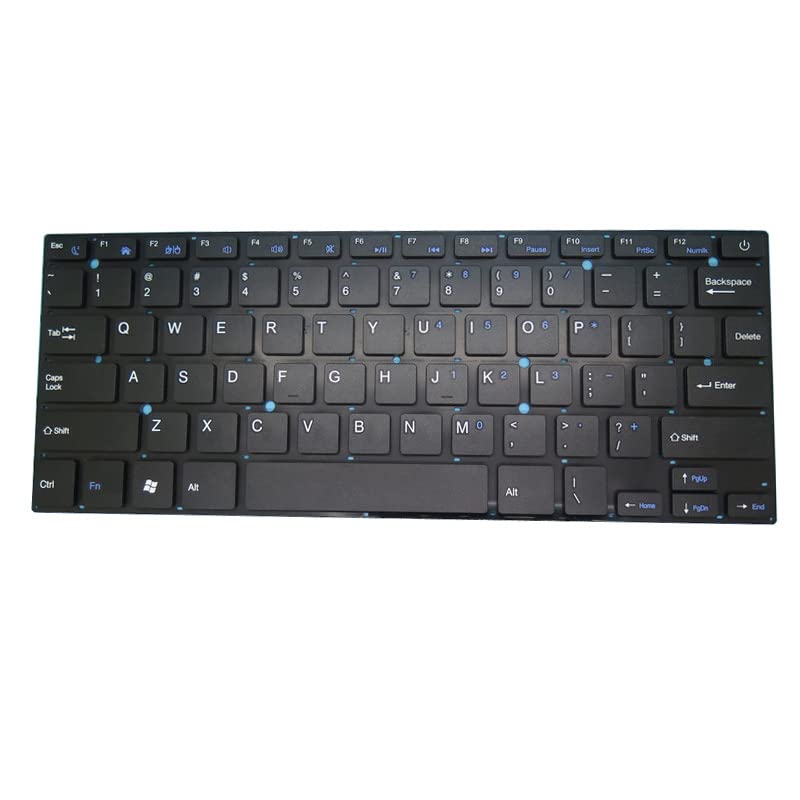
Figure 1: Image of the Hyundai HyBook HTLB14INC4Z1SSG Laptop Keyboard. This image shows the full English US layout of the replacement keyboard, highlighting its design and key arrangement.
Operating Instructions
Your new keyboard functions identically to the original. It features a standard English US layout.
Basic Functions:
- Typing: Press individual keys to input characters.
- Shift Key: Use with letter keys for uppercase, or with number/symbol keys for alternative symbols.
- Caps Lock: Toggles permanent uppercase input.
- Function (Fn) Keys: These keys (F1-F12) often have secondary functions (e.g., volume control, screen brightness, Wi-Fi toggle) when pressed in combination with the 'Fn' key, typically located near the bottom left of the keyboard. Refer to your laptop's specific user manual for detailed Fn key operations.
- Numeric Keypad: If present, activate with 'Num Lock' for number input.
Maintenance
Proper maintenance extends the life of your keyboard and ensures optimal performance.
Cleaning:
- Regular Cleaning: Use a soft, lint-free cloth lightly dampened with water or a mild cleaning solution (e.g., isopropyl alcohol) to wipe the keycaps and surrounding areas.
- Dust Removal: Use compressed air to blow out dust and debris from between the keys. Hold the can upright to prevent liquid propellant discharge.
- Avoid Liquids: Do not spray cleaning solutions directly onto the keyboard. Always apply to a cloth first.
General Care:
- Avoid eating or drinking directly over the keyboard to prevent spills and crumbs.
- Do not apply excessive force to the keys.
- Keep the laptop in a clean, dry environment.
Troubleshooting
If you encounter issues with your keyboard, try the following steps before seeking further assistance.
Common Issues and Solutions:
- Keyboard Not Responding:
- Ensure the ribbon cable is securely connected to the motherboard. Power off the laptop, disconnect the power, and re-seat the cable.
- Restart your laptop.
- Check Device Manager (Windows) or System Information (macOS) to see if the keyboard is detected. Reinstall or update keyboard drivers if necessary.
- Specific Keys Not Working:
- Clean around and under the affected keys with compressed air to remove debris.
- If cleaning does not resolve the issue, the key mechanism or internal circuit may be damaged.
- Incorrect Characters Appearing:
- Check your operating system's language and keyboard layout settings to ensure it is set to "English (US)".
- Restart your laptop.
Specifications
| Feature | Detail |
|---|---|
| Product Model Number | Keyboard |
| Compatible Laptop Model | Hyundai HyBook HTLB14INC4Z1SSG |
| Language Layout | English US |
| Color | Black |
| Product Dimensions | 11.81 x 7.87 x 3.94 inches |
| Item Weight | 1.76 pounds |
| ASIN | B0CHVQSN1W |
Warranty and Support
Warranty Information:
This product comes with a 90-day warranty from the date of purchase. This warranty covers manufacturing defects. Damage caused by improper installation, misuse, accidents, or unauthorized modifications is not covered.
Customer Support:
For technical assistance, warranty claims, or further inquiries, please contact the seller or retailer from whom you purchased this product. Please have your purchase details and product ASIN (B0CHVQSN1W) ready when contacting support.