
DUOYI B0CDWJFVQP
DUOYI 5-in-1 Indoor Air Quality Monitor User Manual
Model: B0CDWJFVQP
1. Introduction
Thank you for choosing the DUOYI 5-in-1 Indoor Air Quality Monitor. This device is designed to provide accurate and real-time measurements of key indoor air quality parameters, helping you maintain a healthy living and working environment. It detects Carbon Dioxide (CO2), Formaldehyde (HCHO), Volatile Organic Compounds (TVOC), Humidity, and Temperature.
This manual provides detailed instructions on how to set up, operate, and maintain your air quality monitor. Please read it thoroughly before use and keep it for future reference.
2. Safety Information
- Do not expose the device to extreme temperatures, direct sunlight, or high humidity.
- Avoid dropping or subjecting the device to strong impacts.
- Do not attempt to disassemble or modify the device. This will void the warranty and may cause damage.
- Keep the device away from water and other liquids.
- Use only the provided charging cable or a certified equivalent.
- Ensure proper ventilation when using the device, especially during initial calibration.
- This device is for informational purposes and should not be used as a substitute for professional air quality testing or medical advice.
3. Package Contents
Please check the package for the following items:
- DUOYI 5-in-1 Indoor Air Quality Monitor
- USB Type-C Charging Cable
- User Manual
4. Product Overview
The DUOYI Air Quality Monitor features a compact design with an intuitive display and easy-to-use buttons.
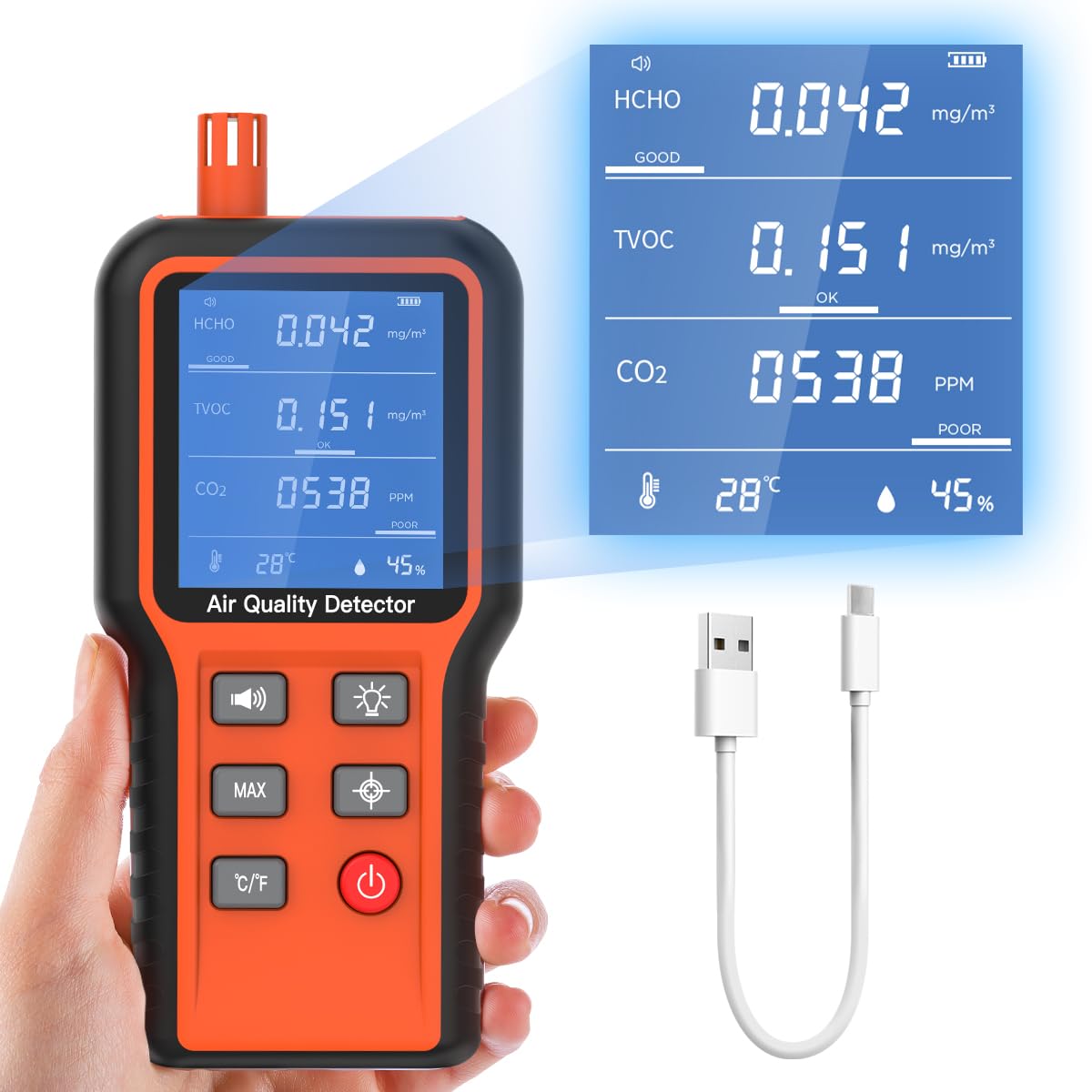
Figure 4.1: Device and Charging Cable
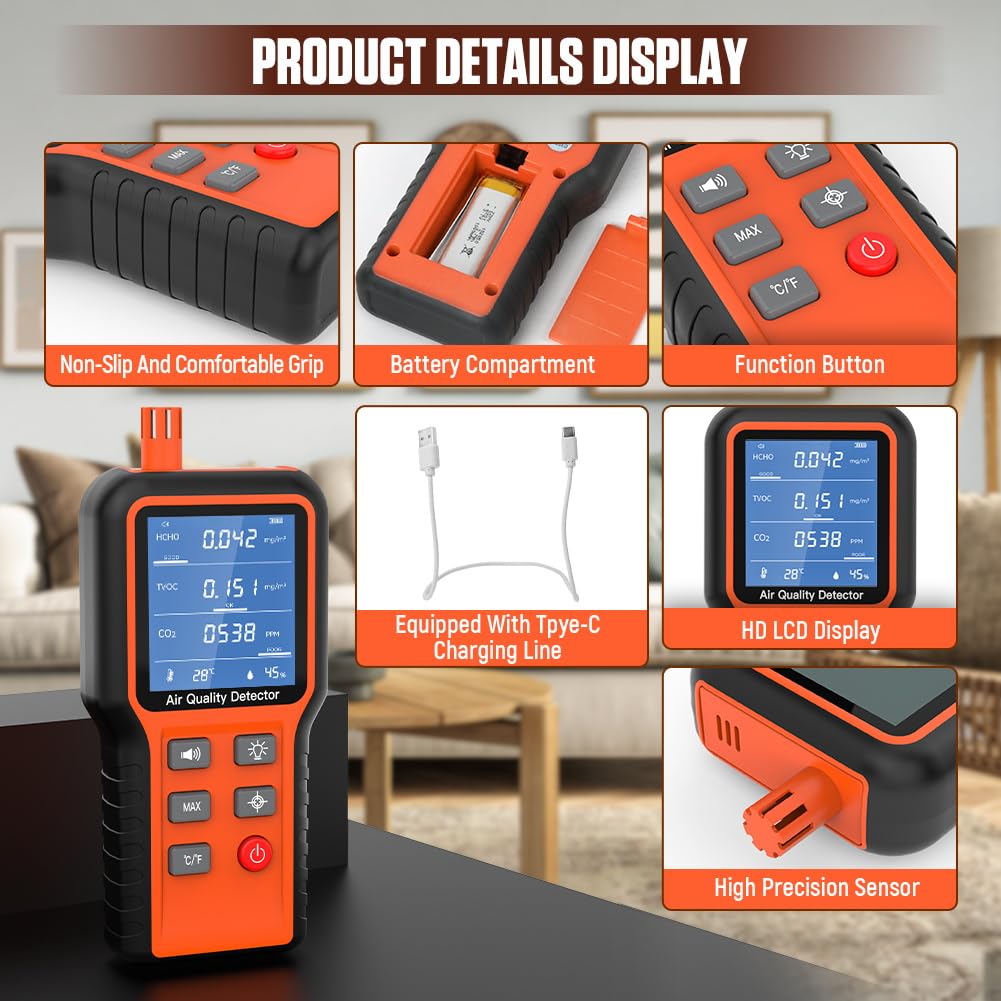
Figure 4.2: Front View with Labeled Components
4.1. Device Components
- High Precision Sensor: Located at the top, responsible for detecting air quality parameters.
- HD Backlit LCD Display: Shows real-time readings for HCHO, TVOC, CO2, Temperature, and Humidity, along with battery status and environmental quality tips.
- Power Button: Long press to turn the device ON/OFF.
- Backlight Button: Activates or deactivates the display backlight.
- Mute Button: Toggles between silent mode and alarm mode for audible alerts.
- MAX Data Viewing Button: Displays the maximum recorded data for the current test session.
- Calibration Button: Initiates the calibration process for accurate measurements.
- Temperature Unit Selection Button (C/F): Switches between Celsius and Fahrenheit.
- USB Type-C Charging Port: For recharging the internal battery.
4.2. Display Indicators
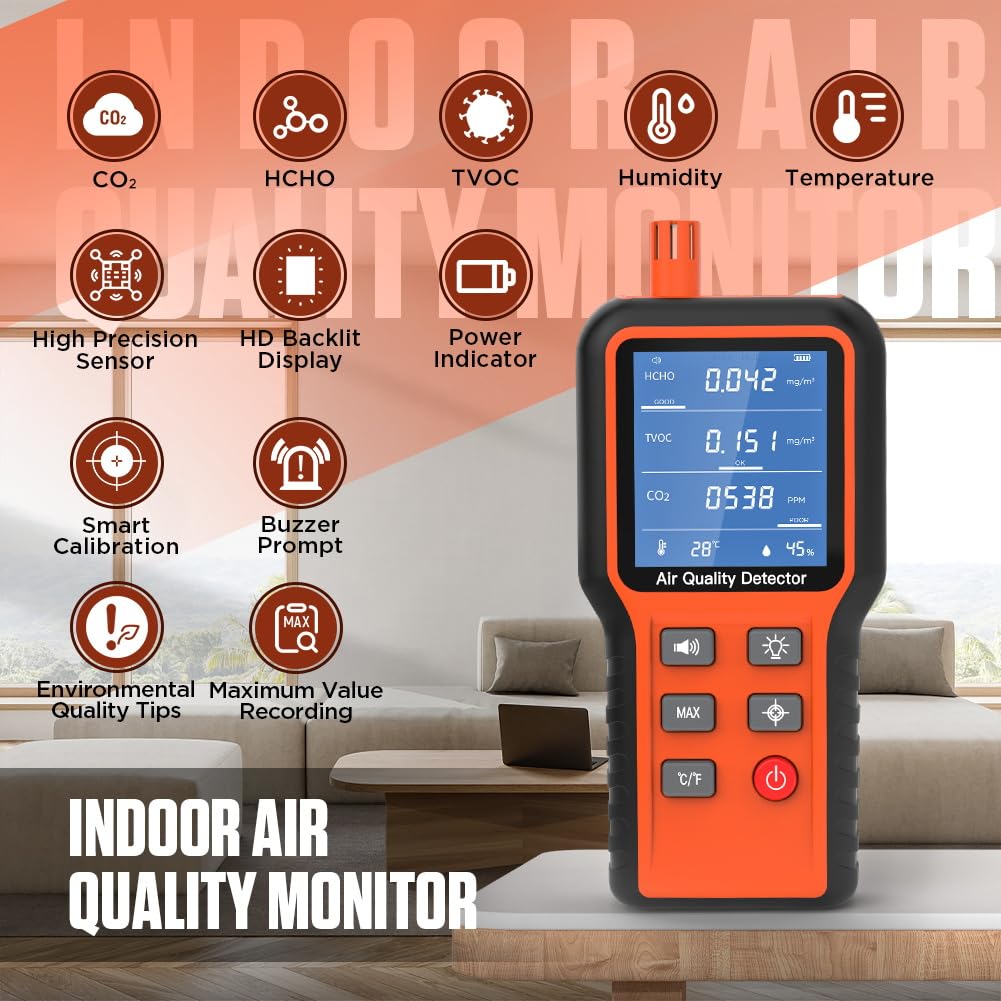
Figure 4.3: Detailed Display View
- HCHO Concentration: Formaldehyde levels in mg/m³.
- TVOC Concentration: Total Volatile Organic Compounds in mg/m³.
- CO2 Concentration: Carbon Dioxide levels in PPM (parts per million).
- Temperature: Current ambient temperature in Celsius or Fahrenheit.
- Humidity: Current relative humidity in %RH.
- Battery Power Indicator: Shows remaining battery life and low battery reminder.
- Environmental Quality Tips: Indicates air quality status (GOOD/OK/POOR).
5. Setup
5.1. Charging the Device
- Before first use, fully charge the device.
- Connect the provided USB Type-C charging cable to the device's charging port.
- Plug the other end of the USB cable into a standard USB power adapter (not included) or a computer USB port.
- The battery indicator on the display will show charging status. A full charge typically takes 6-7 hours and provides 6-7 hours of operation.
- The device will display a low battery reminder when power is critically low.

Figure 5.1: Charging Port and Battery Compartment
5.2. Powering On/Off
- To Power On: Long press the Power Button (red button) until the display lights up.
- To Power Off: Long press the Power Button again until the display turns off.
- The device features an automatic power-off function after one hour of inactivity to conserve battery.
6. Operation
6.1. Initial Measurement
After powering on, the device will perform a 30-second countdown. During this time, the high-precision sensors will initialize and begin to capture data. Ensure the device is placed in the area you wish to monitor and is not obstructed.
6.2. Understanding Readings
The display shows real-time values for HCHO, TVOC, CO2, Temperature, and Humidity. The environmental quality status (GOOD/OK/POOR) is indicated next to the HCHO, TVOC, and CO2 readings.
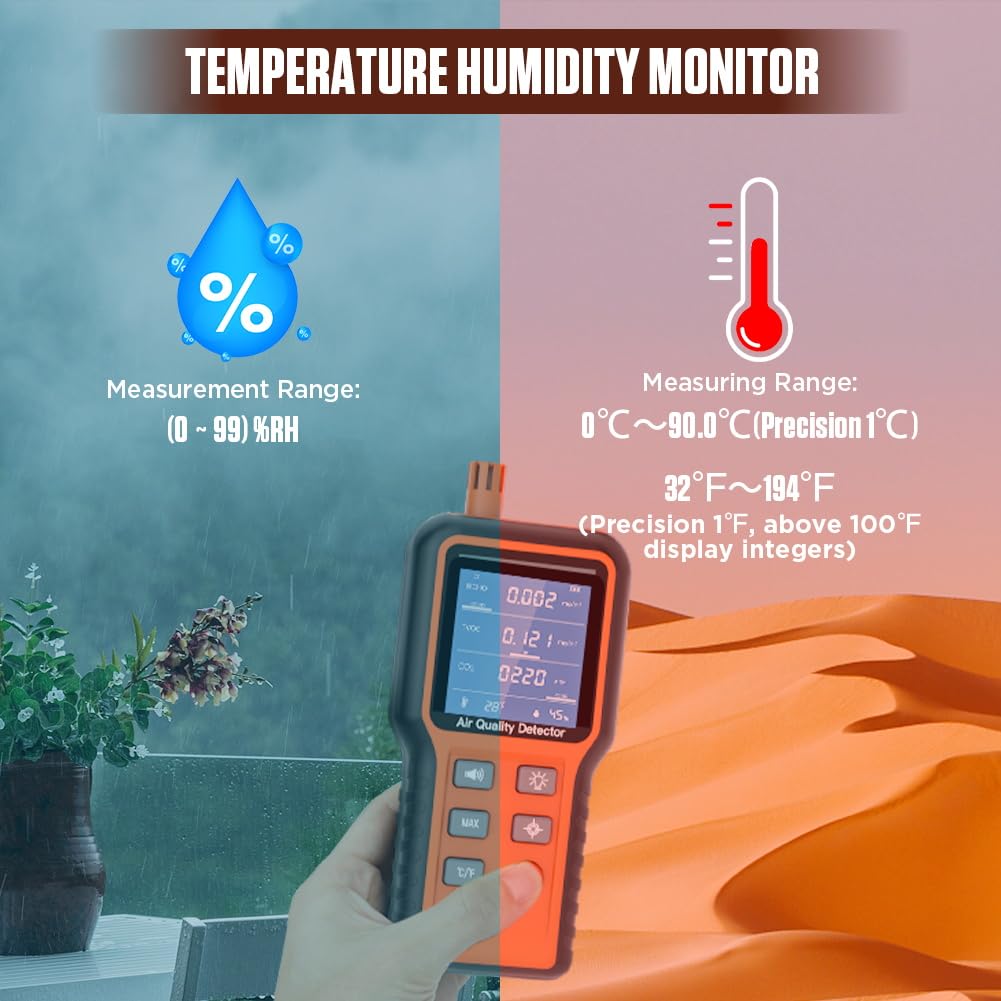
Figure 6.1: Environmental Quality Reference Values
- GOOD: Indicates optimal air quality.
- OK: Indicates acceptable air quality, but monitoring is advised.
- POOR: Indicates poor air quality. The buzzer will sound (if not muted) to alert you. Take action to improve ventilation or address the source of pollution.
6.3. Button Functions
- Backlight: Press the Backlight Button (sun icon) to turn the display backlight ON or OFF for better visibility in various lighting conditions.
- Mute/Alarm: Press the Mute Button (speaker icon) to switch between silent mode and alarm mode. In alarm mode, the device will emit an audible alert when air quality is poor.
- MAX Data: Press the MAX Button to view the highest recorded values for HCHO, TVOC, and CO2 during the current monitoring session. Press again to return to real-time readings.
- Temperature Unit: Press the C/F Button to toggle the temperature display between Celsius (°C) and Fahrenheit (°F).
7. Calibration
The DUOYI Air Quality Monitor supports a calibration function to ensure measurement accuracy. It is recommended to calibrate the device periodically or if you suspect inaccurate readings.
- Place the device in a well-ventilated outdoor area with fresh air, away from any potential sources of pollution.
- Ensure the device has been powered on for at least 5 minutes to stabilize.
- Press the Calibration Button (target icon). The display will indicate that calibration is in progress.
- Wait for the calibration process to complete. This may take a few minutes. Do not move the device during calibration.
- Once complete, the device will return to normal monitoring, with adjusted baseline readings.
Note: Calibration should always be performed in an environment with known good air quality to ensure accurate baseline settings.
8. Maintenance
8.1. Cleaning
- Wipe the device with a soft, dry cloth.
- Do not use abrasive cleaners, solvents, or harsh chemicals, as these can damage the casing or sensors.
- Keep the sensor area at the top of the device clean and free from dust or debris.
8.2. Storage
- Store the device in a cool, dry place when not in use.
- Avoid storing it in areas with extreme temperatures or high humidity.
9. Troubleshooting
| Problem | Possible Cause | Solution |
|---|---|---|
| Device does not power on. | Low battery or no charge. | Charge the device fully using the provided USB-C cable. |
| Inaccurate readings. | Needs calibration; sensor obstruction; interference. | Perform calibration in fresh air. Ensure sensor is clean and unobstructed. Move away from strong air currents or chemical sources. |
| Display is dim or unreadable. | Backlight is off; low battery. | Press the Backlight Button. Charge the device. |
| Buzzer alarm sounds frequently. | Poor air quality detected; alarm mode is active. | Check readings and improve ventilation. Press the Mute Button to silence the alarm if desired. |
| Device automatically turns off. | Automatic power-off feature; low battery. | This is normal after 1 hour of inactivity. If it turns off during use, charge the device. |
10. Specifications
| Parameter | Detail |
|---|---|
| Product Name | DUOYI 5-in-1 Indoor Air Quality Monitor |
| Model | B0CDWJFVQP |
| Detection Parameters | CO2, HCHO, TVOC, Humidity, Temperature |
| CO2 Detection Range | 0-5000 PPM (typical) |
| HCHO Detection Range | 0-1.000 mg/m³ (typical) |
| TVOC Detection Range | 0-2.000 mg/m³ (typical) |
| Temperature Range | 0°C ~ 90.0°C (32°F ~ 194°F) |
| Humidity Range | 0 ~ 99% RH |
| Display | HD Backlit LCD |
| Battery | Built-in 500mAh Rechargeable Lithium Battery |
| Battery Life | 6-7 hours (after full charge) |
| Charging Port | USB Type-C |
| Dimensions | 8.39 x 4.49 x 1.54 inches (approx. 21.3 x 11.4 x 3.9 cm) |
| Weight | 7.83 ounces (approx. 222g) |
| Manufacturer | DUOYI |
11. Warranty and Support
DUOYI products are designed and manufactured to the highest quality standards. For warranty information and customer support, please refer to the warranty card included with your purchase or visit the official DUOYI website.
If you encounter any issues or have questions regarding your DUOYI 5-in-1 Indoor Air Quality Monitor, please contact our customer support team through the retailer where you purchased the product or directly via the manufacturer's contact information provided on their website.
Please have your model number (B0CDWJFVQP) and purchase date ready when contacting support.
Related Documents - B0CDWJFVQP
 |
DUOYI DY4100A/DY4100B Digital Grounding Resistance Tester User Manual Comprehensive user manual for the DUOYI DY4100A and DY4100B Digital Grounding Resistance Testers. Covers safety precautions, instrument features, technical specifications, testing principles, parameter settings, and detailed testing procedures for ground resistance and soil resistivity. |
 |
DuoYI DY294 Digital Transistor DC Parameter Tester - Product Overview Detailed overview of the DuoYI DY294 Digital Transistor DC Parameter Tester, a versatile tool for measuring DC parameters of semiconductors, capacitors, voltage regulators, and more, featuring high sensitivity and an LCD display. |
 |
Duoyi DY4100 & DY4102 Earth Resistance Testers | Digital & Analog Specifications Detailed specifications and features for Duoyi DY4100 Digital Earth Resistance Tester and Duoyi DY4102 Analog Earth Resistance Tester. Includes performance, accessories, and dimensions. |
 |
Duoyi DY4100 & DY4102 Earth Resistance Testers: Digital & Analog Specifications Detailed specifications and features for Duoyi's DY4100 digital and DY4102 analog earth resistance testers. Includes measurement ranges, accuracy, power source, and accessories. |
 |
DUOYI DY517 | DY517A Digital Manifold Gauge - Specifications and Features Detailed information on the DUOYI DY517 and DY517A Digital Manifold Gauges, including specifications, measurement ranges, resolution, accuracy, and key features for HVAC and refrigeration applications. |
Ask a question about this manual
Ask about setup, troubleshooting, compatibility, parts, safety, or missing instructions. Manuals+ will review the question and use this page’s manual context to help answer it.