
WINH WINHkgf5woamgr-14
WINH 15.6-inch Laptop User Manual
Model: WINHkgf5woamgr-14
Introduction
This manual provides detailed instructions for setting up, operating, maintaining, and troubleshooting your WINH 15.6-inch Laptop. Please read this manual thoroughly before using your device to ensure optimal performance and longevity.
The WINH 15.6-inch Laptop features an Intel Celeron N5095 processor, a 15.6-inch 2K IPS display with a 3:2 aspect ratio, and runs on Windows 11. It is designed for daily work, entertainment, and educational purposes, offering a comfortable typing experience with a backlit keyboard and a large touchpad.
Package Contents
Ensure all items are present in the package:
- WINH 15.6-inch Laptop
- Power Adapter (EU Plug)
- User Manual (this document)

Image: The WINH 15.6-inch laptop shown alongside its power adapter, which includes a cable and a white EU plug.
Product Overview
Familiarize yourself with the main components of your laptop.

Image: A direct front view of the WINH 15.6-inch laptop, open with the screen displaying a blue abstract wallpaper. The keyboard and touchpad are clearly visible.

Image: An angled view of the WINH 15.6-inch laptop, showcasing its slim profile and the screen displaying a blue abstract wallpaper. The keyboard and touchpad are visible from this perspective.
Key Features:
- High-Performance Processor: Powered by Intel Celeron N5095 CPU (up to 2.9 GHz, 4 cores, 4 threads) for smooth daily operation.
- 2K IPS Display: 15.6-inch screen with 2K resolution and 3:2 aspect ratio for clear visuals and expanded vertical content.
- Comfortable Typing: Full-size backlit keyboard and large touchpad for enhanced user experience.
- Ample Storage: 16GB RAM (LPDDR4) and high-speed SSD (256GB, 512GB, or 2TB options) for efficient multitasking.
- Long Battery Life: Rechargeable lithium-ion battery providing up to 8 hours of usage.
- Multiple Interfaces: Includes USB ports, 3.5mm headphone jack, mini HD multimedia interface, and memory card slot.
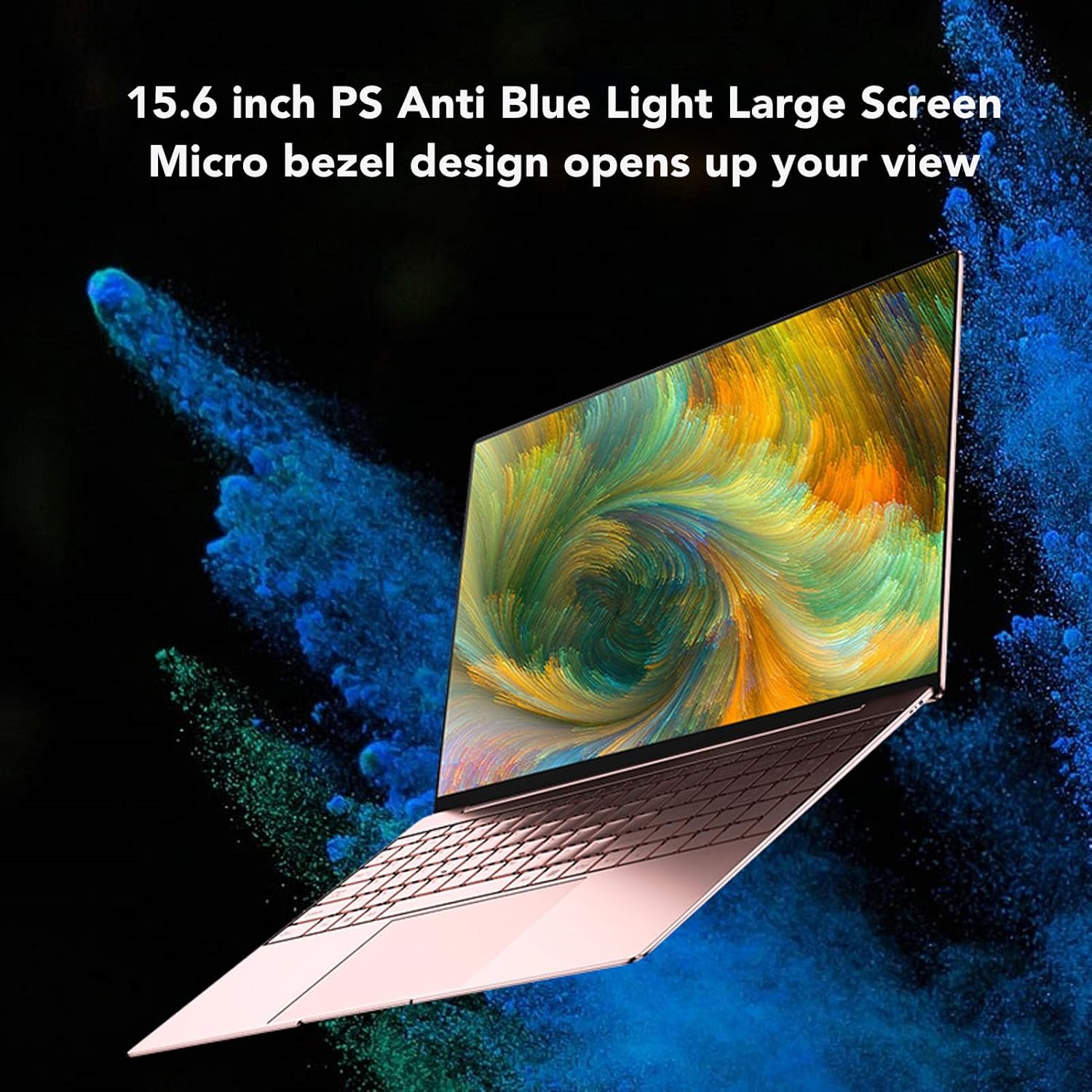
Image: The WINH 15.6-inch laptop displaying a vibrant, abstract image on its screen, highlighting the "15.6 inch PS Anti Blue Light Large Screen" and "Micro bezel design opens up your view" features.
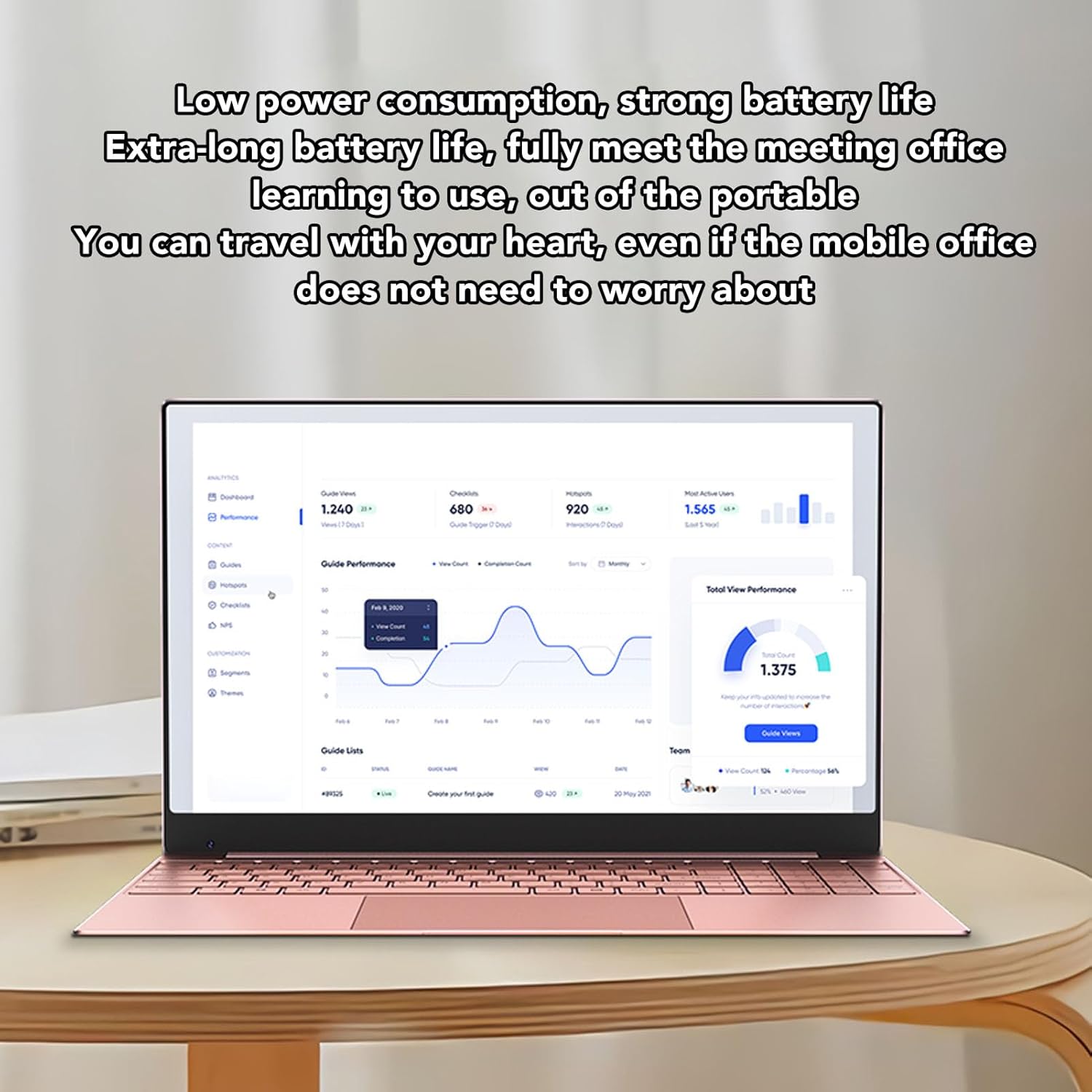
Image: The WINH 15.6-inch laptop displaying a dashboard with charts and data, illustrating its low power consumption and strong battery life, suitable for office and travel use.
Setup
Initial Power On:
- Unpack the laptop and all accessories from the box.
- Connect the power adapter to the laptop's charging port and then plug it into a power outlet.
- Open the laptop lid.
- Press the power button located on the keyboard to turn on the laptop.
- Follow the on-screen instructions to complete the initial Windows 11 setup, including language selection, network connection, and user account creation.
Connecting Peripherals:
Your laptop is equipped with various ports for connecting external devices:
- USB Ports: For connecting USB drives, external keyboards, mice, etc.
- 3.5mm Headphone Jack: For connecting headphones or external speakers.
- Mini HD Multimedia Interface: For connecting to external displays or projectors.
- Memory Card Slot: For inserting compatible memory cards.
Operating Instructions
Using Windows 11:
Your laptop comes pre-installed with Windows 11. Familiarize yourself with its interface and features:
- Start Menu: Access applications, settings, and power options.
- Taskbar: Pin frequently used applications and manage open windows.
- Action Center: Quick access to settings like Wi-Fi, Bluetooth, and brightness.
- File Explorer: Manage your files and folders.
Keyboard and Touchpad:
The laptop features a full-size backlit keyboard and a large touchpad for comfortable input.
- Backlit Keyboard: Press Fn + Fx (where Fx is the function key for backlight control, usually F5 or F6) to adjust keyboard backlight brightness or turn it on/off.
- Touchpad Gestures:
- One finger tap: Left-click
- Two finger tap: Right-click
- Two finger scroll: Scroll up/down or left/right
- Pinch to zoom: Zoom in/out

Image: An angled view of the WINH 15.6-inch laptop, highlighting the full-size keyboard and the large touchpad, designed for comfortable typing and navigation.
Maintenance
Cleaning the Laptop:
- Screen: Use a soft, lint-free cloth slightly dampened with water or a screen cleaner. Do not spray liquid directly onto the screen.
- Keyboard and Chassis: Use a soft, dry cloth. For stubborn dirt, a slightly damp cloth can be used, ensuring no liquid enters the device.
- Ports: Use compressed air to remove dust from ports.
Battery Care:
- Avoid completely discharging the battery frequently.
- Do not expose the laptop to extreme temperatures.
- If storing the laptop for a long period, charge the battery to about 50-60%.
Software Maintenance:
- Regularly update Windows 11 and device drivers.
- Run antivirus scans periodically.
- Keep your storage clean by deleting unnecessary files.

Image: The bottom view of the WINH 15.6-inch laptop, showing the ventilation grilles and rubber feet, which are important for proper airflow and stability.
Troubleshooting
If you encounter issues with your laptop, refer to the following common solutions:
| Problem | Possible Cause | Solution |
|---|---|---|
| Laptop does not turn on. | Low battery, power adapter issue, or system crash. | Ensure power adapter is securely connected and plugged in. Charge for at least 30 minutes. Try a hard reset (hold power button for 10-15 seconds). |
| Screen is blank or black. | Display settings, external monitor connected, or system sleep mode. | Press any key or move the mouse. Disconnect any external monitors. Press Fn + F7 (or relevant display toggle key) to switch display modes. |
| Wi-Fi connection issues. | Wi-Fi disabled, driver issue, or router problem. | Check if Wi-Fi is enabled in Windows settings. Restart the laptop and your router. Update Wi-Fi drivers. |
| Keyboard backlight not working. | Backlight turned off or brightness set to minimum. | Press Fn + Fx (usually F5 or F6) to adjust backlight brightness. |
If the problem persists, please contact customer support.
Specifications
| Feature | Detail |
|---|---|
| Brand | WINH |
| Model Number | WINHkgf5woamgr-14 |
| Operating System | Windows 11 |
| Processor | Intel Celeron N5095 (up to 2.9 GHz, 4 Cores, 4 Threads) |
| Display | 15.6-inch IPS, 2K Resolution, 3:2 Aspect Ratio |
| RAM | 16GB LPDDR4 |
| Storage | High-speed SSD (256GB, 512GB, or 2TB options) |
| Battery | Rechargeable Lithium-ion (up to 8 hours autonomy) |
| Input Interface | Keyboard, Touchpad |
| Ports | USB, 3.5mm Headphone Jack, Mini HD Multimedia Interface, Memory Card Slot |
| Country of Origin | China |
Warranty and Support
Your WINH laptop comes with a 1 Year Warranty Against Manufacturer Defects.
For technical support, warranty claims, or further assistance, please contact your retailer or the manufacturer directly. Refer to the contact information provided with your purchase documentation.
Please have your model number (WINHkgf5woamgr-14) and ASIN (B0CHQTW153) ready when contacting support.
Ask a question about this manual
Ask about setup, troubleshooting, compatibility, parts, safety, or missing instructions. Manuals+ will review the question and use this page’s manual context to help answer it.