
Introduction
Welcome to your new OPSREY USB 3.0 Type-C Fingerprint Encrypted Flash Drive. This manual provides essential instructions for setting up, operating, and maintaining your device to ensure secure and efficient data storage. Please read this manual carefully before using the product.
Product Overview
The OPSREY Fingerprint Encrypted Flash Drive is a high-security portable storage device featuring an integrated fingerprint reader and dual USB 3.0/Type-C connectivity. It offers both a public and an encrypted zone for flexible data management, protecting your sensitive information with advanced encryption.
Key Features:
- Fingerprint Authentication for secure access
- High-Speed USB 3.0 Data Transfer
- AES 256-bit Hardware Encryption
- Dual USB Type-A and Type-C Connectivity
- Durable Zinc Alloy Casing
- Shock Resistant design

Setup and Initial Configuration
Before using your flash drive, you need to configure your fingerprints and set up the encrypted partition. This process typically involves installing a management application.
Initial Connection
Connect the flash drive to your computer's USB-A or USB-C port. Upon initial connection, only the public zone will be accessible. This zone contains the necessary software for setup.
Fingerprint Management Software Installation
Locate the fingerprint management software within the public zone of the drive. Double-click the installer and follow the on-screen instructions to install the application on your computer.
Adding Fingerprints and Setting Password
- Open the installed fingerprint management software.
- Follow the application's prompts to register your fingerprints. You will typically be asked to scan your finger multiple times from different angles for accurate recognition.
- Set a strong alphanumeric password. This password serves as an alternative access method for the encrypted zone and is crucial if fingerprint access becomes unavailable.
- It is recommended to register multiple fingerprints (e.g., from different fingers) for convenience and as a backup.

Operating Instructions
Accessing the Public Zone
When the flash drive is connected to your device, the public zone is immediately accessible without any fingerprint authentication. You can use this area to store non-sensitive data or files that do not require encryption.
Accessing the Encrypted Zone
To access the secure, encrypted zone:
- Ensure the flash drive is connected to your computer or compatible device.
- Place your registered finger firmly and completely on the fingerprint sensor.
- The indicator light on the drive will flash several times. Upon successful fingerprint identification, the encrypted disk will automatically appear as a new drive in your file explorer.
- Alternatively, open the fingerprint management software and log in with your previously set password to access the encrypted disk.
Once accessed, you can read and write data to the encrypted zone like any other storage device. Remember to safely eject the drive when finished.

Data Transfer
Transfer files by dragging and dropping them into the desired zone (public or encrypted) once it is accessible. The USB 3.0 interface ensures high-speed data transfer, significantly reducing transfer times for large files.
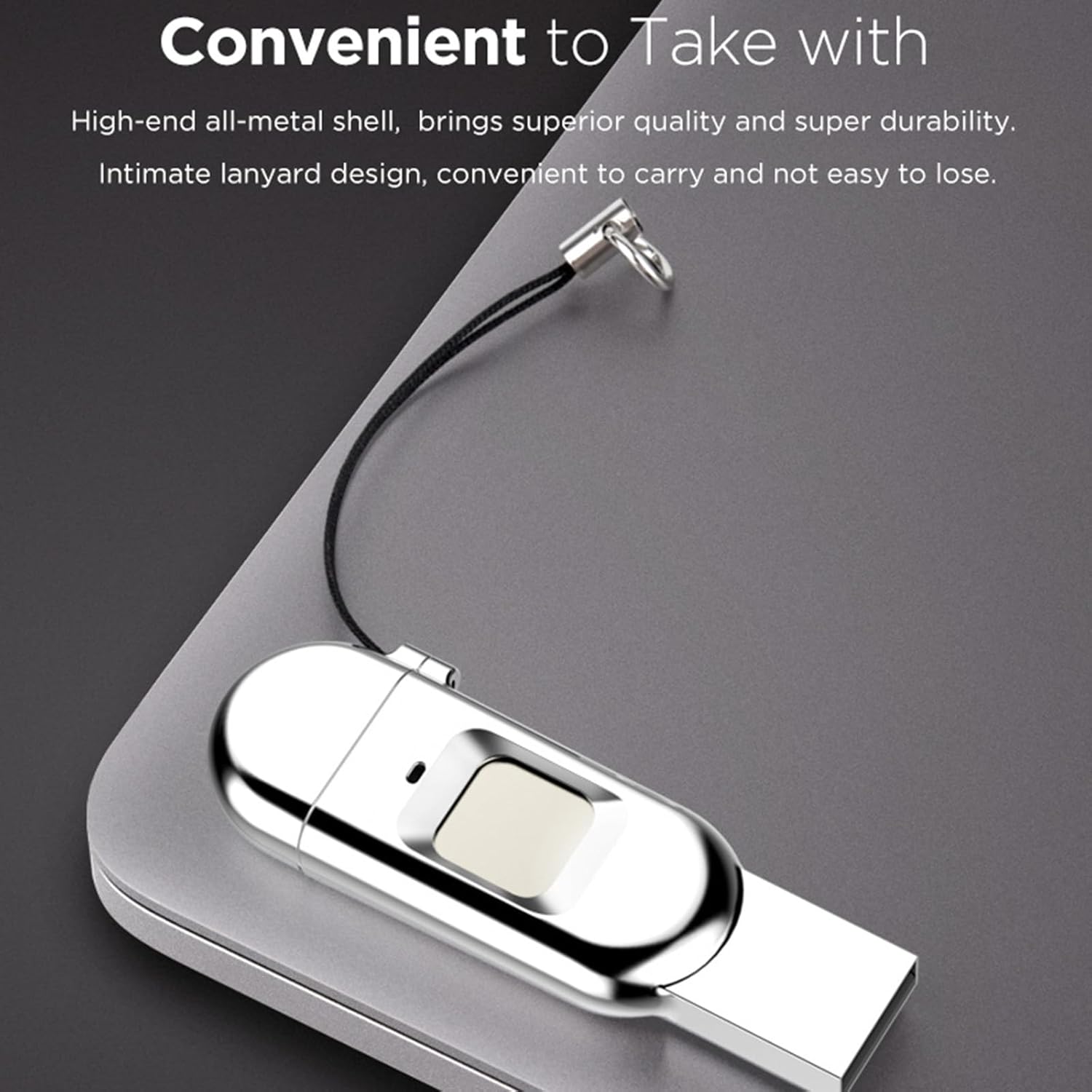
Switching Between Phone and Computer
The dual USB Type-A and Type-C interface allows for easy switching between mobile phones (OTG compatible) and computers. Simply plug the appropriate connector into your device.

Maintenance
Proper maintenance ensures the longevity and optimal performance of your flash drive.
- Keep the flash drive clean and free from dust, dirt, and moisture. Use a soft, dry cloth for cleaning.
- Avoid exposing the device to extreme temperatures, direct sunlight, or strong magnetic fields.
- Do not attempt to disassemble the device, as this will void any potential warranty and may damage internal components.
- Always safely eject the flash drive from your computer before physically removing it to prevent data corruption.
- Regularly back up important data to another storage medium as a precautionary measure.
Troubleshooting
If you encounter issues with your OPSREY flash drive, refer to the following common problems and solutions.
Flash Drive Not Recognized
- Ensure the drive is fully inserted into the USB port.
- Try a different USB port on your computer.
- Connect the drive to a different computer to rule out computer-specific issues.
- Check your computer's Device Manager (Windows) or System Information (macOS) for any driver-related problems.
Cannot Access Encrypted Zone
- Ensure your finger is clean and dry when scanning.
- Place your finger firmly and completely on the sensor, covering the entire area.
- Try a different registered finger if you have multiple registered.
- Use the password option within the fingerprint management software to access the encrypted zone.
- Re-register your fingerprints if recognition issues persist.
Slow Data Transfer
- Ensure you are using a USB 3.0 compatible port on your computer. USB 2.0 ports will result in slower speeds.
- Close other applications that might be using significant system resources or performing disk operations.
- Verify that your computer's USB drivers are up to date.
Specifications
Detailed technical specifications for the OPSREY USB 3.0 Type-C Fingerprint Encrypted Flash Drive.
| Feature | Detail |
|---|---|
| Product Name | USB Flash Drive |
| Capacity Options | 64GB, 128GB, 256GB |
| Encryption Chip | IC Fingerprint Module, AES Recognition Chip |
| Material | Zinc Alloy |
| Read Speed | Up to 70-100 MB/s |
| Write Speed | 100 MB/s |
| Net Weight | 17g |
| Interface | USB 3.0, USB Type-C |
| Dimensions | 58.5 x 20.4 x 8.4 mm |
| Special Feature | Shock Resistant |

Warranty and Support
Warranty and support information is not available in the provided product data. Please refer to the product packaging or contact the manufacturer directly for details regarding warranty coverage, technical support, and customer service.