
1. Introduction
The MUCAR VO7 is a professional OBD2 diagnostic tool designed for comprehensive vehicle system analysis and maintenance. It offers advanced functionalities including full system diagnosis, over 28 reset services, bi-directional control, and ECU coding. This manual provides detailed instructions for setting up, operating, and maintaining your MUCAR VO7 device.
2. Device Overview
The MUCAR VO7 diagnostic tool features a robust design with a 7-inch display and a protective silicone casing. Key components and ports are detailed below.

Image 2.1: MUCAR VO7 Device Components. This image illustrates the physical layout of the MUCAR VO7, highlighting its 7-inch display, USB-C port, USB port, 8MP camera, non-slip textured design, fully enclosed soft silicone casing, and the OBD II Bluetooth connector.
2.1. Hardware Specifications
- Display: 7-inch
- Processor: 1.8 GHz Quad-Core
- Operating System: Android 8.1
- RAM: 2GB
- ROM: 32GB
- Battery: 6000mAh
- Connectivity: Wi-Fi, Bluetooth (for OBD dongle)
- Ports: USB, USB-C
- Camera: 8MP

Image 2.2: Optimized High-End Configuration. This image visually confirms the device's specifications, including the 7-inch display, 1.8 GHz Quad-Core processor, Android 8.1 OS, 2GB RAM, 32GB ROM, and 6000mAh battery, emphasizing its plug-and-play design.
3. Setup and Initial Use
3.1. Unboxing and Power On
- Carefully remove the MUCAR VO7 device and its accessories from the packaging.
- Press and hold the power button to turn on the device.
3.2. Network Connection and Software Updates
Upon first use or after receiving the product, it is crucial to connect to a Wi-Fi network and update the device's operating system and diagnostic software.
- Navigate to the "Settings" menu on the device.
- Select "Wi-Fi" and connect to an available network.
- Once connected, go to the "Update" section of the main menu.
- Initiate the update process for both the APP operating system and the vehicle brand diagnostic software. Regular updates ensure optimal performance and compatibility with the latest vehicle models and diagnostic protocols.
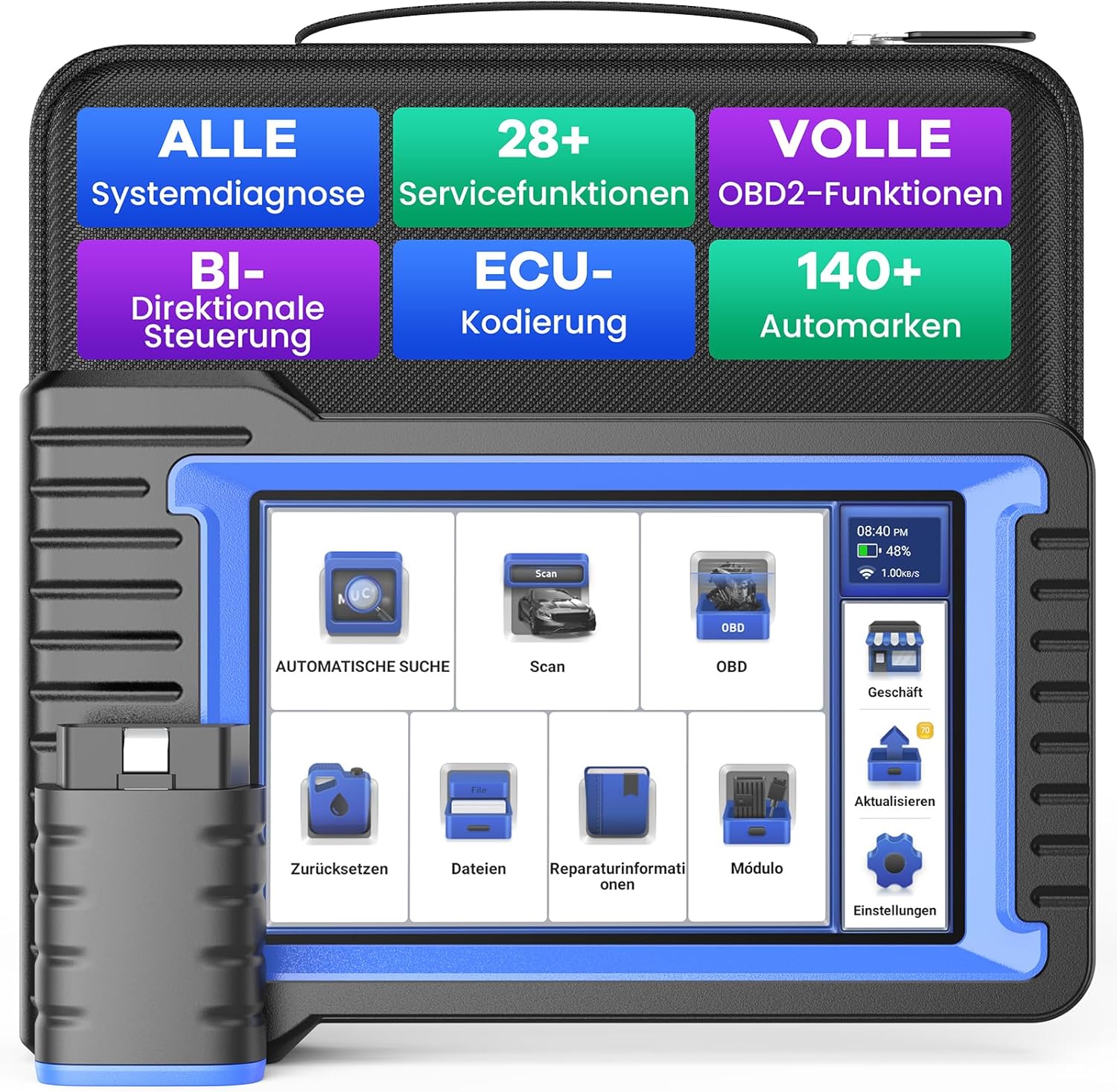
Image 3.1: MUCAR VO7 Main Interface. This image displays the main screen of the MUCAR VO7, illustrating the various functions available, including the "Update" icon, which is essential for keeping the device software current.
3.3. Connecting to a Vehicle
The MUCAR VO7 uses an OBD dongle for vehicle communication.
- Locate the vehicle's OBD-II port, typically found under the dashboard on the driver's side.
- Plug the MUCAR OBD dongle into the vehicle's OBD-II port.
- Ensure the dongle is securely connected. The device will automatically establish a Bluetooth connection with the dongle.
4. Operating Instructions
4.1. Full System Diagnosis
The MUCAR VO7 can diagnose all available vehicle systems, including Engine, Transmission, Airbags (SRS), Anti-lock Braking System (ABS), Tire Pressure Monitoring System (TPMS), Immobilizer (IMMO), and more. This function allows for quick identification of vehicle faults and clearing of diagnostic trouble codes (DTCs).
- From the main menu, select "Scan" or "Automatic Search" to begin vehicle identification.
- The device will attempt to automatically detect the vehicle's VIN. If unsuccessful, you may need to manually select the vehicle make and model.
- Once the vehicle is identified, select "Full System Scan" to perform a comprehensive diagnostic check.
- Review the diagnostic report, which will list any detected fault codes.
- You can choose to "Read Fault Codes" for detailed descriptions or "Clear Fault Codes" to erase them after repairs.

Image 4.1: OE-Level System-Wide Diagnostic Tools. This image illustrates the MUCAR VO7's capability to perform comprehensive diagnostics across all vehicle systems, including reading and clearing fault codes, and displaying real-time data and ECU information.
4.2. 28+ Reset Services
The MUCAR VO7 provides access to over 28 commonly used special functions for various scheduled service and maintenance tasks. These services are essential for proper vehicle upkeep and repair.
- Oil Reset: Resets the oil life system after an oil change.
- EPB (Electronic Parking Brake) Reset: Deactivates and reactivates the brake control system for brake service.
- SAS (Steering Angle Sensor) Calibration: Calibrates the steering angle sensor.
- BMS (Battery Management System) Reset: Registers the new battery to the ECU.
- TPMS (Tire Pressure Monitoring System) Reset: Resets tire pressure sensors.
- DPF (Diesel Particulate Filter) Regeneration: Clears particulate matter from the DPF.
- IMMO (Immobilizer) Matching: Programs new keys or immobilizer components.
- ETS (Electronic Throttle System) Reset: Clears learned values and initializes the throttle body.
- ABS Bleeding: Performs bleeding of the brake system.
- Injector Coding: Codes new injector numbers to the ECU.
- And many more, including AFS (Adaptive Front-lighting System) Reset, EGR (Exhaust Gas Recirculation) Adaptation, Gearbox Matching, Suspension Reset, Window Initialization, Seat Calibration, and more.
Note: The availability of specific service functions may vary depending on the vehicle make, model, and year.

Image 4.2: 28 Popular Repair Services. This image highlights a selection of the 28+ maintenance and reset functions offered by the MUCAR VO7, such as brake system resets, electronic throttle resets, injector coding, and immobilizer functions.
4.3. Bi-directional Control / Active Testing
Bi-directional control allows the diagnostic tool to send commands directly to the vehicle's Electronic Control Unit (ECU) to perform active tests. This enables you to verify the functionality of various actuators and components without using the vehicle's controls.
- Fuel Injector Test: Activate individual injectors to check their operation.
- Coolant Pump Activation: Turn on/off the coolant pump to diagnose cooling system issues.
- Window Control: Operate power windows up and down.
- Windshield Wiper Test: Activate wipers at different speeds.
- And other tests for components like ABS motors, door locks, lights, etc.
This feature helps in precisely locating fault areas by directly testing components.
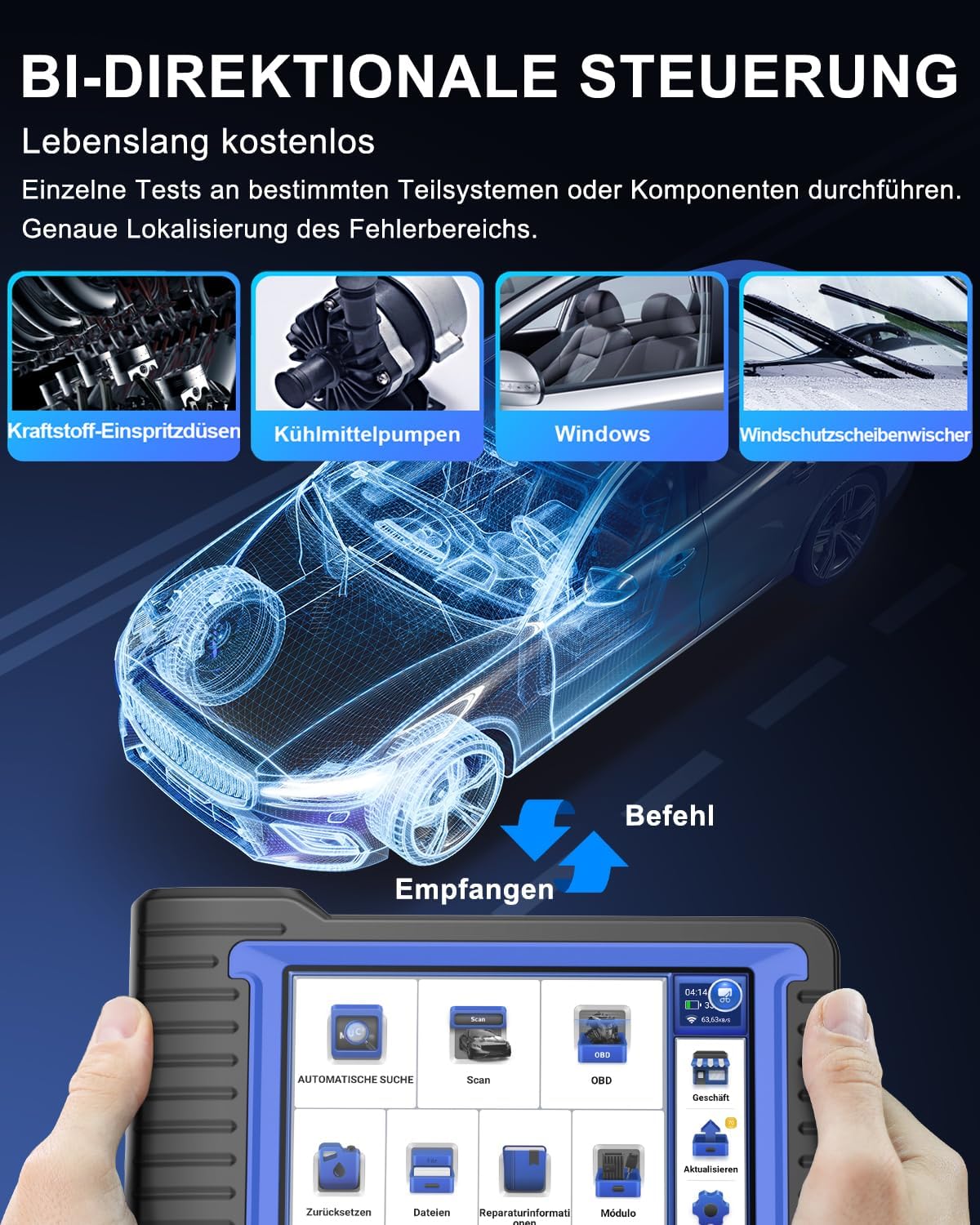
Image 4.3: Bi-directional Control. This image illustrates the bi-directional control capabilities, showing how the device can send commands to specific vehicle components like fuel injectors, coolant pumps, windows, and windshield wipers for active testing and fault localization.
4.4. ECU Coding
ECU Coding allows for advanced customization and adaptation of vehicle modules. This function can be used to:
- Personalize Hidden Functions: Activate or deactivate certain vehicle features that are hidden by default.
- Adapt Replacement ECUs: Match new control modules to the vehicle's system.
- Optimize Performance: Recode modified modules to enhance vehicle performance.
- Deactivate Redundant Functions: Turn off unnecessary or unwanted features.
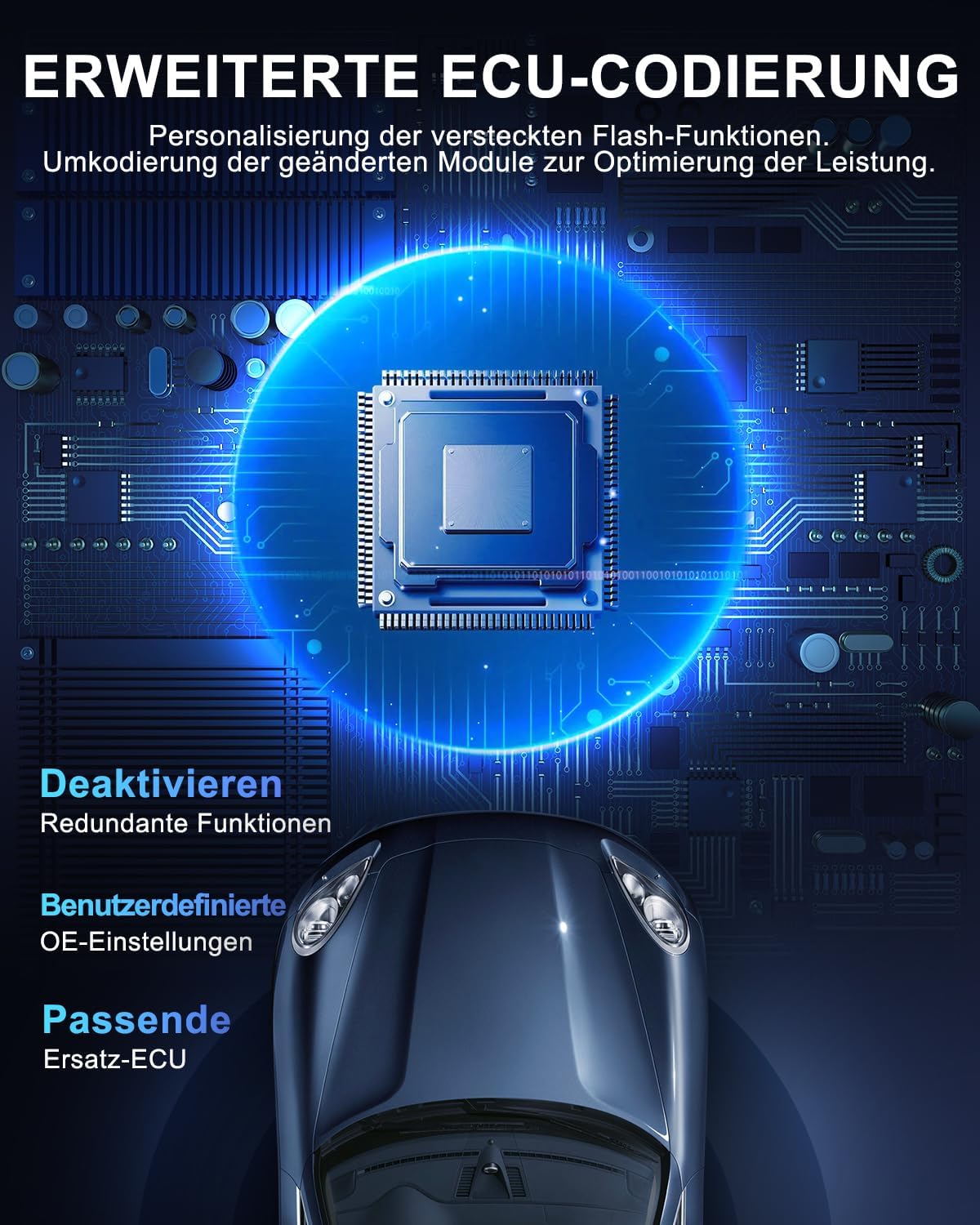
Image 4.4: Advanced ECU Coding. This image details the advanced ECU coding functionalities, including personalization of hidden flash functions, recoding modified modules for performance optimization, deactivating redundant functions, and matching replacement ECUs.
4.5. Full OBD2 Functionality
The MUCAR VO7 supports all 10 modes of OBD2 testing, providing comprehensive diagnostic capabilities for emission-related issues.
- Read/Clear Codes: Retrieve and erase Diagnostic Trouble Codes (DTCs).
- Live Data: View real-time data streams from vehicle sensors.
- Freeze Frame Data: Capture a snapshot of vehicle conditions when a fault code is set.
- I/M Readiness: Check the status of emission-related monitors.
- O2 Sensor Test: Retrieve O2 sensor monitoring test results.
- On-Board Monitor Test: Access results of on-board diagnostic monitoring tests for specific components/systems.
- EVAP System Test: Test the evaporative emission system.
- Vehicle Information: Retrieve vehicle identification number (VIN), calibration ID (CALID), and calibration verification number (CVN).

Image 4.5: Full OBD2 Functionality. This image illustrates the comprehensive OBD2 capabilities of the MUCAR VO7, covering all standard diagnostic modes for emission-related systems, including reading and clearing codes, live data, and various system tests.
5. Maintenance and Care
Proper maintenance ensures the longevity and optimal performance of your MUCAR VO7 diagnostic tool.
- Software Updates: Regularly connect the device to Wi-Fi and perform software updates to ensure compatibility with new vehicle models and access to the latest features.
- Cleaning: Use a soft, dry cloth to clean the device screen and body. Avoid using abrasive cleaners or solvents.
- Storage: Store the device in a cool, dry place, away from direct sunlight and extreme temperatures. Use the provided protective casing for storage and transport.
- Battery Care: For optimal battery life, avoid fully discharging the battery frequently. Charge the device regularly.
6. Troubleshooting
6.1. Common Issues and Solutions
- Device not powering on: Ensure the battery is charged. Connect the device to a power source using the provided charger.
- Unable to connect to vehicle:
- Verify the OBD dongle is securely plugged into the vehicle's OBD-II port.
- Ensure the vehicle's ignition is on (engine off or running, as required by the specific test).
- Check if the OBD dongle is properly paired via Bluetooth with the MUCAR VO7 device.
- Error code cannot be cleared: If an error code persists after attempting to clear it, this indicates an underlying hardware fault in the vehicle. The diagnostic tool cannot clear codes for active hardware malfunctions. The corresponding hardware fault in the vehicle must be repaired first.
- Software update failure: Ensure a stable Wi-Fi connection. Restart the device and attempt the update again. If the issue persists, contact customer support.
- Specific function not available for vehicle: Some advanced functions (e.g., certain reset services, ECU coding) may not be supported by all vehicle makes, models, or years. Always verify compatibility before attempting such functions.
6.2. Technical Support
MUCAR offers 24/7 professional support. If you encounter any issues or have questions that are not covered in this manual, you can contact our trained technicians via:
- In-App Chat: Access the chat feature directly within the MUCAR VO7 application.
- Email: Contact the official MUCAR customer service team via email.
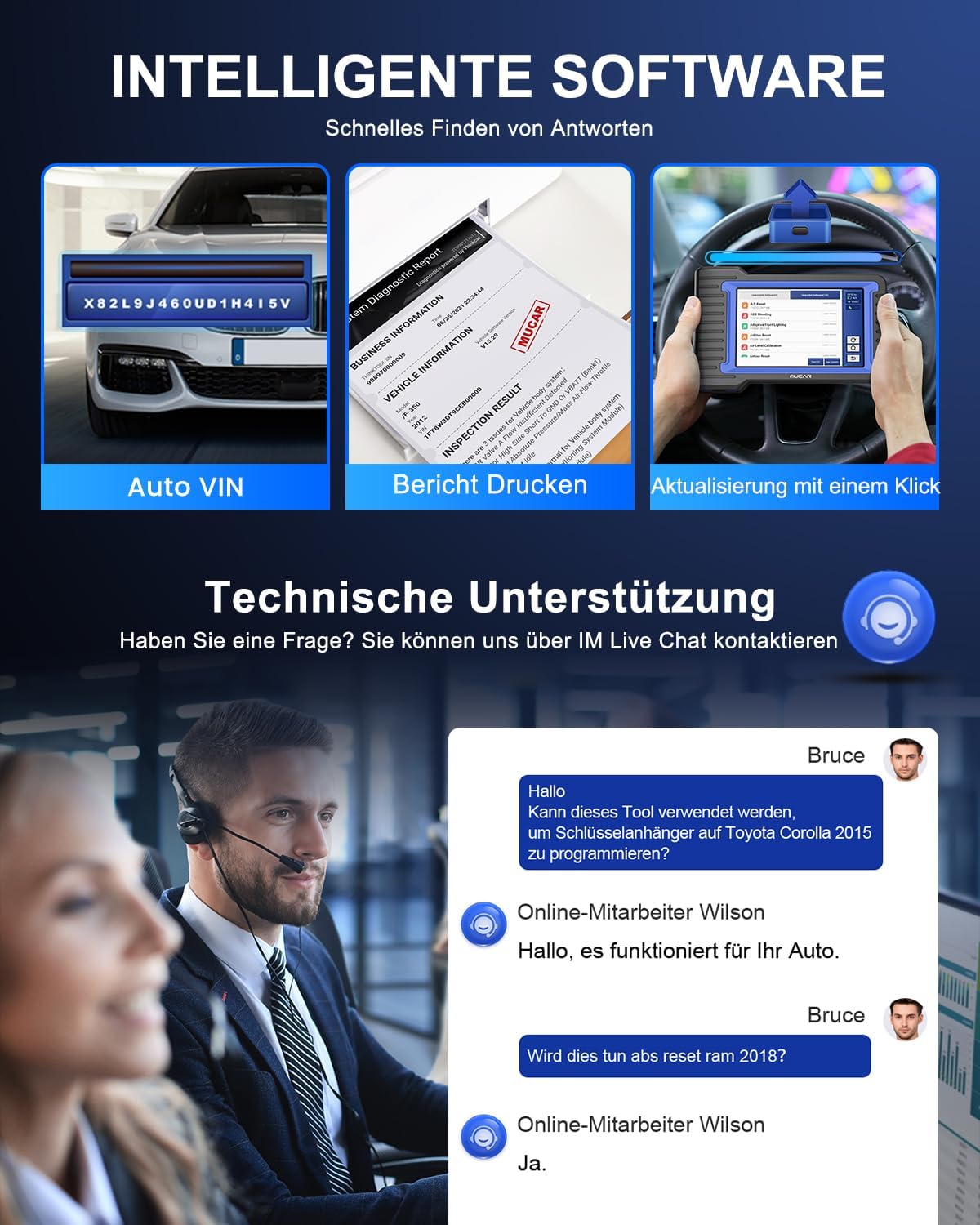
Image 6.1: Intelligent Software and Technical Support. This image highlights the intelligent software features like automatic VIN detection, report printing, one-click updates, and the availability of technical support via live chat for user assistance.
7. Warranty and Service Information
The MUCAR VO7 diagnostic tool includes a service period for system diagnosis and updates.
- System Diagnosis: The system diagnosis function is provided free for 3 years from the date of purchase. After this period, if you choose not to renew the subscription, the basic diagnostic functions (reading and clearing fault codes) will remain accessible, but advanced features and updates may be affected.
- ECU Coding and Active Testing: These advanced programming functions are typically free for a specified period (e.g., 3 years) from activation and may require a paid subscription renewal thereafter.
- For detailed warranty terms and conditions, please refer to the product's official documentation or contact MUCAR customer support.
8. Vehicle Coverage
The MUCAR VO7 supports a wide range of vehicle makes and models, adhering to various OBD-II protocols.
- Supported Protocols: ISO 14230-4 (KWP2000), SAE J1850 VPW & PWM, ISO 15765-4 (CAN), ISO 9141-2 (ISO), ISO 14229 (UDS).
- The device is compatible with over 140 car brands. For specific vehicle compatibility, it is recommended to contact MUCAR support with your vehicle's VIN before purchase.
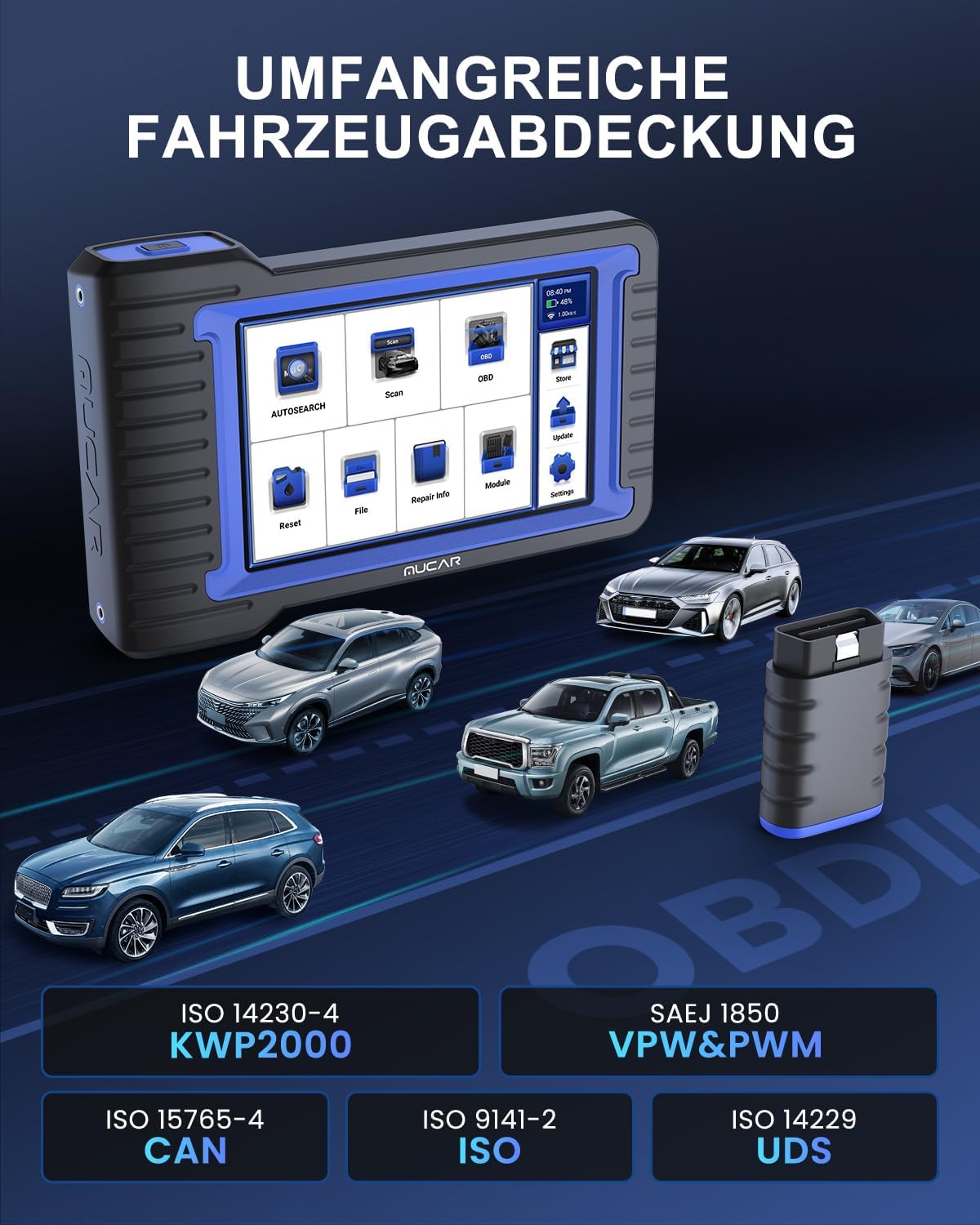
Image 8.1: Extensive Vehicle Coverage. This image illustrates the broad compatibility of the MUCAR VO7 with various car brands and its support for key OBD-II communication protocols, ensuring wide applicability.


