Introduction
This manual provides essential information for setting up, operating, maintaining, and troubleshooting your SAMSUNG 15.6" Galaxy Book3 Business Laptop. Please read this manual thoroughly to ensure proper use and to maximize the performance and longevity of your device.
The Galaxy Book3 Business is a powerful and capable PC designed to enhance your productivity and streamline your workflow. It features a 13th Gen Intel Core i5 Processor, 16GB RAM, and a 256GB SSD, running on Windows 11 Pro. Its thin and lightweight design makes it ideal for mobile professionals.
What's in the Box
Upon unboxing your new Galaxy Book3 Business laptop, verify that all components are present:
- SAMSUNG Galaxy Book3 Business Laptop (Model: NP754XFG-KB3US)
- Power Adapter
- Type-C Cable
- Quick Start Guide (QSG Manual)
- Warranty Card

Figure 1: Front view of the SAMSUNG Galaxy Book3 Business Laptop. The laptop is silver with a black screen and keyboard.
Setup Guide
1. Initial Power-Up and Charging
- Connect the Power Adapter: Plug the Type-C cable into the laptop's USB-C port and connect the power adapter to a wall outlet. Ensure the laptop is receiving power.
- Power On: Open the laptop lid. Press the power button, typically located on the top right of the keyboard, to turn on the device.
- Initial Setup: Follow the on-screen prompts to complete the Windows 11 Pro setup. This includes selecting your region, language, connecting to a Wi-Fi network, and creating a user account.
- System Updates: Allow the system to download and install any pending updates. This is crucial for security and performance.

Figure 2: The laptop with its lid open, ready for initial setup. The screen displays a Windows setup interface.
2. Port Overview
The Galaxy Book3 Business is equipped with a variety of ports for versatile connectivity:
- Left Side: 2x USB-C ports, 1x HDMI port, 1x USB-A 3.2 port.
- Right Side: 1x microSD card slot, 1x HP (headphone/microphone combo) jack, 1x USB-A 3.2 port, 1x Security Port.

Figure 3: Side view of the laptop highlighting the various input/output ports for connecting peripherals and external displays.

Figure 4: A closer look at the laptop's ports, including USB-C, HDMI, USB-A, microSD, and headphone jack, designed for easy connections without extra adapters.
Operating Your Laptop
1. Display and Visual Experience
Your Galaxy Book3 Business features a 15.6-inch Full-HD (1920 x 1080 pixels) display, offering crisp, bright, and beautiful visuals. The integrated Intel Iris Xe Graphics ensures smooth performance for everyday tasks and multimedia consumption.
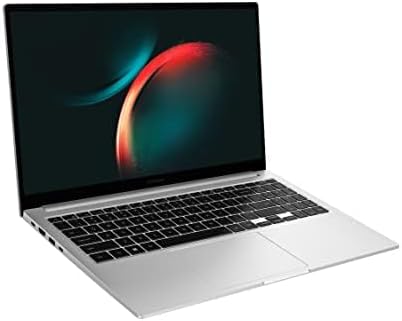
Figure 5: The laptop screen showcasing its vibrant display quality, ideal for detailed work and immersive viewing.
2. Performance and Multitasking
Equipped with a 13th Gen Intel Core i5-1335U Processor and 16GB LPDDR4X RAM, the laptop delivers premium performance for multitasking, business applications, and general computing needs. The 256GB SSD provides fast boot times and quick application loading.

Figure 6: An illustration of the Intel Core processor, representing the powerful computing capabilities of the Galaxy Book3 Business.
3. Battery Life
The 54Wh long-lasting battery allows for extended use without needing to be constantly plugged in, supporting a full workday on a single charge.
4. Connectivity
The laptop supports Bluetooth for wireless peripheral connections and offers multiple USB ports for wired accessories. Seamlessly integrate with other compatible Galaxy devices for an enhanced connected experience.
Maintenance
- Software Updates: Regularly check for and install Windows updates and Samsung software updates to ensure optimal performance and security.
- Cleaning: Use a soft, lint-free cloth to clean the screen and exterior. For stubborn smudges, slightly dampen the cloth with water or a screen-safe cleaner. Avoid harsh chemicals.
- Battery Care: To prolong battery life, avoid fully discharging the battery frequently. It is recommended to keep the battery charge between 20% and 80% when possible.
- Storage Management: Periodically clear unnecessary files and applications to maintain sufficient free space on the 256GB SSD. The storage is expandable up to 2TB via a microSD card (sold separately).
- Ventilation: Ensure the laptop's ventilation openings are not obstructed to prevent overheating. Use the laptop on a flat, hard surface.
Troubleshooting
| Problem | Possible Cause | Solution |
|---|---|---|
| Laptop does not power on. | Low battery or power adapter issue. | Ensure the power adapter is securely connected to both the laptop and a working power outlet. Allow it to charge for a few minutes before attempting to power on again. |
| Slow performance. | Too many applications running, low storage, or outdated software. | Close unnecessary applications. Check available storage and free up space if needed. Install all pending Windows and Samsung updates. |
| Wi-Fi connectivity issues. | Incorrect Wi-Fi password, router issue, or driver problem. | Verify Wi-Fi password. Restart your router and modem. Update Wi-Fi drivers through Device Manager. |
| Screen is dim or black. | Brightness settings, display driver issue, or hardware problem. | Adjust screen brightness using keyboard function keys. Restart the laptop. If the issue persists, contact Samsung support. |
Technical Specifications
| Feature | Detail |
|---|---|
| Model Name | Galaxy Book3 |
| Item Model Number | NP754XFG-KB3US |
| Brand | Samsung |
| Operating System | Windows 11 Pro |
| Screen Size | 15.6 Inches |
| Screen Resolution | 1920 x 1080 pixels (Full HD) |
| Processor | 13th Gen Intel® Core™ i5-1335U |
| RAM | 16 GB LPDDR4X |
| Hard Drive | 256 GB SSD (Solid State Drive) |
| Graphics Coprocessor | Intel Iris Xe Graphics |
| Color | Silver |
| Item Weight | 3.48 pounds |
| Product Dimensions (LxWxH) | 0.61 x 9.02 x 14.04 inches |
| USB Ports | 2x USB-C, 2x USB-A 3.2 |
| Other Ports | HDMI, microSD Card Slot, Headphone/Microphone Combo Jack, Security Port |
| Wireless Type | Bluetooth |
| Battery | 54Wh Lithium Ion (included) |
Warranty and Support
Your SAMSUNG Galaxy Book3 Business Laptop comes with a manufacturer's warranty. Please refer to the included Warranty Card for detailed terms and conditions, including coverage period and service procedures.
For technical assistance, troubleshooting, or warranty claims, please contact Samsung Customer Support. You can find contact information on the Samsung official website or in your Quick Start Guide.
Online Resources: