1. Introduction
The TapXR is a wearable controller designed for wrist-based input. It utilizes motion and visual sensors to detect finger movements, enabling keyboard input across various devices. This device connects via Bluetooth and is compatible with smartphones, tablets, smart TVs, and a wide range of AR/VR headsets, including Meta Quest, Microsoft Hololens, Microsoft Mixed Reality, Magic Leap, Lenovo, Nreal, PICO, HTC VIVE, Epson Moverio, Vuzix, and Realwear. The TapXR supports over 100 commands, which can be customized to suit user preferences.
2. What's in the Box
Please verify that all the following items are included in your package:
- 1 Small Starlight Band
- 1 Large Spring Blue Band
- 1 USB Charging Cable
- 1 Magnetic Charging Cradle
- 1 TapXR Module
- Quick Start Guide
- Pocket Size Tap Alphabet Glossary
- User Manual (this document)
3. Setup
3.1 Charging the TapXR
Before initial use, fully charge your TapXR module. Connect the USB charging cable to the magnetic charging cradle, then place the TapXR module onto the cradle. Ensure the module is securely seated for proper charging. The device's indicator light will show charging status.
3.2 Powering On/Off
To power on the TapXR, slide the module forward within the wristband. To power off, slide it back. Ensure the module is firmly in place during operation.
3.3 Wearing the TapXR
Select the appropriate band size (Small Starlight or Large Spring Blue) for a comfortable and secure fit on your wrist. The TapXR module should be positioned on the top of your wrist, allowing your fingers to move freely for input. Proper placement is crucial for accurate gesture recognition.

Image: TapXR device worn on a wrist, with fingers extended, ready for gesture input.
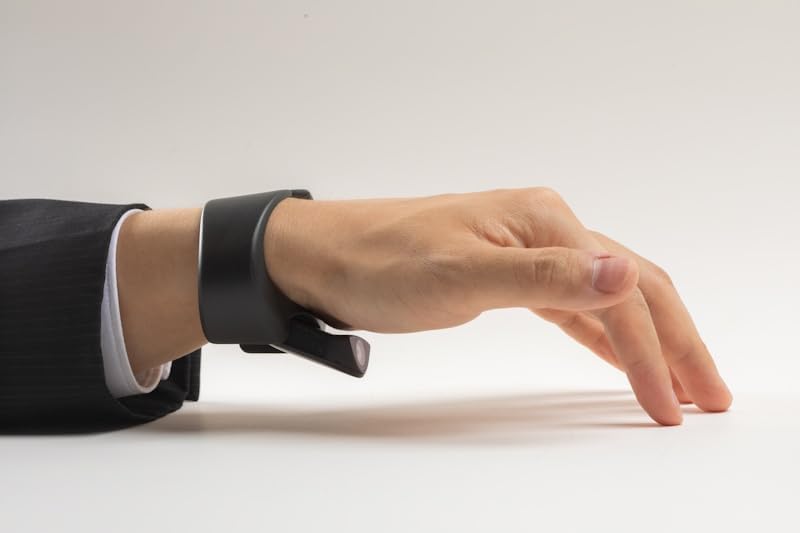
Image: Close-up of the TapXR module and wristband.
3.4 Pairing with Devices
The TapXR connects to your devices via Bluetooth. Download the official TapManager application on your smartphone or tablet. Follow the in-app instructions to pair your TapXR. Ensure Bluetooth is enabled on your host device and the TapXR is powered on and in pairing mode.
4. Operating Instructions
4.1 Basic Typing and Gesture Input
The TapXR translates specific finger taps and gestures into keyboard input. Refer to the included Pocket Size Tap Alphabet Glossary for a comprehensive guide to all available taps and their corresponding characters or commands. Practice these gestures to improve accuracy and speed.
4.2 Custom Commands
The TapXR supports over 100 customizable commands. Use the TapManager application to configure and personalize these commands according to your workflow and preferences. This allows for tailored control across various applications and devices.
4.3 Device Usage Examples

Image: User wearing the TapXR while interacting with a tablet, illustrating device usage.

Image: User wearing the TapXR on their wrist in a relaxed setting, demonstrating comfortable wear.

Image: User wearing the TapXR while working at a desk with a laptop and external keyboard, demonstrating integration into a workspace.
5. Maintenance
5.1 Cleaning
To clean your TapXR module and bands, use a soft, dry, lint-free cloth. For stubborn dirt, a slightly damp cloth with mild soap can be used, ensuring no moisture enters the module's openings. Do not use harsh chemicals or abrasive materials.
5.2 Storage
Store the TapXR in a cool, dry place away from direct sunlight and extreme temperatures. When not in use for extended periods, ensure the device is powered off.
5.3 Battery Care
To prolong battery life, avoid fully discharging the device frequently. Charge the device regularly, even if not in constant use. Do not expose the battery to high temperatures.
6. Troubleshooting
6.1 Connectivity Issues
- Device Not Connecting: Ensure the TapXR is powered on and fully charged. Verify Bluetooth is enabled on your host device. Try restarting both the TapXR and your host device.
- Frequent Disconnections: Ensure the TapXR is within the Bluetooth range of your host device. Minimize interference from other wireless devices.
6.2 Input Recognition Problems
- Inaccurate Taps: Ensure the TapXR is worn correctly and snugly on your wrist. Refer to the Tap Alphabet Glossary and practice gestures. Ensure your fingers are making clear, distinct movements.
- No Input Detected: Check if the device is powered on and properly paired. Ensure there are no obstructions to the sensors.
6.3 App-Related Issues
- App Not Functioning: Ensure your TapManager app is updated to the latest version. Try force-closing and reopening the app. If issues persist, reinstall the app.
- Firmware Updates: Regularly check for and install firmware updates via the TapManager app to ensure optimal performance and access to new features.
7. Specifications
| Feature | Specification |
|---|---|
| Brand Name | TAPWITHUS |
| Product Model Number | TapXR |
| Color | Black |
| Connectivity Technology | Bluetooth |
| Wireless Support | Bluetooth |
| Compatible Operating Systems | Android, iOS, iPadOS |
| Compatible Devices | Smartphone, Tablet, Smart TV, AR/VR Headsets |
| Other Features | Wearable design |
| Battery Included | Yes |
| Product Weight | 0.63 Kilograms |
| Package Dimensions | 26.39 x 17.09 x 5.69 cm |
8. Warranty Information
Warranty information for the TAPWITHUS TapXR is not provided within the product data. Please refer to the manufacturer's official website or contact their customer support for detailed warranty terms and conditions.
9. Support
Specific support contact information is not provided within the product data. For technical assistance, troubleshooting, or further inquiries, please visit the official TAPWITHUS website or consult the TapManager application for support resources.