
1. Introduction
Thank you for choosing the Nideocion Portable Apple CarPlay Screen Dash Mount, Model B600W. This manual provides detailed instructions for the installation, operation, and maintenance of your new device. Please read this manual thoroughly before use to ensure proper functionality and to maximize your user experience. Keep this manual for future reference.
2. Product Overview
The Nideocion B600W is a versatile portable car display designed to enhance your driving experience with smart features and multimedia capabilities. Key features include:
- 7-inch Touch Screen Display: High-resolution interface for easy navigation and control.
- Wireless Apple CarPlay & Android Auto: Seamless integration with your smartphone for navigation, music, and calls.
- Bluetooth 5.1: For stable hands-free calling and audio streaming.
- FM Car Radio Transmitter: Transmit audio to your car's existing radio system.
- Night Vision Reversing Camera Input: Supports an external reversing camera for safer parking.
- USB & TF Video Input: Play multimedia content directly from storage devices.

Figure 2.1: Front view of the Nideocion B600W Portable CarPlay Screen. This image shows the main display unit with its sleek design, ready for dash mounting.
3. Setup and Installation
The Nideocion B600W is designed for easy, plug-and-play installation without complex wiring.
3.1 Package Contents
Please ensure all components are present:
- Portable CarPlay Display Unit
- Adjustable Dash Mount with Suction Cup
- Power Cable (Car Charger)
- User Manual (this document)
- Optional: Reversing Camera (if included in your package)
3.2 Mounting the Device
The device features an adjustable stand with a silicone vacuum suction cup for secure mounting on your dashboard or windshield.
- Clean the desired mounting surface thoroughly to ensure optimal suction.
- Attach the adjustable mount to the back of the display unit.
- Press the suction cup firmly onto the clean surface and engage the locking mechanism to secure it.
- Adjust the angle of the display for optimal viewing using the 270-degree rotatable joint and cling ball angle adjuster.
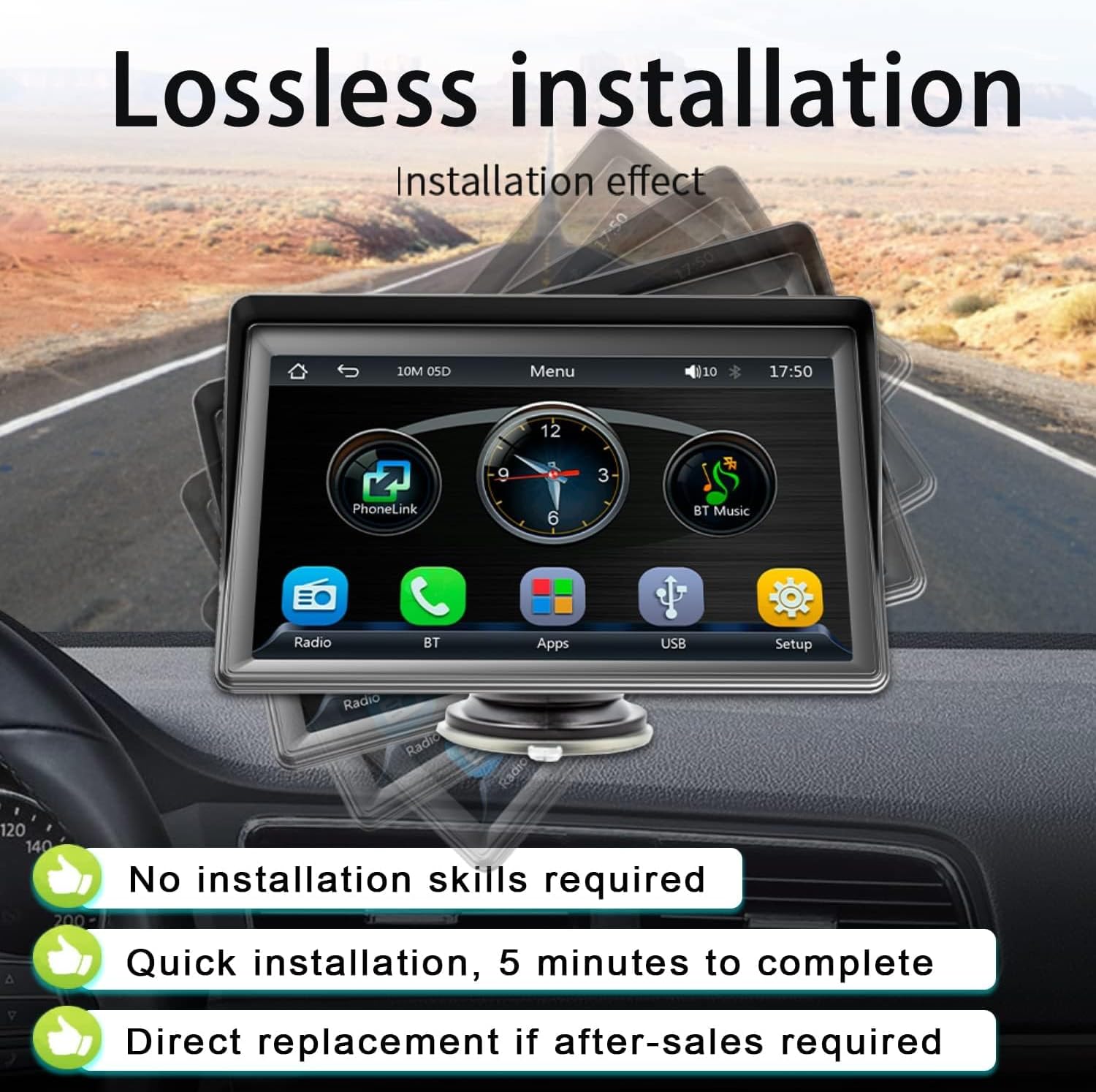
Figure 3.1: Illustration of the simple, lossless installation process. This image highlights that no special skills are required and installation takes approximately 5 minutes.

Figure 3.2: Detailed view of the adjustable stand and suction cup. The image shows the 270-degree rotation and the robust silicone vacuum suction cup designed to bear up to 20kg.
3.3 Power Connection
Connect the provided car charger to the DC power input port on the display unit and plug the other end into your vehicle's 12V power outlet (cigarette lighter socket).
4. Operating Instructions
4.1 Wireless Apple CarPlay / Android Auto
The device supports both wireless Apple CarPlay and Android Auto for seamless smartphone integration.
- Ensure Bluetooth and Wi-Fi are enabled on your smartphone.
- On the B600W display, select the 'CarPlay' or 'Android Auto' icon.
- Follow the on-screen prompts to pair your phone via Bluetooth. Once paired, the system will automatically establish a Wi-Fi connection for CarPlay/Android Auto.
- You can now access navigation, music, calls, and other compatible apps directly from the display.
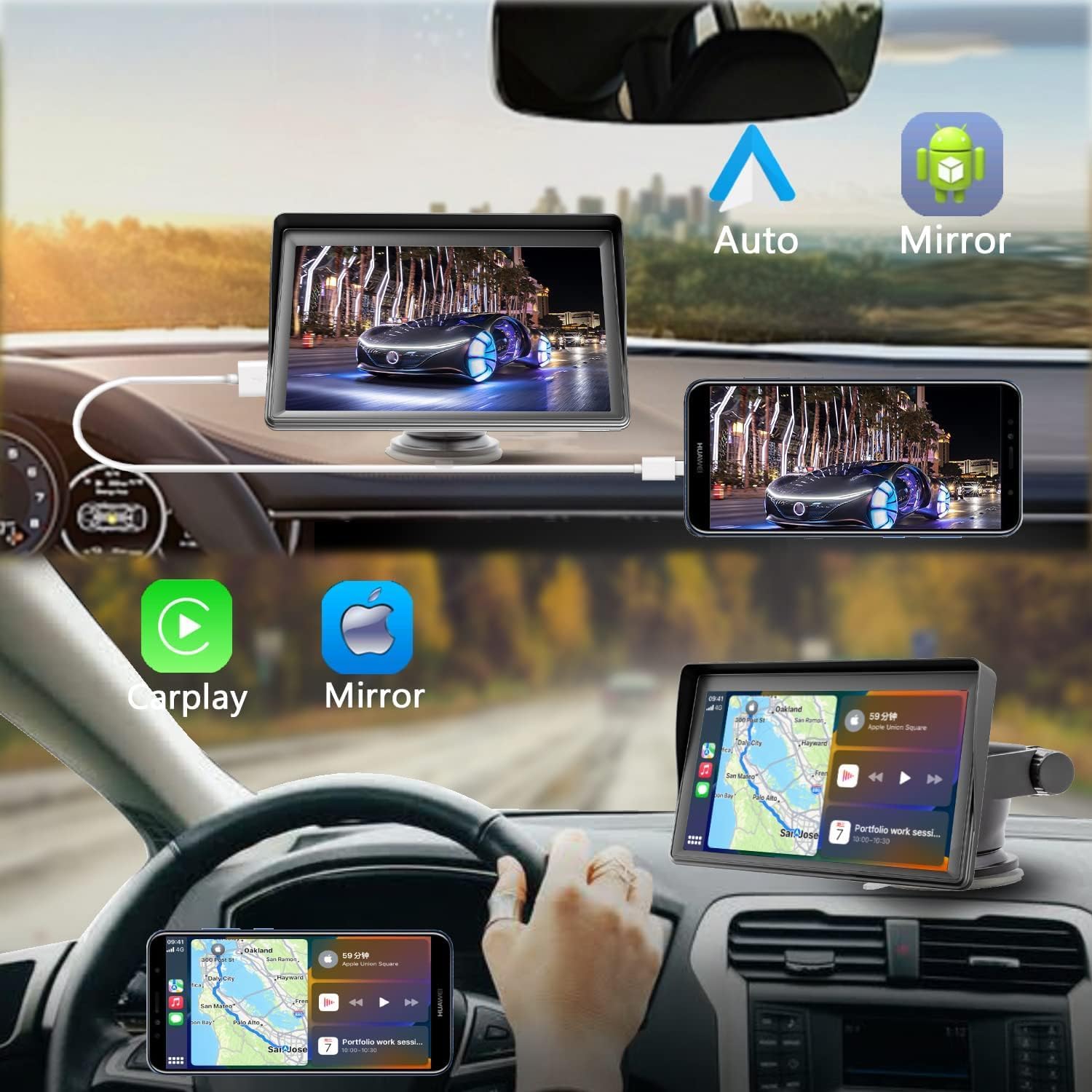
Figure 4.1: Display showing Apple CarPlay interface. This image illustrates the integration of smartphone features like navigation and music playback on the portable screen.

Figure 4.2: Display showing Android Auto interface. This image demonstrates how Android Auto applications are presented on the screen, offering both wireless and wired connection options.
4.2 Bluetooth 5.1 Connectivity
Connect your smartphone via Bluetooth for hands-free calling and music streaming.
- On the B600W display, tap the 'BT' or 'Bluetooth' icon.
- Enable Bluetooth on your smartphone and search for available devices.
- Select 'Nideocion B600W' (or similar name) from the list on your phone to pair.
- Once connected, you can make/receive calls and play music through the device.
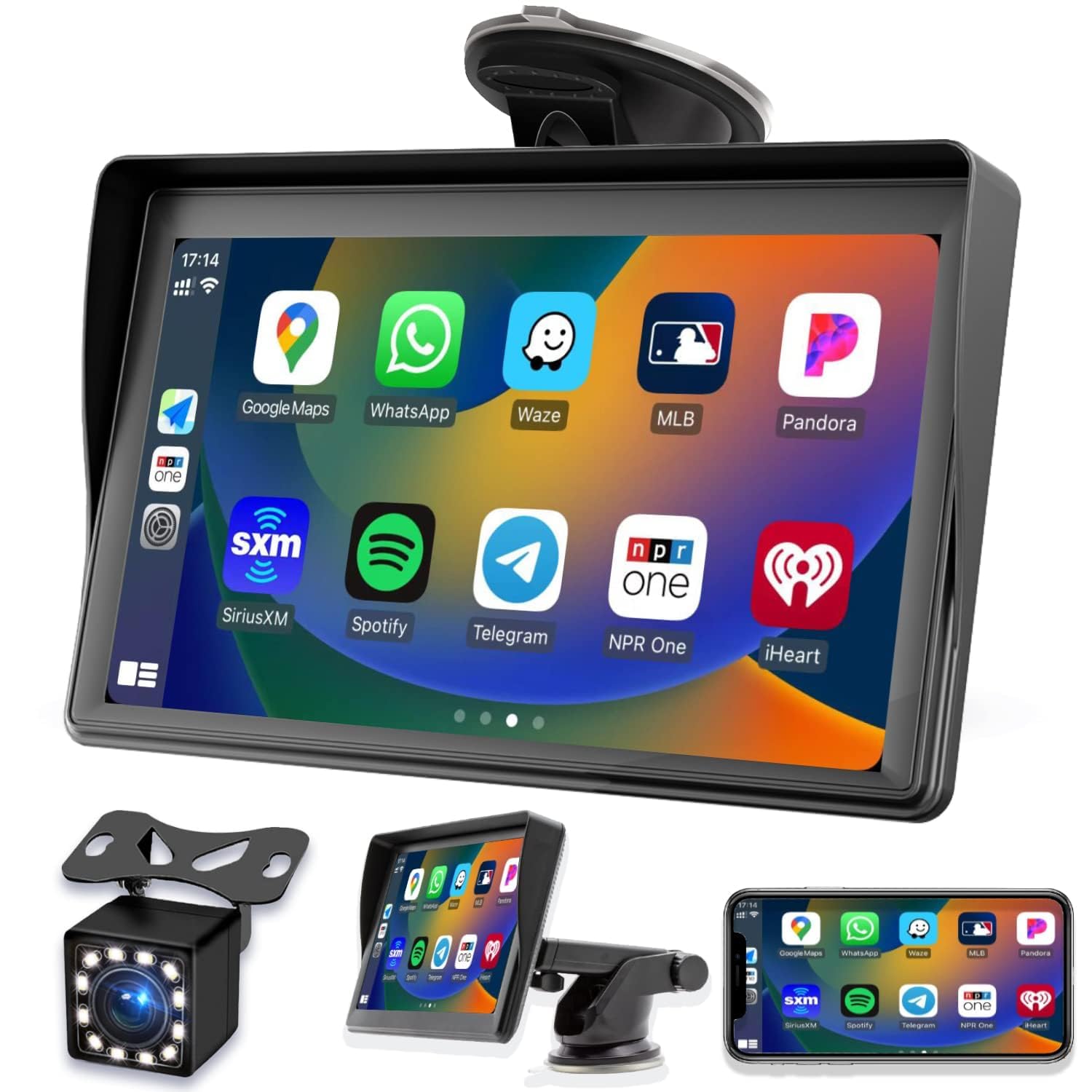
Figure 4.3: Bluetooth 5.1 interface for hands-free calling. The image shows a phone call in progress on the display, demonstrating voice control integration.
4.3 FM Transmitter
Transmit audio from the B600W to your car's FM radio for sound output through your vehicle's speakers.
- On the B600W, select the 'FM' or 'Radio' icon.
- Choose an unused FM frequency on the B600W display.
- Tune your car's FM radio to the exact same frequency.
- Audio from the B600W will now play through your car's speakers.

Figure 4.4: FM signal transmission interface. This image shows the display tuned to an FM frequency, indicating how to broadcast audio to your car's radio.
4.4 Multimedia Playback (USB & TF Card)
Play audio and video files directly from a USB drive or TF (MicroSD) card.
- Insert a USB drive into the USB port or a TF card into the TF card slot on the device.
- Select the 'USB' or 'TF Card' icon on the display.
- Browse and select your desired audio or video files for playback.

Figure 4.5: Multimedia playback screen. This image demonstrates the ability to play music, videos, and view pictures from connected storage devices.
4.5 Reversing Camera Function
If an optional reversing camera is connected, the display will automatically switch to the camera view when the vehicle is in reverse.
- The system supports wide-angle (175°) and night vision cameras.
- Customizable guideline angles may be available depending on the camera model.

Figure 4.6: Reversing camera display with guidelines. This image shows the wide-angle view from a reversing camera, highlighting features like night vision and high definition.
5. Maintenance
To ensure the longevity and optimal performance of your Nideocion B600W, follow these maintenance guidelines:
- Cleaning the Screen: Use a soft, lint-free cloth to gently wipe the screen. For stubborn smudges, slightly dampen the cloth with water or a screen-safe cleaner. Avoid harsh chemicals or abrasive materials.
- Cleaning the Unit: Wipe the exterior of the unit with a dry, soft cloth. Do not allow liquids to enter the device.
- Mount Care: Periodically check the suction cup for dust or debris and clean it to maintain strong adhesion.
- Temperature: Avoid exposing the device to extreme temperatures (very hot or very cold) for extended periods, as this can affect battery life and screen performance.
- Storage: If storing the device for a long time, disconnect it from power and store it in a cool, dry place.
6. Troubleshooting
If you encounter issues with your Nideocion B600W, refer to the following common problems and solutions:
| Problem | Possible Cause | Solution |
|---|---|---|
| Device does not power on. | No power connection or faulty power cable. | Ensure the car charger is securely plugged into both the device and the car's 12V outlet. Check if the car's 12V outlet is functional. |
| Cannot connect to CarPlay/Android Auto wirelessly. | Bluetooth/Wi-Fi issues on phone or device. | Ensure Bluetooth and Wi-Fi are enabled on your phone. Restart both your phone and the B600W. Forget the device in your phone's Bluetooth settings and re-pair. |
| No sound or poor sound quality. | Incorrect FM frequency, volume settings, or external interference. | Verify the B600W and your car radio are tuned to the same, clear FM frequency. Adjust volume on both the device and your car stereo. Check for strong local radio stations interfering with your chosen FM frequency. |
| Reversing camera not displaying. | Camera not connected properly or faulty. | Ensure the reversing camera is correctly connected to the AV IN port. Check the camera's power supply. Test with another camera if possible. |
| Touch screen unresponsive. | Temporary software glitch. | Restart the device by disconnecting and reconnecting power. If the issue persists, contact customer support. |
7. Specifications
| Feature | Detail |
|---|---|
| Brand | Nideocion |
| Model Number | B600W |
| Display Size | 7 inches |
| Connectivity Technology | Wireless (Bluetooth, Wi-Fi) |
| Controller Type | Android, iOS |
| Special Feature | Touchscreen |
| Compatible Devices | Smartphone, Speaker |
| Audio Output Mode | Stereo |
| Item Weight | 1.54 pounds |
| Package Dimensions | 8.03 x 6.65 x 4.53 inches |
8. Warranty and Support
Nideocion is committed to providing excellent customer service and product support.
- Warranty: This product comes with a 1-year warranty from the date of purchase.
- Returns: We offer a 30-day money-back guarantee and free returns.
- Customer Support: For any questions, technical assistance, or warranty claims, please contact our customer support team. We provide 24/7 customer support to ensure your satisfaction.
Please refer to your purchase documentation or the Nideocion Amazon store for specific contact details.