
Zopsc MF925
Zopsc MF925 Mini 4G LTE WiFi Router User Manual
Model: MF925
1. Product Overview
The Zopsc MF925 Mini 4G LTE WiFi Router is a portable hotspot device designed to provide secure network sharing services for multiple terminal devices such as smartphones, tablets, and computers. It offers high-speed internet access via a 4G SIM card (not included) and supports up to 10 users simultaneously.

Image: Front view of the Zopsc MF925 Mini 4G LTE WiFi Router, showing the power button and LED indicators for battery, Wi-Fi signal, and network strength.
2. Package Contents
Please check the box for the following items:
- 1 x Zopsc MF925 Wi-Fi Box
- 1 x USB Charging Cable
- 1 x User Manual
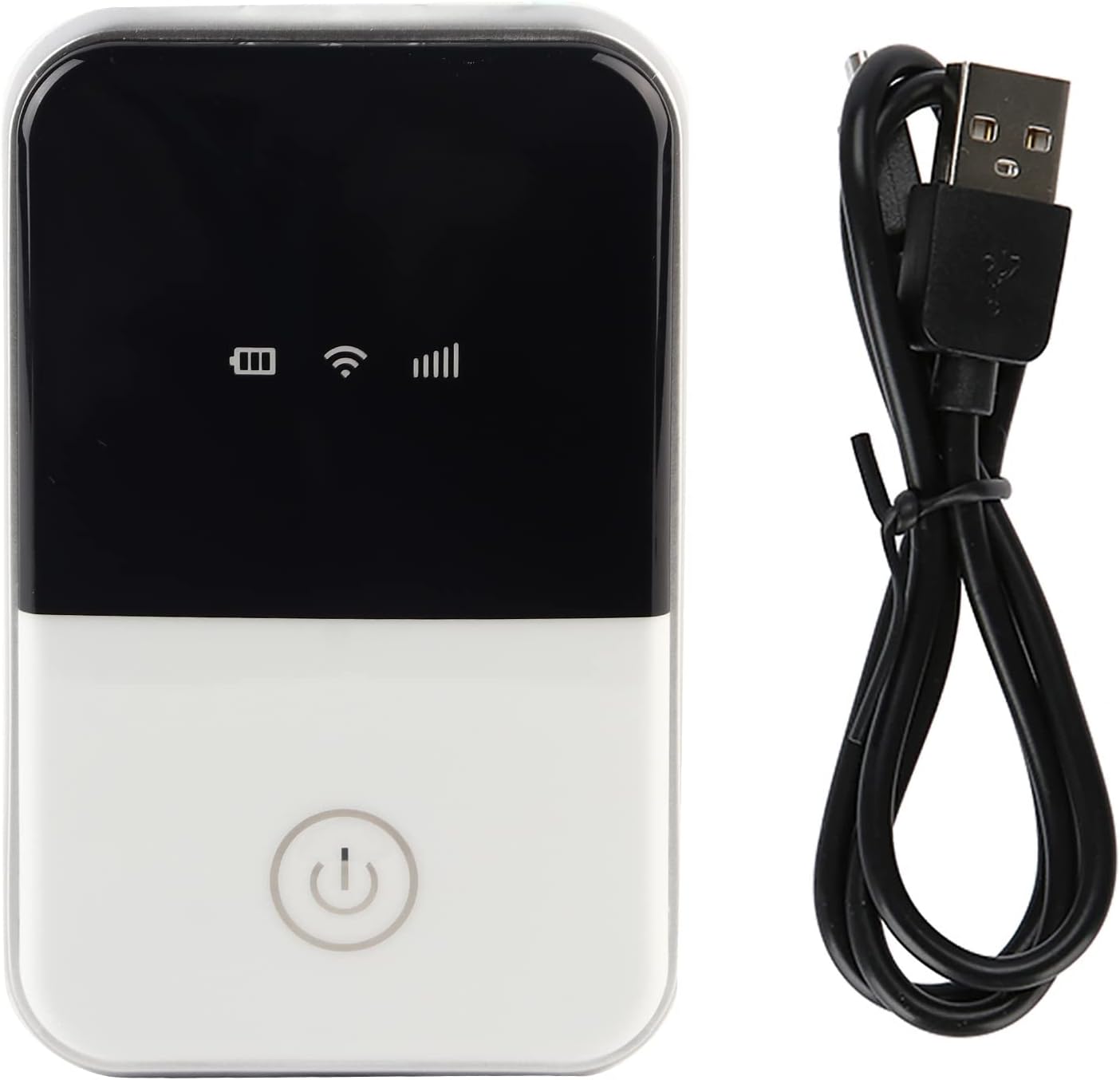
Image: The Zopsc MF925 Mini 4G LTE WiFi Router displayed alongside its included USB charging cable.
3. Device Layout
Familiarize yourself with the ports and buttons on your MF925 router:
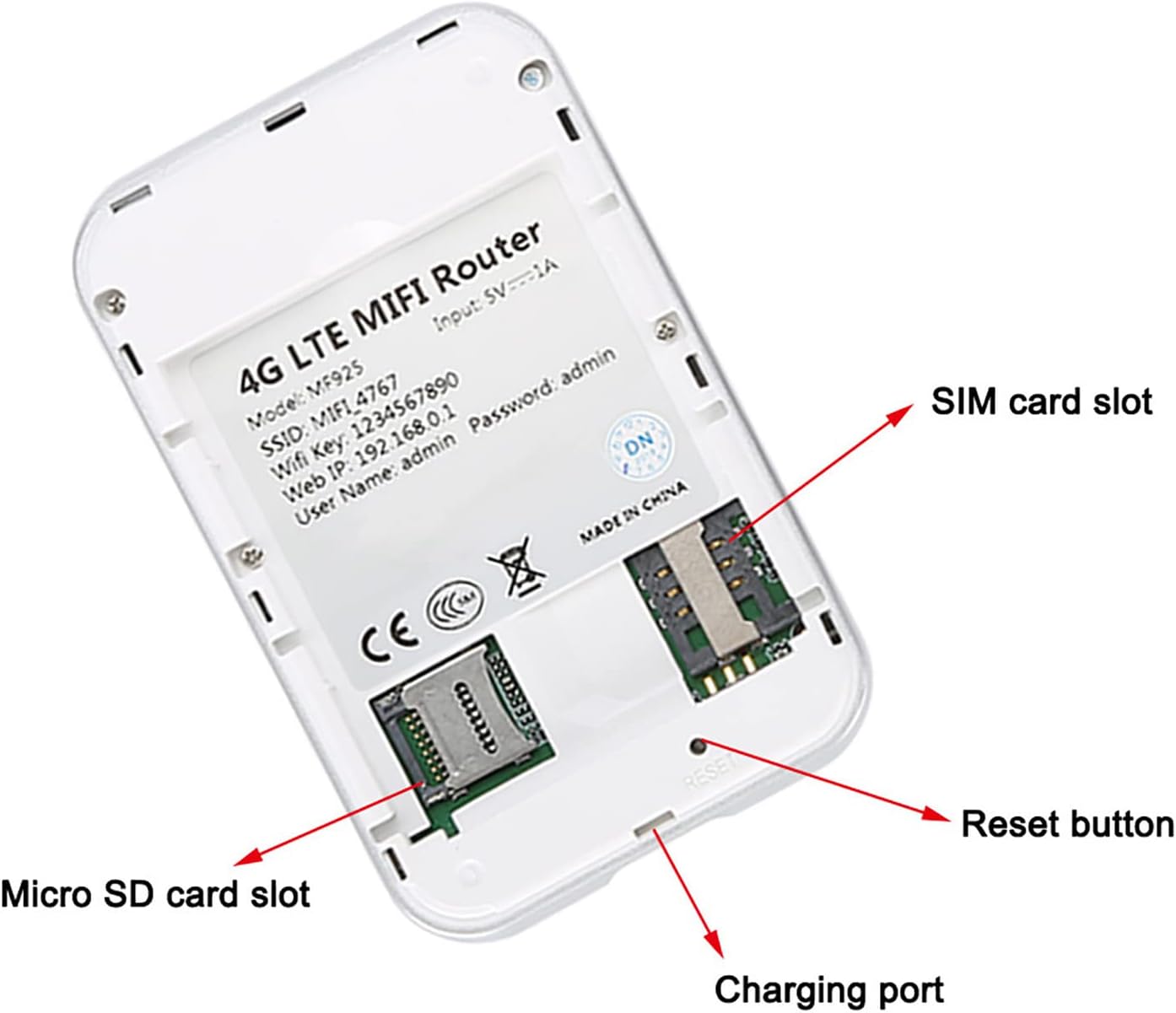
Image: A detailed view of the Zopsc MF925 router's underside, clearly labeling the SIM card slot, Micro SD card slot, USB charging port, and the reset button.
- SIM Card Slot: For inserting your 4G SIM card.
- Micro SD Card Slot: Supports up to 32GB for storage expansion.
- USB Charging Port: For powering and charging the device.
- Reset Button: Used to restore factory settings.
4. Setup Guide
4.1. SIM Card Installation
- Ensure the device is powered off.
- Locate the SIM card slot on the device (refer to Device Layout section).
- Insert a valid 4G SIM card with an active internet package into the slot. Ensure correct orientation.
- Close any covers securely.

Image: The back panel of the Zopsc MF925 router, illustrating the placement of the SIM card and Micro SD card slots, along with the removable battery.
4.2. Powering On/Off
- To Power On: Press and hold the power button on the front of the device until the LED indicators light up.
- To Power Off: Press and hold the power button until the LED indicators turn off.
5. Operation
5.1. Connecting to Wi-Fi
Once the router is powered on and has established a network connection (indicated by the network strength LED), you can connect your devices:
- On your smartphone, tablet, or computer, open your Wi-Fi settings.
- Scan for available Wi-Fi networks.
- Select the network named 4GMIFI_4767.
- Enter the default Wi-Fi password: 1234567890.
- Your device should now be connected to the internet.
5.2. Accessing the Web Interface
For advanced settings and monitoring, you can access the router's web interface:
- Connect your device to the MF925 Wi-Fi network.
- Open a web browser and enter the default IP address: 192.168.0.1.
- When prompted, enter the default username: admin and password: admin.
- You can now configure network settings, change Wi-Fi name/password, and monitor data usage.

Image: The Zopsc MF925 router displayed next to a list of its default Wi-Fi name, password, homepage IP, username, and password for initial setup.
5.3. Multi-User Access
The MF925 router supports up to 10 users online simultaneously, allowing multiple devices to share the high-speed internet connection.

Image: An illustration depicting various groups of people using laptops and tablets, connected wirelessly to a central Zopsc MF925 router, symbolizing multi-user access.
6. Maintenance
6.1. Charging
The device is equipped with a 3.8V 2100mAh built-in battery, providing approximately 6-7 hours of working time on a full charge. Charge the device using the provided USB charging cable. It can be charged via a computer, notebook, car charger, or power bank.

Image: The Zopsc MF925 router connected via USB for charging, with a visual representation of its battery level indicating 50% charge and a 3.8V 2100mAh battery capacity.
6.2. Factory Reset
If you encounter persistent issues or wish to clear all data and settings, you can restore the router to its factory settings. Locate the reset button (refer to Device Layout section) and use a pin or a straightened paperclip to press and hold it for approximately 5-10 seconds until the device restarts.
7. Specifications
| Feature | Description |
|---|---|
| Model No. | MF925 |
| Display | 3 LED lights (Battery, Wi-Fi, Signal) |
| Operating Frequency (4G / LTE-FDD) | B1 / B3 / B5 (850/1200/2100 MHz) |
| Operating Frequency (3G / WCDMA) | B1 (2100 MHz) |
| Wi-Fi Standard | 2.4G 802.11b / g / n |
| Transmission Rate | 150Mbps |
| Nominal Input | 5V 1A |
| Built-in Battery | 3.8V 2100mAh |
| Fully Charged Working Hours | 6-7 hours |
| Charging Method | USB charging |
| SD Card Capacity | Up to 32GB (SD card NOT included) |
| Phone Card Type | SIM Card (NOT included) |
| Default Wi-Fi Name | 4GMIFI_4767 |
| Default Wi-Fi Password | 1234567890 |
| Default Start Page (Web Interface) | 192.168.0.1 |
| Default Username (Web Interface) | admin |
| Default Password (Web Interface) | admin |
| Number of Users Online | 10 |
| Material | ABS |
| Weight | Approx. 152g |
| Size | Approx. 95 x 60 x 15 mm / 3.7 x 2.4 x 0.6 inches |
| Item Model Number | ZopsQPKLqyKdRR |
| Special Feature | WPS |
| Security Protocol | WPS, WPA2-PSK |
8. Troubleshooting
- No Internet Connection: Ensure your SIM card is correctly inserted and has an active data plan. Check the network strength LED on the device.
- Cannot Connect to Wi-Fi: Verify you are entering the correct Wi-Fi password. Try restarting the router and your connecting device.
- Slow Connection: Check the number of connected devices (max 10). Ensure you are within optimal range of the router.
- Device Unresponsive: Perform a factory reset (refer to Maintenance section).
9. Warranty and Support Information
Specific warranty details and direct support contact information are not provided in the product description. Please refer to the packaging or the manufacturer's official website for warranty claims and technical support.
Ask a question about this manual
Ask about setup, troubleshooting, compatibility, parts, safety, or missing instructions. Manuals+ will review the question and use this page’s manual context to help answer it.